How to Access Google Drive Files Offline on Windows 11


Google Drive keeps your documents and photos synced across all your devices. With the Google Drive for Desktop app on Windows 11, you can also keep chosen files on your PC, so you can open and edit them when there is no connection.
Open File Explorer and locate your Google Drive folder. Right-click the desired file, select “Show more options,” then “Offline access,” and finally “Available offline.” This makes the file accessible without an internet connection.
Prerequisites for Google Drive Offline Access
Before you try to access Google Drive files offline on Windows 11, check that the following are in place. Most problems later on come from one of these being missing.
- A stable internet connection to perform the initial sync. Files can only be marked for offline use while you are online, so do this before you travel.
- Google Drive for Desktop installed on your Windows 11 machine and signed in to your Google account.
- The Google Docs Offline Chrome extension installed if you plan to edit Docs, Sheets, or Slides in your browser.
- Sufficient free space on your local hard drive. Drive for Desktop keeps its local cache in 📁C:\
Users\ , so make sure the drive that holds your user profile has room for the files you plan to keep offline.Username\ AppData\ Local\ Google\ DriveFS - Admin Privileges: Installing the Google Drive for Desktop application requires administrative rights on your Windows 11 system. If you are on a work PC and the installer asks for an administrator password, ask your IT team to install it for you.
Why use Google Drive offline access?
Working offline lets you keep going when you are travelling or your connection is poor. It also saves mobile data and prevents interruptions if your internet speed is slow. With offline access set up, your workflow carries on no matter what the network is doing.
What happens when done?
Once you finish these steps, your chosen files are stored on your computer and you can edit them without internet. When you get back online, Google Drive sync uploads your changes to the cloud automatically. Keep the Google Drive for Desktop app running so the upload can happen. If you edit the same file on another device in the meantime, Drive may keep both versions, so check for duplicates after you reconnect.
How to access Google Drive files offline
Use File Explorer to make your Google Drive files available when you disconnect from the internet. Google Drive appears in the left pane of File Explorer as its own drive. You can make individual files or whole folders available offline by right-clicking them and selecting the correct option. This lets you work on your documents even when you have no internet connection.
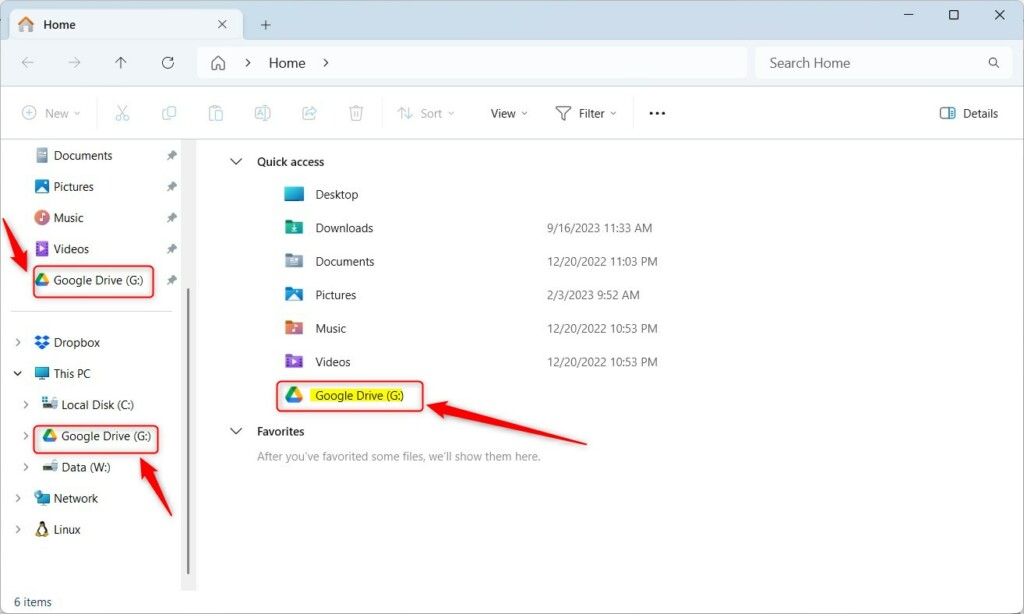
- Open File Explorer and go to your Google Drive, then find the file or folder you want to use offline.
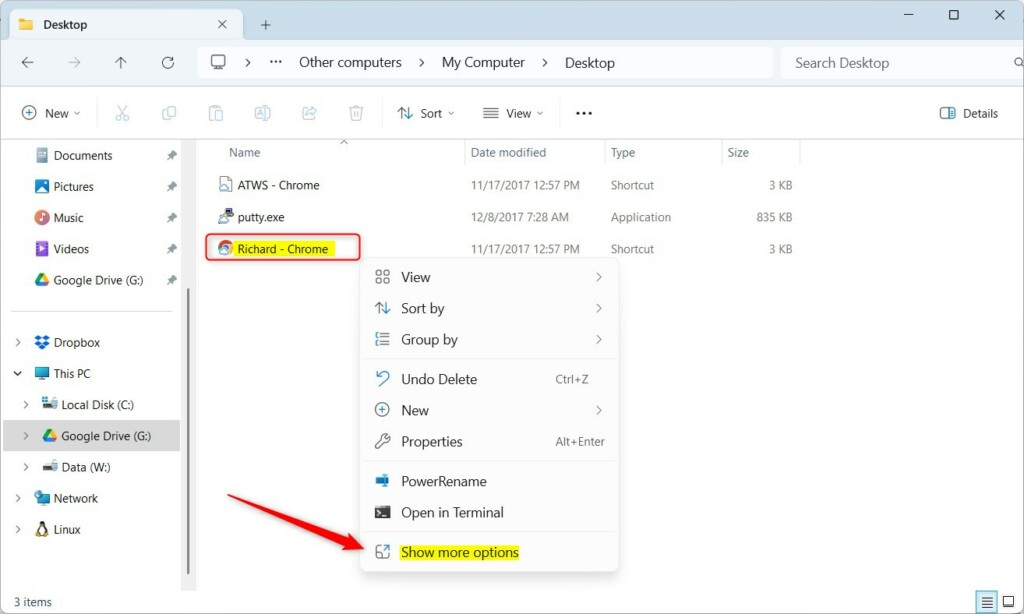
- Right-click it and select Show more options. On Windows 11 the short right-click menu does not list the Drive commands, so this opens the full classic menu. You can also select the file and press Shift+F10 to get the same menu.
You should now see the full context menu , including the Google Drive entries.
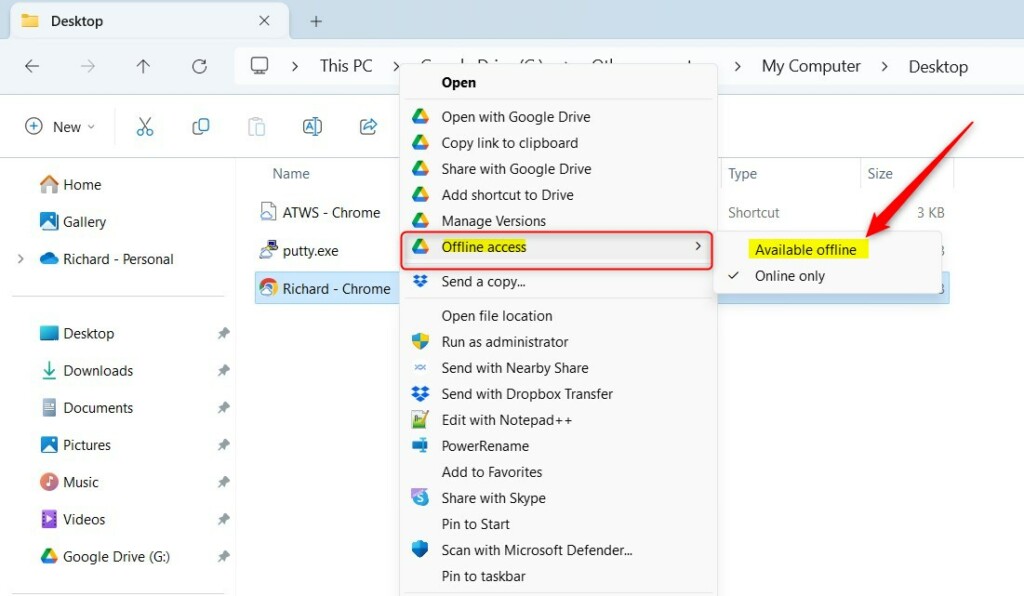
- Select Offline access.
- Click Available offline.
Drive starts downloading the file. Give it a moment, especially for large files or folders. If you don't see Offline access, make sure the file is inside the Google Drive location and that the app is signed in and running. To undo this later, use the same menu and turn off offline access for that item, and Drive will free the local space.
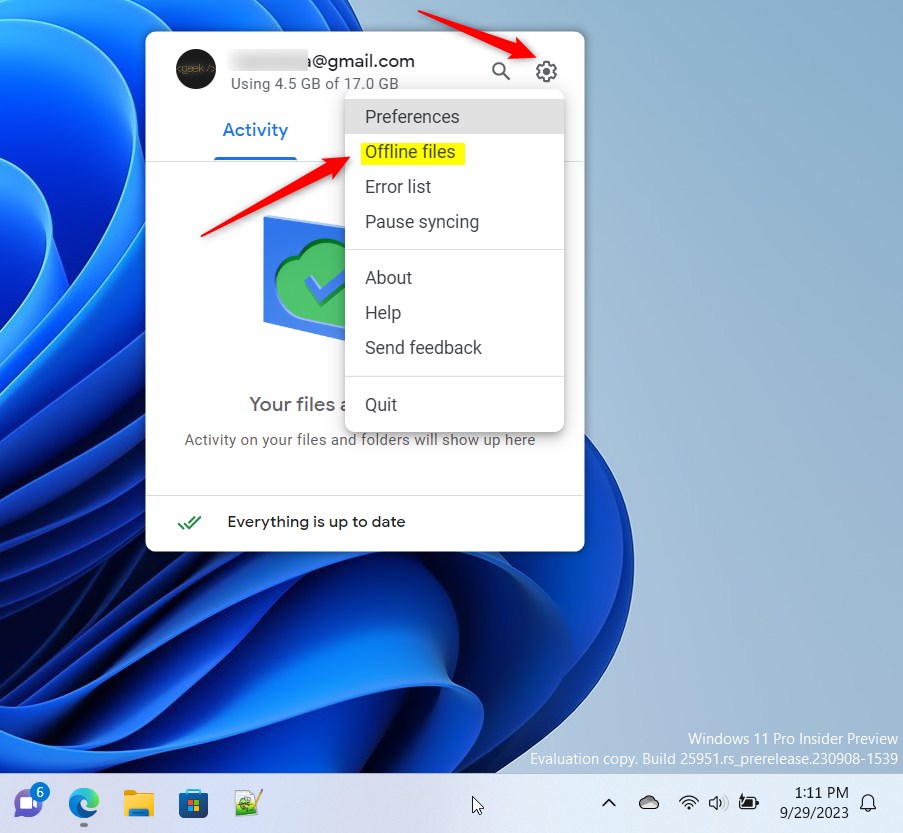
Your file is now ready for offline use. Files that are saved offline usually show a green check mark in File Explorer once the download has finished. To review what is saved, click the Google Drive icon in your Taskbar overflow (the up arrow near the clock) and go to Settings, then Offline files. Menu labels can differ slightly between versions of the Drive app, so if you can't find that entry, look through the app's gear menu and Preferences.
Troubleshooting and Error Handling
If you cannot access your files, work through these checks in order:
- Check that the Google Drive for Desktop app is running. Look for its icon in the Taskbar overflow. If it isn't there, start it from the Start menu.
- Make sure you are signed in. If the app shows a sign-in prompt or an error, sign in again.
- Check free disk space. A full drive can stop files from downloading for offline use.
- If Docs, Sheets or Slides won't open in your browser, confirm the Google Docs Offline extension is installed and enabled in Chrome. Also avoid Incognito windows, because offline editing does not work there.
- If files aren't loading, try clearing your browser's cache and other data, then reload the page while you are still online.
For advanced support, visit the official Google Drive Help Center.
Summary
Google Drive offline access lets you work on your files from anywhere, even without an internet connection. Mark what you need while you are online, check that it is saved, and your changes will sync when you reconnect, so you stay productive wherever you are.
Have a question about this guide?
Answered by AI from this guide. Good questions may be added to this page — please don't include personal details.
Did this guide fix your problem?

About the Author
Richard
Tech Writer, IT Professional
Richard is a writer at Geek Rewind who turns complex IT tasks into clear, step-by-step guides. He draws on years of hands-on experience in system administration and enterprise IT operations, focusing on Windows, Linux and WordPress: the problems people actually run into, and the fixes that work. His server and WordPress guides come from systems he runs himself. Richard builds and maintains the platform behind Geek Rewind, from its Ubuntu servers and Nginx configuration to its custom WordPress plugins. Many new tutorials start with readers' questions, and he's always glad to answer them in the comments.
No comments yet — be the first to share your thoughts!