How to Stream Google Drive to a Folder or Drive Letter in Windows 11


Streaming Google Drive to a folder or drive letter in Windows 11 lets you open your cloud files from File Explorer without filling up your local hard drive. Google Drive for desktop version 63.0.14.0 and later can present your cloud storage as a normal folder or as a dedicated drive letter such as G:.
You open, edit and save files from your computer as usual. Files only download when you open them, so most of your storage stays free. If the app is older than 63.0.14.0, update it first, because the options described below may be missing or look different in earlier versions.
Stream Google Drive to a folder or drive letter by opening Google Drive for desktop preferences, clicking the Settings gear icon, and selecting your desired streaming location under “Google Drive streaming location.” Choose a drive letter or specify a folder, then click Save.
Why stream Google Drive?
Streaming lets you reach your cloud storage without downloading every file to your hard drive. That saves a lot of disk space, which matters on small SSDs or laptops with limited storage. Your files still appear in Windows File Explorer like any other files, and each one downloads on demand the first time you open it.
The trade-off is that a file you have not opened yet needs an internet connection. Later in this tutorial you will see how to keep chosen files available offline.
What happens when you are done?
Once configured, Windows maps your cloud storage as a virtual drive or folder. Each file shows a sync status icon in File Explorer . The icon tells you whether the file is online only or cached locally for offline access.
Streamed files take up almost no space until you open them. Files you have opened recently may be cached on your computer, so the amount of local space used can grow a little over time.
Stream vs. Mirror: Understanding the Difference
Streaming keeps files in the cloud and downloads them only when you need them. Mirroring creates a complete copy of your files on your computer. It takes up more space, but you get faster access and can work without an internet connection.
As a rule of thumb, stream if your drive is small or your Drive is large. Mirror if you have plenty of space and often work offline. If you want only a few files available offline, streaming plus the offline option described below is usually enough.
Step-by-Step: Configuring Streaming Location
To stream Google Drive on Windows 11, you choose where the cloud files appear: a custom folder or a specific drive letter. You set this inside the Google Drive app preferences. Your online files then show up in File Explorer next to your local drives, so you can open them quickly.
Before you start, make sure Google Drive for desktop is installed and you are signed in. The steps below work the same on Windows 11 Home and Pro.
- Open the Google Drive icon in your taskbar notification area. If you do not see it, click the up arrow next to the system tray to show hidden icons. A small Google Drive window opens.
- Click the Settings (gear) icon at the top right of the window. A short menu appears.
- Select Preferences. The Google Drive Preferences window opens.

This image has an empty alt attribute; its file name is Start-Google-Drive-settings-app-preferences.jpg - Click the Settings gear icon again on the new page. The Drive settings open, including the location options.

Google Drive launch on login on or off - Look for the section labeled "Google Drive streaming location." If you cannot find it, check that the app is up to date, since older versions do not have this setting.
- Choose between Drive letter or Folder. A drive letter appears as its own drive in File Explorer. A folder sits inside your user directory.
- If you choose a drive letter, pick any available letter from the list. Letters already used by your hard drives, USB sticks or network drives will not be offered.
- If you choose a folder, your files will be placed in a location like
C:\Users\GenericUser\Google Drive. Make sure that location is on a drive with free space, because cached files are stored there.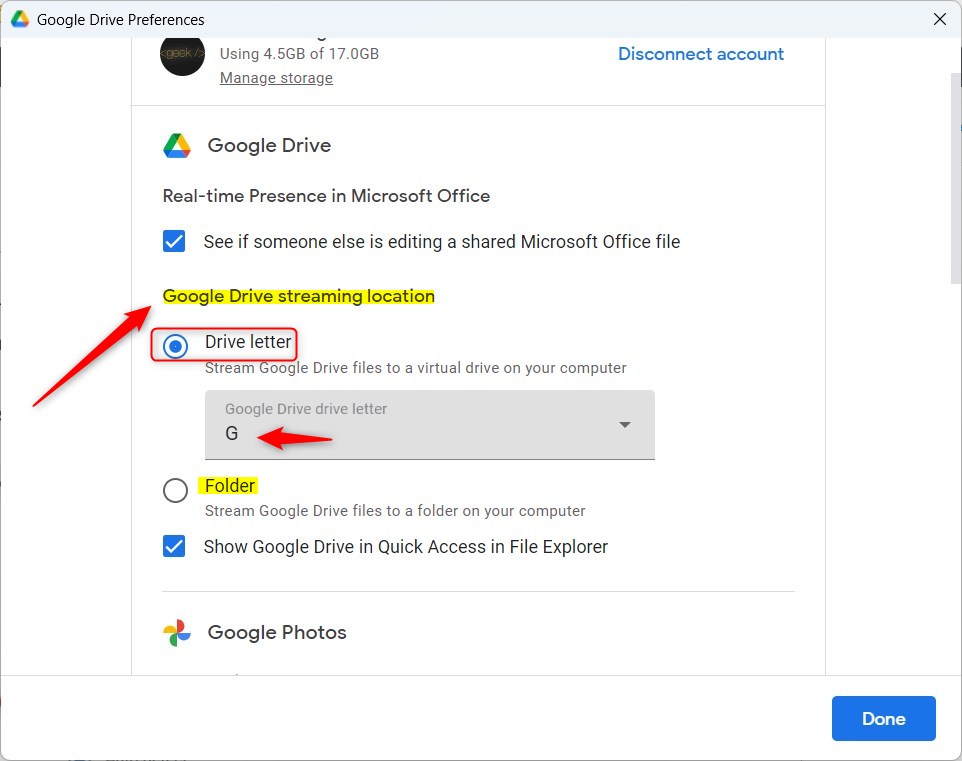
Windows 11 Choose where to stream Google Drive - Click the Save button to finish. Google Drive applies the new location, which can take a moment.
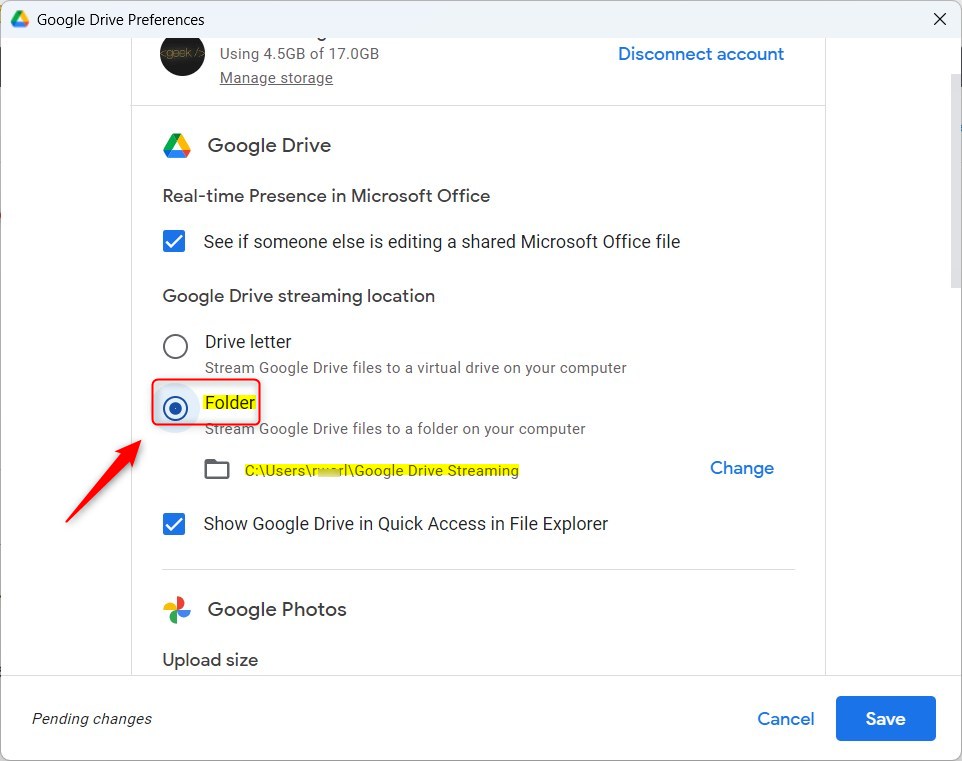
Windows 11 Choose where to stream Google Drive
To undo the change, repeat the same steps and pick a different letter or folder, or switch back to your previous choice.
Verifying Your Drive Mapping
After saving, open File Explorer. You should see your Google Drive mapped as a new drive letter (for example G:) or as a folder in your user directory. If you do not see it straight away, wait a few seconds and press F5 to refresh.
For faster navigation, right-click the drive or folder and select Pin to Quick access. It then stays at the top of the File Explorer sidebar.
Troubleshooting Sync Issues
If your files do not appear, work through these checks:
- Make sure the Google Drive for desktop app is running. If the icon is missing from the taskbar, start the app from the Start menu.
- Check the taskbar icon for error messages and follow any prompt to sign in again.
- Confirm the correct Google account is signed in, since another account will show different files.
- If you get permission errors, make sure your user account has read/write access to the destination path, such as
C:\Users\GenericUser\AppData\Local\Google\DriveFS.
Managing Offline Access
To keep specific files available without internet, right-click any file or folder within the Google Drive stream and select Offline access Available offline This makes the app download a local copy to your hard drive. On Windows 11 the Google Drive options may be hidden in the shorter right-click menu. If you do not see them, choose Show more options first.
Make sure you are connected to the internet while the download runs, and wait for the sync icon to show the file is available offline. To free the space again, right-click the item and set it back to online only.
Summary
Streaming Google Drive on Windows 11 lets you use your cloud files without taking up much space on your computer's hard drive. Pick a drive letter or a folder in the Preferences window, check that it appears in File Explorer, and mark the files you need offline. You can change the location later in the same settings.
Did this guide fix your problem?

About the Author
Richard
Tech Writer, IT Professional
Richard is a writer at Geek Rewind who turns complex IT tasks into clear, step-by-step guides. He draws on years of hands-on experience in system administration and enterprise IT operations, focusing on Windows, Linux and WordPress: the problems people actually run into, and the fixes that work. His server and WordPress guides come from systems he runs himself. Richard builds and maintains the platform behind Geek Rewind, from its Ubuntu servers and Nginx configuration to its custom WordPress plugins. Many new tutorials start with readers' questions, and he's always glad to answer them in the comments.
[…] settings with the Google Drive app on Windows. Users can install and start Google Drive at login, stream Google Drive to a folder or driver letter, pause syncing, and […]
[…] Google Drive app on Windows to manage your files. You can install and start Google Drive at login, stream Google Drive to a folder or driver letter, pause syncing, add files and photos to sync with Google Drive, stream or mirror their files on […]
[…] can install and start Google Drive at login, stream Google Drive to a folder or driver letter, pause syncing, add files and photos to sync with Google Drive, and […]