How to Sync Files & Cloud Storage in Windows 11

- 19 steps
- Includes a restart or sign-out
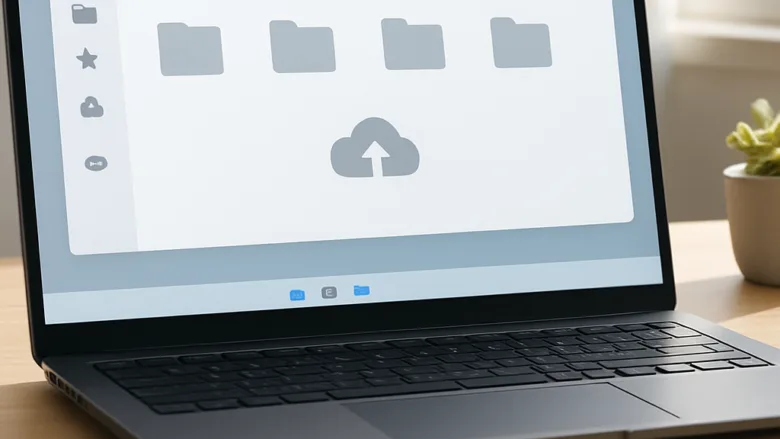
File synchronization in Windows 11 copies your local documents and photos to online cloud storage, so you can open them from any device. The Google Drive for desktop app creates a dedicated folder on your hard drive. Anything you put in that folder uploads automatically in the background, usually within 5 minutes of setup.
You can check the state of your data at a glance. A green checkmark appears on each synced file once it has saved safely to the web. If you see a different icon, such as a spinning arrows symbol, the file is still waiting to upload.
This guide covers getting files into Google Drive and Dropbox, then controlling how they sync afterwards. That includes pausing, moving the folder, stopping the apps from starting with Windows, and backing up key folders. Menu names can shift a little as the apps update, so if a label looks different on your PC, look for the closest match.
Open the desktop app for Google Drive or Dropbox, sign in with your account, and let it create a sync folder on your PC. Copy files into that folder—they upload automatically to the cloud within minutes, shown by a green checkmark icon.
Get Files into the Cloud
Get files into the cloud
Getting photos and documents into Google Drive or Dropbox takes very little effort once the desktop app is installed. Set up your first cloud service by following the steps below.
- Install the desktop app for the service you want and sign in with your account.
- Let the app create its sync folder on your PC. You will see it in File Explorer, usually in the left-hand navigation pane.
- Copy or drag files into that folder. Each file shows a sync icon while it uploads.
- Wait for the icon to change to a green checkmark. That means the file is safely stored online.
If the checkmark never appears, check that you have an internet connection and enough free space in your cloud account.
Manage Your Cloud Storage
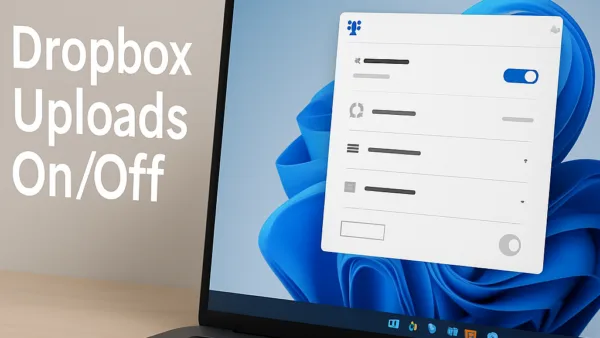
The guides below cover the preferences for both Google Drive and Dropbox, including local folder locations and backup frequency. Change these settings carefully, because some of them affect which files exist on your PC and which exist only online.

Handle Dropbox Backups
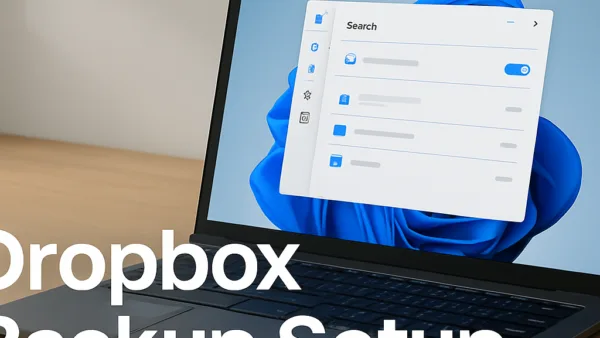
Dropbox includes dedicated tools for backing up important data. Managing those backups means pruning old ones, renaming computers, and tracking which items are using your storage. Doing this now and then keeps your account tidy and stops old backups from eating into your storage quota.

Common questions
How do I stop Google Drive from syncing temporarily?
You can pause Google Drive syncing from inside the app. This is handy when you are on a slow connection or want to save bandwidth for something else.
- Find the Google Drive icon in the system tray at the right end of the taskbar. If you do not see it, click the Show hidden icons arrow first.
- Click the icon, or right-click it. A panel or menu opens showing your sync status.
- Select the settings (gear) icon, then choose Pause syncing.
The icon changes to show that syncing is paused. To undo this, open the same menu and choose Resume syncing. Files you changed while paused upload once syncing resumes.
Can I choose where my Dropbox files are stored on my PC?
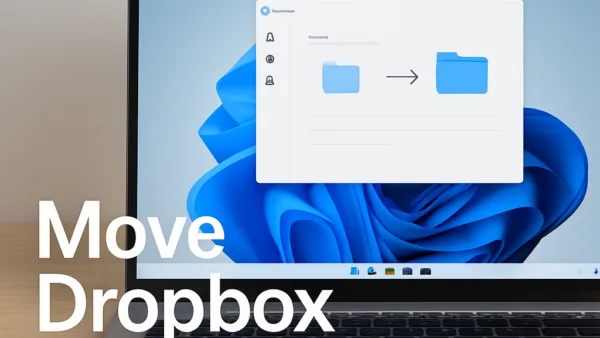
To move the main Dropbox folder to another drive or partition, open the Dropbox preferences panel. This is useful when your C: drive is running low on space.
- Click the Dropbox icon in the system tray.
- Click your profile picture or the gear icon, then select Preferences.
- Open the Sync tab.
- Find the Dropbox folder location setting and click Move.
- Pick the new drive or folder and confirm.
How do I turn off automatic startup for cloud services?
You can stop cloud apps from launching every time Windows starts. This shortens boot time and frees up memory and bandwidth right after login. Both Google Drive and Dropbox have a startup toggle in their settings.
- Open the app’s preferences from its system tray icon.
- Look for the option to launch the app at login or system startup, and turn it off. In Dropbox this is on the General tab. In Google Drive it is in the preferences opened from the gear icon.
- Save or close the window.
You can also manage this from Windows itself. Open Settings Apps Startup and switch the app off in the list. No restart is needed to apply the change, and files only sync when you open the app yourself. To undo it, turn the toggle back on.
What happens if I delete files from my Dropbox folder?
Be careful when deleting items from a local Dropbox folder. A deletion removes the files from your cloud account and from every linked device at the same time. It does not just clear space on your PC.
Deleted files stay recoverable from the Dropbox website for a limited time. On most personal plans this is 30 days, and some paid plans keep them longer. To restore something, sign in to the Dropbox website, open the deleted files view, and select the item to recover. After that window passes, the files are gone for good.
Can I make Dropbox back up specific folders that aren't in my main Dropbox folder?
Dropbox can automatically back up important folders such as Desktop, Documents, and Pictures. You set this up in the Backups tab of the Dropbox desktop app preferences.
- Click the Dropbox icon in the system tray, then open Preferences.
- Go to the Backups tab.
- Choose to set up or manage backups, and tick the folders you want to include.
- Confirm the selection and let the first upload finish.
The folders then show the same sync icons as the rest of your Dropbox files. Your plan’s storage limit applies to backed-up files too, so check your available space before selecting large folders. You can stop backing up a folder later from the same tab.
Frequently asked questions
How come Google is now saving files on my computer 🪟 Windows 11?
Google Drive for desktop keeps a full copy of your files on your PC when it is set to Mirror files. That is why they appear on your hard drive. To change this, click the Google Drive icon in the system tray, open Settings, and choose Stream files. Your files will then stay online until you open them.
How do I get my computer to sync to the cloud again?
Open the Google Drive or Dropbox icon in the system tray near the clock. If it says syncing is paused, select Resume. Files that were waiting will upload within a few minutes. If they still do not upload, check your internet connection, then sign out and sign back in to the app.
What is 🪟 Windows 11 cloud sync?
Cloud sync in Windows 11 means your files stay matched between your PC and online storage. Changes you make on one side show up on the other. Windows 11 uses a cloud app for this, such as Google Drive, Dropbox, or the built-in OneDrive.
How can I make sure all my docs are on cloud and not on harddrive?
Move your documents into the Google Drive or Dropbox folder and wait for them to finish uploading. Warning: deleting the originals is hard to undo, so check first. Confirm each file shows a green checkmark, then delete the local copy. To keep new files off your drive, set Google Drive to Stream files.
Still have a question?
Answered by AI from this guide. Good questions may be added to this page — please don't include personal details.
Did this guide fix your problem?

About the Author
Richard
Tech Writer, IT Professional
Richard is a writer at Geek Rewind who turns complex IT tasks into clear, step-by-step guides. He draws on years of hands-on experience in system administration and enterprise IT operations, focusing on Windows, Linux and WordPress: the problems people actually run into, and the fixes that work. His server and WordPress guides come from systems he runs himself. Richard builds and maintains the platform behind Geek Rewind, from its Ubuntu servers and Nginx configuration to its custom WordPress plugins. Many new tutorials start with readers' questions, and he's always glad to answer them in the comments.
No comments yet — be the first to share your thoughts!