How to See Shared Microsoft 365 Family Cloud Storage in Windows 11 Settings

- 8 steps
- Needs administrator rights
Shared Microsoft 365 Family cloud storage now appears in Windows 11 Settings, under Settings Accounts Cloud storage. It shows how much storage your whole Microsoft 365 Family subscription uses, so you no longer need a browser to check.
The page is in Windows Insider preview builds only. Microsoft introduced it in Experimental Build 26340.9843, released October 30, 2026, and it may change before it reaches regular Windows 11 releases. Whether you see it today also depends on when you bought your subscription.
If the page is missing, the causes are listed below. Start there if you want to skip the background.
To see shared Microsoft 365 Family cloud storage on Windows 11, open Settings, select Accounts, then select Cloud storage. The page shows combined storage used by your whole subscription. It only appears in Windows Insider preview builds from Experimental Build 26340.9843 onward, and only if you bought your subscription after October 8, 2026, or have passed your renewal on or after May 2, 2027.
What the Cloud storage page shows in 🪟 Windows 11 Settings
The Cloud storage page reports shared storage usage across Microsoft 365 Family subscriptions. Microsoft 365 Family is the plan that lets one subscriber share the benefits with other people in a Microsoft family group. Storage is one of those shared benefits, so the usage figure covers the group rather than a single account.
Microsoft says it plans to show how much each person uses, but that is not on the page yet. For now, expect the combined view only. If you want to know which family member is using the most space, this page cannot tell you yet.
The page sits in the Accounts section of Settings, next to your other account pages. That placement is how it appears in the current preview, and Microsoft may move or rename it before release.
Who can see shared storage in Settings now?
Two conditions decide whether the page appears on your PC: the Windows build you run, and the date you bought your Microsoft 365 Family subscription.
Windows build requirement
The feature is in Windows Insider preview builds. Microsoft documents it in Experimental Build 26340.9843. A regular, non-preview Windows 11 installation does not have the page yet. If you are on a standard release, you will not find Cloud storage under Accounts, and no setting will add it.
Subscription purchase date
Microsoft gives access based on when the subscription was bought:
- Bought after October 8, 2026you can see the page now, on a build that includes it.
- Bought before October 8, 2026you get the page after your first renewal on or after May 2, 2027.
Most existing subscribers fall into the second group. If that is you, a correctly installed preview build still will not show the page until the renewal date passes. Your renewal date is the date to watch. The guide on turning on recurring billing for Microsoft 365 in Windows 11 explains how automatic renewal works, which matters if you want the subscription to renew on schedule.
How to check Microsoft 365 Family cloud storage in 🪟 Windows 11 Settings
Before you start, confirm that you run a Windows Insider preview build (a test version of Windows 11) that includes the feature. The steps below cover that check first, then the path to the page.
Confirm your Windows build
This part tells you whether your PC has the page at all. Skip to the next section if you already know you run Build 26340.9843 or later.
- Open Settings. Press Win+I to open it directly.

Start Menu - Select System. The System page lists display, sound, power and related options.
- Scroll down and select About. The About page lists your device specifications and Windows specifications.
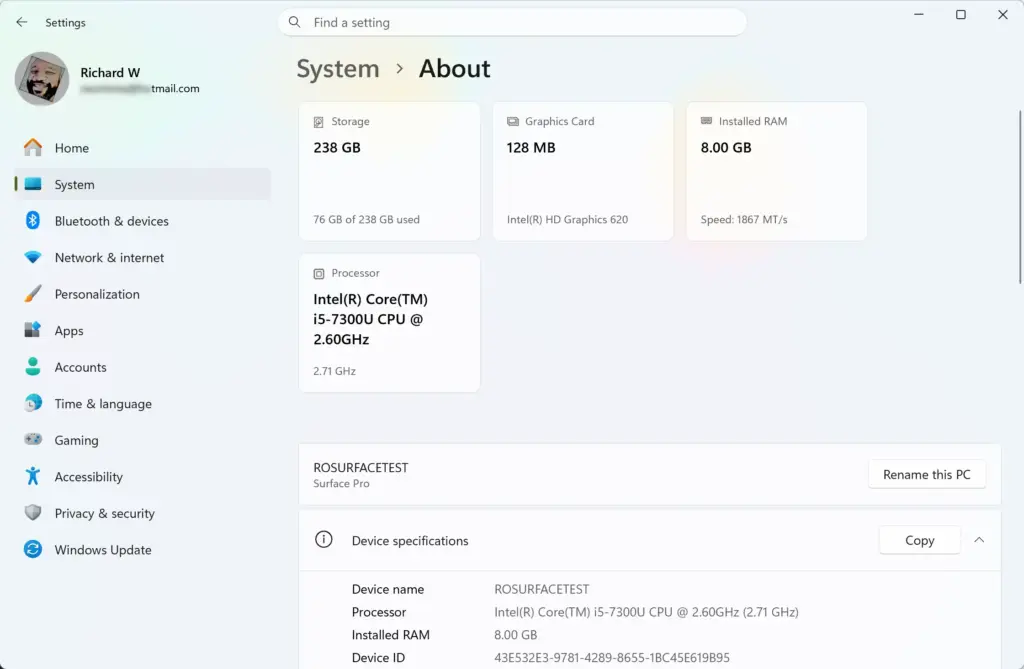
Settings › System › About - Find the OS build line under Windows specifications. Compare the number with 26340.9843. If your build is older or is a standard release, you do not have the page yet.
Open the Cloud storage page
These steps open Settings Accounts Cloud storage, the page that shows Microsoft 365 Family cloud storage in Windows 11. Each step is one action, and the screen change after it is noted.
- Open Settings. Press Win+I, or right-click Start and choose Settings.
- Select Accounts in the left pane. The right pane shows your account options.
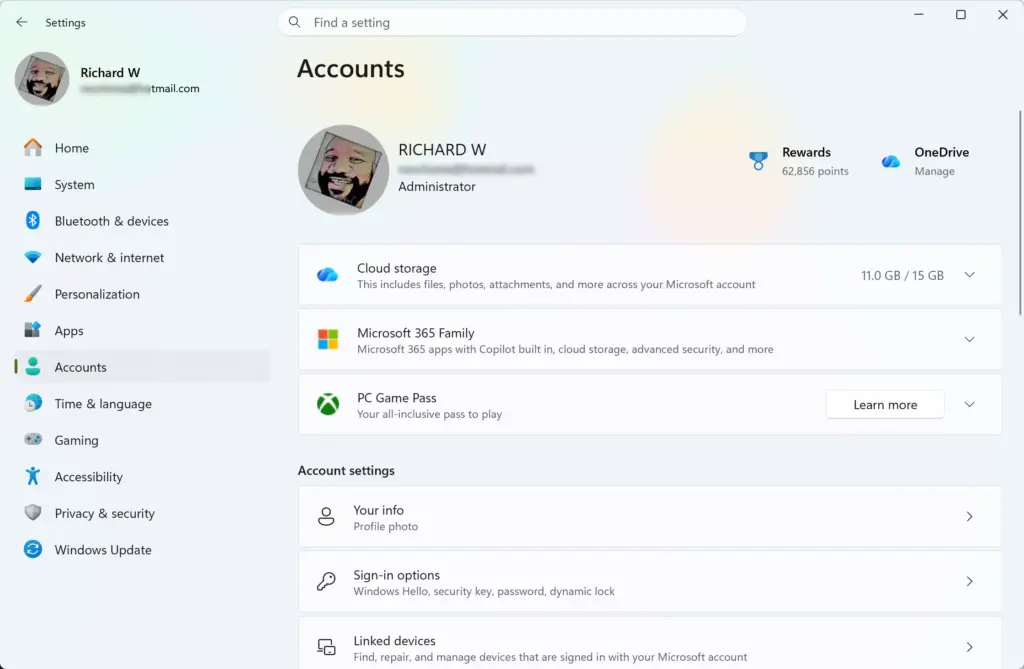
Settings › Accounts - Select Cloud storage. If the page is available to you, it opens and shows shared storage usage for your Microsoft 365 Family subscription.
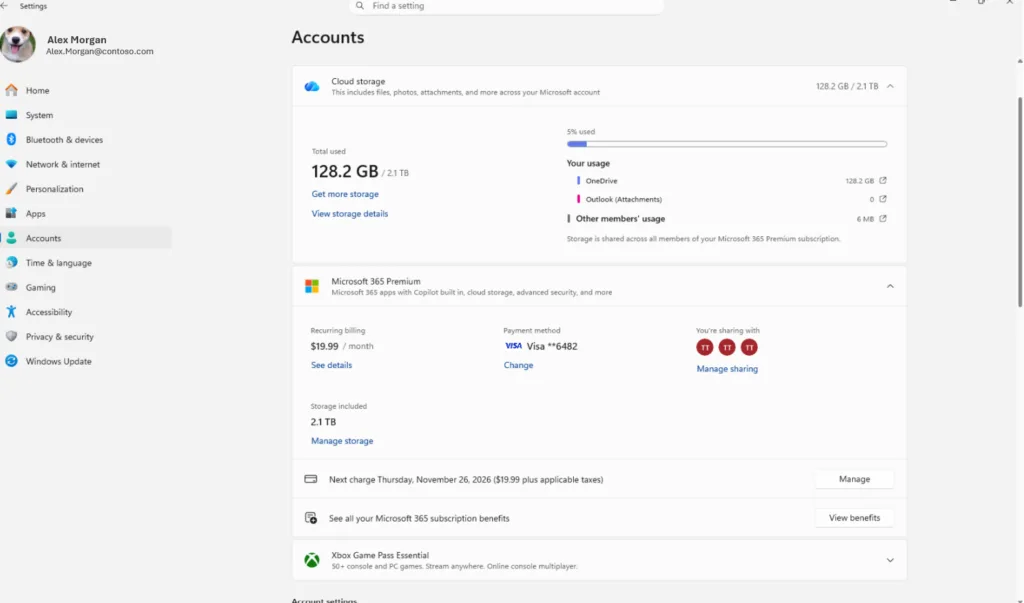
- Read the usage figure. This is the combined usage across the subscription, not your personal share. A per-member breakdown is not available yet.
If Cloud storage does not appear in the Accounts list, go to the troubleshooting section below. Missing is the expected result for many PCs right now, not a sign of a fault.
Why Cloud storage is missing from Accounts
Microsoft has not documented a setting that turns this page on or off. When it is missing, one of the conditions below is almost always the cause. Work through them in this order.
Your PC is not on an Insider preview build
Standard Windows 11 releases do not include the page. Check your Windows build number against 26340.9843. The Confirm your Windows build section shows how to find that number. If it does not match a preview build that includes the feature, the page will not show.
You manage enrollment at Settings Windows Update Windows Insider Program. Changing those settings requires an administrator account.
Your build is older than 26340.9843
An Insider PC on an earlier preview build lacks the page. Open Settings Windows Update and select Check for updates to look for a newer preview build. Installing a build usually needs an administrator account, and the update may need a restart.
You bought your subscription before October 8, 2026
This is the most common reason for an absent page on an otherwise correct build. Subscriptions bought before that date get the page after the first renewal on or after May 2, 2027. Until then, the page stays hidden for that subscription, even on the right build.
Check your renewal date in your Microsoft account if you are unsure when yours falls. If your subscription is set to renew automatically, the page should appear after that renewal without further action. Microsoft has not said how soon after renewal the page shows up, so allow some time before assuming a problem.
You are signed in with a different account
Shared storage belongs to a Microsoft 365 Family subscription, which is tied to a Microsoft account. Check that the account you use in Windows is the one connected to the subscription or its family group. Open Settings Accounts Your info to see which account is signed in.
The guide to seeing devices connected to your Microsoft account in Windows 11 helps if you are unsure which account a PC uses. Microsoft has not said whether other account types can see the page. Treat this as something to check, not a confirmed cause.
How the family group relates to shared storage
The word “shared” in the feature’s name refers to the Microsoft 365 Family subscription, which people in a Microsoft family group can use together. A family group is a set of Microsoft accounts linked under one organizer. If you have not set one up, the shared benefits have nothing to share with.
These posts cover the group itself, which is separate from the Cloud storage page:
- How to set up a Microsoft Family Safety group walks through creating the group.
- How to add members to your Microsoft Family group covers inviting more people.
- How to leave a Microsoft Family group explains what happens when you step out of one.
What to expect while the feature is in preview
Insider preview features change. Microsoft states that this one may change before release. Expect some of the following as the feature develops:
- The page may move, be renamed, or look different from what is described here.
- The per-member breakdown is planned, so the page should gain more detail over time.
- A feature that is present in one preview build may be absent from another, so the page may come and go between builds.
Menu names in this article match the path Microsoft gives for the current preview: Settings Accounts Cloud storage. If your Settings app shows something different, you are likely on a later or earlier build than the one documented.
How to undo or stop using the preview
Viewing the Cloud storage page changes nothing on your PC, and no setting needs undoing. The only change you might want to reverse is the preview build itself.
Back up your files first. Moving a PC off a preview build can involve more than turning off enrollment, so keep a copy of anything you cannot replace. This applies to any PC you plan to take out of the program.
Open Settings Windows Update Windows Insider Program to review your enrollment options. The Insider settings page shows what is available for your build, and the options differ between builds.
What to do next
If the page is missing, check your OS build against 26340.9843 and your renewal date against May 2, 2027. Those two details explain nearly every case. Once the page appears, return to Settings Accounts Cloud storage to see the combined usage for your family subscription. When Microsoft adds the per-member breakdown, it should appear on the same page.
While you wait, the Microsoft Family Safety setup and parental control guide is a useful next read for managing the people who share your subscription.
Frequently asked questions
How to adjust power and sleep settings in 🪟 Windows 11?
Open Settings, select System, then select Power & battery. Under Screen and sleep, choose how long your screen stays on and when your PC goes to sleep. If you use a laptop, set these for both battery and plugged in. Use Additional power settings to change what happens when you close the lid or press the power button.
How to adjust display settings in 🪟 Windows 11?
Open Settings, select System, then select Display. Drag the Brightness slider to change screen brightness. To make text and apps larger, open Scale & layout and pick a higher percentage. Under Display resolution, choose a setting, and turn on Night light to reduce blue light in the evening.
How to import pictures from an sd card to 🪟 Windows 11 and not to cloud?
Insert the SD card and open File Explorer. Select the card's drive, then open the DCIM folder, which holds your photos. Select the files and copy them to a folder on your PC that is outside OneDrive, such as a Photos folder on your D: drive, because OneDrive uploads synced folders. Eject the card before you remove it.
How do I make my keyboard bigger I cannot see it on laptop 🪟 Windows 11 10?
You cannot enlarge the keys on a laptop keyboard. To use a bigger on-screen option, press Win+Ctrl+O to open the on-screen keyboard, then click its keys with your mouse. To make the screen text bigger, press Windows key + Plus sign to turn on Magnifier and zoom in. Plugging in an external keyboard is the other option.
Still have a question?
Answered by AI from this guide. Good questions may be added to this page — please don't include personal details.
Did this guide fix your problem?

About the Author
Richard
Tech Writer, IT Professional
Richard is a writer at Geek Rewind who turns complex IT tasks into clear, step-by-step guides. He draws on years of hands-on experience in system administration and enterprise IT operations, focusing on Windows, Linux and WordPress: the problems people actually run into, and the fixes that work. His server and WordPress guides come from systems he runs himself. Richard builds and maintains the platform behind Geek Rewind, from its Ubuntu servers and Nginx configuration to its custom WordPress plugins. Many new tutorials start with readers' questions, and he's always glad to answer them in the comments.
No comments yet — be the first to share your thoughts!