How to Turn On Recurring Billing for Microsoft 365 in Windows 11

- 14 steps
- Needs administrator rights
Recurring billing for Microsoft 365 can now be turned back on from inside Windows 11 Settings, without opening a webpage. The fastest route is to look for Turn on recurring billing or Set up recurring billing on the Settings Home page, the Accounts page, or the Start menu.
Recurring billing means your Microsoft 365 subscription renews on its own and charges your saved payment method at the end of each billing period. The option shows up only for Microsoft 365 subscribers whose recurring billing is currently off. The option exists only in Windows Insider preview builds, which are early test versions of Windows that Microsoft releases for feedback. Microsoft may change it before public release.
Open Settings with Win+I and look for Turn on recurring billing or Set up recurring billing on the Settings Home page, the Accounts page, or the Start menu. The option appears only for Microsoft 365 subscribers with recurring billing off, on Windows Insider preview builds such as 26340.9767. Standard Windows 11 installs do not show it yet.
What this feature does and where it is available
Until now, a Microsoft 365 subscriber who had switched off recurring billing had to go to a webpage to switch it back on. Windows Insider Experimental Build 26340.9767, released October 23, 2026, moves that action into Windows Settings.
The option appears in up to three places:
- The Settings Home page
- The Accounts page in Settings
- The Start menu
The label is either Turn on recurring billing or Set up recurring billing. Both lead to the same task, so use whichever one you see.
Who sees the option
The option is aimed at Microsoft 365 subscribers whose recurring billing is turned off. If your subscription already renews automatically, there is nothing to turn on, and the option has no reason to appear. The same applies if you have no Microsoft 365 subscription on the account you use in Windows.
Why it is limited to Insider builds
Windows Insider builds are early test versions of Windows that Microsoft releases to gather feedback. Features in them can change, move, or disappear before they reach the stable version of Windows 11. As of this build, the recurring billing option is not part of the regular release. If you run a standard Windows 11 install, you will not see it, and you need the webpage method until the feature ships more widely.
Before you start
Check these three things first. They explain most cases where the option is missing:
- Your PC runs an Insider preview build. The feature is documented for Build 26340.9767. A stable Windows 11 release does not include it.
- You are signed in to Windows with the Microsoft account that holds the subscription. The option relates to a Microsoft 365 subscription, so the account matters.
- Recurring billing is currently off. If it is already on, the option does not apply.
This task does not involve Registry Editor, Group Policy, or a command line. Everything happens in the Settings app and the Start menu.
How to turn on recurring billing for Microsoft 365 in 🪟 Windows 11
These steps check your build, find the option, and start the recurring billing setup. Follow these numbered steps from start to finish. Steps 1 to 4 check your Windows build, and the later steps find the option and start setup.
- Open Settings. Press Win+I. The Settings app opens, usually on the Home page.

Start Menu - Select System. It sits in the left pane. The System page opens on the right.
- Select About. Scroll to the bottom of the System page to find it. The About page lists your device and Windows details.
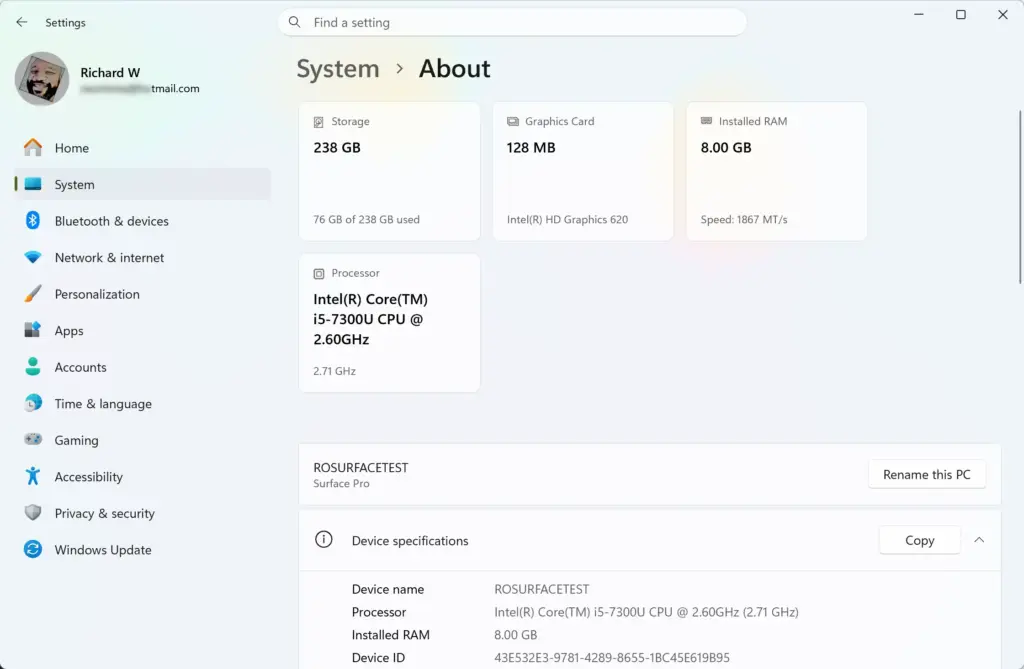
Settings › System › About - Check the OS build number. Look under Windows specifications. The feature is documented for build 26340.9767. If your number is very different, or you do not see an Insider build, the option may not be available to you yet.
- Select Home. It is at the top of the left pane. The Settings Home page shows your account details and suggested actions.
- Look for Turn on recurring billing or Set up recurring billing. If you have a Microsoft 365 subscription with recurring billing off, the option can appear here. Skip to step 9 if you see it.
- Select Accounts. Use this step if the Home page shows nothing. It is in the left pane. The Accounts page opens and can show the same option.
- Open the Start menu if Accounts also shows nothing. Select the Start button or press the Win and look for the same wording. The option can appear in the Start menu as well.
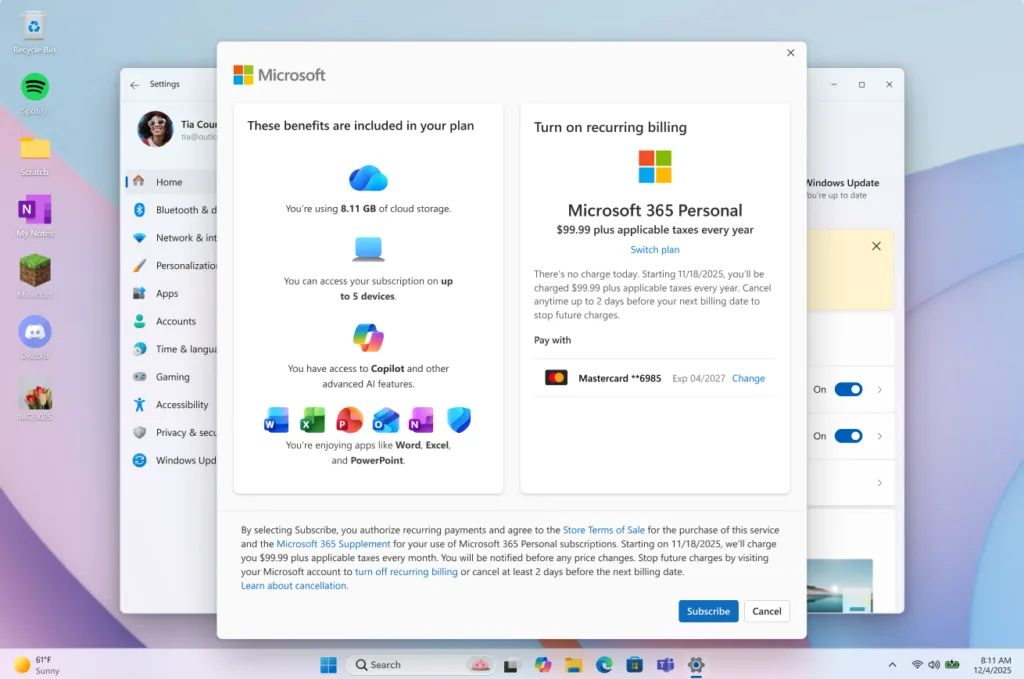
- Select the recurring billing option. Click Turn on recurring billing or Set up recurring billing, whichever label your build shows. Windows starts the process of switching recurring billing back on.
- Follow the on-screen prompts. What appears next can depend on your account and on changes Microsoft makes to the preview. Read each screen before you confirm, because this action relates to charges on your payment method.
- Return to Settings to check the result. Go back to Home or Accounts. The option exists for subscribers with recurring billing off, so it should no longer be offered after the change.
If the option does not appear
The option is most likely missing because the feature is still in preview. Work through these causes in order.
Your build does not include the feature
Check your Windows build number (the code that identifies your exact Windows version) as described in step 4. A stable Windows 11 release does not contain the option. If the build number does not match an Insider preview, the setting is not there to find. In that case, use the webpage method that existed before this change.
Windows has not shown it to your account yet
Microsoft often rolls out preview features in stages, so two PCs on the same build can behave differently. The release notes do not describe a staged rollout for this feature, so treat this as a possibility rather than a confirmed cause. Check all three locations before you conclude it is missing: Home, Accounts, and the Start menu.
Recurring billing is already on
The option targets subscribers whose recurring billing is off. If your subscription already renews automatically, Windows has nothing to offer. Nothing is wrong when this happens.
The subscription is on a different account
If you hold your Microsoft 365 subscription under one Microsoft account and sign in to Windows with another, the option may not show for your current sign-in. Check which account Windows uses on the Accounts page in Settings. Then compare it with the account that holds the subscription.
The wording is slightly different
Two labels exist: Turn on recurring billing and Set up recurring billing. Read each card on the Home page and each line on the Accounts page, because you may be looking for the wrong one of the two.
How to undo it
The release notes cover turning recurring billing on from Settings. They do not describe turning it back off from the same place. Use the Microsoft account webpage for your subscription to change recurring billing if the Settings page offers no way to do so. If you want to end the subscription entirely, see how to cancel a Microsoft 365 subscription on Windows 11.
What may change before release
Because this is a preview feature, several details can differ when it reaches the stable version of Windows 11:
- The label may change from Turn on recurring billing or Set up recurring billing to something else.
- The option may move, or appear in fewer places than Home, Accounts, and the Start menu.
- Microsoft may remove the feature before release.
If the screens on your PC differ from this article, your build probably has a newer version of the feature. Trust what Windows shows on screen over any written description, including this one.
What to do next
If the option never appears on your PC, use the webpage method for your Microsoft account until the feature reaches your build. To stop paying for Microsoft 365 instead, follow the guide to cancel a Microsoft 365 subscription on Windows 11. Check Settings after your next Insider update, since the feature may have moved or changed.
Have a question about this guide?
Answered by AI from this guide. Good questions may be added to this page — please don't include personal details.
Did this guide fix your problem?

About the Author
Richard
Tech Writer, IT Professional
Richard is a writer at Geek Rewind who turns complex IT tasks into clear, step-by-step guides. He draws on years of hands-on experience in system administration and enterprise IT operations, focusing on Windows, Linux and WordPress: the problems people actually run into, and the fixes that work. His server and WordPress guides come from systems he runs himself. Richard builds and maintains the platform behind Geek Rewind, from its Ubuntu servers and Nginx configuration to its custom WordPress plugins. Many new tutorials start with readers' questions, and he's always glad to answer them in the comments.
No comments yet — be the first to share your thoughts!