Cancel a Microsoft 365 Subscription on Windows 11

- 20 steps
- Needs administrator rights
Cancelling a Microsoft 365 subscription happens on your Microsoft account website, not in a Windows 11 setting. To cancel a Microsoft subscription, sign in at account.microsoft.com/services, open the subscription with Manage, and choose the cancel option. The process takes about two minutes.
Three details decide how the cancellation goes. They control whether you keep access until the paid period ends, whether you get a refund, and whether the cancel option appears at all. The sections below cover each one.
Uninstalling the Office apps does not stop billing. Microsoft keeps charging the payment method on file until the subscription itself is cancelled.
To cancel a Microsoft 365 subscription on Windows 11, sign in at account.microsoft.com/services with the Microsoft account that bought it, select Manage next to the subscription, and choose Cancel subscription or Turn off recurring billing. Uninstalling the Office apps does not stop billing, and this step must be completed on the web.
Before you cancel a Microsoft subscription
Cancelling takes little effort, but depending on the refund option you pick, it can be hard to undo. Check these four things first.
- Which account owns the subscription. Many people have more than one Microsoft account, such as a personal address and an old one from a previous job. Cancelling from the wrong one shows no subscription. If you are not sure which is which, a later section shows how to read the right address from an Office app.
- Whether you share it. A Microsoft 365 Family subscription covers other people. Only the person who bought it (the plan organizer) can cancel it, and cancelling ends the benefits for everyone in the family group.
- Whether your files depend on it. Microsoft 365 includes extra OneDrive storage. Download or move anything that sits above the free storage limit before the subscription ends.
- Your end date. Note when the current period runs out. In most cases you keep full access until then, so there is no reason to cancel on the last day. Cancel as soon as you have decided, so you do not miss the renewal.
Check where you were billed
The cancel option only appears in your Microsoft account if you bought the subscription from Microsoft. Billing for a subscription bought elsewhere stays with the seller. Identify the source first, because it decides which of the methods below applies.
- Bought on microsoft.com or through the Microsoft Store: Use the steps in the next section.
- Bought through the Apple App Store or Google Play: Cancel in that store’s subscription settings. Your Microsoft account cannot cancel it.
- Bought from a retailer as a card or product key: There is usually no recurring billing to cancel. The subscription ends on its expiry date.
- Provided by your work or school: Your organization pays for it. Ask your IT administrator, who manages it from the Microsoft 365 admin center. Signing in with a work account on the personal page shows nothing to cancel.
- Bundled with a phone plan, a new PC, or another provider: Contact that provider.
Your bank or card statement helps if you are unsure. A charge labelled Microsoft points to a direct purchase. A charge labelled Apple or Google Play points to the matching store.
Cancel a Microsoft 365 subscription from your Microsoft account
These steps cancel your Microsoft subscription so it stops renewing. They are the standard way to do it when you bought directly from Microsoft, and they work the same in Microsoft Edge, Chrome or any other browser on Windows 11. Administrator privileges: not required. Any user can do this, because it happens on the web.
- Open a browser and go to
account.microsoft.com/services. This is the Services & subscriptions page, which lists everything billed to your account. - Sign in with the Microsoft account that bought the subscription. After you sign in, you see your active subscriptions, such as Microsoft 365 Personal or Microsoft 365 Family.
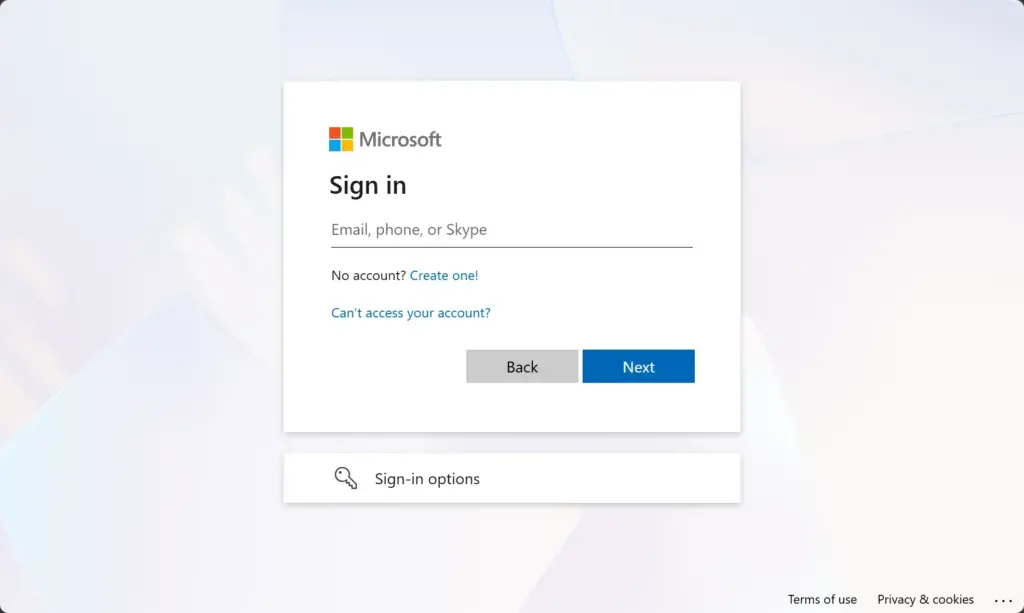
Microsoft account login page for signing in with email and password. - Select Manage next to the Microsoft 365 subscription. A page opens with the plan name, the renewal or expiry date, and the payment method.
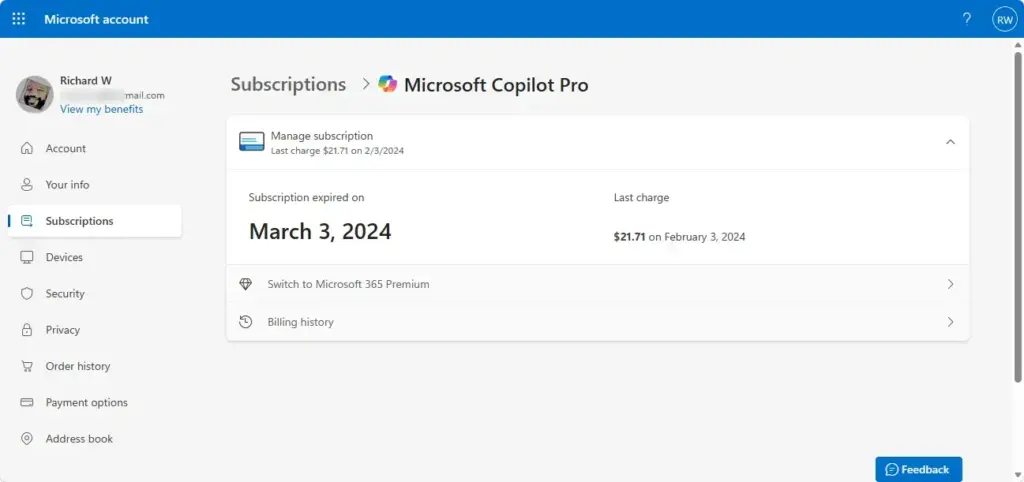
- Find the cancellation option. Depending on your plan, region and billing type, it appears as Cancel subscription or Turn off recurring billing. Look in the Payment & billing area of the page. Microsoft changes these labels from time to time, so look for the wording that matches cancelling or ending automatic renewal.
- Select that option. Microsoft shows a page that explains what you lose and when. If you are eligible for a refund, the page says so here, before you confirm.
- Read the end date and any refund amount. This tells you whether cancelling stops the subscription immediately or lets it run to the end of the paid period.
- Skip any discount offer or survey. Microsoft sometimes offers a discount to keep you subscribed or asks why you are leaving. You can ignore both.
- Select the final confirmation button. The wording varies, but it is the last button in the cancellation flow, such as Confirm cancellation. Microsoft shows a message that the subscription is cancelled, and it sends a confirmation email to the address on the account.
Recurring billing (automatic charges at each renewal date) is what you are really ending here. When you turn it off, Microsoft does not charge you again, but the subscription keeps working until its end date.
If your subscription does not show on the page
A blank Services & subscriptions list almost always means you signed in with the wrong account. Select your profile picture at the top right, choose Sign out, and sign in again with another address. If you use several accounts, search your email for a receipt from Microsoft. The address it went to is the account that owns the subscription.
Cancel from inside an Office app
If you cannot remember which account you used, the installed Office apps can take you to the right page. They know which account activated them. Administrator privileges: not required.
- Open Word, Excel or another Microsoft 365 app on your PC.
- Select File in the top-left corner. The left pane changes to a menu.
- Select Account at the bottom of that menu. The page shows the account that activated Office, under Product Information.
- Note the email address shown under the account name. This is the account you sign in with at
account.microsoft.com/services. - Select Manage Account if the button appears. It opens your Microsoft account in your browser, where you can continue from the Manage step in the previous section.
If the app shows a work or school address, your organization manages the subscription and you cannot cancel it yourself. If Manage Account is missing, use the address from step 4 and go to the Services & subscriptions page manually.
What happens after you cancel
Cancelling has different effects on your apps, your files and your storage. Knowing them in advance avoids surprises.
Your Office apps
Until the subscription ends, Word, Excel, PowerPoint and the other apps work as normal. After the end date, they move into reduced functionality mode. In this mode you can open and print documents, but you cannot edit them or create new ones. The apps stay installed, so you can still read your files.
Your files and OneDrive storage
Files saved on your PC stay where they are, and files in OneDrive stay in OneDrive. The extra storage that came with Microsoft 365 goes away, though. Your account falls back to the free storage allowance, which is usually 5 GB. If you store more than that, OneDrive stops syncing new changes until you free space or buy storage again.
Open OneDrive from the system tray and check your usage before the end date. Move large files to an external drive or another cloud service if you need to.
Refunds
The cancellation page shows whether you qualify and how much you get back, so read it before confirming. Do not assume a refund. If you cancel and see no refund option, you probably fall outside the refund period. In that case, the subscription runs to its end date.
Microsoft 365 Family members
Everyone you shared the plan with loses the premium benefits when it ends. If you want to keep the plan but stop paying for the other members’ use, remove them from the plan under Microsoft 365 Family sharing instead of cancelling. Check the plan’s sharing page on your Microsoft account before you decide.
If the cancel option is missing or greyed out
Most missing options have an ordinary cause. Work through this list in order.
- You are signed in with the wrong account. Sign out and try the address that received the purchase receipt.
- You are not the plan organizer. On a Family plan, only the organizer sees cancellation controls. Other members see a Leave option for the family group instead.
- Billing is already off. If you turned off recurring billing earlier, the page shows an expiry date and a Renew or Turn on recurring billing button instead of a cancel button. Nothing more needs doing.
- The subscription was bought elsewhere. An App Store, Google Play, retailer or phone-provider purchase cannot be cancelled from your Microsoft account. Use the list in “Check where you were billed” above.
- Your organization owns it. A work or school licence is managed by your administrator.
- It is a prepaid or one-time purchase. A subscription bought with a prepaid code has no automatic renewal to switch off. It ends on its own.
- The page loads with errors. Try a private window (Ctrl + Shift + N in Edge and Chrome). Browser extensions and cached sign-ins sometimes block the page. If that fails, try another browser.
If none of these apply and you still cannot cancel, contact Microsoft Support from your account page. Keep your order number or receipt email ready.
Confirm that the cancellation worked
Check twice, because a cancellation that did not go through means another charge. Do both checks below.
- Return to
account.microsoft.com/servicesand open the subscription with Manage. The page should show an end date and offer a way to renew or turn recurring billing back on. It should no longer show a next charge date. - Look for a confirmation email from Microsoft. Search your inbox and spam folder for the account’s address. If no email arrives within a few hours, treat the cancellation as unconfirmed and repeat the check.
Keep the email until your end date has passed. If Microsoft charges you after that date, the email is your proof.
Uninstall Microsoft 365 from 🪟 Windows 11 (optional)
Removing the apps is not required. Reduced functionality mode still lets you read and print documents, so many people leave them installed. Uninstall only if you want the disk space or you are switching to another office suite. This removes the apps, not your files, and does not cancel billing. Administrator privileges: Windows may ask for an administrator password.
- Open Settings, then go to Apps Installed apps. The page lists every installed app.
- Type
Microsoft 365into the search box at the top. The list narrows to your Office installation. The entry may be named Microsoft 365 (Office) or similar, depending on your version. - Select the three dots at the right of the entry, then select Uninstall.
- Select Uninstall again to confirm. If a User Account Control prompt appears, approve it with an administrator account.
- Wait for the uninstall to finish. The progress window closes when it is done, and the entry disappears from the list.
Documents you saved in Documents, Desktop or OneDrive are untouched. If you uninstall by mistake, you can sign in at account.microsoft.com and download the apps again while the subscription is active.
Undo a cancellation
You can reverse a cancellation any time before the end date, with no loss of data. Go to account.microsoft.com/services, select Manage next to the subscription, and select Renew or Turn on recurring billing. Confirm the payment method. The page should then show a next charge date again.
After the end date, you cannot restore the old subscription. You buy a new one with the same Microsoft account. Your apps return to full functionality and your files are still there, since nothing was deleted.
What to do next
Mark your end date in a calendar, and check your card or bank statement after it passes to confirm there is no new Microsoft charge. If you want to keep editing documents for free, sign in at office.com with your Microsoft account to use the free web versions of Word, Excel and PowerPoint. Their features are more limited than the desktop apps. If Microsoft charges you after the end date, contact Microsoft Support with the confirmation email you saved.
Have a question about this guide?
Answered by AI from this guide. Good questions may be added to this page — please don't include personal details.
Did this guide fix your problem?

About the Author
Richard
Tech Writer, IT Professional
Richard is a writer at Geek Rewind who turns complex IT tasks into clear, step-by-step guides. He draws on years of hands-on experience in system administration and enterprise IT operations, focusing on Windows, Linux and WordPress: the problems people actually run into, and the fixes that work. His server and WordPress guides come from systems he runs himself. Richard builds and maintains the platform behind Geek Rewind, from its Ubuntu servers and Nginx configuration to its custom WordPress plugins. Many new tutorials start with readers' questions, and he's always glad to answer them in the comments.
No comments yet — be the first to share your thoughts!