How to Enable or Disable Import Browser Data from Microsoft Edge in Copilot

- 5 steps
- Needs administrator rights
Copilot can import your Microsoft Edge browsing data, such as cookies, history, passwords, payment info, and autofill entries, so it can tailor what it shows you inside the app. You can turn this import on or off in the Copilot app on Windows 11 at any time.
Turning the import off stops Copilot from reading new Edge data. It does not remove data Copilot has already imported, so check the app’s settings if you want that data gone too.
The setting lives in the Copilot app itself, not in Edge. You do not need to change anything in Edge to control it. The steps below show where to find the switch and how to set it the way you want.
To turn import browser data from Microsoft Edge on or off in Copilot, open the Copilot app on Windows 11, go to Copilot Chat settings, select Web browsing, then Import browser data, and switch the Bring over your browsing data from Microsoft Edge toggle on or off. No administrator rights are needed, and the change applies to your Copilot account without a restart.
About the Copilot app and browser data import
The Microsoft Copilot app connects to the Microsoft 365 apps and content you use every day. It works with the Microsoft 365 apps and files you already use every day. Copilot creates documents, spreadsheets, and presentations. It also completes tasks with Cowork and lets you choose between leading AI models. It uses Work IQ [Verification Required: confirm what Work IQ is and add a one-line plain-English gloss] to understand your job and company, and it keeps your data protected.
You can browse web content directly in the Copilot app. If you import your Microsoft Edge data, Copilot uses it to make that browsing faster and better suited to you.
Copilot currently offers this setting only to individuals whose Microsoft account is based in the United States. It is also available if you sign in with a work, school, or organizational account. These accounts use Microsoft Entra (Microsoft’s sign-in service for organizations).
Turn import browser data from Microsoft Edge on or off in Copilot
These steps do not require administrator privileges. The toggle controls whether Copilot brings over your Edge browsing data.
- Open the Copilot app on Windows 11.
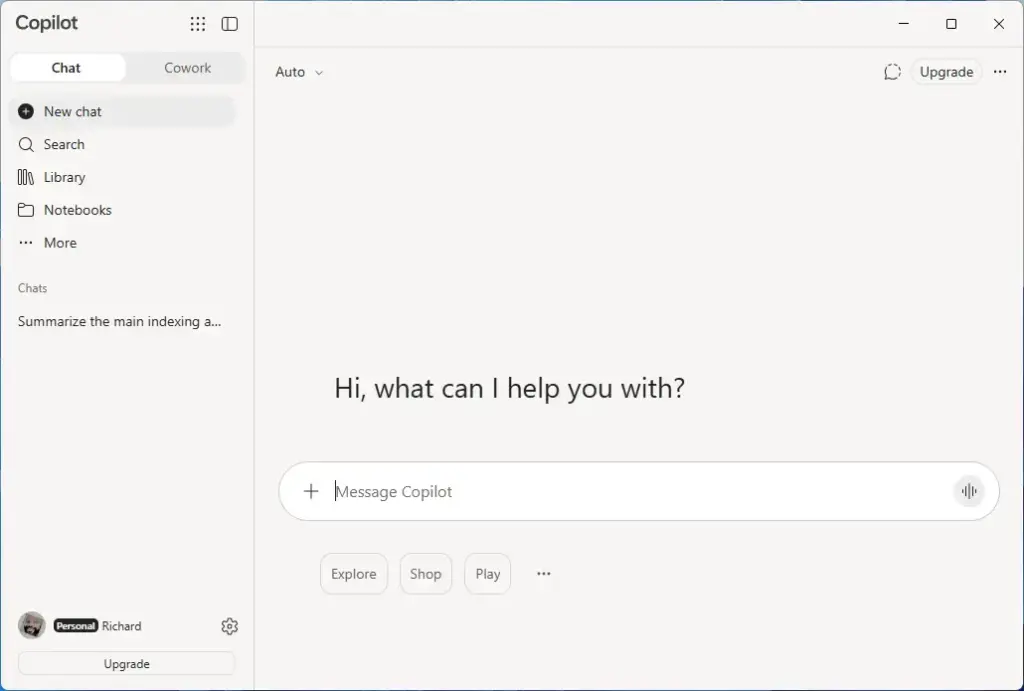
Copilot - Sign in to Copilot with your Microsoft account if you are not already signed in.
- Open Copilot Chat settings.
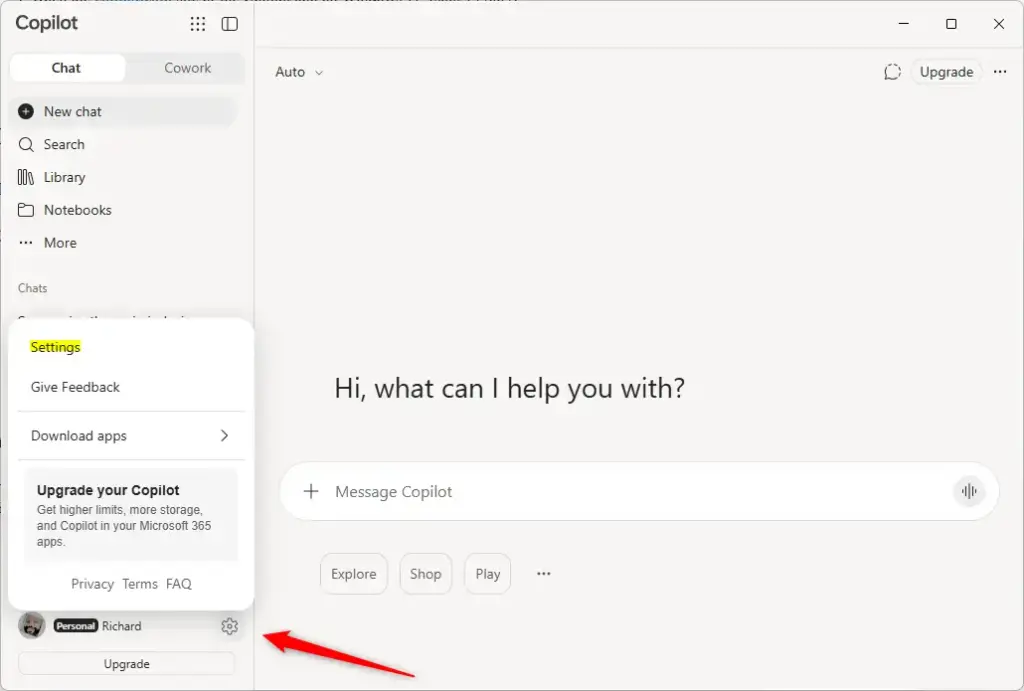
Copilot - Select Web browsing on the left side of Chat settings, then select Import browser data.
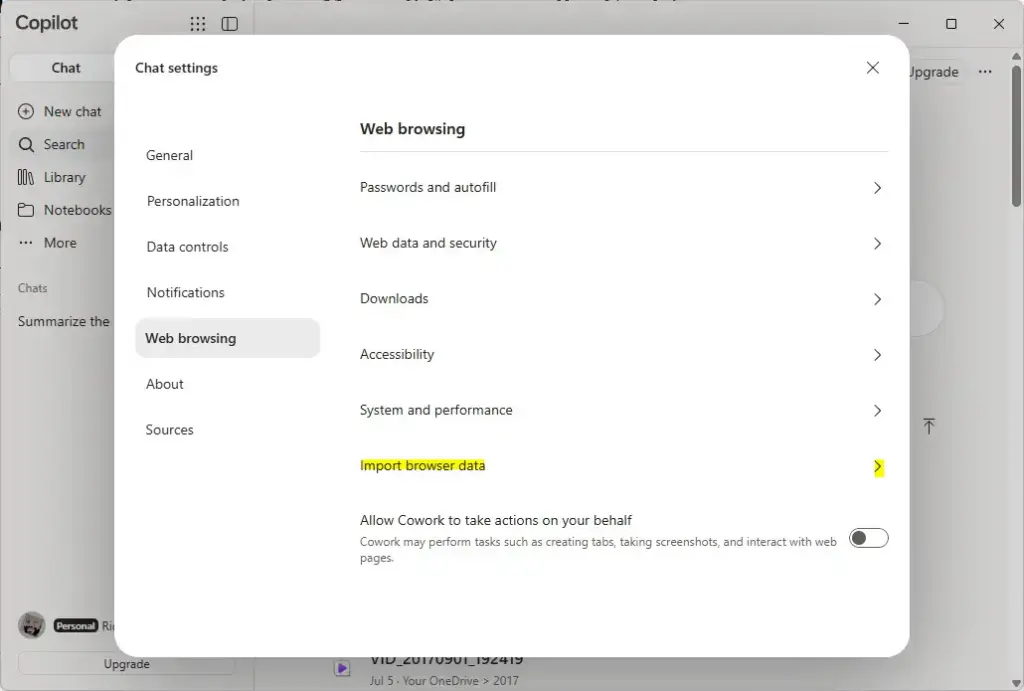
Copilot - Turn Bring over your browsing data from Microsoft Edge on (the default) or off, depending on what you want.
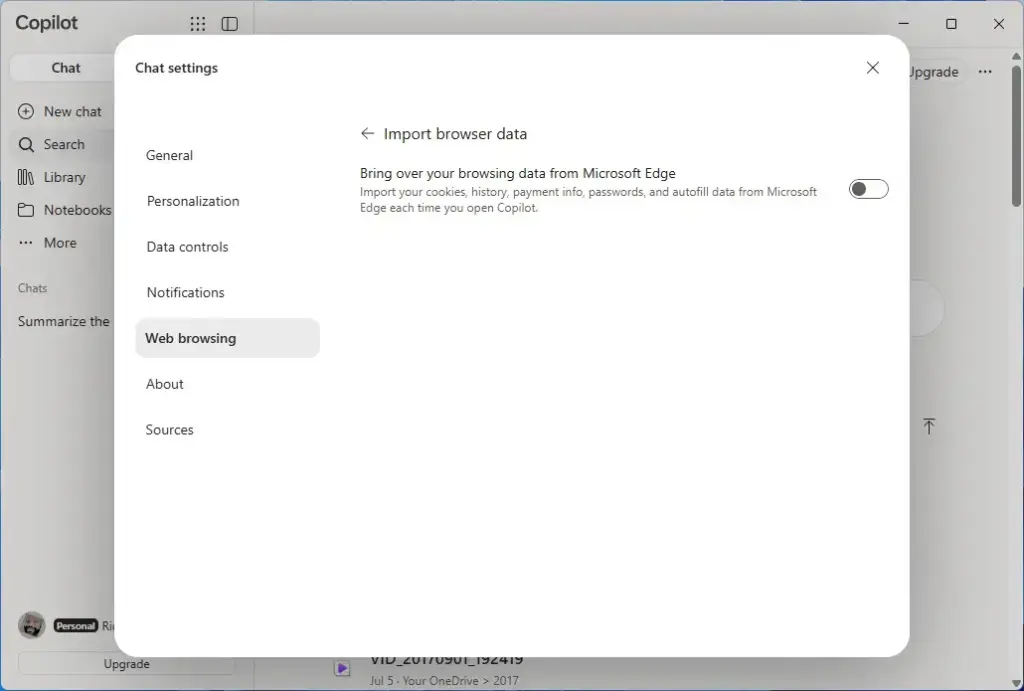
Copilot
What to do next
To reverse the change, return to Web browsing Import browser data in Copilot Chat settings and flip the toggle back. If you don’t see the option, check two things. Confirm that your Microsoft account is based in the United States, or sign in with a work, school, or organizational account.
Frequently asked questions
Is it worth switching from Chrome to Edge?
Yes, if you want Microsoft features like Copilot built into your browser and closer ties to Windows. Edge uses the same engine as Chrome, so most websites and Chrome extensions work the same. If you rely on Google sync or a Chrome-only extension, stay with Chrome.
How do I import browser data to Chrome?
Open Chrome and select the three-dot menu at the top right. Choose Bookmarks and lists, then Import bookmarks and settings. Pick your old browser, tick the data you want, and select Import. Chrome copies the data and leaves the original browser's data untouched.
How to enable Copilot mode in Edge?
Open Edge and select the Copilot icon on the toolbar or on the new tab page. Choose the option to turn on Copilot Mode, then sign in with your Microsoft account if asked. To turn it off, open Edge's settings and find Copilot in the sidebar options.
How do I stop Microsoft Edge from syncing?
Open Edge, select the three-dot menu, and choose Settings. Click Profiles, then Sync, and select Turn off. Edge asks whether to keep your synced data on this PC, so pick the option you want before you confirm.
Still have a question?
Answered by AI from this guide. Good questions may be added to this page — please don't include personal details.
Did this guide fix your problem?

About the Author
Richard
Tech Writer, IT Professional
Richard is a writer at Geek Rewind who turns complex IT tasks into clear, step-by-step guides. He draws on years of hands-on experience in system administration and enterprise IT operations, focusing on Windows, Linux and WordPress: the problems people actually run into, and the fixes that work. His server and WordPress guides come from systems he runs himself. Richard builds and maintains the platform behind Geek Rewind, from its Ubuntu servers and Nginx configuration to its custom WordPress plugins. Many new tutorials start with readers' questions, and he's always glad to answer them in the comments.
No comments yet — be the first to share your thoughts!