
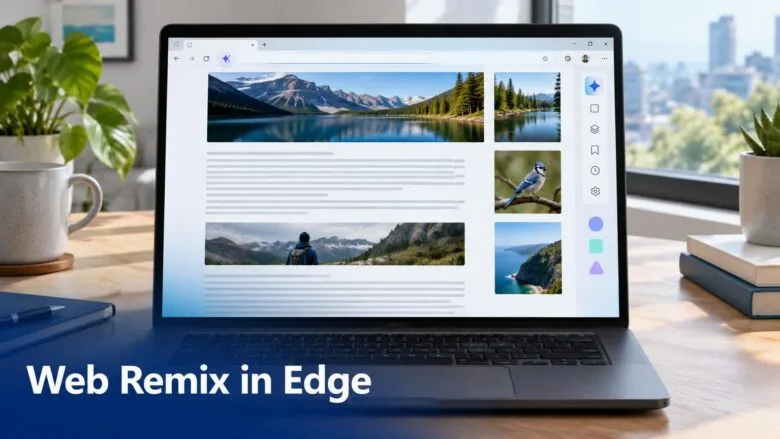
Web Remix in Microsoft Edge is controlled by one policy value: RemixAvailability. Set it to force Remix on, turn it off, or return to the default, where each user decides. This applies to all users on the PC.
Control Web Remix in Microsoft Edge with the RemixAvailability policy, set as an administrator in Registry Editor at 🗝️HKEY_LOCAL_MACHINE\
What Web Remix does
Web Remix changes how a webpage looks when you type a prompt. Edge builds the result in real time, and only you see it. Use it to:
- Simplify a long article so it is easier to read.
- Add a summary to a detailed page.
- Turn a recipe into a shopping list.
- Convert prices to your local currency.
- Change the appearance of a webpage.
Custom remixes use AI to build page changes from your request, so remixed pages can be inaccurate or unstable. Remix is for personal use and needs you to sign in to Edge with a Microsoft account.
Privacy and how Remix applies
Remix runs only when you choose to create one. Microsoft lists these safeguards:
- No access to sensitive browser data: A Remix doesn’t access saved passwords, autofill data, or payment information.
- No model training: Edge does not use the content it processes for a Remix to train AI models.
- Local, per-user changes: A Remix applies only to your browser session (the time you spend browsing in Edge) on your device.
Remix runs locally and restyles the page you are viewing. It doesn’t change the original website or anything on the publisher’s servers, and other people don’t see your Remix. It works like Reading mode, dark mode, or a browser extension.
It doesn’t republish, redistribute, or host website content. It changes only how a page looks after the page has loaded on your device. It does not change the page itself.
How the Remix policy works
In Microsoft Edge 156 and later, the RemixAvailability policy (a setting that an administrator uses to control what users can do in Edge) decides whether users can pin Remix to the toolbar and use it. The policy has three states, described below.
- Disabled: Remix is unavailable. The Remix setting is off, Remix doesn't appear on the toolbar, and users can't launch it from any other entry point.
- Force enabled: Remix is available. The Remix setting is on and Remix is pinned to the toolbar. Users can't turn it off or remove it from the toolbar.
- Not configured (default): Users choose whether Remix is pinned to the toolbar.
Microsoft documents this policy as "Control Remix availability" in its Edge Browser policy reference for Windows and Mac (learn.microsoft.com).
Enable or disable Remix for all users
Administrator required: Sign in as an administrator before you make any of these changes.
The registry key for these options is not confirmed yet. [Verification Required: registry key should be confirmed.] The value names and data for each option are listed below.
A value in the wrong place has no effect.
Open Registry Editor and go to the key path below. Then set the value that matches the option you want. Follow the steps below for the option you want.
HKEY_LOCAL_MACHINE\SOFTWARE\Policies\Microsoft\Edge
Force enable Remix for all users
- Force enable Remix for all users pins Remix to the toolbar and stops users from turning it off. Set the value to:
"RemixAvailability"=dword:00000001
Disable Remix for all users
- Disable Remix for all users removes Remix from the toolbar and blocks every other way to launch it. Set the value to:
"RemixAvailability"=dword:00000000
Restore the default user-choice setting
- Return to the default. This is the default setting, where users decide whether Remix is pinned to the toolbar. Delete the value with this line:
"RemixAvailability"=-
What to do next
To undo either change, apply the default setting above to delete RemixAvailability. This article covers only the registry method. Microsoft has not documented a Settings app option for this policy. It is not confirmed what might reset this value later, such as a feature update.
Have a question about this guide?
Answered by AI from this guide. Good questions may be added to this page — please don't include personal details.
Did this guide fix your problem?

About the Author
Richard
Tech Writer, IT Professional
Richard is a writer at Geek Rewind who turns complex IT tasks into clear, step-by-step guides. He draws on years of hands-on experience in system administration and enterprise IT operations, focusing on Windows, Linux and WordPress: the problems people actually run into, and the fixes that work. His server and WordPress guides come from systems he runs himself. Richard builds and maintains the platform behind Geek Rewind, from its Ubuntu servers and Nginx configuration to its custom WordPress plugins. Many new tutorials start with readers' questions, and he's always glad to answer them in the comments.
No comments yet — be the first to share your thoughts!