How to Change Windows 11 Display & Appearance Settings

- 40 steps
- Includes a restart or sign-out
Display and appearance settings in Windows 11 control every visual element on your monitor, from background wallpapers and color themes to text scaling and resolution options. Adjusting these settings lets you make text easier to read, reduce eye strain, or give your desktop a custom look.
Most visual changes happen inside the Settings app. Press Win+I on your keyboard to open it. The Settings window appears with a list of categories on the left. Nearly everything in this guide lives under System, Personalization or Accessibility.
Most of these changes apply the moment you make them, and none need a restart. Every change can be undone by returning to the same setting. Where Windows asks you to confirm a change, I say so.
Open Settings with Win+I, then select System Display to change the scale, resolution, orientation and Night light. For text only, go to Settings Accessibility Text size. Most changes apply immediately without a restart, and you can reverse any of them by returning to the same setting.
Set Up Your Basic Display
Get your main display looking and working the way you want it. These steps cover fundamental visual adjustments and setting up multiple monitors.
To change appearance basics like size, sharpness and orientation, follow these steps:
- Press Win+I to open Settings. The Settings window opens with the category list on the left.
- Select System Display. You should see a preview of your monitor or monitors at the top, with the settings listed below.
- Open the Scale list under Scale & layout. The list shows the percentages available for your screen.
- Pick a percentage. Higher values make text, apps and icons larger. The change applies at once, though some apps need to be closed and reopened to redraw properly.
- Open the Display resolution list. It shows every resolution your monitor and graphics driver support.
- Choose the option marked (Recommended). This is the native resolution of your monitor and gives the sharpest picture.
- Select Keep changes if Windows shows a confirmation box. The box appears only when you pick a different resolution. If you do nothing, Windows reverts after about 15 seconds, which protects you if the screen goes blank.
- Leave Display orientation on Landscape unless you rotated the monitor. Change it only if you have physically turned the screen. Landscape is right for a normal screen.
If you use more than one monitor, select each one in the preview at the top of the Display page and set its scale and resolution separately. Select Identify to show a large number on each screen, so you know which box is which monitor.
Adjust Colors and Comfort for Your Eyes
Make your screen easier on your eyes, especially at night or for specific vision needs. These settings help reduce eye strain and improve readability.
Three settings do most of the work: Night light, text size and dark mode. Work through them in this order:
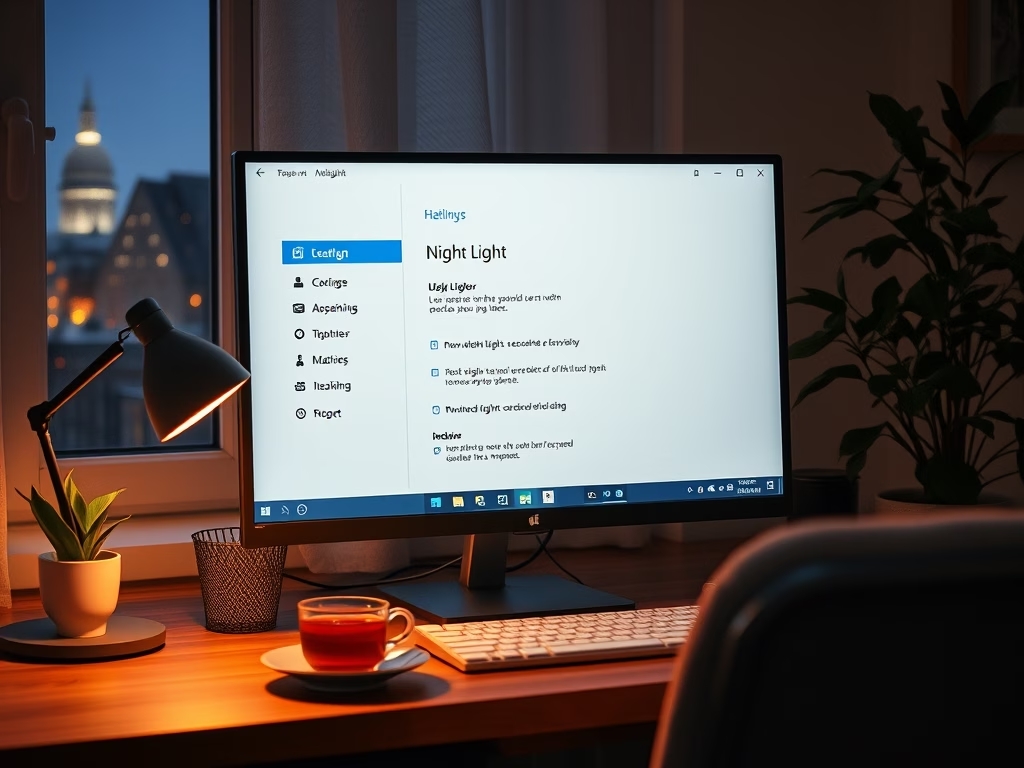
- Open Settings System Display Night light. The Night light page shows its switch, a Strength slider and the schedule options.
- Turn on Night light. Select Turn on now to see the effect right away. The screen takes on a warmer, more yellow tint.
- Drag the Strength slider to set the warmth. Move it until the colors look comfortable to you.
- Turn on Schedule night light to run it automatically. Choose Sunset to sunrise or set your own hours.
- Open Settings Accessibility Text size to make text larger. This makes text larger without changing everything else.
- Move the text size slider, then select Apply. This changes text only, not icons or apps, unlike Scale.
- Open Settings Personalization Colors for dark mode. The page lists your color and mode options.
- Set Choose your mode to Dark. Windows and most built-in apps switch right away. Set it back to Light to undo.
If you need stronger separation between text and background, open Settings Accessibility Contrast themes and pick a theme from the list, then select Apply. The screen goes blank for a moment while the theme loads. To go back, set the list to None and apply it again.
Customize Your Lock Screen
Control what you see when your computer is locked or on the sign-in screen. These options let you personalize the initial view before you log in.
These steps set the lock screen picture, its status details and the sign-in background:
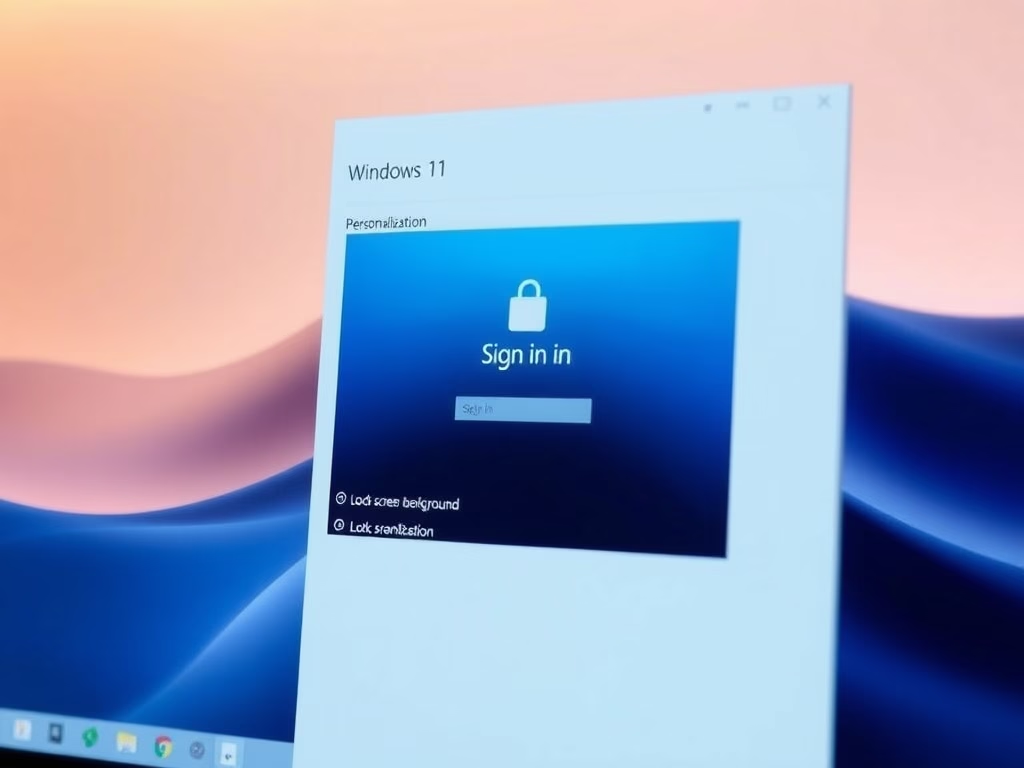
- Open Settings Personalization Lock screen. A preview of your current lock screen sits at the top of the page.
- Open the Personalize your lock screen list. It offers three kinds of background.
- Choose Windows spotlight, Picture or Slideshow. Windows spotlight gives rotating images from Microsoft, Picture a single image of your own, and Slideshow a folder of photos. The preview above the list updates to match.
- Pick an app in the Lock screen status list. That app shows status details on the lock screen. Choose none if you want no status details.
- Switch Show the lock screen background picture on the sign-in screen on or off. When it is on, the same image sits behind the password or PIN box. When it is off, you get a plain color.
Fine-Tune Visual Effects
Tweak advanced visual elements that affect the overall appearance of Windows. This section helps you enable or disable specific graphical effects.
These effects are cosmetic. Turning them off can make Windows feel quicker on older or low-powered machines, and it can make the screen less distracting. Here is what each one does:
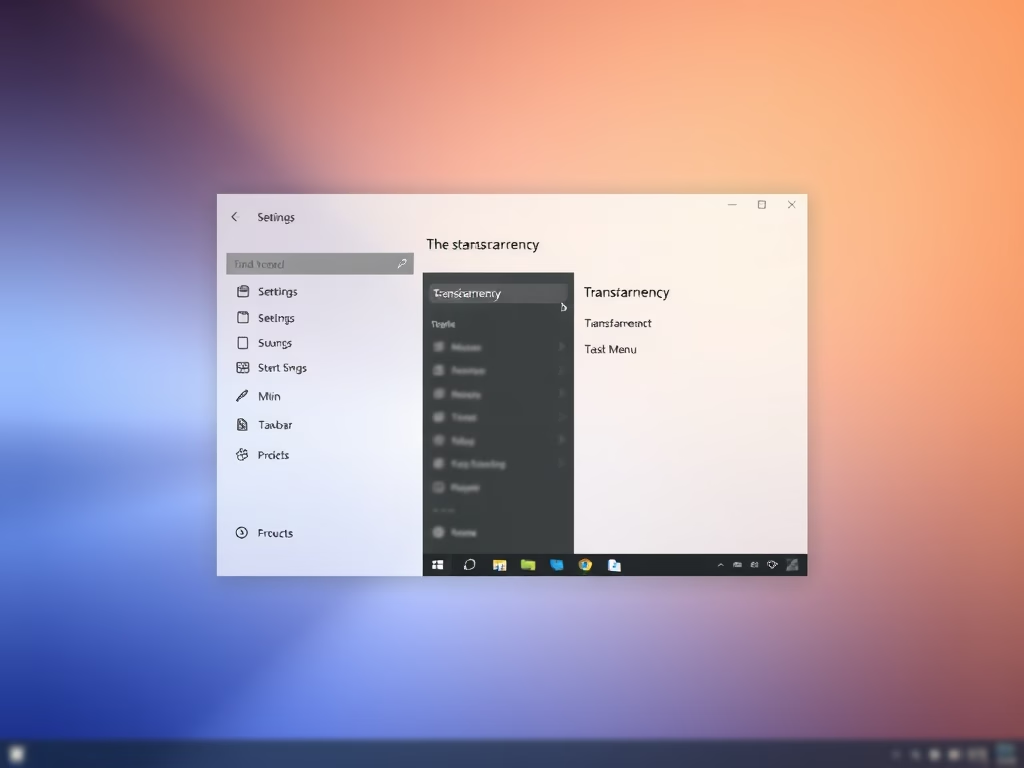
- Transparency effects make the taskbar, Start menu and some windows slightly see-through.
- Animation effects control the motion when windows open, close or move, and when menus slide in.
- Accent color sets the highlight color used across Windows. You can find it under Settings Personalization Colors.
Common questions
How do I change my main monitor in 🪟 Windows 11?
To change your main monitor, follow these steps:
- Open Settings System Display. The preview of your monitors appears at the top.
- Select the monitor you want as primary in the preview. Do this under Multiple displays. Select Identify if you are not sure which number belongs to which screen.
- Check the Make this my main display box. The taskbar and Start menu move to the new main display.
If the box is greyed out, that monitor is already the main one. If you do not see the Multiple displays section at all, Windows only detects one screen. Check the cable and select Detect if it appears.
Why is my screen flickering in 🪟 Windows 11?
Screen flickering stems from outdated display drivers or incompatible apps. Try updating your graphics driver through Device Manager or check if the issue happens with a specific application.
- Press Ctrl+Shift+Esc to open Task Manager. If Task Manager flickers along with the rest of the screen, the cause is probably the driver. If only one app flickers, the cause is that app.
- Right-click the Start button and select Device Manager. The Device Manager window opens with a list of hardware.
- Expand Display adapters. Your graphics adapter appears in the list.
- Right-click your graphics adapter and select Update driver. A window asks how you want to search for drivers.
- Choose Search automatically for drivers and follow the prompts. Restart the PC if Windows asks.
If the driver is up to date and the flicker remains, check the refresh rate in Settings System Display Advanced display and try the other options in the Choose a refresh rate list. A loose or damaged video cable can also cause flicker, so reseat it or try another one.
How do I turn off the dimming feature at night?
The Night Light feature likely causes this warm tint. Go to Settings System Display Night light to turn it off or adjust its schedule and warmth levels.
- Open Settings System Display Night light. The Night light page opens.
- Select Turn off now if the tint is on at the moment. The screen returns to normal colors.
- Turn off Schedule night light if the tint keeps coming back at the same time each day.
- Lower the Strength slider if you want to keep Night light but make it milder.
If the tint remains with Night light off, check the color settings on the monitor itself, as many have their own color or blue-light modes.
How can I make text and icons bigger on my screen?
Text and icon scaling remains fully customizable. Go to Settings System Display and choose a higher percentage under Scale to make everything appear larger.
- Open Settings System Display. The scale settings are under Scale & layout.
- Open the Scale list and pick a preset. The list offers preset values such as 100%, 125% and 150%.
- Select the arrow next to Scale if you need a specific number. Type a value under Custom scaling.
- Sign out and back in to apply a custom value. Custom values are best avoided unless the presets do not fit, because some apps look blurry at odd values.
To undo, choose the percentage marked (Recommended).
What is transparency effects in 🪟 Windows 11?
Transparency effects make windows and the taskbar slightly see-through, giving a modern look. You can turn them on or off in Settings Personalization Colors Transparency effects.
- Open Settings Personalization Colors. The color and effects options appear.
- Switch the Transparency effects toggle to Off. The taskbar and Start menu turn solid right away.
- Switch the toggle back to On to restore the effect.
The same setting is also available under Settings Accessibility Visual effects.
Frequently asked questions
How to adjust display settings in 🪟 Windows 11?
To adjust display settings in Windows 11, press Win+I to open Settings, then select System and click Display. From there you can change brightness, screen resolution, text size through Scale, and the layout of multiple monitors. Most changes take effect right away, and you can undo any of them by returning to the same option.
How to change display settings?
Open Settings with Win+I, then select System and choose Display. This page controls brightness, resolution, scaling, and how multiple monitors are arranged. Changes apply as soon as you make them. If the screen goes blank after a resolution change, wait about 15 seconds and Windows will switch back on its own.
How to change botem screen of my 🪟 Windows 11?
Windows 11 keeps the taskbar at the bottom of the screen, and you cannot move it to the top or sides. If you mean the bottom edge of a second monitor, open Settings, select System, then Display, and drag the monitor boxes to match where the screen sits on your desk.
What 🪟 Windows 11 accesability setting did I change to makes my screen go from white to black when I receive a notification mo my screen?
The setting is most likely under Settings Accessibility Contrast themes or Accessibility Visual effects. A contrast theme changes colors across the whole screen, which can make a notification look like a sudden flash. Turn off the contrast theme or the related effect, then check whether the flash stops when a notification arrives.
How to change screen settings?
To change screen settings in Windows 11, press Win+I to open Settings and select System, then Display. Here you can adjust brightness, resolution, text and app size, and the arrangement of multiple monitors. Changes apply right away, and you can reverse any of them by returning to the same option.
Where on 🪟 Windows 11 device do I find appearance and personalization?
Appearance and personalization are in Settings. Press Win+I, then select Personalization in the left list. This section holds Background, Colors, Themes, Fonts, Lock screen, Start, and Taskbar options. Changes apply right away and do not need a restart.
Still have a question?
Answered by AI from this guide. Good questions may be added to this page — please don't include personal details.
Did this guide fix your problem?

About the Author
Richard
Tech Writer, IT Professional
Richard is a writer at Geek Rewind who turns complex IT tasks into clear, step-by-step guides. He draws on years of hands-on experience in system administration and enterprise IT operations, focusing on Windows, Linux and WordPress: the problems people actually run into, and the fixes that work. His server and WordPress guides come from systems he runs himself. Richard builds and maintains the platform behind Geek Rewind, from its Ubuntu servers and Nginx configuration to its custom WordPress plugins. Many new tutorials start with readers' questions, and he's always glad to answer them in the comments.
No comments yet — be the first to share your thoughts!