How to Turn On or off Scheduled Night Light in Windows 11

Night Light shifts your display colors to warmer hues at night, which reduces eye strain and helps you sleep better. It is built into both Windows 11 Home and Pro, so there is nothing to install. Changes apply right away and you do not need to restart.
Open Settings, go to System Display, and click Night light. Toggle “Schedule night light” on or off, then choose your preferred schedule option.
Why Use Night Light?
Screens emit short-wave blue light that mimics daytime sun. Exposure late into the evening tricks the brain into staying awake, which disrupts healthy sleep cycles. Warming the screen colors in the evening cuts down that blue light.
What is Scheduled Night Light?
Scheduled Night Light is a built-in display feature that automatically shifts your screen colors to warmer tones at specific times. This reduces blue light exposure in the evening, and you do not have to turn the switch on and off by hand every day. You can choose between setting custom hours or letting Windows follow the local sunset and sunrise times.
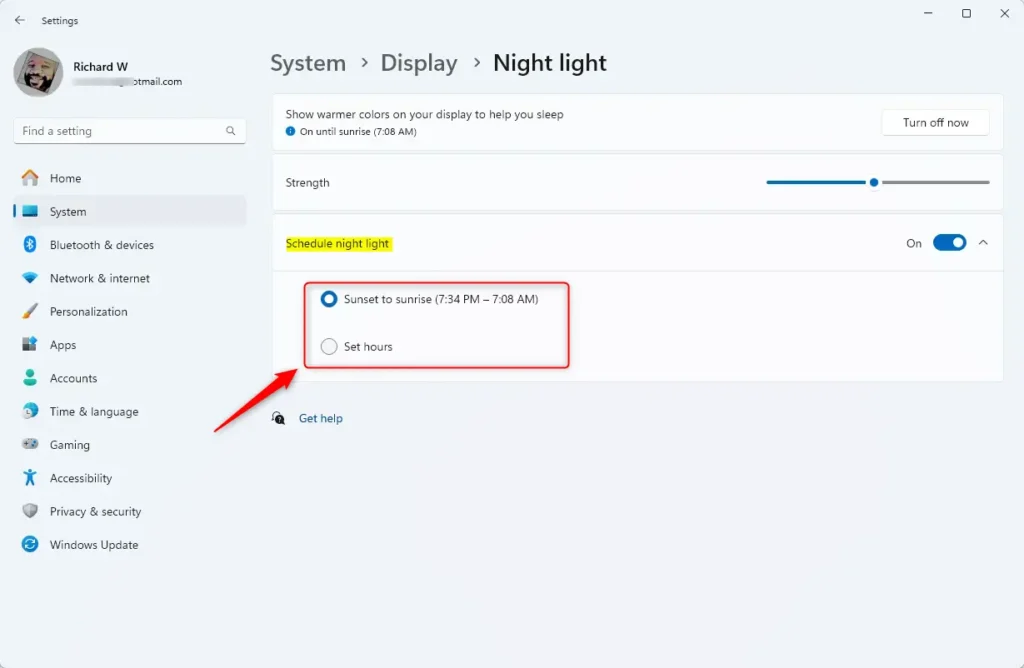
- Sunset to sunrise – Night Light turns on when it gets dark outside and turns off when the sun rises. You need Location services turned on for this.
- Set hours – You pick the exact times you want Night Light to turn on and off.
Pick Sunset to sunrise if you want the schedule to follow the seasons. Pick Set hours if you keep a fixed routine or do not want to share your location.
How to Turn On or Off Scheduled Night Light
- Open Settings : Press Windows key + I on your keyboard. The Settings app opens.
- Go to System: In the left menu, click System. The System options appear on the right.
- Open Display: Click Display on the right. You should now see your monitor layout, brightness and resolution options.

- Find Night Light: Scroll down to the Brightness & color section and click Night light. The Night light page opens with a Turn on now button, a Strength slider and the schedule options.
- Switch on the schedule: Turn on the switch for Schedule night light. Two choices appear below it: Sunset to sunrise and Set hours.
- Choose how it runs: Select either Sunset to sunrise or Set hours.
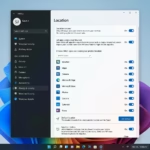
- If you chose Sunset to sunrise: Check that Location is on under Settings Privacy & security Location If location is off, Windows cannot work out your local sunset time and the schedule may not behave as expected.
- If you chose Set hours: Pick the times you want Night Light to turn on and off each day. The schedule repeats daily at those times.
- Adjust the warmth (optional): Drag the Strength slider until the color feels comfortable. A higher strength gives a warmer, more orange screen. You can use Turn on now to preview it without waiting for the schedule.
If the Night light page is greyed out or missing, the cause is usually the display driver. Update your graphics driver through Windows Update or your manufacturer’s site. Some displays connected through certain adapters or docks also do not support Night Light.
- Open the Night light page: Go to Settings System Display, then click Night light.
- Turn off the schedule: Switch off Schedule night light. Night Light will no longer turn on automatically.
- Check the screen: If the screen is still warm, Night Light was already on. Click Turn off now to return to normal colors.
To undo the change later, switch Schedule night light back on. Your earlier choice and strength setting should still be there.
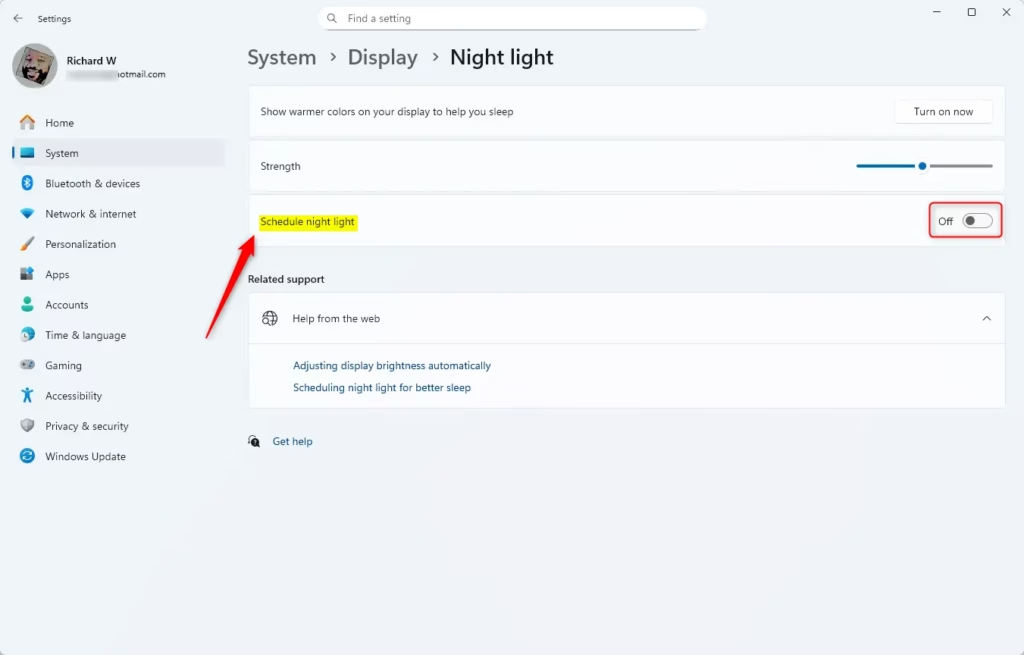
You can turn Scheduled Night Light on or off from the main Display settings. Open the Settings app, go to your display options, and use the schedule switch under Night light. This lets you automate when your screen turns warm, or go back to standard colors whenever you want.
Quick Tips
- Using Scheduled Night Light can help reduce eye strain and improve your sleep at night.
- You can pick times that fit your daily routine.
- Location services must be enabled if you want Night Light to follow sunset and sunrise times automatically.
- Changing these settings is easy and doesn't affect anything else on your computer.
- If you don't like the warmer colors, turn Night Light off anytime, or lower the Strength slider instead of switching it off.
- Night Light changes how the screen looks, but it does not change your files, apps or saved color profiles.
Scheduled Night Light works best when you match the schedule to your sleep habits, or turn on location services for accurate sunset timing. If the schedule seems off, check your Location setting, your time zone and your date and time first. Those are the usual causes of a broken sunset schedule or of warm colors showing up during the day.
Was this guide helpful?

About the Author
Richard
Tech Writer, IT Professional
Richard is a writer at Geek Rewind who turns complex IT tasks into clear, step-by-step guides. He draws on years of hands-on experience in system administration and enterprise IT operations, focusing on Windows, Linux and WordPress: the problems people actually run into, and the fixes that work. His server and WordPress guides come from systems he runs himself. Richard builds and maintains the platform behind Geek Rewind, from its Ubuntu servers and Nginx configuration to its custom WordPress plugins. Many new tutorials start with readers' questions, and he's always glad to answer them in the comments.


No comments yet — be the first to share your thoughts!