How to Change Night Light Strength in Windows 11


Night light strength in Windows 11 controls how warm your screen colors look, so your eyes hurt less at night. The feature shifts your display toward softer yellow and orange tones to cut down on blue light. A slider from 0 to 100 lets you pick the exact warmth you want. Higher numbers give a stronger orange tint.
The quickest way to change it is Settings System Display Night light. Move the Strength slider left or right until the screen feels comfortable in a dark room. The change applies as you drag, so you can judge the result right away. No restart is needed, and the steps are the same on Windows 11 Home and Pro.
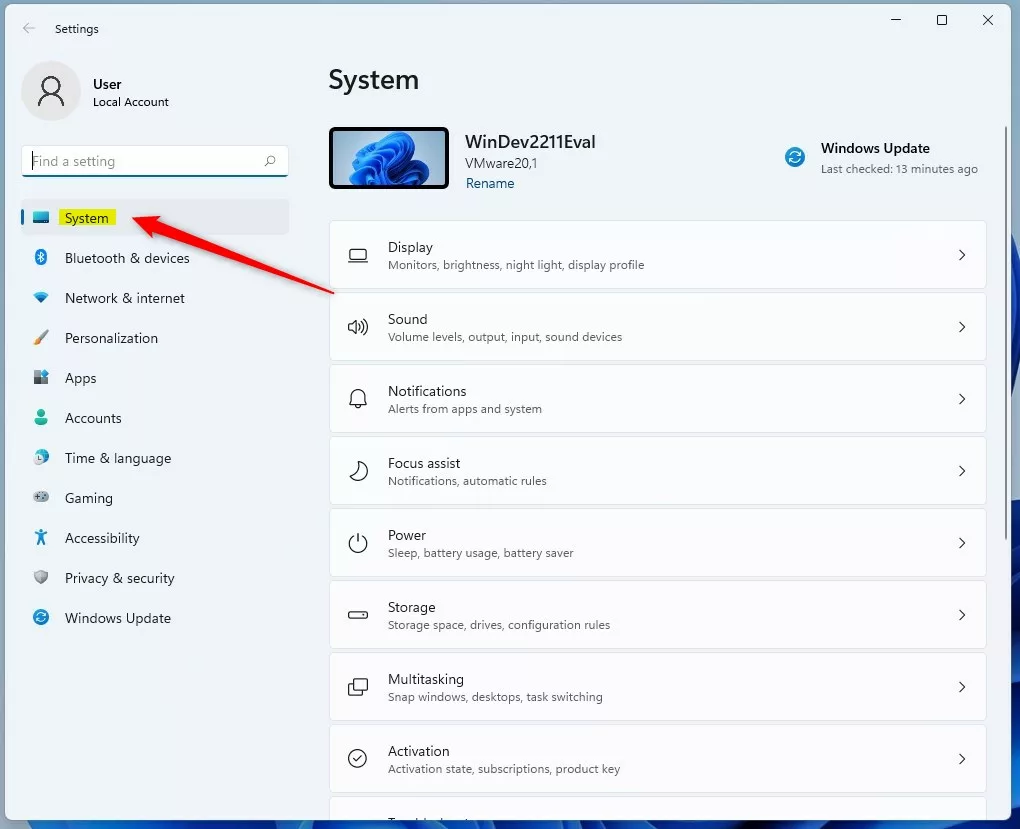
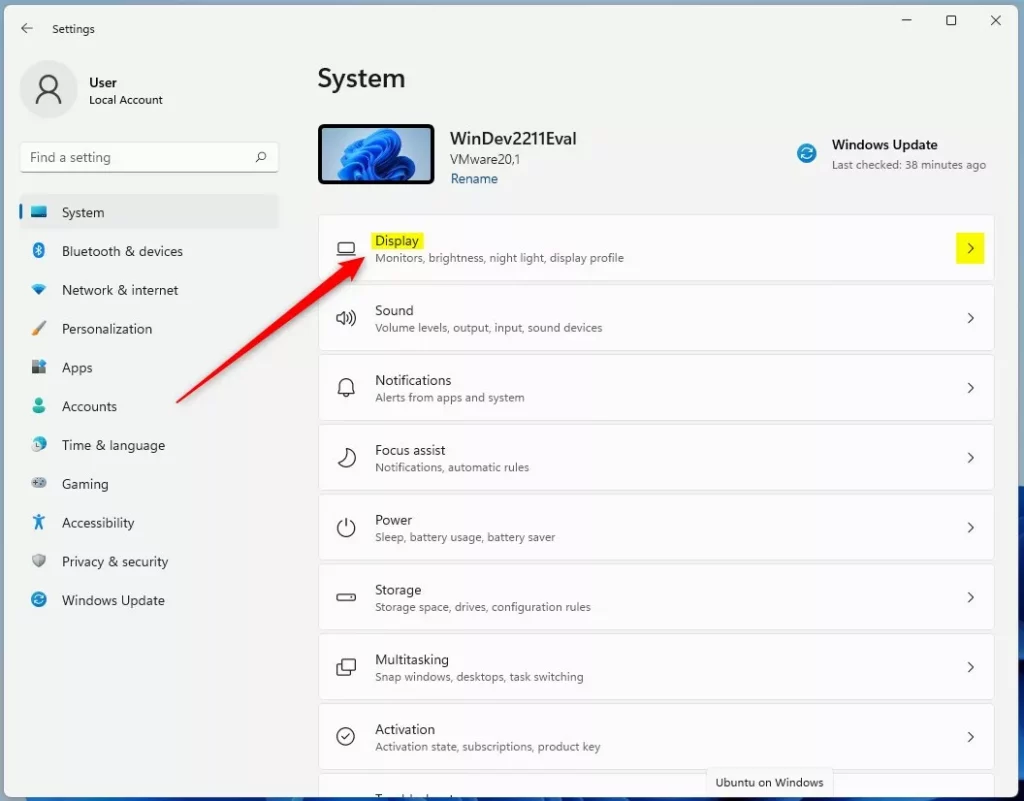
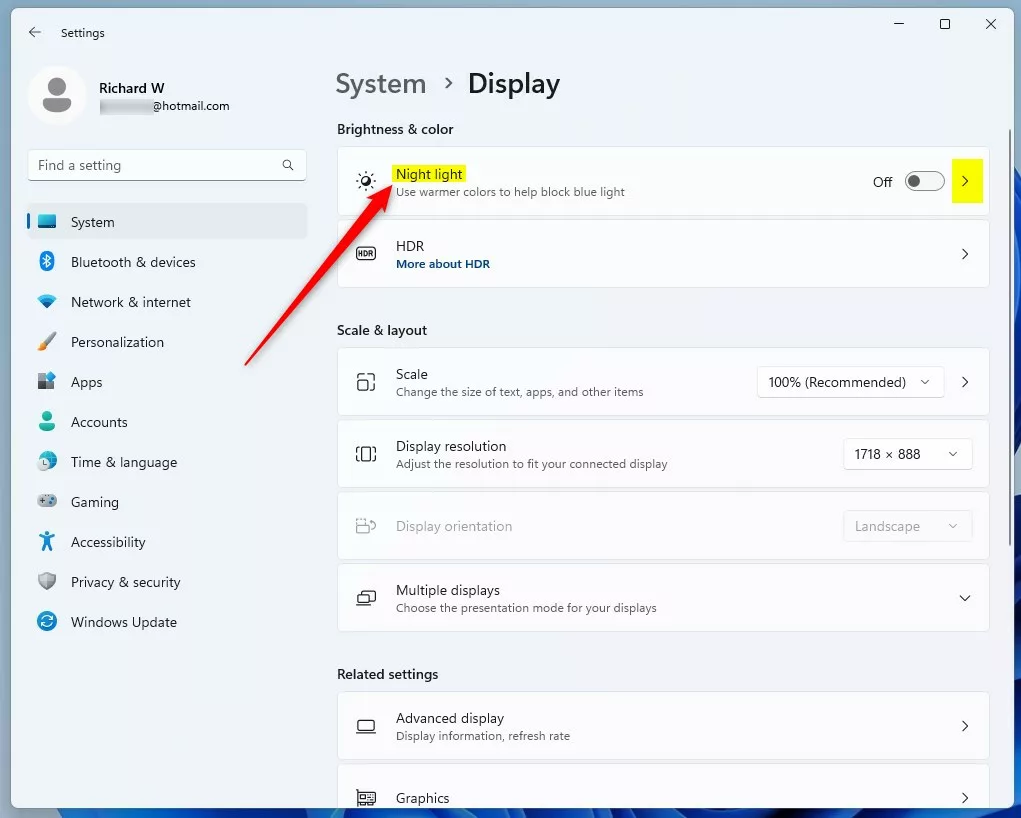
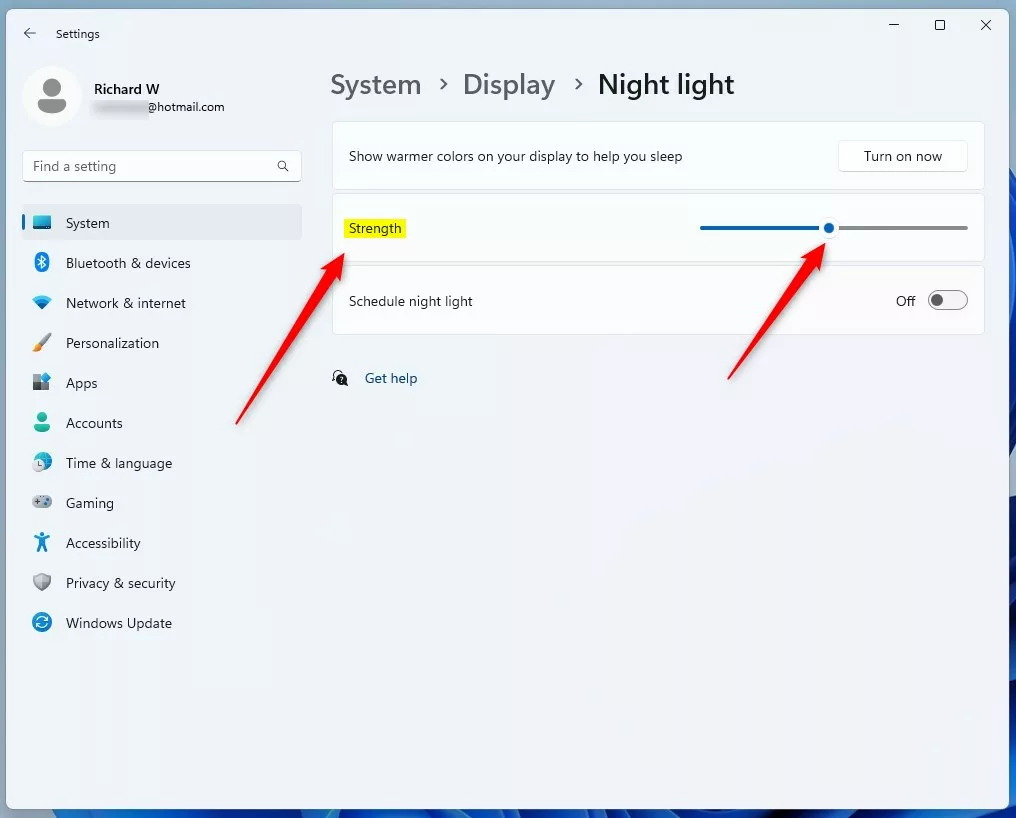
Open Settings, go to System, then Display, and click Night light. Use the Strength slider to adjust the color warmth, moving it right for more orange or left for cooler tones.
What Happens When You Adjust Night Light?
When you move the color temperature slider, the display shifts from cool blue tones to warmer orange or yellow ones. This softens the harshness of the screen. Windows remembers your strength setting and applies it every time Night light is active, whether you turn it on by hand or by schedule.
Night light changes how the whole screen looks, including photos and video. If you edit images or do color-sensitive work, switch it off for that work. Your strength setting stays saved, so you can turn it back on later without setting it again.
How to Access Night Light via Quick Settings
You can turn Night light on or off from the Quick Settings panel on the taskbar, without opening the Settings app . Clicking the network, volume, or battery icons in the bottom right corner opens this panel. It has a button that toggles the screen tint instantly. This switches the feature on or off only. To change the strength, use the Settings app as described in the next section.
- Click the Network, Volume, or Battery icon in the bottom right corner of your taskbar . The Quick Settings panel opens above the taskbar. You can also press Win+A to open it.
- Look for the Night light button. If you can’t see it, click the pencil icon (Edit quick settings) at the bottom of the panel, click Add, and pick Night light from the list. Click Done when you finish.
- Click it to turn the feature on or off instantly. When it is on, the button is highlighted and the screen turns warmer straight away.
To undo this at any time, click the same button again. The screen goes back to normal colors.
How to Adjust Night Light Strength in 🪟 Windows 11
To change how strong the tint is, open the main Settings app and go to Display. The Strength slider on the Night light page sets the color temperature, so the screen is easier on your eyes during late-night work. Do this in the evening or in a dim room if you can. The difference is easier to judge when your eyes are used to low light.
- Open Windows Settings by pressing Windows key + I. The Settings window opens.
- Click System on the left sidebar. The System options appear on the right.
- Select the Display tile. You will see your screen settings, with Night light listed under the brightness and color options.
- Click the Night light text, not just the toggle, to open the menu. The page shows a Turn on now button, the Strength slider, and the schedule options.
- Use the Strength slider to change the color warmth. Moving it right makes the screen more orange. Moving it left makes it cooler. If the slider won't move, click Turn on now first so you can see the effect as you drag.
There is no Save button. Windows applies the new strength as you move the slider and keeps it. To undo, drag the slider back to where it was. You can also turn Night light off with the toggle.

How to Schedule Night Light
You can set Night light to turn on automatically at sunset, so your eyes are protected without any manual effort. You can also pick your own hours. The strength you set earlier is used every time the schedule starts.
- Go to Settings System Display Night light The Night light page opens.
- Toggle the Schedule night light switch to On. Two options appear below it.
- Choose Sunset to sunrise or Set hours to enter your own custom start and stop times. Sunset to sunrise needs location services, so if Windows asks you to turn them on, allow it. If you would rather not share your location, use Set hours instead.
To stop the automatic schedule, switch Schedule night light back to Off. You can still turn Night light on by hand whenever you want.
Troubleshooting Night Light Issues
When the Night light switch is greyed out or doesn't work, the fix is usually to update your graphics drivers or check how your monitor is connected. Old display drivers often block the color temperature controls, and certain docking stations stop the feature from working. Try the fixes below in order, from least to most invasive.
- Update GPU Drivers: Outdated graphics drivers can cause display issues. Visit your manufacturer's website to download the latest versions. If Device Manager lists Microsoft Basic Display Adapter under Display adapters, your real graphics driver is missing, which commonly leaves Night light greyed out. Restart after installing the driver.
- Check Docking Stations: Some external monitors connected via docking stations do not support Windows Night Light. Try connecting the monitor directly to your PC. If Night light works on the direct connection, the dock is the cause.
- Registry Reset: If the feature is still greyed out, you may need to reset the registry. This is the last resort, so try the other fixes first. Editing the registry can cause problems if you delete the wrong thing. Before you start, create a restore point or export the key from the Registry Editor with File Export [Requires Admin Privileges]
- Open the Registry Editor by typing regedit in the Start menu and pressing Enter. Navigate to HKEY_CURRENT_USER\Software\Microsoft\Windows\CurrentVersion\CloudStore\Store\DefaultAccount\Cloud and delete the folders related to $$windows.data.bluelightreduction.bluelightreductionstate. Restart your computer. Windows rebuilds these entries on startup, and your Night light settings go back to their defaults. This change affects only your own user account.
Summary
Adjusting the Night light feature in Windows 11 helps reduce blue light, which can improve your sleep and lessen eye fatigue, making your screen more comfortable to view. Set the strength to a level that feels easy in a dark room, add a schedule so it runs on its own, and use the Quick Settings button when you need to switch it off for a while.
Have a question about this guide?
Answered by AI from this guide. Good questions may be added to this page — please don't include personal details.
Did this guide fix your problem?

About the Author
Richard
Tech Writer, IT Professional
Richard is a writer at Geek Rewind who turns complex IT tasks into clear, step-by-step guides. He draws on years of hands-on experience in system administration and enterprise IT operations, focusing on Windows, Linux and WordPress: the problems people actually run into, and the fixes that work. His server and WordPress guides come from systems he runs himself. Richard builds and maintains the platform behind Geek Rewind, from its Ubuntu servers and Nginx configuration to its custom WordPress plugins. Many new tutorials start with readers' questions, and he's always glad to answer them in the comments.
No comments yet — be the first to share your thoughts!