How to Schedule Night Light for Better Sleep in Windows 11 Display Settings

To schedule night light for better sleep in Windows 11, open Settings System Display, switch Night light on, then turn on Schedule night light and choose your hours. Night light is a display feature that warms screen colors in the evening by cutting blue light, which can ease eye strain.
Screens give off short-wave blue light that tells your brain it is still daytime. A schedule means the color shift starts every evening without you touching anything. Windows 11 lets you pick exact start and stop times, or tie the shift to your local sunset and sunrise. The feature is built into Windows 11 Home and Pro alike, and none of the changes below need a restart.
To schedule Night light in Windows 11, open Settings System Display, click the Night light row, switch on Schedule night light, then choose Sunset to sunrise or Set hours. The screen warms automatically each evening, and no restart is needed.
How to Turn On and Configure Night Light Manually
These steps turn on Night light and set how warm it looks:
- Press Win+I. The Settings app opens.

- Select System in the left sidebar. The display, sound and power options appear on the right.
- Click Display. The brightness, scale and Night light options appear.
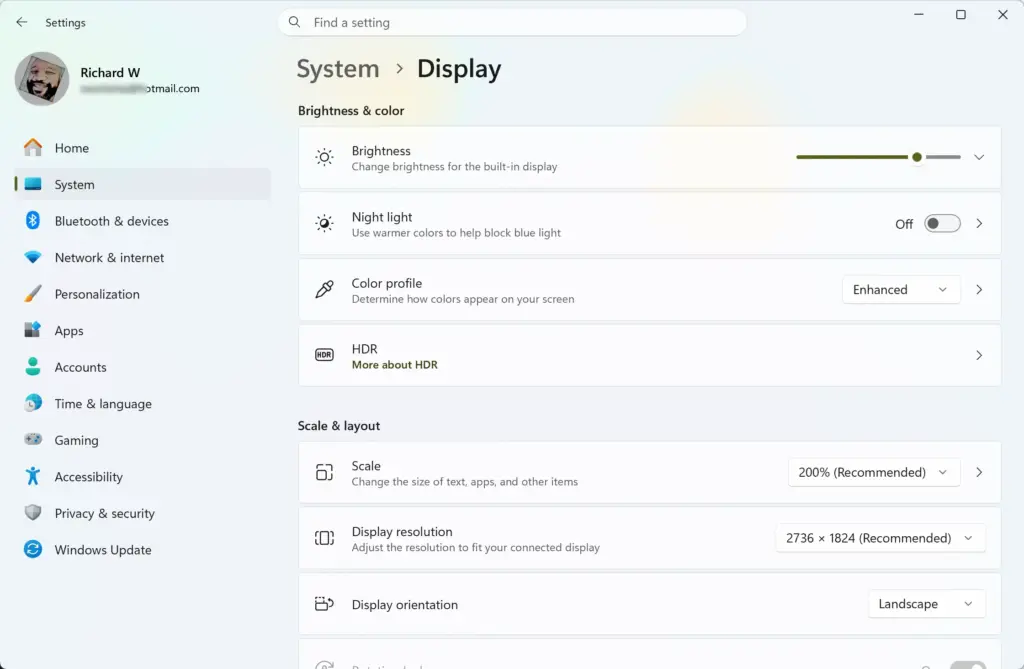
- Switch the Night light toggle to On. The screen should turn noticeably warmer and more yellow right away.
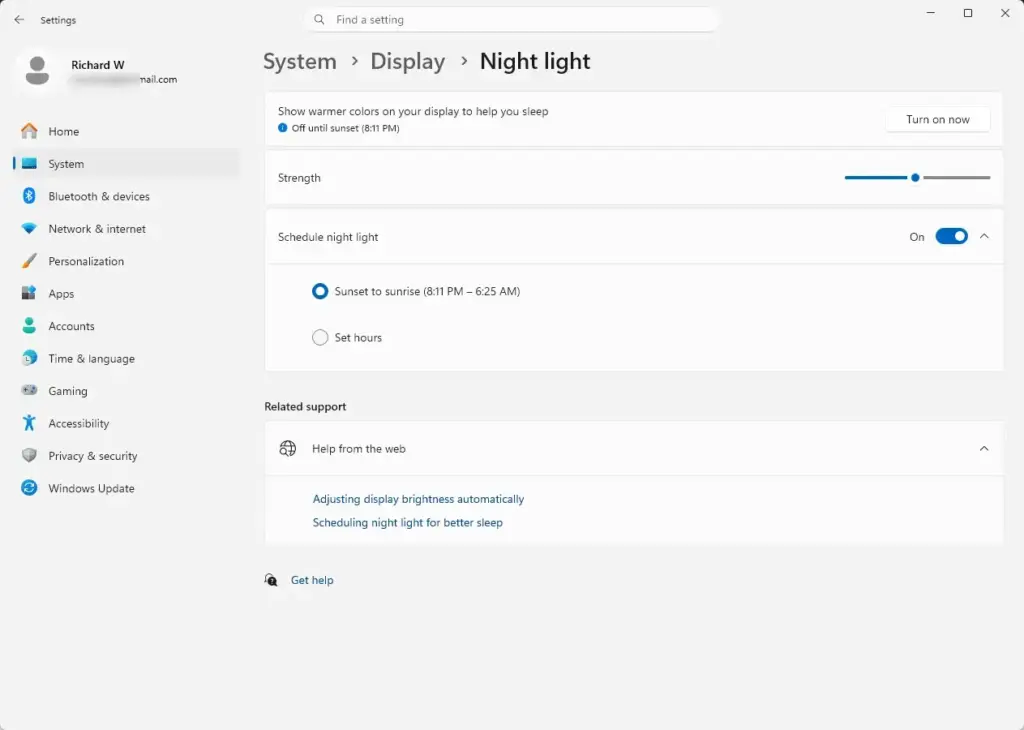
- Click the Night light text label, not the toggle. The row expands to show its detailed settings.
- Drag the Strength slider left or right. The screen changes as you drag, so you can judge the result live. Stop at a level that reduces eye strain but keeps text and colors readable.
To undo this, return to the same page and switch the Night light toggle to Off. Your strength setting is kept for next time.
How to Schedule Night Light Automatically
These steps schedule Night light to switch on and off by itself. You can choose sunset-to-sunrise timing or custom hours. Once a schedule is on, there is nothing to adjust by hand each evening.
- Press Win+I. The Settings app opens.
- Select System. The system options appear on the right.
- Click Display.
- Click the Night light row to expand it. You should see the strength slider and the schedule options.
- Switch the Schedule night light toggle to On. The Sunset to sunrise and Set hours options become active.
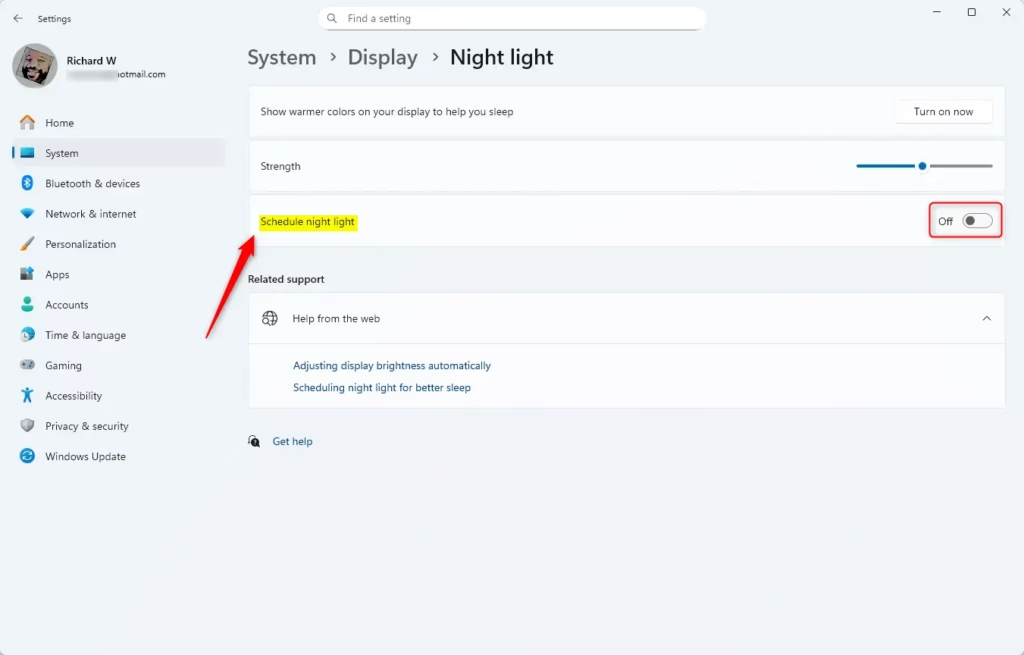
- Select the Sunset to sunrise radio button to let Windows work out the timing from your location. The times change with the seasons, so you never have to update them.
- Select the Set hours radio button instead if you want fixed times. Use the drop-down menus to pick your Turn on and Turn off times, starting an hour or two before your usual bedtime.
Fixed hours are a good choice if your location settings are off or if you work odd shifts. To undo the schedule, switch Schedule night light back to Off.
Troubleshooting Night Light Scheduling Issues
- Open Settings. Select Privacy & security in the left sidebar.
- Click Location. The location controls appear on the right.
- Switch Location services to On. Make sure the switch for letting Windows use your location is on as well.
- Return to System Display Night light. Check that Sunset to sunrise is now available.
Also check that your date, time and time zone are correct, because an incorrect clock shifts the schedule. If you would rather not share your location, use Set hours instead.
Using Focus and Notifications to Reduce Evening Distractions
Focus is a distraction-management tool that hides incoming pop-up alerts and notification badges. Use it to silence late-night interruptions while you wind down. Paired with your Night light schedule, it means a bright pop-up will not break the calm you are trying to build.
- Open Settings. Select System.
- Click Focus. The focus options appear on the right.
- Choose the options you want. Examples are hiding badges on taskbar apps and flashing on taskbar apps.
- Start a focus session. Alerts stay quiet until the session ends.
The exact options on this page vary a little between Windows 11 versions. If you only want to mute notifications, the Do not disturb setting under System Notifications does that. Stop the session or switch the option off at any time to get your alerts back.
Customizing Accent Colors and Dark Mode for Better Evening Viewing
Dark mode replaces bright white app windows with dark ones. This lowers the overall brightness of what you see and works well alongside the warmer colors from Night light.
- Open Settings. Select Personalization.
- Click Colors. The color and theme options appear.
- Open the drop-down next to Choose your mode. Select Dark. Windows and most built-in apps change at once.
Some older or third-party apps keep their own light theme and ignore this setting. To go back, set Choose your mode to Light.
Managing Power and Sleep Settings Alongside Night Light
Screen timeout and sleep settings decide when the display turns off. Lengthen them if you read or watch something before bed and do not want the screen to go dark. In Windows 11 this page is called Power & battery, while older guides call it Power & sleep.
- Open Settings. Select System.
- Click Power & battery. The power options appear on the right.
- Expand Screen and sleep. The timeout drop-down menus appear.
- Set the screen and sleep timeouts with the drop-down menus. Laptops show separate times for battery and plugged-in use.
Longer timeouts use more power, which matters on a laptop running on battery. You can set the values back at any time.
If this didn’t work
If Night light still fails after the location check, install any pending Windows updates. Updates often fix interface bugs that stop the schedule from working. If that does not help, a third-party display utility can handle the color shifting instead.
- Open Settings. Select Windows Update.
- Click Check for updates. Windows lists anything waiting to install.
- Install everything that is listed. Restart if Windows asks you to, then test Night light again.
Display driver problems can also cause Night light to misbehave, so update your graphics driver through Windows Update or from your PC maker’s website. If the built-in feature still does not work, a third-party display utility is a fallback. Pick one from a source you trust, and remember it replaces the Windows schedule rather than adding to it.
Frequently asked questions
Is night light on windows better for your eyes?
Night light can make screens easier on your eyes in the evening, especially in a dim room. It cuts down blue light and warms the colors, which many people find less harsh. It does not protect your eyes from damage, and it does not dim the screen. Lowering screen brightness usually helps more with strain.
How to schedule windows to sleep?
Windows 11 has no built-in sleep schedule, so you need Task Scheduler. Click Create Basic Task, set the trigger to Daily at your bedtime, and choose Start a program as the action. In Program/script, enter 📁C:\
What is the best night light to promote sleep?
The best night light for sleep is dim and warm, such as amber or red. Cool white light can keep your brain alert, so choose a warm bulb around 2700K or lower. Keep it dim and point it away from your eyes. On a PC, set Night light to its strongest warmth setting.
Is it okay to leave a nightlight on all night?
Yes, a low-wattage nightlight is generally safe to leave on overnight. Choose one that stays cool to the touch, and keep it away from curtains, bedding, and paper. Use a dim, warm color, because bright white light can disrupt sleep. Some people sleep better in total darkness, so turn it off if you do.
Still have a question?
Answered by AI from this guide. Good questions may be added to this page — please don't include personal details.
Did this guide fix your problem?

About the Author
Richard
Tech Writer, IT Professional
Richard is a writer at Geek Rewind who turns complex IT tasks into clear, step-by-step guides. He draws on years of hands-on experience in system administration and enterprise IT operations, focusing on Windows, Linux and WordPress: the problems people actually run into, and the fixes that work. His server and WordPress guides come from systems he runs himself. Richard builds and maintains the platform behind Geek Rewind, from its Ubuntu servers and Nginx configuration to its custom WordPress plugins. Many new tutorials start with readers' questions, and he's always glad to answer them in the comments.
No comments yet — be the first to share your thoughts!