How to Enable Dark Mode in Windows 11 Settings

- 26 steps
- Includes a restart or sign-out
Dark mode in Windows 11 is in Settings Personalization Colors, under the Choose your mode drop-down. Selecting Dark there turns the Start menu, taskbar, Settings, File Explorer, and other built-in apps from bright white to charcoal and black.
Dark backgrounds give off far less bright light than white ones, which makes long sessions easier on the eyes. They help most in dim rooms. This guide also covers Night light, accent colors, third-party apps, and a fix for menus that stay light. None of these changes needs a restart.
Open Settings with Win+I, select Personalization, then click Colors. Under Choose your mode, open the drop-down and select Dark. The Start menu, taskbar, Settings and File Explorer switch to a dark colour scheme straight away, with no restart needed. To go back, select Light from the same drop-down.
How to use dark themes in 🪟 Windows 11?
Dark mode is a system-wide color scheme. The setting is on the Colors page under Personalization, and it takes effect the moment you pick it. It is available in both Windows 11 Home and Pro.
- Press Win+I to open Settings.

The Settings window opens with the category list on the left.
- Select Personalization from the left-hand navigation menu.
- Click Colors to view the system color options.
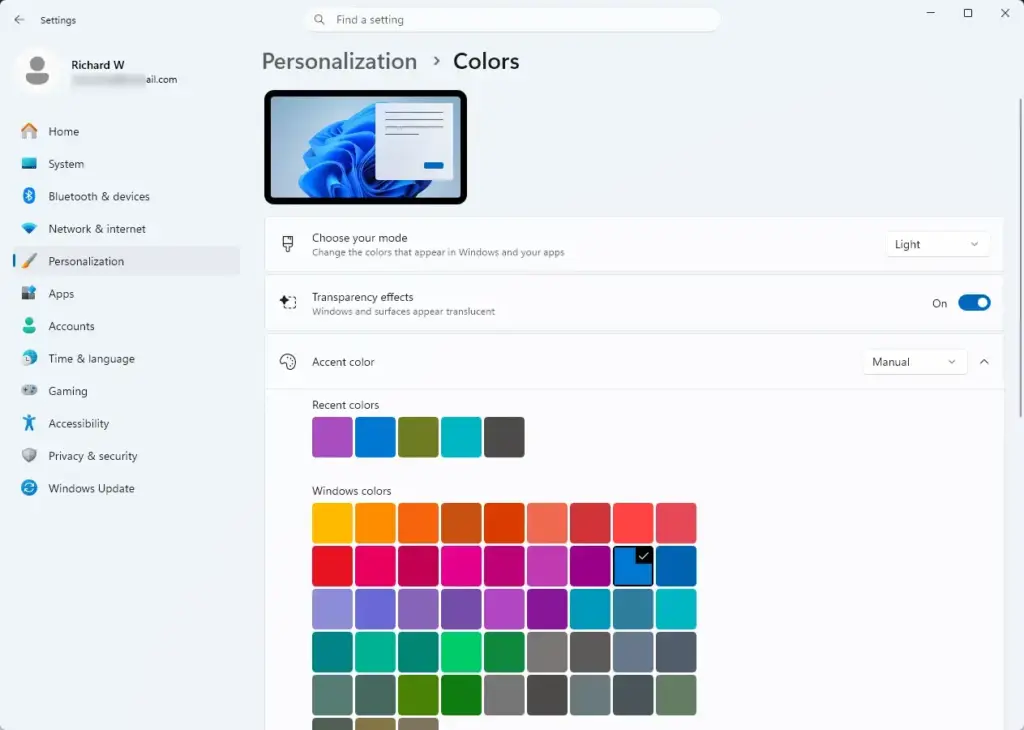
- Find the Choose your mode setting. It controls the color profile for Windows and your apps.
- Click the drop-down menu next to Choose your mode and select Dark.
The Settings window, Start menu, and taskbar turn dark straight away.
If you want the taskbar and Start menu dark but your apps light (or the other way round), pick Custom instead. It adds two separate options, one for Windows mode and one for the default app mode. To undo dark mode, return to the same drop-down and select Light.
The Themes page also links to contrast themes. These are high-contrast color schemes built for readability, and they look quite different from standard dark mode. Pick one only if you want that stronger contrast.
🪟 Windows 11 Night light
Night light is a separate feature from dark mode. It shifts the screen colors toward warmer, more amber tones in the evening to cut blue light. Use it on its own or together with dark mode.
- Press Win+I to open Settings.
- Select System from the sidebar.
- Click Display to open your monitor and brightness settings.
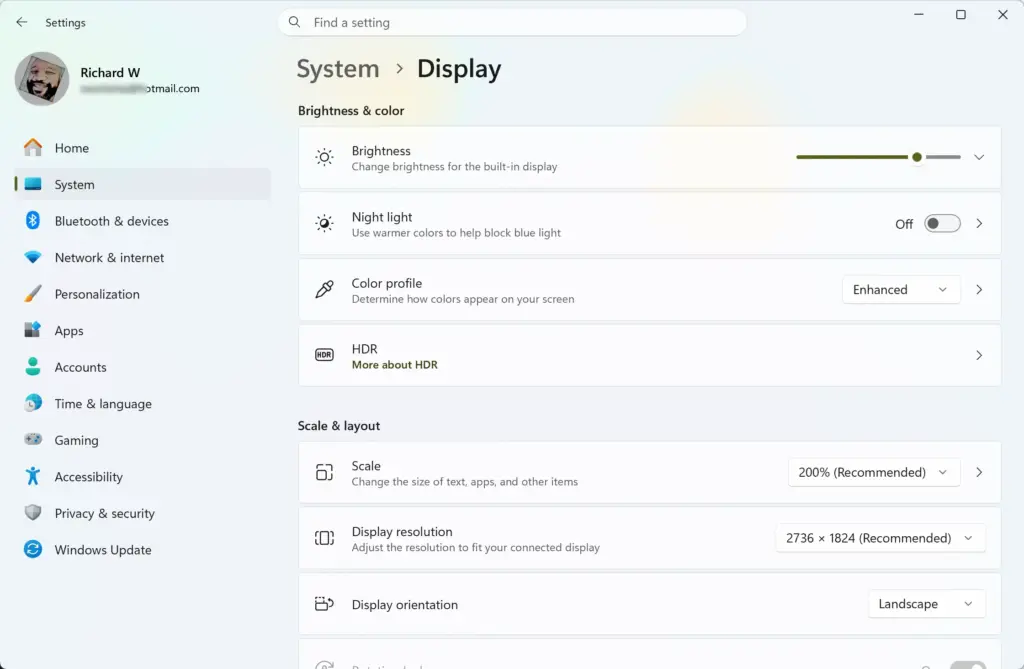
- Find the Night light toggle switch and turn it on.
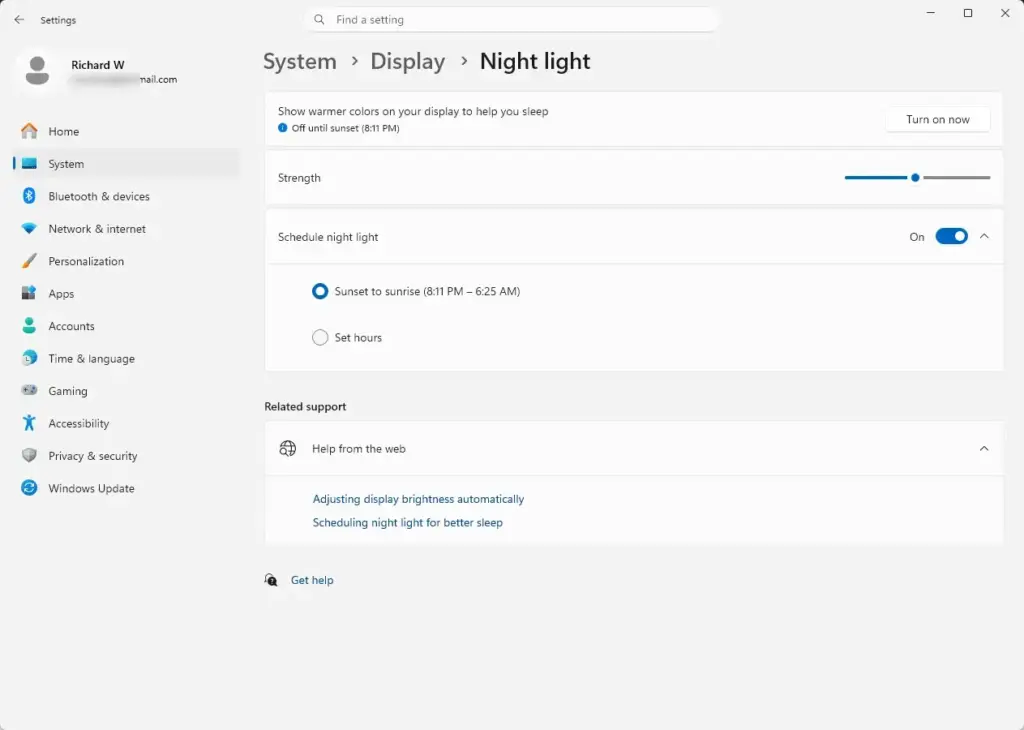
The screen turns noticeably warmer right away.
- Click the Night light entry itself, not only the toggle, to open the scheduling and color temperature controls.
- Drag the Strength slider to your preferred warmth level. To make it run automatically, turn on Schedule night light and choose a custom schedule or one based on your local sunrise and sunset times.
The sunset-to-sunrise schedule needs location services turned on, so Windows knows when the sun goes down where you are. If you’d rather set your own times, choose the custom hours option. To turn the feature off, switch the Night light toggle back off.
For quicker access, press Win+A to open the Quick Settings panel. If a Night light tile is there, click it to switch the feature on or off. If you don’t see the tile, use the pencil (Edit quick settings) button on the panel to add it.
If the Night light toggle is missing or greyed out, the display driver may be the cause. Updating your graphics driver often brings it back.
Customizing Accent Colors and Transparency
Accent colors control the color of window borders, taskbar underlines, selected items, and toggle switches. They live on the same Colors page as dark mode, so you can set both in one visit.
- Press Win+I to open Settings.
- Select Personalization and click Colors.
- Choose your accent color manually from the color grid, or select Automatic to let Windows match your wallpaper.
- Scroll down and turn on Show accent color on Start and taskbar if you want your chosen color applied to those bars.
- Turn on Show accent color on title bars and window borders to color the edges of active application windows.
- Use the Transparency effects toggle to turn translucent background blurring on or off for the Start menu and taskbar.
The option to show the accent color on Start and the taskbar only works when Windows mode is set to dark. If it is greyed out, go back to Choose your mode and make sure Dark is selected. Under Custom, Windows mode must be dark.
Applying Dark Mode to Individual Apps and Web Browsers
Many third-party apps and web browsers have their own appearance settings and don’t always follow the main Windows 11 dark mode. Open the settings inside each program and turn on dark mode there so everything looks consistent. The exact wording differs from app to app.
- Open your web browser or productivity application.
- Go to the application’s Settings, Preferences, or Appearance menu.
- Find the Theme or Appearance option and switch it from Light to Dark.
Some apps also offer a system or device default choice. Picking it makes the app follow Windows from then on, so it switches whenever you change the Windows setting.
- Restart the application if it prompts you to, so the new color scheme applies to all internal menus and content windows.
Dark mode in a browser usually changes only the browser’s own interface, such as tabs and menus. Websites decide for themselves whether to show a dark page. To undo the change in an app, set its theme back to Light.
Troubleshooting Common Dark Mode Glitches
Sometimes parts of the interface stay stuck in light mode after you switch. This usually happens when the Windows graphical shell, which draws the taskbar and Start menu, doesn’t refresh properly. Restarting Windows Explorer in Task Manager reloads the shell and normally fixes it, without a full reboot.
- Press Ctrl+Shift+Esc to open Task Manager, a system monitor that shows running apps and resource usage. If it opens in a small window, click More details.
- Open the Processes page if it is not already selected. In current Windows 11 builds, the Processes page is the first icon in the left-hand navigation.
- Scroll down to find Windows Explorer, the process that controls the taskbar, desktop icons, and open folders.
- Right-click Windows Explorer and select Restart.
The taskbar and desktop disappear for a second or two and then come back. This is normal.
- Return to Settings, select Personalization, and re-apply your dark theme if individual elements still don’t update.
If menus are still light after that, sign out and back in, or restart the PC. If the problem persists, check for pending Windows updates.
What to do next
You should now see the dark theme across your system interface and native applications. To go further, adjust your accent colors or set a custom lock screen image to match the new look.
Have a question about this guide?
Answered by AI from this guide. Good questions may be added to this page — please don't include personal details.
Did this guide fix your problem?

About the Author
Richard
Tech Writer, IT Professional
Richard is a writer at Geek Rewind who turns complex IT tasks into clear, step-by-step guides. He draws on years of hands-on experience in system administration and enterprise IT operations, focusing on Windows, Linux and WordPress: the problems people actually run into, and the fixes that work. His server and WordPress guides come from systems he runs himself. Richard builds and maintains the platform behind Geek Rewind, from its Ubuntu servers and Nginx configuration to its custom WordPress plugins. Many new tutorials start with readers' questions, and he's always glad to answer them in the comments.
No comments yet — be the first to share your thoughts!