How to Enable Dark Mode in Notepad on Windows 11


Dark mode in Notepad on Windows 11 swaps the bright white background for a dark gray theme that is easier on your eyes. The text switches to white, and the menus match the dark theme used by the rest of your system.
The feature requires Notepad app version 11.2307.20.0 or newer. Notepad is updated through the Microsoft Store, so that is where you check the version and get updates. Open the Store, go to Library, and click Get updates. If Notepad is on the list, let it finish installing before you continue.
Open Notepad, click the Settings (gear icon) at the top right, expand App theme, and select Dark from the dropdown menu. The window switches to dark mode with no restart needed.
Why change your theme?
Dark mode makes the screen more comfortable to look at at night, when a white window can feel glaring. It can also help conserve battery power on laptops. The saving is most noticeable on OLED screens, where dark pixels use less power. On a standard LCD panel the difference is small.
How to change the Notepad theme
You change Notepad’s look from the gear-shaped settings button inside the app. The change takes effect straight away, and you do not need to restart anything. The steps below take about half a minute.
- Open the Notepad app from your Start menu . A Notepad window opens with a blank document or your last session’s tabs.
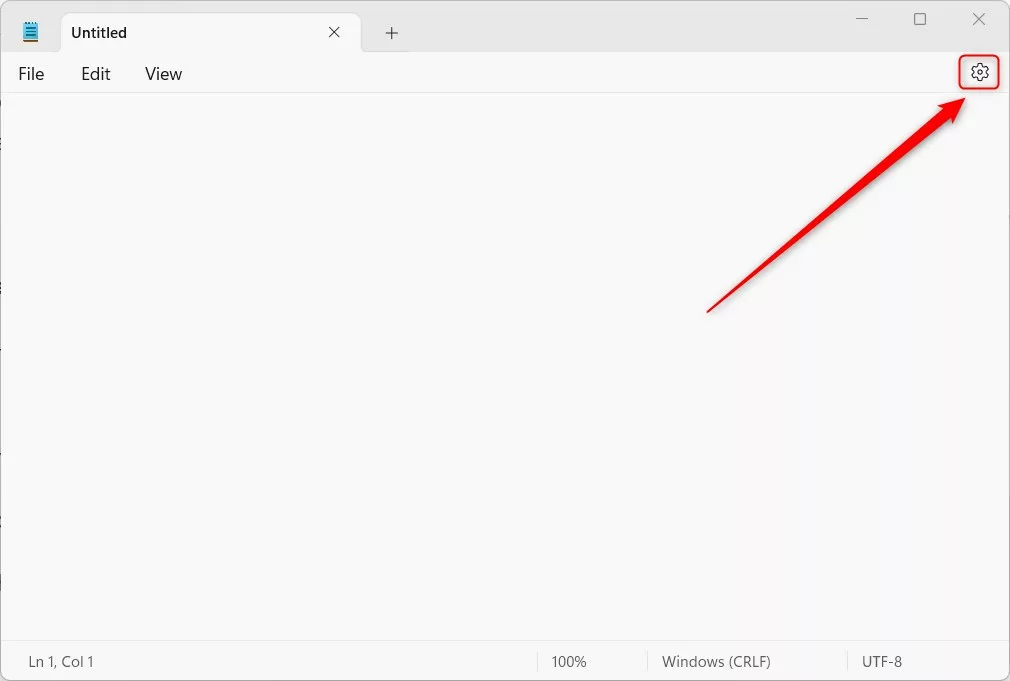
- Click the Settings (gear icon) button at the top right of the window. The Settings screen opens inside Notepad. If you can’t find the gear, check that the window is wide enough to show the full title bar area, or maximize it.
- On the Settings screen, click the App theme section to expand it. You should see a dropdown with the theme choices. If there is no App theme section at all, your Notepad is too old. See the troubleshooting section below.
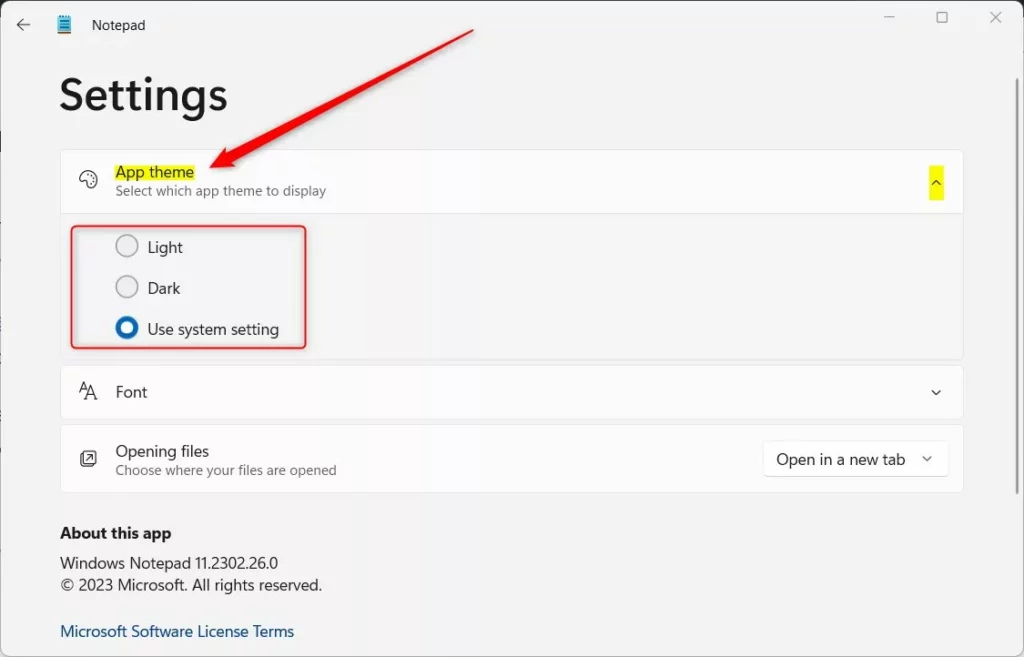
- Select your preferred look from the dropdown menu. The options are Light, Dark, and System default. Depending on your build, the last one may be worded Use system setting. The window turns dark as soon as you pick Dark.
Choose System default if you want Notepad to follow Windows. It will then switch whenever you change the system mode. To undo the change at any time, return to this dropdown and pick Light.
- Close the Settings pane when you are finished. Changes apply immediately, so your document is back on screen in the new theme and nothing needs saving.
System-wide vs. App-specific settings
Windows 11 lets you change the theme for the entire operating system, but Notepad also supports its own appearance setting. That means you can keep Notepad dark while the rest of Windows stays light, or the other way round.
If you want everything to match, set Notepad to System default and then choose the system mode under Settings Personalization Colors, using the Choose your mode option. Notepad will follow whatever you pick there.
Troubleshooting Notepad updates
Use this routine to fix it:
- Open the Microsoft Store and click Library.
- Click Get updates and wait for Notepad to update if it appears in the list.
- Close Notepad completely and open it again, then check Settings once more.
Also check that the Microsoft Store itself isn't blocked on a work-managed PC, because an administrator may control updates there. The theme setting needs Notepad version 11.2307.20.0 or newer.
Summary
Notepad in Windows 11 lets you switch between light and dark themes, or follow the system setting, depending on what suits the room you are working in. Dark mode reduces eye strain, especially in low light.
If something doesn't look right, update Notepad through the Microsoft Store first, because most problems come from an older version.
Was this guide helpful?

About the Author
Richard
Tech Writer, IT Professional
Richard is a writer at Geek Rewind who turns complex IT tasks into clear, step-by-step guides. He draws on years of hands-on experience in system administration and enterprise IT operations, focusing on Windows, Linux and WordPress: the problems people actually run into, and the fixes that work. His server and WordPress guides come from systems he runs himself. Richard builds and maintains the platform behind Geek Rewind, from its Ubuntu servers and Nginx configuration to its custom WordPress plugins. Many new tutorials start with readers' questions, and he's always glad to answer them in the comments.



[…] you use Notepad on Windows, you can personalize it to open files in new tabs, turn on dark mode, change the font, open Notepad from previous sessions, enable spell check, and […]
[…] you use Notepad on Windows, you can personalize it to open files in new tabs, turn on dark mode, change the font, open Notepad from previous sessions, enable spell check, turn rewrite on or off, […]