How to Enable or Disable Rewrite in Notepad for Windows 11


Rewrite in Notepad is a built-in AI tool in Windows 11 version 11.2410.15.0 or later. It lets you shorten, expand, or change the tone of your text without leaving the app. You select a passage, ask for a rewrite, and Notepad offers a new version of that passage.
The tool helps you polish notes or draft messages without opening a browser tab or pasting text into another service. You can turn the feature on or off in the Notepad settings at any time. Nothing else in Notepad changes when you do.
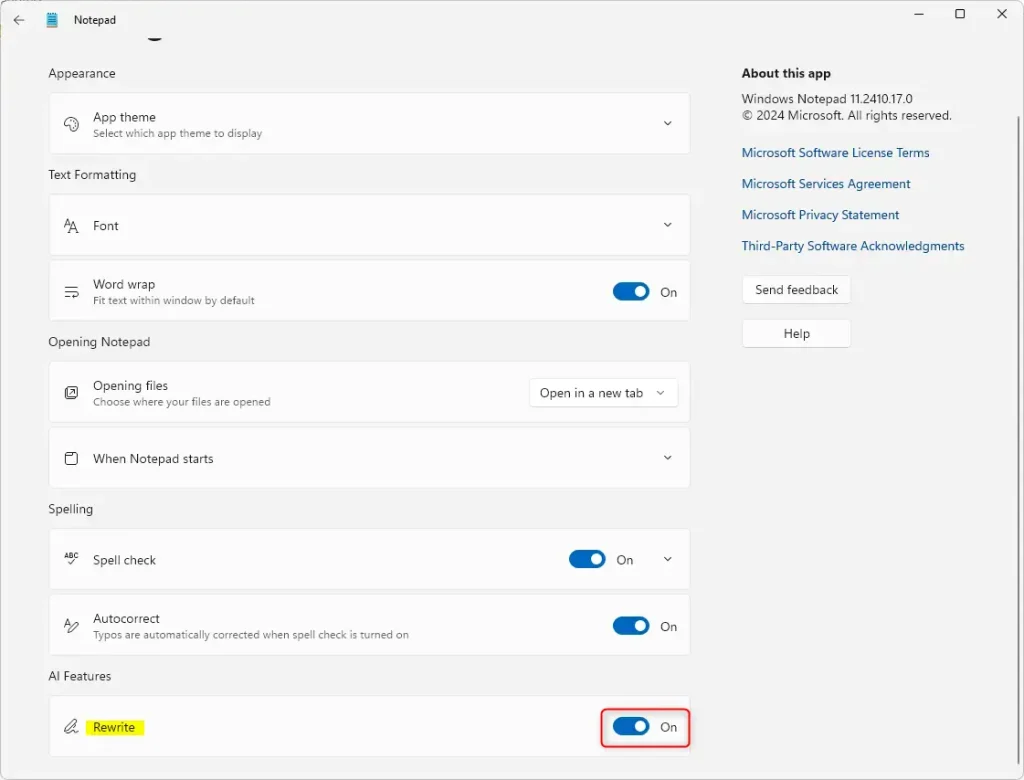
Open Notepad, select the gear icon at the top right to open Settings , find the AI Features section, and switch the Rewrite toggle On or Off. The change applies right away with no restart. You need Notepad version 11.2410.15.0 or later, updated through the Microsoft Store.
Why use the Rewrite feature?
It handles the first pass so you are editing instead of starting from a blank line. Read the result before you keep it. AI rewrites can drop details or shift your meaning.
What happens when you are done?
The Notepad Rewrite feature uses artificial intelligence to change the text you highlight in your document. It only works on the selection, so the rest of the file is untouched. When you accept a rewrite, the new text becomes part of your file just like normal typing. You can undo it the same way you undo anything else you type.
Once you finish writing, you can turn the tool off in the app settings. Or leave it on alongside the other options, such as dark mode and tabs. The Rewrite setting does not affect them.
Rewrite is one of several options that let you personalize Notepad. The same Settings page also lets you open files in new tabs, use dark mode, change fonts, have Notepad remember previous sessions, and enable spell check. Each of these is a separate setting, so you can change one without touching the others.
How to enable or disable Rewrite in Notepad
You enable or disable Rewrite by opening the Notepad settings and changing the toggle in the AI features section. This built-in tool helps you rewrite selected sentences quickly. You can turn it off whenever you prefer to write without AI assistance, and turn it back on later the same way.
Rewrite needs version 11.2410.15.0 or later. Notepad updates through the Microsoft Store, so open the Store, go to its library or downloads page, and install any pending updates. Microsoft rolls new Notepad features out in stages, so the option can take a while to reach your PC even on a current version. On a work or school PC, your organization may also limit AI features.
- Open the Notepad app app on your computer. You can search for it from the Start menu . A blank document or your last session opens.
- Click the Settings (gear) icon located at the top right of the window. The Settings page opens inside Notepad, with the options listed in sections.
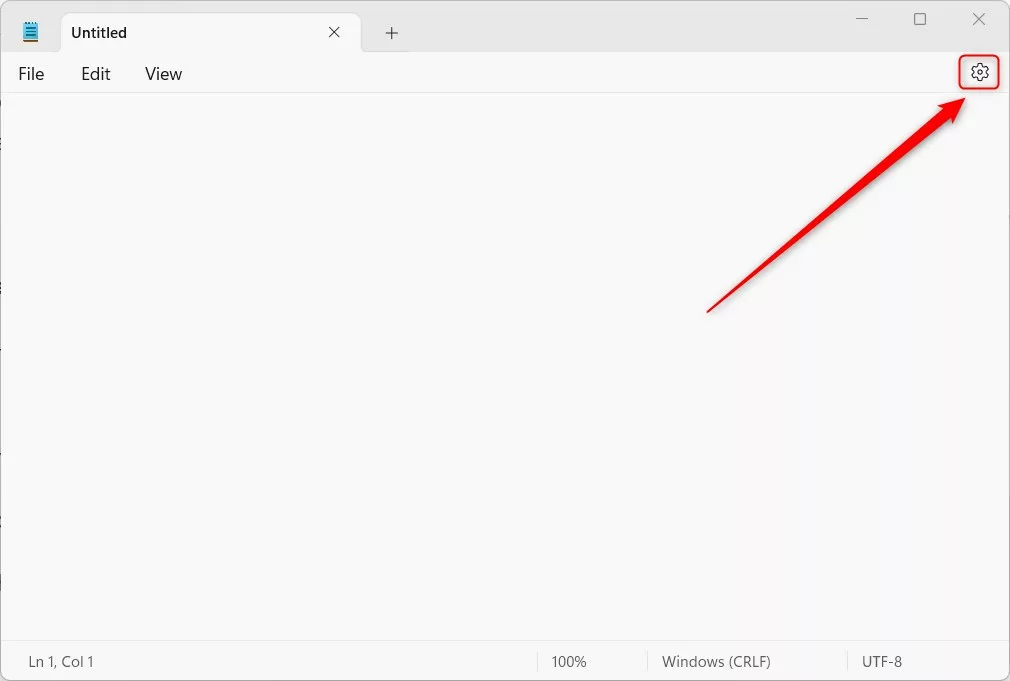
- Look for the AI Features section. You may need to scroll down the Settings page to reach it. If it is not there, update Notepad as described above.
- Toggle the Rewrite button to either On or Off depending on your preference. The toggle should change position right away. To undo the change, flip the toggle back. Notepad saves the setting itself, so you should not need to restart the app or the PC.
To use the tool, highlight the text you want to change, then right-click and select Rewrite. This option is also available in the menu bar or by pressing Ctrl + I on your keyboard. If Rewrite does not appear in any of these places, the toggle is probably off, so go back to Settings and check it. Also make sure you have actually selected some text, because the option has nothing to work on without a selection.
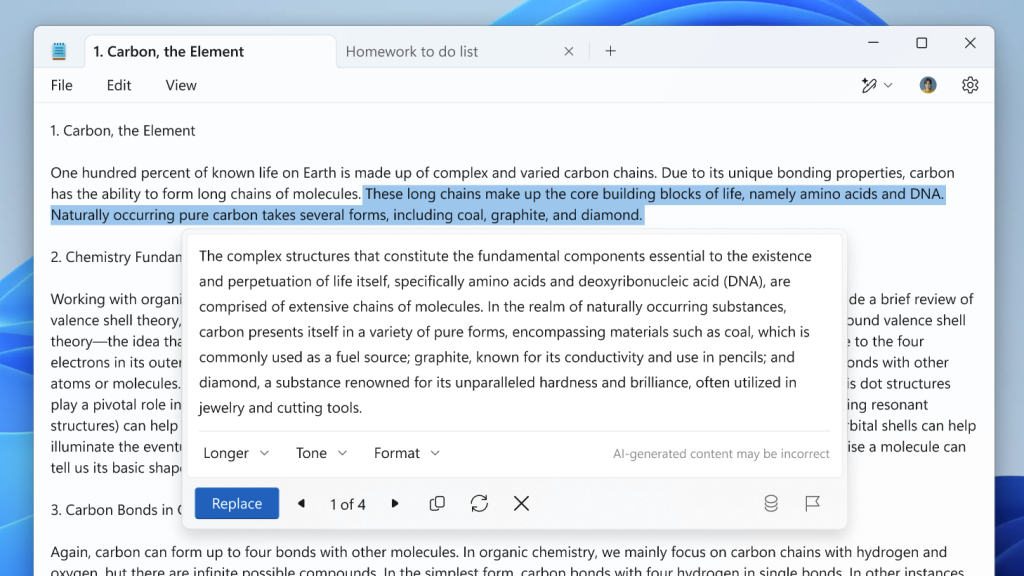
Image: Microsoft
Reference: Microsoft
Summary
The Rewrite feature adds AI capabilities to the classic Notepad app, so you can quickly change the tone or length of your text. You control it from one toggle in Settings. Turn it on when you want help with wording and off when you want plain Notepad. Either way, the change takes a few seconds and is easy to reverse.
Have a question about this guide?
Answered by AI from this guide. Good questions may be added to this page — please don't include personal details.
Did this guide fix your problem?

About the Author
Richard
Tech Writer, IT Professional
Richard is a writer at Geek Rewind who turns complex IT tasks into clear, step-by-step guides. He draws on years of hands-on experience in system administration and enterprise IT operations, focusing on Windows, Linux and WordPress: the problems people actually run into, and the fixes that work. His server and WordPress guides come from systems he runs himself. Richard builds and maintains the platform behind Geek Rewind, from its Ubuntu servers and Nginx configuration to its custom WordPress plugins. Many new tutorials start with readers' questions, and he's always glad to answer them in the comments.
[…] tabs, turn on dark mode, change the font, open Notepad from previous sessions, enable spell check, turn rewrite on or off, and […]