How to Enable or Disable Copilot in Notepad on Windows 11

Copilot in Notepad is a built-in AI writing assistant on Windows 11 (starting with version 11.2404.426.0). It rewrites, shortens, or changes text directly inside the app. It sends your text to Microsoft cloud servers to generate new ideas while you type, so your text leaves your PC whenever you use it.
You can turn this feature on or off in the Notepad settings menu at any time. The change takes effect straight away. You don’t need admin rights or a restart.
Open Notepad, click the Settings gear icon at the top right, scroll to AI Features, and toggle Copilot On. The feature activates immediately with no restart needed.
How to Turn Copilot On or Off in Notepad
The whole process takes less than a minute. If you don’t see the options described below, your copy of Notepad is probably out of date. Notepad updates through the Microsoft Store, so check for app updates there first.
Step 1Open Notepad
Launch the Notepad app first.
- Open the Start menu and type Notepad.
- Select Notepad from the search results.
You should now see the Notepad editor, either blank or with your previously open tabs restored.
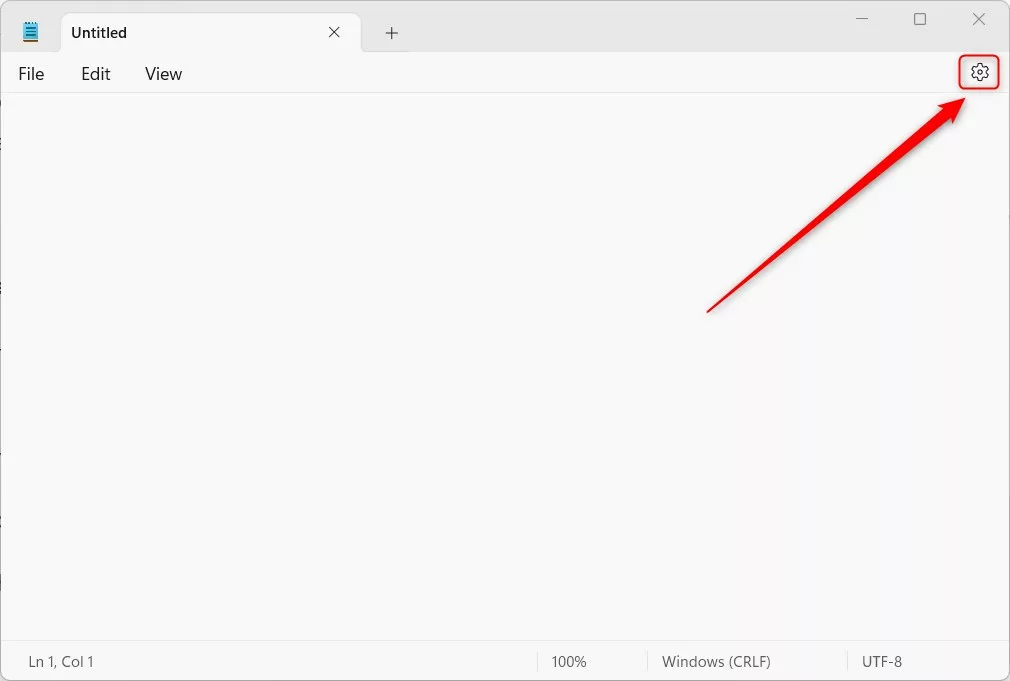
Step 2Click Settings
- Click the Settings (gear) button at the top right corner of the window.
The Notepad settings page should now open in place of the editor. It lists options such as appearance and text formatting, along with the AI settings. Your open tabs are not closed. You can go back to them afterwards.
Step 3Toggle Copilot On or Off
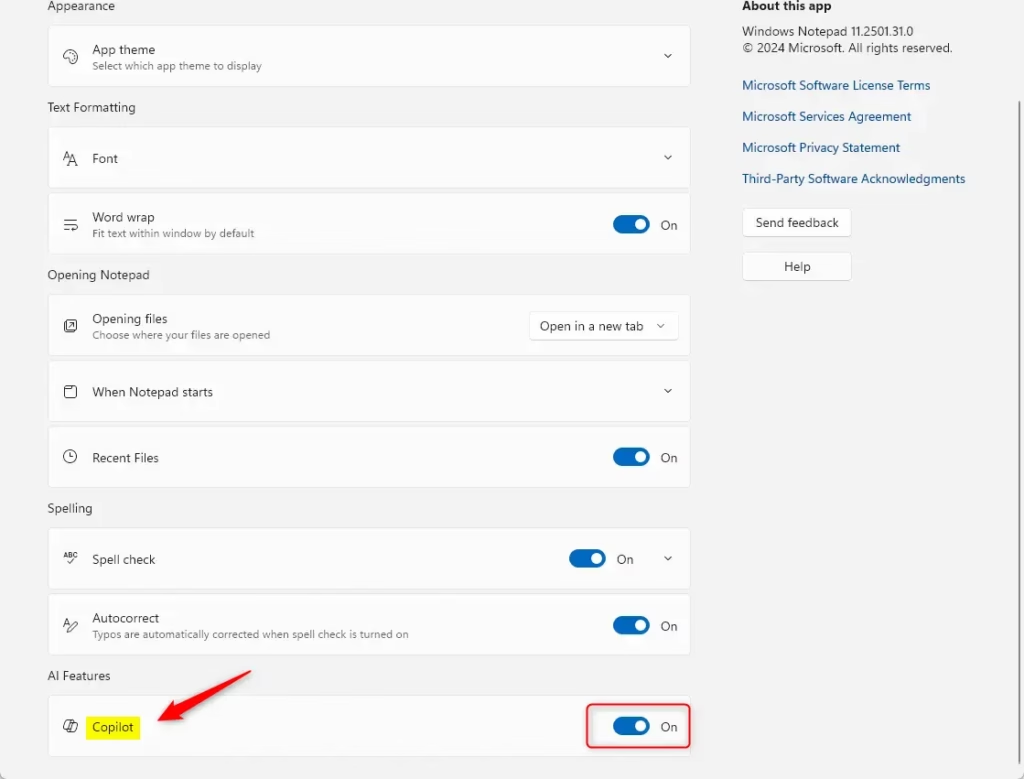
- Scroll to the AI Features section.
- Switch the Copilot toggle On to activate the integration, or Off to deactivate it.
What happens? Copilot appears or disappears from the interface immediately. There is nothing to save and no restart is needed. To undo the change, flip the same toggle back.
If the AI Features section is missing, update Notepad from the Microsoft Store. If the toggle is greyed out or absent on a work or school PC, your organization may be managing the setting, and you will need to ask your IT administrator.
Step 4Use the Rewrite Feature (Optional)
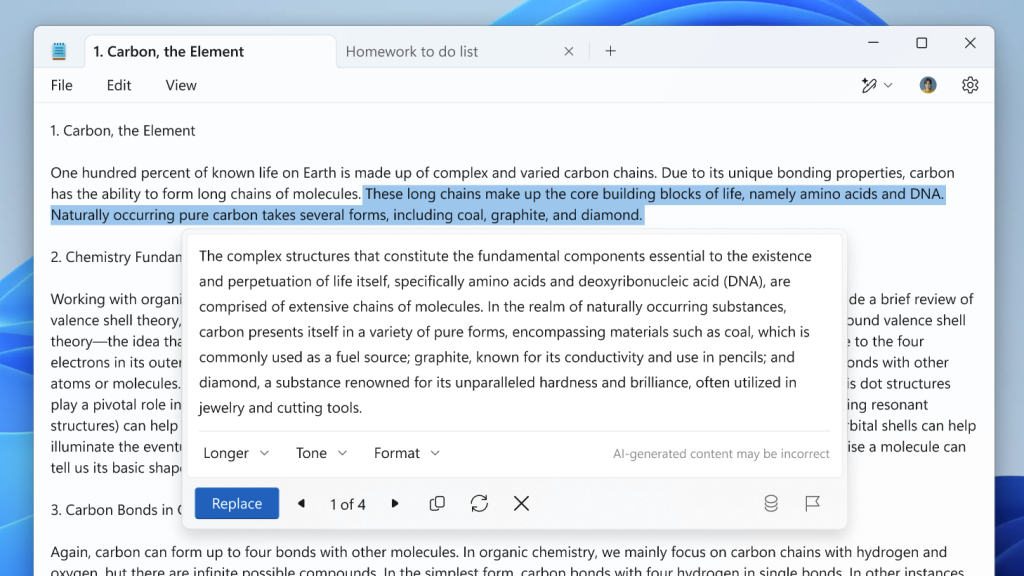
Highlight text to use Copilot’s rewrite capability. You have three ways to start it:
- Select the text you want to change in your document.
- Do one of the following: right-click the selection and choose Rewrite, pick Rewrite from the menu bar, or press the keyboard shortcut
Ctrl + I.
Because the text goes to cloud servers, don’t select passwords, personal data, or confidential material. If Rewrite is greyed out, make sure some text is actually selected and that Copilot is switched on in Settings. You may also be asked to sign in with a Microsoft account.
You have finished configuring Copilot inside Notepad. Return to the same AI Features toggle whenever you want to change it again.
Summary
You can enable Copilot in Notepad directly through the app settings if you want help rewriting or summarizing text. Open Notepad, click the gear icon to open Settings, and find the toggle switch under AI Features. Turning this option on lets the built-in artificial intelligence suggest changes to your notes. You can turn it off the exact same way whenever you want to stop using it.
- What is Copilot? It's an AI feature in Notepad that helps you rewrite and summarize text.
- How do you turn it on? Open Notepad, click Settings, and toggle Copilot in the AI Features section.
- How do you use it? Select text, right-click, and choose Rewrite, or use
Ctrl + I. - Can you turn it off? Yes. Use the same Settings toggle to disable it anytime.
- Why use it? Copilot helps improve your writing by rephrasing and condensing text quickly.
Have a question about this guide?
Answered by AI from this guide. Good questions may be added to this page — please don't include personal details.
Did this guide fix your problem?

About the Author
Richard
Tech Writer, IT Professional
Richard is a writer at Geek Rewind who turns complex IT tasks into clear, step-by-step guides. He draws on years of hands-on experience in system administration and enterprise IT operations, focusing on Windows, Linux and WordPress: the problems people actually run into, and the fixes that work. His server and WordPress guides come from systems he runs himself. Richard builds and maintains the platform behind Geek Rewind, from its Ubuntu servers and Nginx configuration to its custom WordPress plugins. Many new tutorials start with readers' questions, and he's always glad to answer them in the comments.
No comments yet — be the first to share your thoughts!