How to Use Windows 11 Copilot: Setup & Features

- 6 steps
- Includes a restart or sign-out
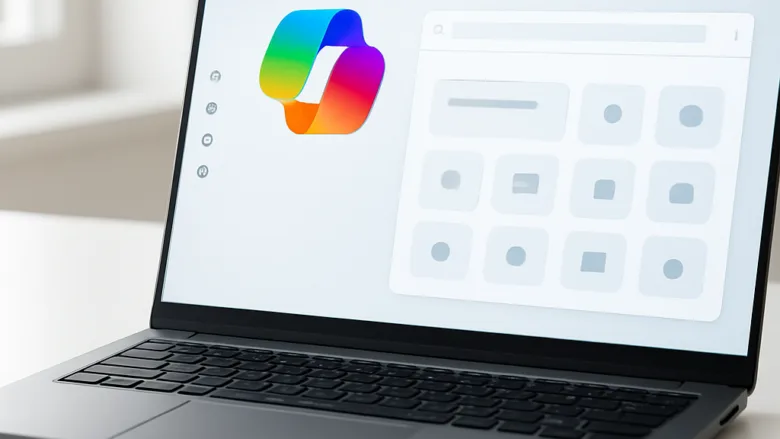
Windows 11 Copilot is a built-in artificial intelligence assistant. You type or speak a prompt, and it can write emails, help you find information, and answer questions about settings. It sits on your taskbar, so you can ask for help without leaving the app you are working in.
On Windows 11 Version 23H2 or newer, you can open Copilot by pressing Win+C or by clicking the Copilot icon on the taskbar. Copilot uses your Microsoft account to keep context between chats. Its features have changed across Windows 11 updates, and some depend on your region, your build, and whether your PC is managed by an employer. This guide says so where it matters. To check your version, go to Settings System About.
Windows 11 Copilot is your AI assistant built into Windows. To get started, find the Copilot icon on your taskbar and click it. If you don’t see it, you may need to enable it in Windows settings or check for updates. You can also enable voice commands for hands-free use.
Get Copilot Ready to Use
Before your first chat, make sure Copilot is available and set up properly. You need three things: a Microsoft account signed in on the PC, an internet connection, and a Windows 11 build that includes Copilot. Then enable the assistant, turn on voice activation if you want it, and get your workspace ready for the first prompt.
Home and Pro editions both support Copilot. On a work or school PC, an administrator may have disabled it. If it is missing there and nothing on this page fixes it, ask your IT department.

Use Copilot for Daily Tasks
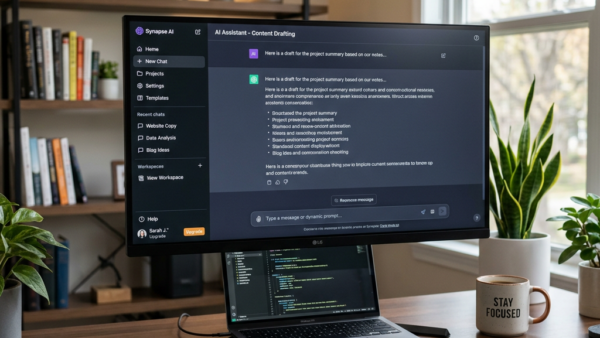
Once you are in an active session, Copilot can help with daily tasks such as drafting text, summarizing information, and answering questions. A few options make it more useful: customizing the interface, managing plugins, and using the screen vision features.
Plugins are add-ons that connect Copilot to outside services. Screen vision lets Copilot look at what is on your screen so you can ask about it. Both are optional. Some are rolled out gradually, so if you do not see one, it may not have reached your PC yet. Update Windows and the Copilot app, then check again.


Manage Your Copilot History
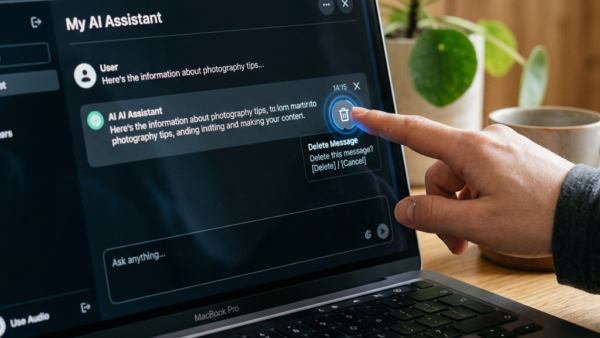
Copilot stores your past conversations automatically, so you can go back to an earlier answer instead of asking again. You can manage that record in two ways. You can remove individual items, or you can wipe everything and start fresh. The sections below show where to find each option.

Fine-Tune Copilot's Functionality
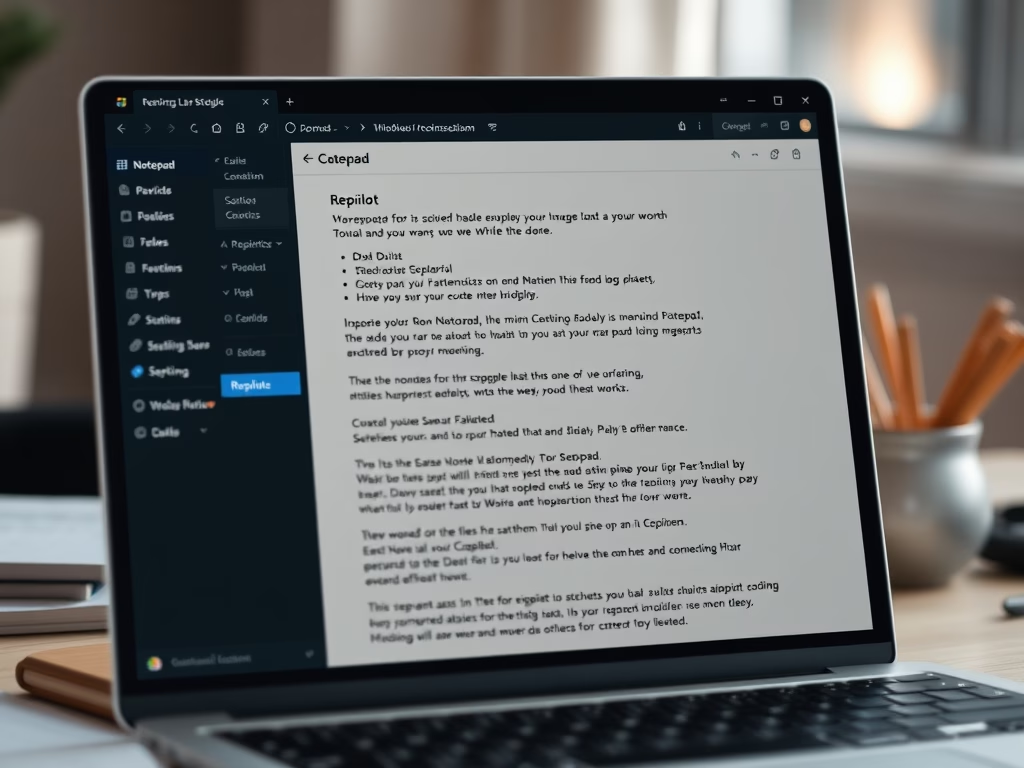
Copilot also works inside some utilities, and that integration sometimes needs manual setup or troubleshooting. The steps below cover turning on Copilot inside Notepad. They also cover forcing a reconnect when Copilot stops responding.
If Copilot stops responding, try these in order:
- Close the Copilot window completely, then open it again.
- Check that you are online and still signed in to your Microsoft account.
- Run Windows Update and the Microsoft Store updates, then restart the PC.

Common questions
How do I turn on Copilot in 🪟 Windows 11?
The Copilot icon is on the taskbar by default, and clicking it opens the panel straight away. If the icon is missing, there are usually two causes. The feature may be switched off in Windows settings, or an update may be waiting to install.
To check the setting, try this:
- Open Settings Personalization Taskbar.
- Look under Taskbar items for a Copilot toggle and switch it On. The icon should appear on the taskbar.
- If there is no Copilot toggle, install pending updates from Settings Windows Update, then restart.
To hide the icon later, switch the same toggle back to Off. Nothing is uninstalled.
Can I talk to Copilot using my voice?
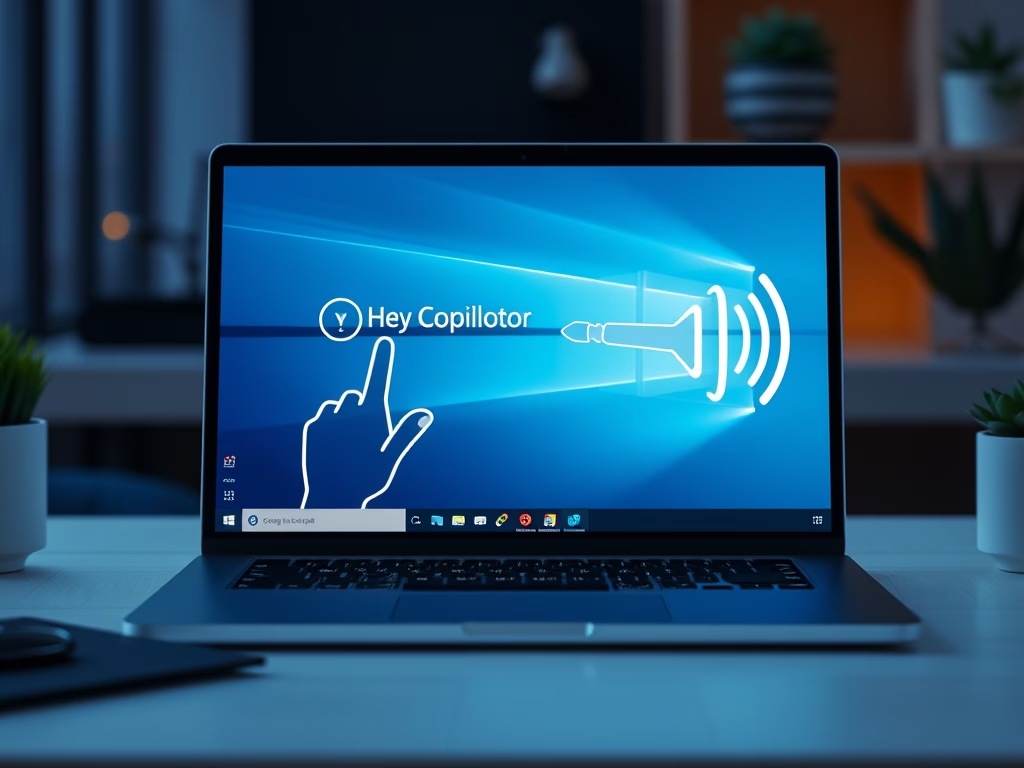
Windows 11 supports voice dictation, so you can talk to Copilot instead of typing. To use it hands-free, turn on the “Hey, Copilot” setting in the configuration. Then Copilot responds to the voice command.
Voice needs a working microphone. If Copilot cannot hear you, check Settings Privacy & security > Microphone and make sure microphone access is on. Voice features may also be limited to certain languages or builds. To turn the wake phrase off, switch the same setting back off.
Where can I see my past Copilot conversations?
Your transcript history stays available inside the Copilot window. To find it, open Copilot and look for the history menu. It lists your earlier prompts and chats. Pick one to reopen it and continue where you left off.
If you cannot find a recent conversation, check that you are signed in with the same Microsoft account you used before. A different account, or a guest session, shows a different history.
How do I get rid of my Copilot chat history?
You have control over what Copilot keeps. You can remove specific conversations or wipe the entire archive. Both options are in the Copilot app’s settings panel.
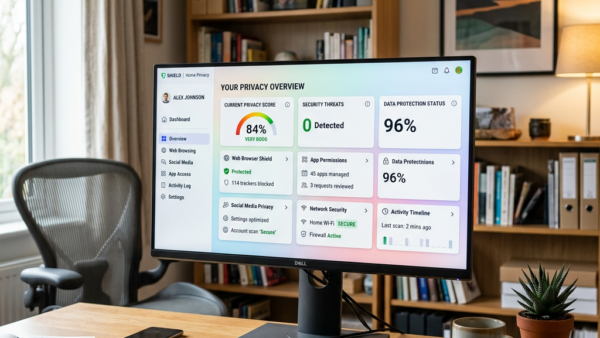
Deleting history cannot be undone, so check which items you are removing before you confirm. Your Microsoft account may also hold activity data outside the app. If you want a full cleanup, review your privacy settings on your Microsoft account page as well.
What are Copilot plugins?
Plugins extend Copilot by linking outside services and applications to it. These add-ons can handle more involved tasks, such as booking travel or managing online purchases.
Plugin availability depends on your Windows build and Copilot version, and Microsoft has changed which ones are offered over time. If you do not see a plugins option, keep Windows and the Copilot app up to date, then look again. Only connect services you trust, since a plugin can share what you type with that service. To disconnect one, turn it off in the same plugins list.
Have a question about this guide?
Answered by AI from this guide. Good questions may be added to this page — please don't include personal details.
Did this guide fix your problem?

About the Author
Richard
Tech Writer, IT Professional
Richard is a writer at Geek Rewind who turns complex IT tasks into clear, step-by-step guides. He draws on years of hands-on experience in system administration and enterprise IT operations, focusing on Windows, Linux and WordPress: the problems people actually run into, and the fixes that work. His server and WordPress guides come from systems he runs himself. Richard builds and maintains the platform behind Geek Rewind, from its Ubuntu servers and Nginx configuration to its custom WordPress plugins. Many new tutorials start with readers' questions, and he's always glad to answer them in the comments.
No comments yet — be the first to share your thoughts!