How to Change Copilot Voice in Windows 11

To change Copilot voice in Windows 11, open Copilot, click your profile picture in the top right corner, select Voice, and pick one of four options: Grove, Wave, Meadow, or Canyon.
Copilot is the AI assistant built into Windows 11. It answers questions, helps you write text, and changes your computer settings, and it can speak its replies out loud. If the default tone does not suit you, switching takes a few clicks and no restart. You can switch back at any time.
To change Copilot voice in Windows 11, open Copilot, click your profile picture in the top right corner, and select Voice. Pick Grove, Wave, Meadow, or Canyon. The new voice applies immediately with no restart, and you can switch back at any time.
How to Change the Voice for Copilot
Open Copilot, sign in with your Microsoft account, click your profile picture in the top right corner, and pick a new voice style from the audio options. Copilot will use that voice from then on.
- Open Copilot by visiting copilot.microsoft.com in your browser, or by clicking the Copilot app on your Windows taskbar. Either way, you should see the Copilot chat window.
- Make sure you sign in to Copilot if you have not done so already. The voice setting is tied to your account, so signing in first means your profile picture appears in the corner.
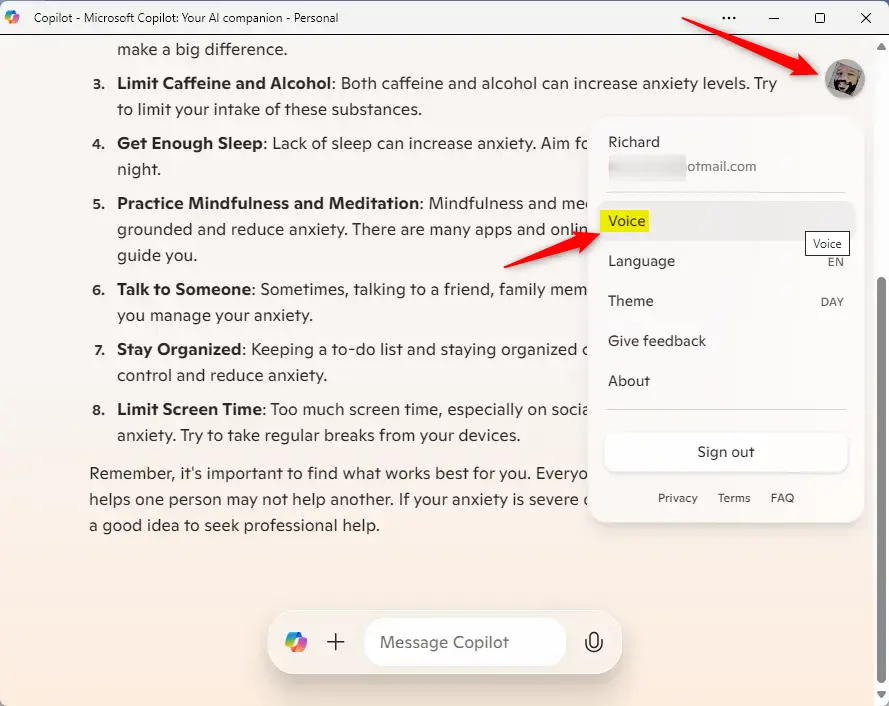
- Click the Settings icon (your profile picture) in the top right corner. A menu opens with your account options.
- Select Voice from the menu. The list of available voices appears. If you do not see this entry, check that you are signed in. Microsoft also changes the Copilot layout from time to time, so the menu may look slightly different from what is described here.
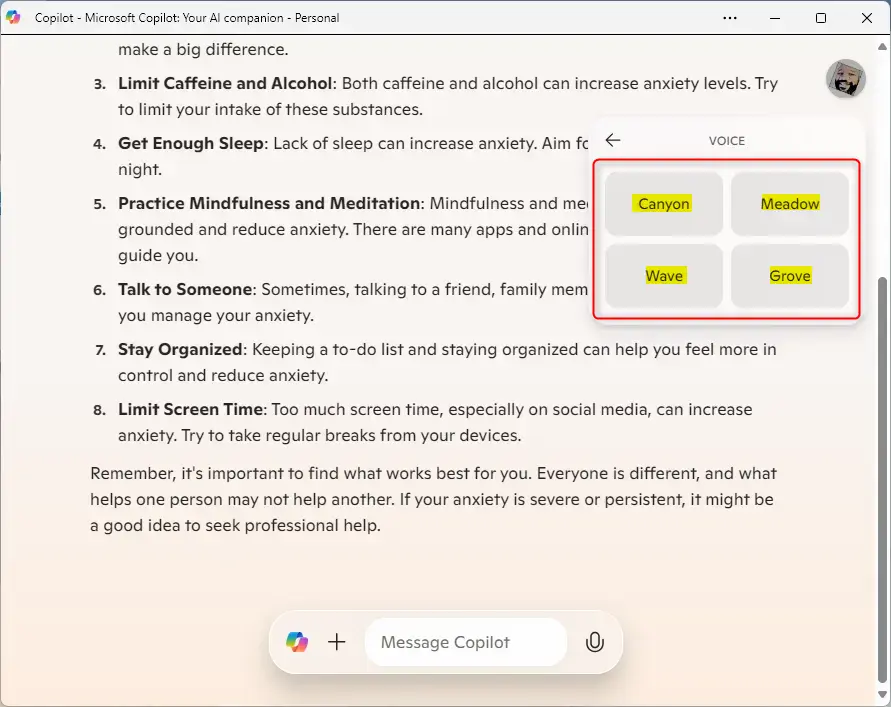
Select the audio style you prefer from the available options. The voices are listed by name rather than by description, so try each one and listen to how it sounds before you settle on one:
- Grove
- Wave
- Meadow (this is the default, so choose it again if you want to go back to the original sound)
- Canyon
Copilot applies the new voice straight away, with no restart and no separate save step. Every reply it speaks after that uses the voice you chose. To test it, start a voice conversation and listen to the next answer. If you do not like the result, open the same menu and pick a different voice.
Summary
You have four speech profiles to choose from: Grove, Wave, Meadow, and Canyon. Pick any of them in the voice menu to match how you want the assistant to sound. There is no limit on how often you switch, so you can try all four and keep the one you like best.
- Simple Steps: You can find the voice settings right inside the Copilot menu, under your profile picture.
- Choices: You have four voice styles to choose from: Grove, Wave, Meadow, and Canyon. Meadow is the default.
- Customization: Changing the voice makes your interactions with the AI feel more comfortable and personal to you, and you can change it back whenever you like.
Have a question about this guide?
Answered by AI from this guide. Good questions may be added to this page — please don't include personal details.
Did this guide fix your problem?

About the Author
Richard
Tech Writer, IT Professional
Richard is a writer at Geek Rewind who turns complex IT tasks into clear, step-by-step guides. He draws on years of hands-on experience in system administration and enterprise IT operations, focusing on Windows, Linux and WordPress: the problems people actually run into, and the fixes that work. His server and WordPress guides come from systems he runs himself. Richard builds and maintains the platform behind Geek Rewind, from its Ubuntu servers and Nginx configuration to its custom WordPress plugins. Many new tutorials start with readers' questions, and he's always glad to answer them in the comments.
No comments yet — be the first to share your thoughts!