How to Change Copilot Theme in Windows 11


The Copilot theme in Windows 11 changes how Microsoft’s built-in AI assistant looks. You can set it to dark, light, or system mode so it matches the rest of your desktop. Copilot answers questions and helps change PC settings from typed or spoken requests.
Microsoft added these theme options after the Windows 11 version 23H2 update, so the Copilot window fits in with your desktop style. You pick the theme from the settings menu inside the app. The change affects only Copilot. It does not touch the rest of Windows.
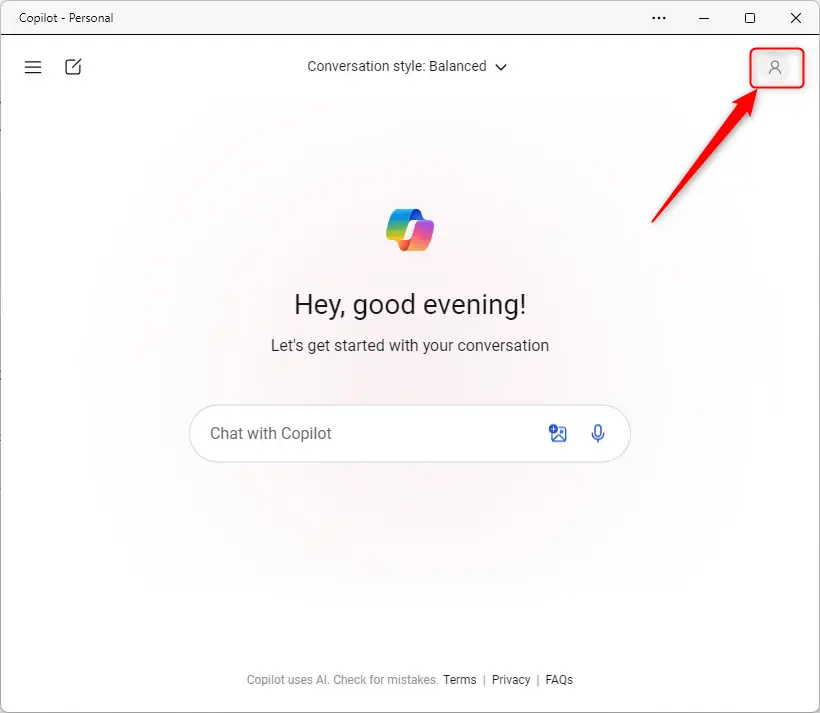
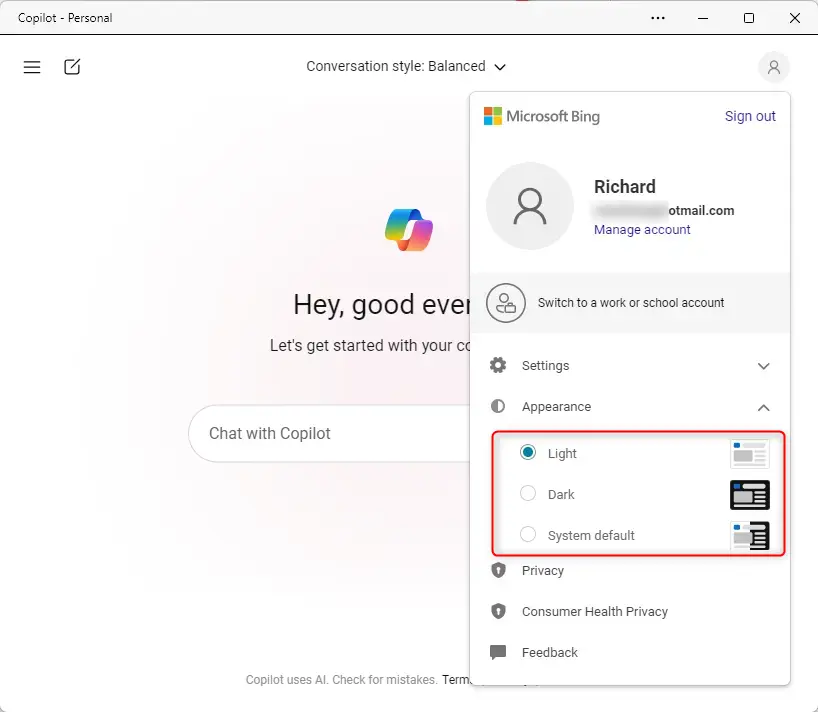
Open the Copilot app, click your profile picture or the menu icon in the top right corner, then choose Appearance. Pick Light, Dark, or System default, and the Copilot window changes colors straight away. No restart is needed. The change affects only Copilot, not the rest of Windows.
Why change the theme?
Matching interface colors to your surroundings helps reduce eye strain during long sessions. Dark mode is easier on the eyes in a dim room. A light theme is easier to read in a bright office or in daylight.
There is also a plain visual reason. If Windows is in dark mode and Copilot opens as a bright white panel, it stands out. Matching the assistant to the main operating system appearance keeps the desktop looking consistent. If you don’t want to think about it, the System default option follows Windows for you.
What happens when you change the theme?
You don’t need to restart the app or sign out of Windows. If the colors don’t change, close the Copilot window and open it again. That normally clears a display that didn’t refresh.
This makes the interface more comfortable to look at, especially if you keep Copilot open next to other apps for long periods.
How to change the Copilot theme
Changing the Copilot theme takes a few clicks inside the app settings. You can switch between a light look, a dark look, or match your current Windows settings. You open the app menu, choose Appearance, and pick the style you want.
Microsoft updates Copilot often, so a menu label or icon position may differ slightly from what is described here. If you can't find Appearance, update the Copilot app through the Microsoft Store and open it again.
- Open the Copilot app open the Copilot app. The Copilot window should appear with the chat box at the bottom.
- Click your profile picture or the menu icon in the top right corner of the Copilot window. A menu should open with the app's options.
- Select Appearance from the menu. The theme choices should appear.
- Choose your preferred theme: Light, Dark, or System default. The Copilot window should change colors right away.
Choosing System default makes the app switch between light and dark automatically, based on your existing Windows system theme configurations. If you later change Windows from light to dark mode, Copilot follows. To check or change the Windows mode, go to Settings Personalization Colors and look at the Choose your mode setting.
To undo a theme change, repeat the same steps and pick a different option. Nothing is permanent, and you can switch as often as you like.
Summary
Changing the visual mode from the Appearance menu inside the app makes the workspace more comfortable to use. Choose Light or Dark if you want Copilot to look the same all the time. Choose System default if you want it to follow Windows.
Have a question about this guide?
Answered by AI from this guide. Good questions may be added to this page — please don't include personal details.
Did this guide fix your problem?

About the Author
Richard
Tech Writer, IT Professional
Richard is a writer at Geek Rewind who turns complex IT tasks into clear, step-by-step guides. He draws on years of hands-on experience in system administration and enterprise IT operations, focusing on Windows, Linux and WordPress: the problems people actually run into, and the fixes that work. His server and WordPress guides come from systems he runs himself. Richard builds and maintains the platform behind Geek Rewind, from its Ubuntu servers and Nginx configuration to its custom WordPress plugins. Many new tutorials start with readers' questions, and he's always glad to answer them in the comments.
No comments yet — be the first to share your thoughts!