How to Sign In or out of Windows 11 Copilot


To sign in to Copilot on Windows 11, press the Win plus C to open the Copilot panel, then click your profile icon at the top and pick an account. You need a free Microsoft account to save your chats across devices, and signing in or out controls your access to chat history and personalized features.
The same profile icon lets you switch accounts or sign out. If the panel does not open with the shortcut, start Copilot from the Start menu instead. The menu names below can differ slightly between Windows 11 versions and Copilot app updates, so go by what you see on screen.
To sign in to Copilot on Windows 11, press the Win plus C to open the Copilot panel, click your profile icon at the top, and choose “Sign in with a personal account” for a Microsoft account. The profile icon also lets you switch accounts or sign out. Your saved chats stay tied to the account you use.
Sign in to the Copilot app on Windows
Copilot is the built-in AI assistant that answers questions and summarizes text. Signing in takes three things: open the Copilot app, click the sign-in option, and choose a personal Microsoft account or a work or school account. Once you enter your username and password, you get full access to the features in the app.
Use a work or school account only if your organization gave you one. Some organizations limit Copilot for work accounts, so a sign-in that fails there may be an administrator setting rather than a mistake on your part. If you see no sign-in option at all, update the Copilot app from the Microsoft Store and check again.
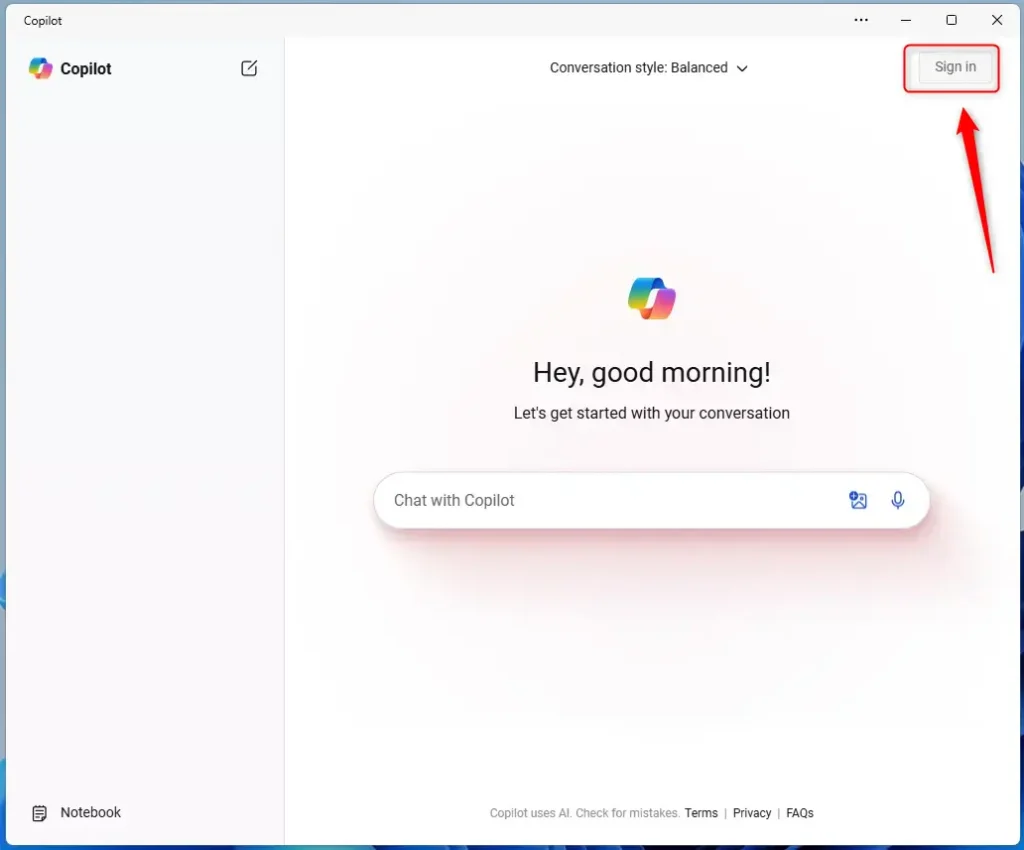
These steps take you through the Copilot sign in from start to finish, whether you use a personal or a work or school account.
- Open Copilot. Press the Win plus C, or start Copilot from the Start menu if the shortcut does nothing. The Copilot panel should appear.
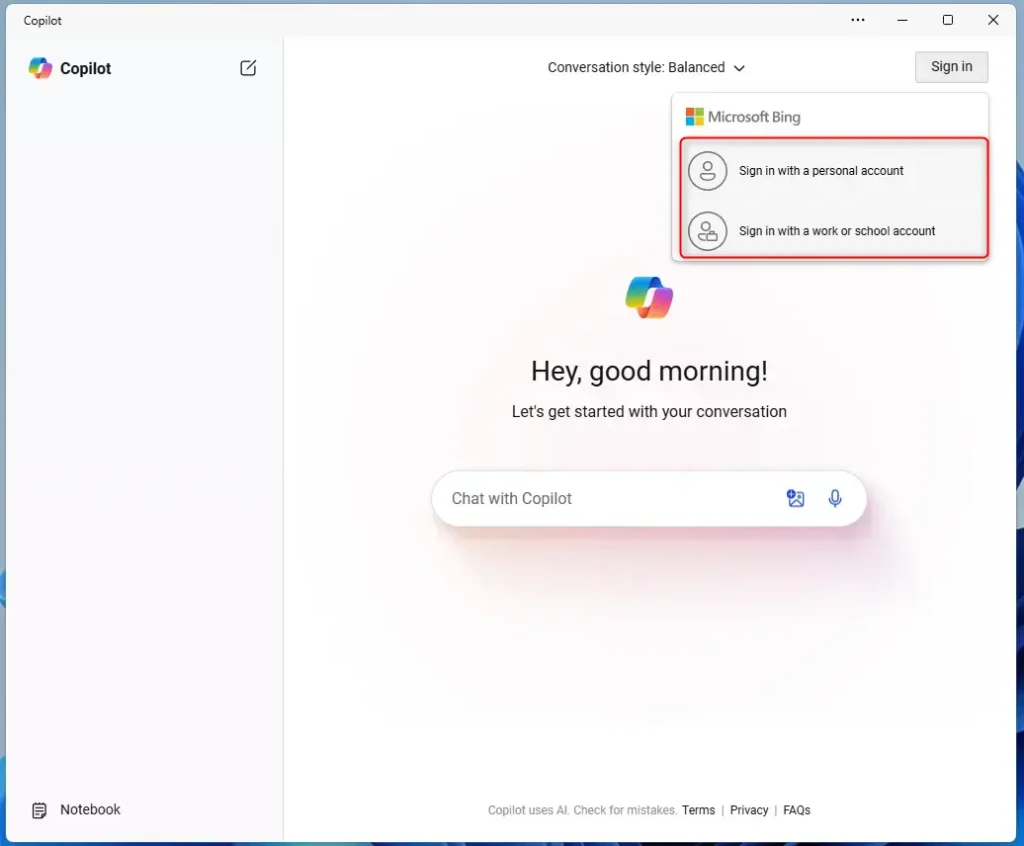
- Click the profile icon or sign-in option. A drop-down menu appears with the available account types.
- Select “Sign in with a personal account” (Microsoft account) or “Sign in with a work or school account” (Microsoft Entra Account). Use the personal option at home, and the work or school option only for an account your organization gave you.
Next, a sign-in window asks for your credentials. If you pick the wrong account type, close the window and start again from the drop-down menu.
- Enter your username and password. Type them in the sign-in window when prompted, then continue to the next screen if it asks.
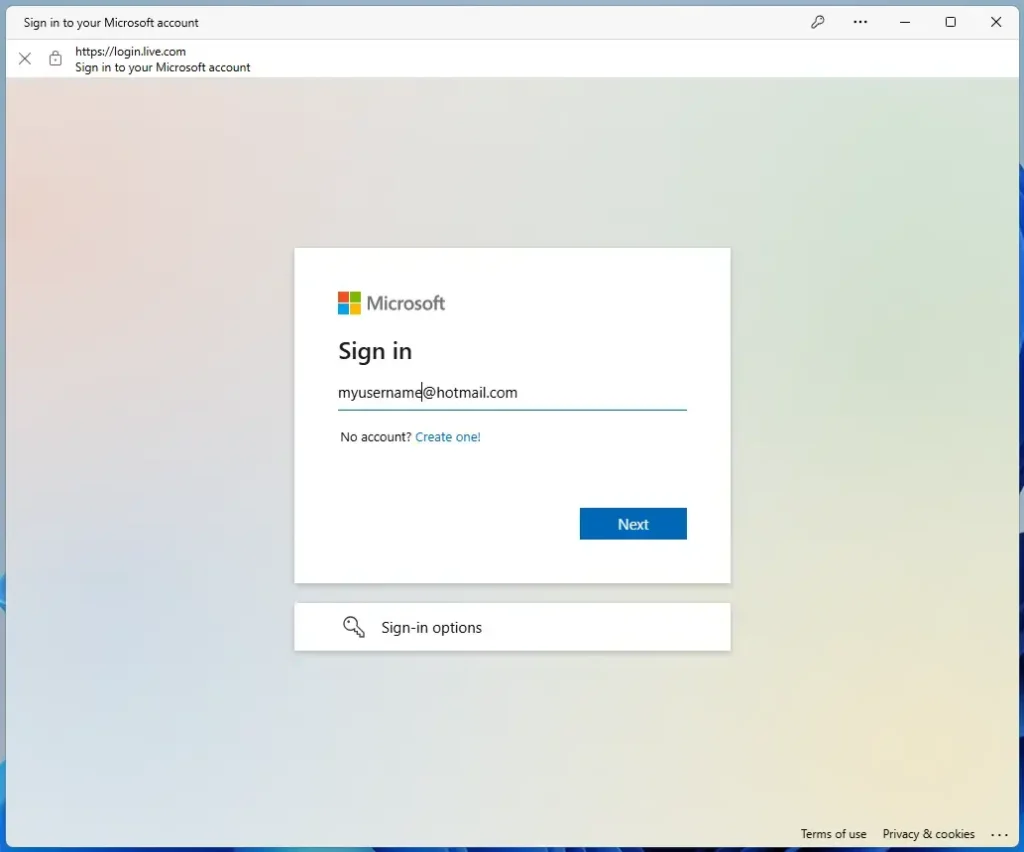
- Click "Sign In". This grants full access to the application.
- Approve the prompt if one appears. This happens when your account uses two-step verification, and sign-in will not finish until you approve it.
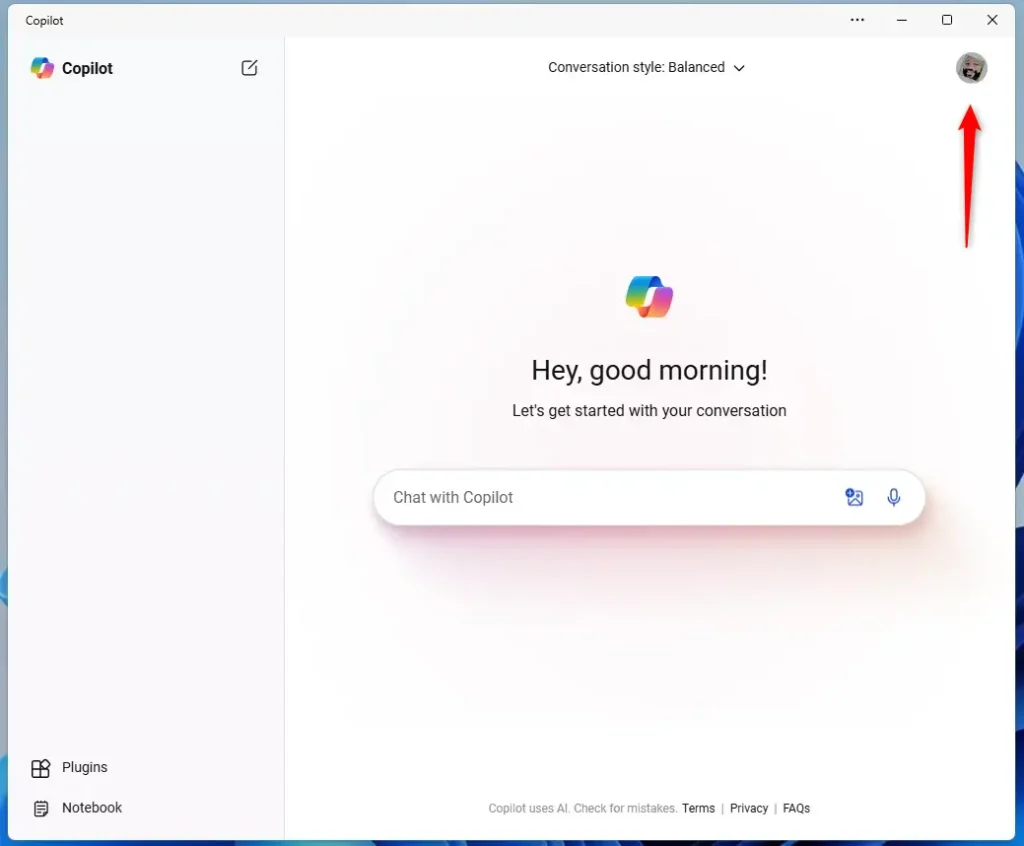
- Check the Copilot panel for your profile name or picture. If it shows, you are signed in.
Sign out of the Copilot app on Windows
To sign out of Copilot, open the settings menu inside the app and choose the option to log out of your current account. It takes a moment. This disconnects your profile and stops the app from using your personal settings. The steps below also work if you only want to switch to a different account, since you can sign back in with another one afterward.
- Open Copilot with the Windows key plus C. The Copilot panel appears.
- Click your profile icon or open the settings menu in the app. Account options should be listed there.
- Choose the sign-out or log-out option and confirm if asked. The wording differs a little between Copilot versions.
After you sign out, the panel should go back to its signed-out state. To undo this, sign in again with the steps above. Your saved chats are tied to your account, so they come back when you sign in with the same one.
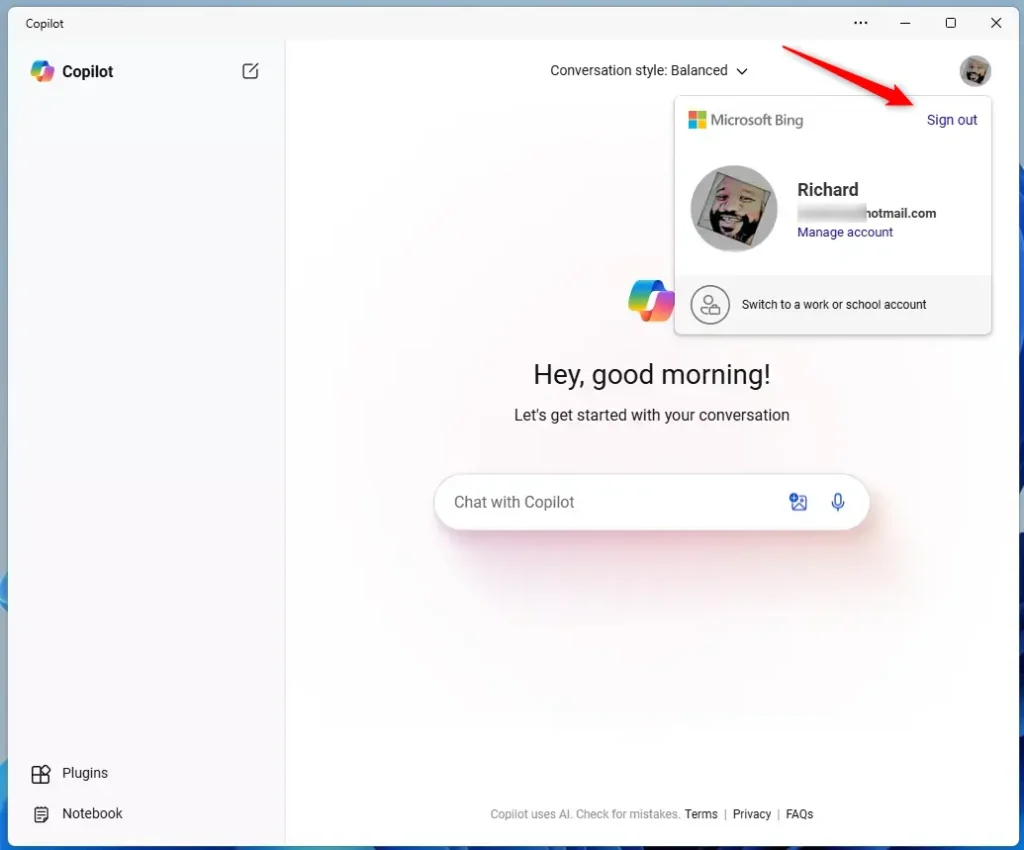
That completes the process.
Conclusion:
- Signing in or out of the Copilot app on Windows 11 controls access to additional features and a personalized experience.
- To sign in, click the "Sign In" or "Log In" option within the Copilot app, choose a personal or work or school account, enter your credentials, and click "Sign In."
- To sign out, find the sign-out or log-out option within the app, usually under the account or settings section, and follow the prompts.
- Whether you use Copilot for AI assistance, system settings or other apps, signing in with the right account keeps your chats and settings tied to you.
Have a question about this guide?
Answered by AI from this guide. Good questions may be added to this page — please don't include personal details.
Did this guide fix your problem?

About the Author
Richard
Tech Writer, IT Professional
Richard is a writer at Geek Rewind who turns complex IT tasks into clear, step-by-step guides. He draws on years of hands-on experience in system administration and enterprise IT operations, focusing on Windows, Linux and WordPress: the problems people actually run into, and the fixes that work. His server and WordPress guides come from systems he runs himself. Richard builds and maintains the platform behind Geek Rewind, from its Ubuntu servers and Nginx configuration to its custom WordPress plugins. Many new tutorials start with readers' questions, and he's always glad to answer them in the comments.
[…] First, open the Copilot app. […]
[…] Next, sign in to Copilot with your Microsoft account if you have not already. […]
[…] you haven’t signed into Copilot yet, please do so with your Microsoft account to sync your […]
[…] Sign in to Copilot if you haven’t yet. Use your Microsoft account to save your settings. Here’s how to sign in. […]
[…] Sign in to Copilot with your Microsoft account if you’re not already signed in.How to sign in or out of Copilot […]
[…] turn on a feature that automatically restores earlier File Explorer folders at logon when you sign out, restart, or shut down the […]
[…] you haven’t signed into Copilot yet, please do so with your Microsoft account to sync your […]