Enable Hey, Copilot: Hands-Free Voice Commands on Windows 11

Hey, Copilot lets you talk to the Windows 11 Copilot assistant using spoken voice commands instead of a mouse or keyboard. You speak out loud to ask questions and launch apps while you work on other tasks.
You need three things: a working microphone, Windows 11, and Copilot app version 1.25051.10.0 or newer. If the option doesn’t show up later, an out-of-date Copilot app is the first thing to check.
To enable Hey, Copilot voice commands on Windows 11, open the Copilot app, sign in with your Microsoft account, click your Account button and select Settings, then toggle on Listen for “Hey, Copilot” to start a conversation in the Voice Mode Settings section. Your Copilot app must be version 1.25051.10.0 or newer.
What is “Hey, Copilot”?
The “Hey, Copilot” feature lets you speak to the Copilot assistant in Windows 11. You can ask questions or request help without touching the keyboard or mouse. That makes finding information or getting assistance on your PC much faster, especially when your hands are busy with something else.
Copilot is delivered as an app, so it updates through the Microsoft Store rather than through Windows Update . If your version is older, update the app there first. You can also make sure your microphone is plugged in, selected as the input device, and allowed to be used by apps in Windows.
How to Turn On “Hey, Copilot” Voice Commands
- Open the Copilot app on your Windows 11 PC. If you don’t see it, press the Windows key, type Copilot, and click the app in the results. The Copilot window should open.
- Sign in to Copilot if you haven’t yet. Use your Microsoft account so your settings are saved. Here’s how to sign in. Once you’re signed in, your account name or picture should appear in the app.
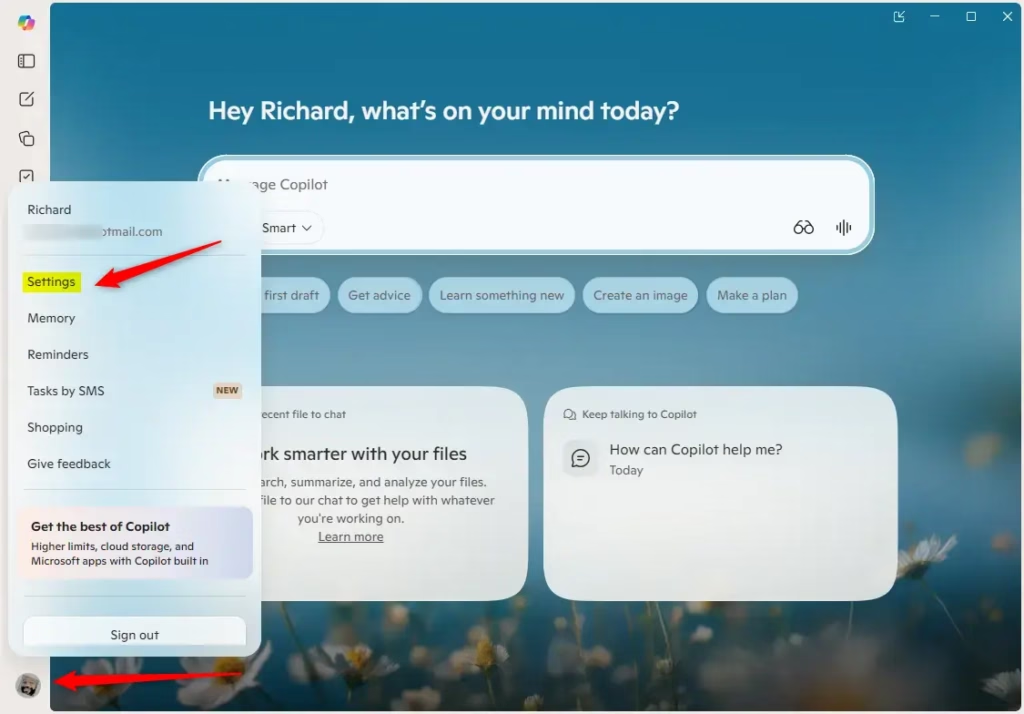
- Switch to full view mode in the Copilot app. Click your Account button, then select Settings. The settings page should open.
- Turn on voice commands. Find the Voice Mode Settings section. Then toggle the switch for Listen for “Hey, Copilot” to start a conversation to the on position. If the switch is missing, update the Copilot app and check this page again.
- Close the settings . You’re all set! Say “Hey, Copilot” to start a conversation. If it doesn’t respond, check that your microphone works and that Copilot is allowed to use it.
Copilot will stop listening for the phrase. No restart is needed in either direction.
To turn on Hey Copilot voice commands, open the Copilot app on your Windows 11 PC, sign in with your Microsoft account, and switch to full view mode. Then open your settings and enable the voice control feature. After that, you can talk to your assistant hands-free.
Why Use "Hey, Copilot"?
- Hands-free help: Talk to your PC without typing or clicking. This is useful when you're cooking, taking notes by hand, or just away from the keyboard.
- Stay focused: Ask questions while you keep working, so you don't have to switch windows or break your train of thought.
- Easy to turn on/off: You control when it listens. Flip the toggle in the settings whenever you want to enable or disable it.
- Personalized experience: Signing in syncs your preferences, so your settings follow your Microsoft account.
Need More Help?
Check out these useful guides to get even more from Copilot:
Reference
Summary
With "Hey, Copilot" enabled, you can chat with your Windows 11 AI assistant entirely by voice. If you ever want your PC to stop listening, turn the setting off in the Copilot app.
Was this guide helpful?

About the Author
Richard
Tech Writer, IT Professional
Richard is a writer at Geek Rewind who turns complex IT tasks into clear, step-by-step guides. He draws on years of hands-on experience in system administration and enterprise IT operations, focusing on Windows, Linux and WordPress: the problems people actually run into, and the fixes that work. His server and WordPress guides come from systems he runs himself. Richard builds and maintains the platform behind Geek Rewind, from its Ubuntu servers and Nginx configuration to its custom WordPress plugins. Many new tutorials start with readers' questions, and he's always glad to answer them in the comments.


No comments yet — be the first to share your thoughts!