How to Turn On or off Personalized Ads in the Copilot App on Windows 11

Open the Copilot app, sign in with your Microsoft account, click the Account button on the left sidebar, select Settings, click Privacy, then slide the Ad Personalization switch on or off. The change saves automatically.
What Is This About?
The Microsoft Copilot app on Windows 11 lets you choose whether the ads you see are personalized. This guide shows you how to turn personalized ads on or off. The whole change is one switch in the app’s privacy settings and takes about a minute.
What Is Microsoft Copilot?
Microsoft Copilot is a built-in assistant for Windows 11. It helps you complete tasks faster. Your Microsoft account saves your settings and chats, so you can use Copilot across all your devices.
Why Control Personalized Ads?
You can choose whether the Copilot app shows you ads tailored to your preferences. If you turn personalized ads on, the ads you see can line up with your interests. If you turn them off, you still see ads, but they aren’t based on your interests. Turning the option off does not remove ads. It only changes how they are chosen.
Steps to Enable or Disable Personalized Ads in Copilot
Start by opening the app. No restart is needed at any point in this process.
- Open the Copilot app on your Windows 11 PC. You can find it by typing Copilot into the search box on the taskbar, or in the Start menu. You should see the Copilot window with the chat box.
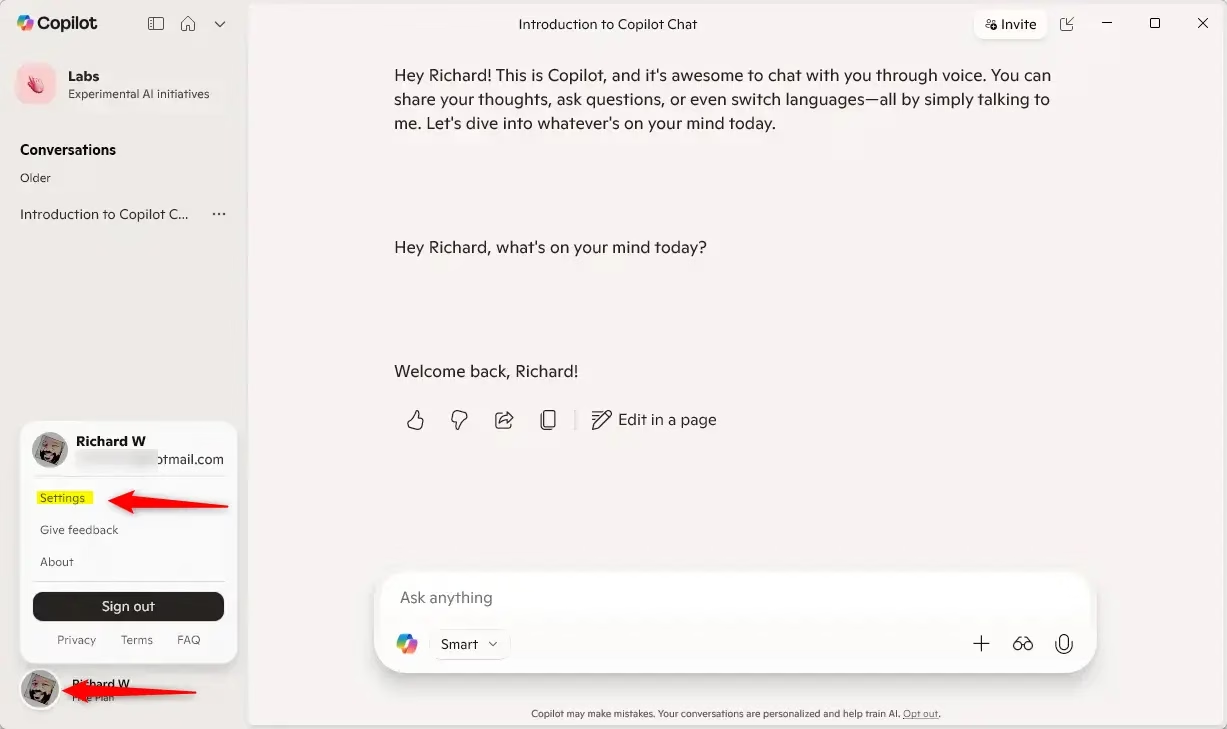
Next, sign in and go to the privacy settings. The ad option sits under your account menu, not in the main chat screen. If the window is small or narrow, the sidebar may be hidden, so make the window larger first.
- Sign in to Copilot with your Microsoft account if you’re not already signed in. How to sign in or out of Copilot
- Make sure Copilot is in full view, so the left sidebar is showing. If the sidebar is hidden, maximize the window or make it wider.
- Click the Account button on the left sidebar. Depending on your app version, this may show your name or profile picture. A menu opens.
- Select Settings. How to open and close the sidebar The Settings page opens.
- Click the Privacy section. You should now see your privacy options, including the one for ads.
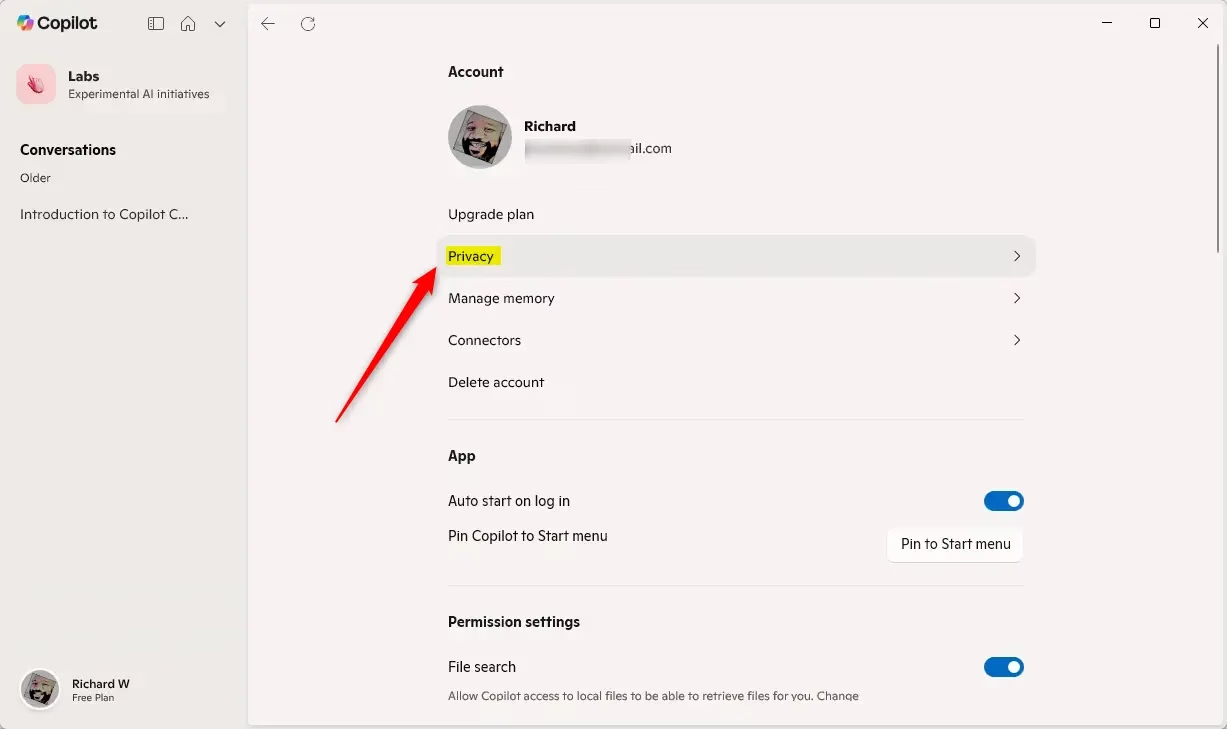
This is the step that changes your ad experience. If you don’t see an ad option here, check that you’re signed in with your Microsoft account. Also remember that the option isn’t offered to users under 18.
- Find the Ad Personalization option. Slide the switch to On to allow personalized ads. Slide it to Off if you want generic ads instead. The switch should change position right away to show your choice.
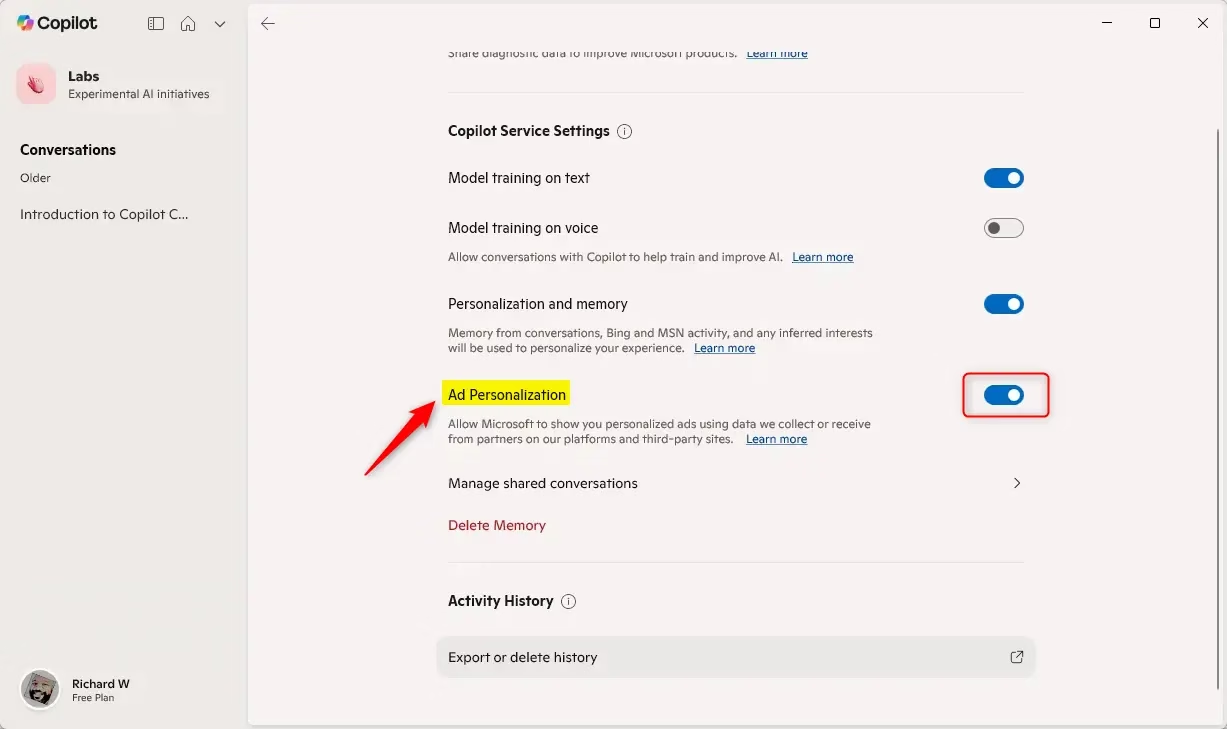
Once the switch is where you want it, you can leave the settings. There is no Save button to press.
- Close the settings when you’re done. Your choice is saved automatically.
To undo the change later, follow the same steps and slide the switch back. Since the setting is tied to your Microsoft account, it should carry over to your other devices where you use Copilot with that account.
Summary
You have full control over personalized ads in the Copilot app on Windows 11 through your Microsoft account settings. This lets you choose if ads should align with your interests or be based on your past conversations. Remember, users under 18 years old will not see personalized ads from Microsoft at all.- You control whether Microsoft shows you personalized ads in the Copilot app through your account.
- Turning on ad personalization means ads match your interests better.
- You can stop personalized ads from using your chat history if you want.
- Users under 18 won’t see personalized ads at all.
- For more info, see the official Microsoft Copilot privacy controls page.
Have a question about this guide?
Answered by AI from this guide. Good questions may be added to this page — please don't include personal details.
Did this guide fix your problem?

About the Author
Richard
Tech Writer, IT Professional
Richard is a writer at Geek Rewind who turns complex IT tasks into clear, step-by-step guides. He draws on years of hands-on experience in system administration and enterprise IT operations, focusing on Windows, Linux and WordPress: the problems people actually run into, and the fixes that work. His server and WordPress guides come from systems he runs himself. Richard builds and maintains the platform behind Geek Rewind, from its Ubuntu servers and Nginx configuration to its custom WordPress plugins. Many new tutorials start with readers' questions, and he's always glad to answer them in the comments.
[…] or hiding this sidebar is a simple adjustment you can make within the Copilot application itself, often with just a […]