How to Enable or Disable Windows Copilot in Windows 11

Windows Copilot is an AI assistant built into Windows 11 versions 22H2 and newer. You can ask it questions and have it run tasks from your desktop. It puts a small shortcut icon on your taskbar for quick access.
You can turn Windows Copilot on or off from the taskbar settings, the Local Group Policy Editor, or the Registry Editor (a database that stores system settings). Use whichever suits you when you want to hide the icon and stop the assistant from running in the background. Which method works best depends on your edition of Windows 11 (Home or Pro) and on how much of Copilot you want gone.
One caution before you start. Microsoft has changed Copilot several times. The original Windows Copilot was a sidebar that opened from the taskbar . On recent builds it has been replaced by a Copilot app that behaves more like a normal app. The steps below were written for the original sidebar. If your build has the newer app, a label may differ and a policy or registry value may have no effect. I point out where that is likely.
Hide the Copilot icon by right-clicking the taskbar , selecting Taskbar settings, and toggling Copilot to Off. For a full disable, use Group Policy (Pro/Enterprise) or the Registry Editor (Home) to modify Copilot settings.
Method 1Hiding the Copilot Icon (Easiest Way)
This is the quickest method and it works on every edition, Home included. Hiding the Copilot icon removes the button from the taskbar without turning off the underlying service. Use it when you only want the icon out of your way.
- Right-click an empty space on your Taskbar. A small menu appears with a single entry for the taskbar settings.
- Select Taskbar settings. The Settings app opens on the taskbar page (Settings Personalization Taskbar). You can also reach it by going there yourself.
- Locate the Copilot (preview) toggle. It sits in the list of taskbar items at the top of the page, near Search and Task view. On newer builds the label may read Copilot without “(preview)”.
- Switch it to Off. The Copilot button disappears from the taskbar right away. You do not need to restart.
This hides the button but does not uninstall the feature. To bring the icon back, return to the same page and switch the toggle to On.
If you cannot find the toggle, your build probably has no Copilot taskbar item. That happens when Windows is not fully updated, or when a policy has already turned Copilot off. Run Windows Update and look again.
Method 2Using Group Policy (🪟 Windows 11 Pro and Enterprise)
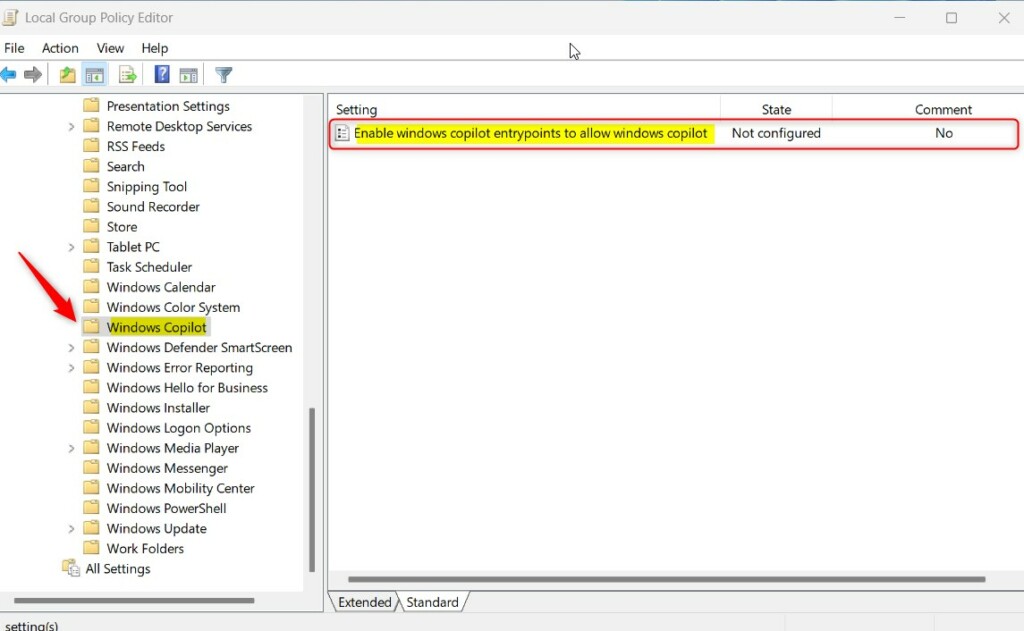
You can enable or disable Windows Copilot on Windows 11 Pro and Enterprise editions by using the Local Group Policy Editor. This built-in configuration tool lets you turn off the AI assistant across your system by adjusting the Turn off Windows Copilot policy setting under the Windows Components folder.
The Group Policy Editor is not included in Windows 11 Home. If you press Win+R, run the command below, and Windows says it cannot find the file, you are on Home. Skip to the Registry Editor method.

You need to be signed in with an administrator account. Because this setting lives under User Configuration, it applies to the account that is signed in, not to every user on the PC.
- Press Win+R, type gpedit.msc, and hit Enter. The Local Group Policy Editor window opens.
- In the left pane, navigate to: User Configuration Administrative Templates Windows Components Windows Copilot When you select the Windows Copilot folder, its policies appear in the right pane.
- Double-click Turn off Windows Copilot. A settings window opens with the options Not Configured, Enabled and Disabled.
- Select Enabled to turn the feature off. The wording is confusing, but it is correct: you are enabling the policy that turns Copilot off.
- Click Apply and OK. The Copilot button should leave the taskbar . If it is still there, sign out and back in, or restart the PC, so the policy is reapplied. To undo the change, open the same policy and select Not Configured, then click Apply and OK. On recent builds with the newer Copilot app, this policy may not affect it.
Method 3Using the Registry Editor (🪟 Windows 11 Home)
You can enable or disable Windows Copilot on Windows 11 Home editions by editing the system registry. Since the Home edition lacks the policy editor, creating a specific DWORD value inside the Registry Editor lets you turn off the AI feature manually. This does the same job as the Group Policy method, because the policy simply writes this value for you.
Be careful in the registry. A wrong change can cause problems, and there is no undo button. Before you begin, create a restore point, or in Registry Editor choose File Export to save a backup of the registry. You also need an administrator account.
The steps below work on Pro and Enterprise too, if you prefer them to Group Policy. Follow them in order and check each name for typos. The key and value names must match exactly or Windows will ignore them.
- Press Win + R, type regedit, and hit Enter. Click Yes if User Account Control asks for permission. The Registry Editor opens.
- Navigate to: HKEY_CURRENT_USER\Software\Policies\Microsoft\Windows\WindowsCopilot. You can expand the folders in the left pane one by one, or paste the path into the address bar at the top of the window.
- If the key does not exist, right-click the Windows folder, select New Key, and name it WindowsCopilot. The new folder appears under Windows. Select it so the right pane shows its contents.
- Right-click in the right pane, select New DWORD (32-bit) Value, and name it TurnOffWindowsCopilot. The new entry appears in the list with a value of 0.
- Double-click TurnOffWindowsCopilot, set the Value data to 1 to disable it, and click OK. Then sign out and back in, or restart the PC, so Windows reads the new value. The Copilot button should be gone afterward. To undo the change, set the value back to 0 or delete the TurnOffWindowsCopilot entry. As with Group Policy, a build with the newer Copilot app may ignore this value.
Privacy and Data Security
Copilot relies on data processing to generate relevant answers. Disabling the service stops your local activity from going to Microsoft for AI analysis. Hiding the icon alone does not do this, so use the Group Policy or registry method if privacy is your reason.
Reviewing the Privacy & security settings inside the Windows Settings app (Settings Privacy & security) helps control what data reaches Microsoft. Look at the permission pages there and turn off what you do not need.
Summary
The taskbar settings are the quickest way to hide Windows Copilot, but they only remove the button. Pro and Enterprise editions can use the Group Policy Editor for a lasting fix, whereas Windows 11 Home requires the Registry Editor. Each change can be reversed, so you can turn Copilot back on whenever you want. These methods let you tailor the AI feature to your own workflow.
Have a question about this guide?
Answered by AI from this guide. Good questions may be added to this page — please don't include personal details.
Did this guide fix your problem?

About the Author
Richard
Tech Writer, IT Professional
Richard is a writer at Geek Rewind who turns complex IT tasks into clear, step-by-step guides. He draws on years of hands-on experience in system administration and enterprise IT operations, focusing on Windows, Linux and WordPress: the problems people actually run into, and the fixes that work. His server and WordPress guides come from systems he runs himself. Richard builds and maintains the platform behind Geek Rewind, from its Ubuntu servers and Nginx configuration to its custom WordPress plugins. Many new tutorials start with readers' questions, and he's always glad to answer them in the comments.
[…] your device, you can pin or unpin the side pane, open Copilot when Windows starts, Turn Copilot on or off, enable or disable Copilot using content from Edge, refresh Copilot prompts, resize […]
[…] your device, you can pin or unpin the side pane, open Copilot when Windows starts, Turn Copilot on or off, enable or disable Copilot using content from Edge, refresh Copilot prompts, resize […]
[…] Copilot is installed on Windows, you can enable or disable it, open Copilot when Windows starts, Pin or Unpin the Copilot side panel, Resize the Copilot side […]
[…] Copilot is installed on Windows, you can enable or disable it, open Copilot when Windows starts, Pin or Unpin the Copilot side panel, Resize the […]
[…] Copilot installed, you can enable or disable it, open Copilot when Windows starts, Pin or Unpin the Copilot side panel, Resize the Copilot side […]
[…] Copilot installed, you can enable or disable it, open Copilot when Windows starts, Pin or Unpin the Copilot side panel, Resize the […]
[…] available on your device, you can pin or unpin the side pane, open Copilot when Windows starts, Turn Copilot on or off, enable or disable Copilot using content from Edge, refresh Copilot prompts, resize the Copilot […]
[…] Copilot is installed on Windows, you can enable or disable it, open Copilot when Windows starts, Pin or Unpin the Copilot side panel, Resize the Copilot side […]
[…] Copilot is installed on Windows, you can enable or disable it, open Copilot when Windows starts, Pin or Unpin the Copilot side panel, Resize the […]
[…] Copilot is installed on Windows, you can enable or disable it, open Copilot when Windows starts, Pin or Unpin the Copilot side panel, Resize the […]
[…] Copilot is installed on Windows, you can enable or disable it, open Copilot when Windows starts, Pin or Unpin the Copilot side panel, Resize the Copilot side […]
[…] Copilot is installed on Windows, you can enable or disable it, open Copilot when Windows starts, Pin or Unpin the Copilot side panel, Resize the Copilot side […]
[…] Copilot is installed on Windows, you can enable or disable it, open Copilot when Windows starts, Pin or Unpin the Copilot side panel, Resize the […]
[…] Copilot is installed on Windows, you can enable or disable it, open Copilot when Windows starts, Pin or Unpin the Copilot side panel, Resize the […]
[…] Copilot is installed on Windows, you can enable or disable it, open Copilot when Windows starts, Pin or Unpin the Copilot side panel, Resize the Copilot side […]
[…] Copilot is installed on Windows, you can enable or disable it, open Copilot when Windows starts, Pin or Unpin the Copilot side panel, Resize the […]
[…] How to turn Windows Copilot on or off […]
[…] Enable or disable Copilot […]