How to Control Windows Copilot Startup Settings


Windows Copilot startup settings decide whether the AI assistant opens on its own when you sign in to your PC. This guide covers two ways to change that: the Settings app , and the Registry Editor for when the Settings option is missing.
Windows Copilot is the built-in AI helper in Windows 11. You open it from the taskbar or with the Win+C shortcut. This option arrived with preview releases such as Windows 11 build 23493 and the updates that followed. If your PC is on an older build, or Microsoft has changed Copilot on your version, some of the settings below may not appear.
Controlling when Copilot starts changes how the PC feels at sign-in. You can have the assistant ready the moment you log in, or keep the desktop clean and open Copilot only when you need it. Either way, you can switch back at any time.
Adjust the “Open Copilot when Windows starts” toggle in Settings Personalization Copilot in Windows. Alternatively, modify the AutoOpenCopilotLargeScreens DWORD value to 1 or 0 in the Registry Editor. This determines if Copilot launches automatically upon Windows login.
Method 1Using the Settings App
The Settings app is the safest way to change this. It needs no extra software or advanced tools, and it doesn’t touch the registry. It works the same on Windows 11 Home and Pro.
If the PC is managed by an employer or school, an administrator may have locked the option. In that case the toggle will be greyed out or missing, and you will need to ask your IT team. If the whole Copilot in Windows tile is missing, your build probably doesn’t include the setting yet.
Follow these steps to stop Copilot from opening at startup, or to make it open at startup, from the Settings app:
- Open the Windows Settings app. You can find it in the Start menu, or press the Windows key + I to launch the Settings app directly. The Settings window opens with a list of categories on the left.
- Click Personalization in the left menu. The right side now shows options such as Background, Colors and Themes.
- Select the Copilot in Windows tile on the right. If you can't find the tile, your build probably doesn't include this setting yet. Run Windows Update, then check again.
Quick recap so far: open Settings, go to Personalization, and select the Copilot in Windows tile. The next two steps find the startup option and change it.

- Find the Open Copilot when Windows starts option. It sits among the Copilot settings on this page. If it isn't listed, use the registry method later in this guide.
- Click the toggle switch to turn it On or Off. The switch moves right to show On, or left to show Off. Turn it Off if you want Copilot to stay closed until you call it up. To undo the change later, come back here and flip the switch again.
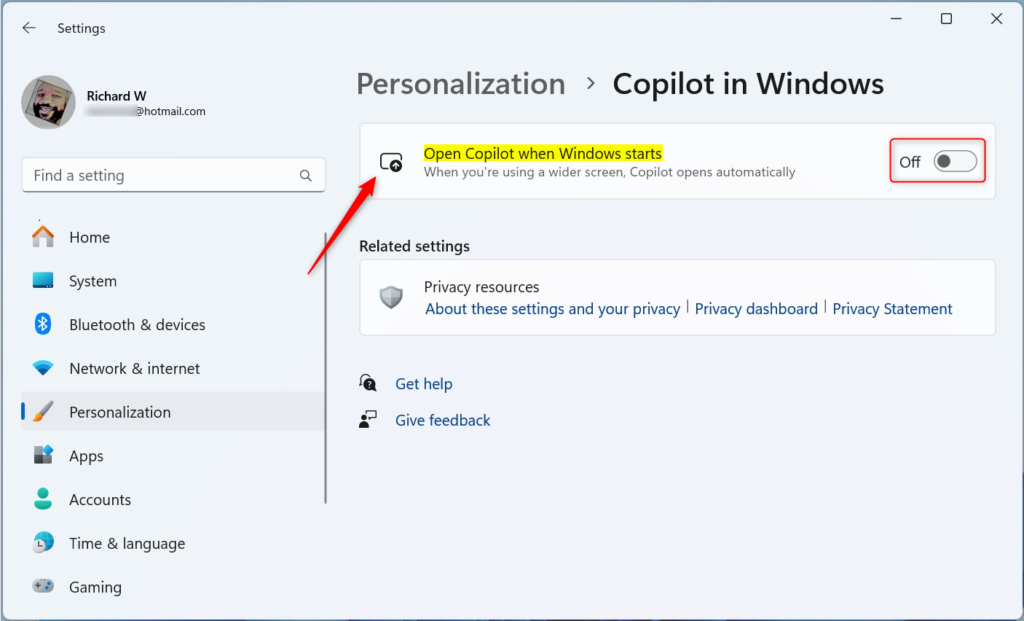
Close the Settings app when you're done. The change is saved as soon as you flip the switch, so you don't need to click anything to confirm it. You can test it by signing out and back in, or by restarting the PC.
Method 2Using the Registry Editor
The Registry Editor gives you direct control over the setting when the standard option is missing or doesn't work. It is available on Windows 11 Home and Pro. You edit a system value yourself, so a wrong change can cause problems.
Back up first. Create a System Restore point, or in the Registry Editor use File Export to save a copy of the key you're about to change. Also note that this value is not a documented, supported switch, so it may have no effect on some builds. The path below is under HKEY_CURRENT_USER, so the change applies only to your own account.
Follow these steps to set the Copilot startup value in the registry:
- Open Windows Registry Editor from the Start menu. Search for it by name. Windows may ask for permission to make changes. Click Yes to continue, and the editor window opens.
- Go to this path:
Computer\HKEY_CURRENT_USER\Software\Microsoft\Windows\CurrentVersion\Notifications\Settings. You can click through the folders in the left pane, or paste the path into the address bar at the top of the window. The values for that key then show in the right pane. - Look for
AutoOpenCopilotLargeScreensin the right pane. It may not exist on your PC, and that's normal. If it's missing, skip to the last step in this list. - Double-click the value to edit it. Enter
1to enable automatic startup or0to disable it, then click OK. The new number now shows in the Data column. - Create the value if it is missing. Right-click an empty space in the right pane, select New DWORD (32-bit) Value, and name it
AutoOpenCopilotLargeScreens. Then double-click it and set your value the same way as in the previous step. The new entry should now appear in the list with the value you entered.
Quick recap: open the Registry Editor, go to the path in step 2, and edit or create the value. Set the value data to 1 to enable Copilot at startup, or 0 to disable it. To undo the change, set the value back or delete the entry you created.

You may need to restart your computer for these changes to take effect. If you'd rather not restart yet, signing out and back in is often enough to test the result.
If nothing changes after a restart, go back and check that the value name and number are exactly as listed above. Also remember that this value isn't an officially supported switch, so on some builds it simply won't do anything. In that case, use the Settings app method if your build has it.
Summary
You can manage Windows Copilot startup behavior to suit your needs, so it only runs when you want it to. Use the Settings app first, because it is simple and easy to reverse. Use the Registry Editor only if the Settings option isn't available, and keep a backup so you can roll back.
Have a question about this guide?
Answered by AI from this guide. Good questions may be added to this page — please don't include personal details.
Did this guide fix your problem?

About the Author
Richard
Tech Writer, IT Professional
Richard is a writer at Geek Rewind who turns complex IT tasks into clear, step-by-step guides. He draws on years of hands-on experience in system administration and enterprise IT operations, focusing on Windows, Linux and WordPress: the problems people actually run into, and the fixes that work. His server and WordPress guides come from systems he runs himself. Richard builds and maintains the platform behind Geek Rewind, from its Ubuntu servers and Nginx configuration to its custom WordPress plugins. Many new tutorials start with readers' questions, and he's always glad to answer them in the comments.
[…] Copilot is available on your device, you can pin or unpin the side pane, open Copilot when Windows starts, Turn Copilot on or off, enable or disable Copilot using content from Edge, refresh […]
[…] Copilot is installed on Windows, you can enable or disable it, open Copilot when Windows starts, Pin or Unpin the Copilot side panel, Resize the Copilot side panel, delete chat […]
[…] Copilot is available on your device, you can pin or unpin the side pane, open Copilot when Windows starts, Turn Copilot on or off, enable or disable Copilot using content from Edge, refresh […]
[…] Copilot is installed on Windows, you can enable or disable it, open Copilot when Windows starts, Pin or Unpin the Copilot side panel, Resize the Copilot side panel, delete chat […]
[…] Copilot is installed on Windows, you can enable or disable it, open Copilot when Windows starts, Pin or Unpin the Copilot side panel, Resize the Copilot side panel, delete chat […]
[…] Copilot is installed on Windows, you can enable or disable it, open Copilot when Windows starts, Pin or Unpin the Copilot side panel, Resize the Copilot side panel, delete chat […]
[…] Open Copilot when Windows starts […]
[…] Copilot is installed on Windows, you can enable or disable it, open Copilot when Windows starts, Pin or Unpin the Copilot side panel, Resize the Copilot side panel, delete chat history in […]
[…] Copilot is installed on Windows, you can enable or disable it, open Copilot when Windows starts, Pin or Unpin the Copilot side panel, Resize the Copilot side panel, delete chat […]
[…] Copilot is installed on Windows, you can enable or disable it, open Copilot when Windows starts, Pin or Unpin the Copilot side panel, Resize the Copilot side panel, delete chat history in […]
[…] Copilot is installed on Windows, you can enable or disable it, open Copilot when Windows starts, Pin or Unpin the Copilot side panel, Resize the Copilot side panel, delete chat history in […]