How to Turn On or off Startup App Notifications in Windows 11

Startup app notifications in Windows 11 are pop-up alerts. They tell you when a program sets itself up to run automatically when you sign in to your PC. Windows keeps this setting turned off by default so random apps don’t interrupt you.
You can turn the alerts on or off in the Settings app. It takes under a minute, needs no restart, and you can reverse it at any time.
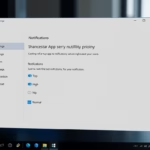
Open Settings , go to System Notifications, scroll down to Startup App Notification, and toggle the switch On or Off. The change takes effect immediately with no restart required.
What Are Startup Apps?
Some are essential. Microsoft Defender Antivirus, for example, launches right away to protect your system. Many other apps add themselves to the startup list during installation or after an update, often without asking you.
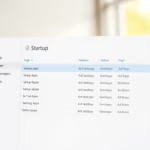
You can then decide whether it belongs there. To review or disable the apps that already start with Windows, open Settings Apps Startup
Why Use Startup App Notifications?
Here is why you might want the alerts on:
- Stay informed: You find out as soon as a new app wants to run automatically, instead of discovering it weeks later.
- Control: You can decide whether the app should start with Windows and turn it off if it shouldn’t.
- Keep your PC running smoothly: Too many startup apps slow down boot time and use memory, so catching them early helps.
Steps to Turn On or Off Startup App Notifications
Step 1Open Windows Settings
You use the Settings app to change system preferences, manage notifications, and control startup app alerts. You can open it with a keyboard shortcut or from the Start menu .
- Press Windows key + I on your keyboard at the same time. The Settings window opens straight away.
- Or click the Start button (the Windows logo) in the bottom-left corner of the taskbar, then select Settings. If you don't see it in the pinned apps, type "Settings" into the Start menu search box and press Enter.
Here's what the Settings button looks like:

Once Settings is open, you should see a list of categories on the left and the main settings page on the right.
Step 2Go to System Settings
- Select System from the menu on the left side of the Settings window.
The System page opens on the right, with options such as Display, Sound and Notifications.
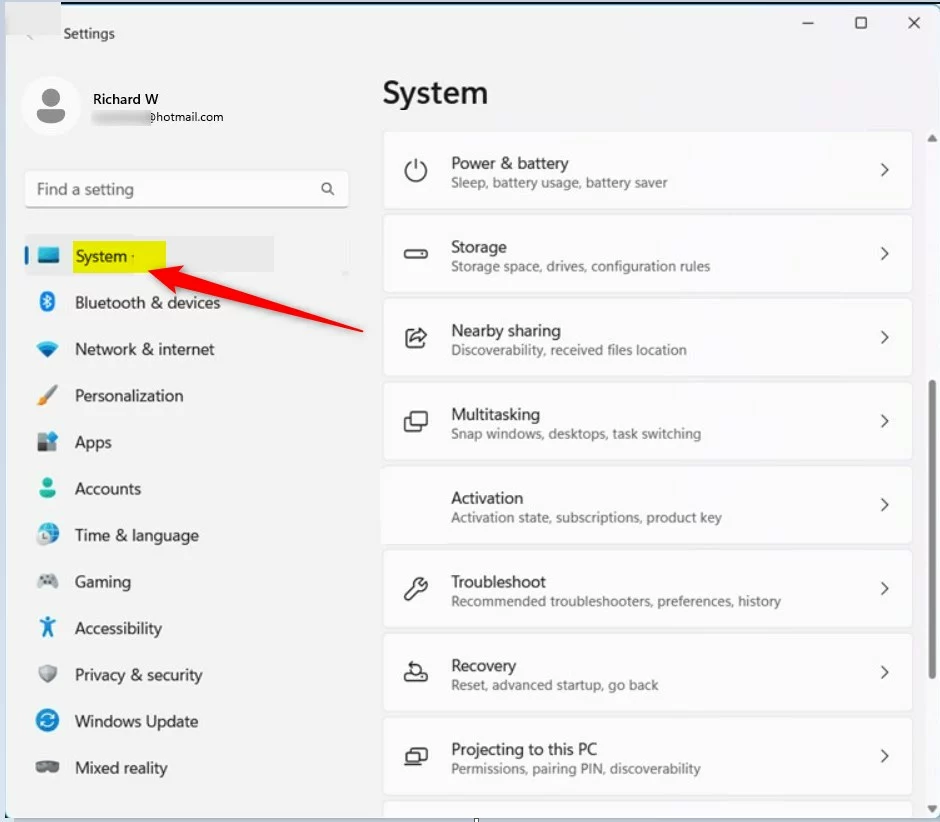
If the left menu is hidden because the window is narrow, click the menu icon (three horizontal lines) at the top left, or widen the window.
Step 3Open Notifications Settings
- Locate the Notifications entry on the right side and click it.
The Notifications page opens. It shows the master notification switch, followed by a list of apps and their individual alert settings.
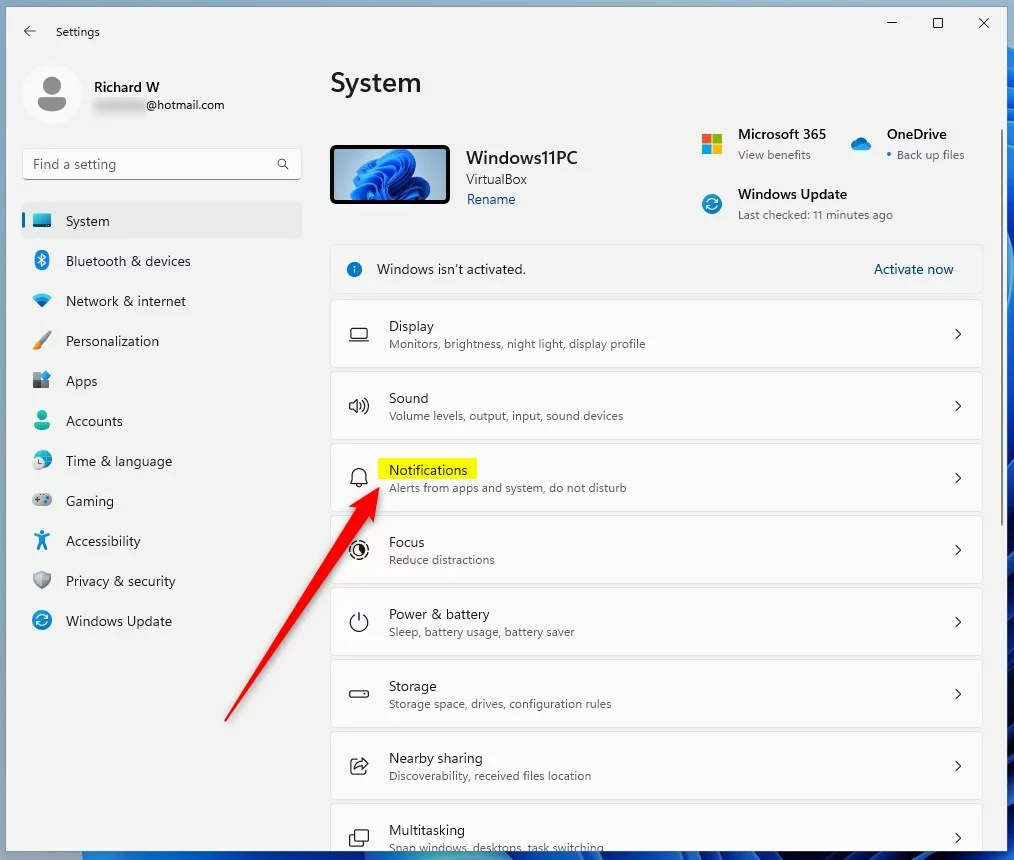
If notifications look completely off here, check the main Notifications switch at the top of the page. Alerts can also be hidden while Do Not Disturb is active.
Step 4Turn Startup App Notifications On or Off
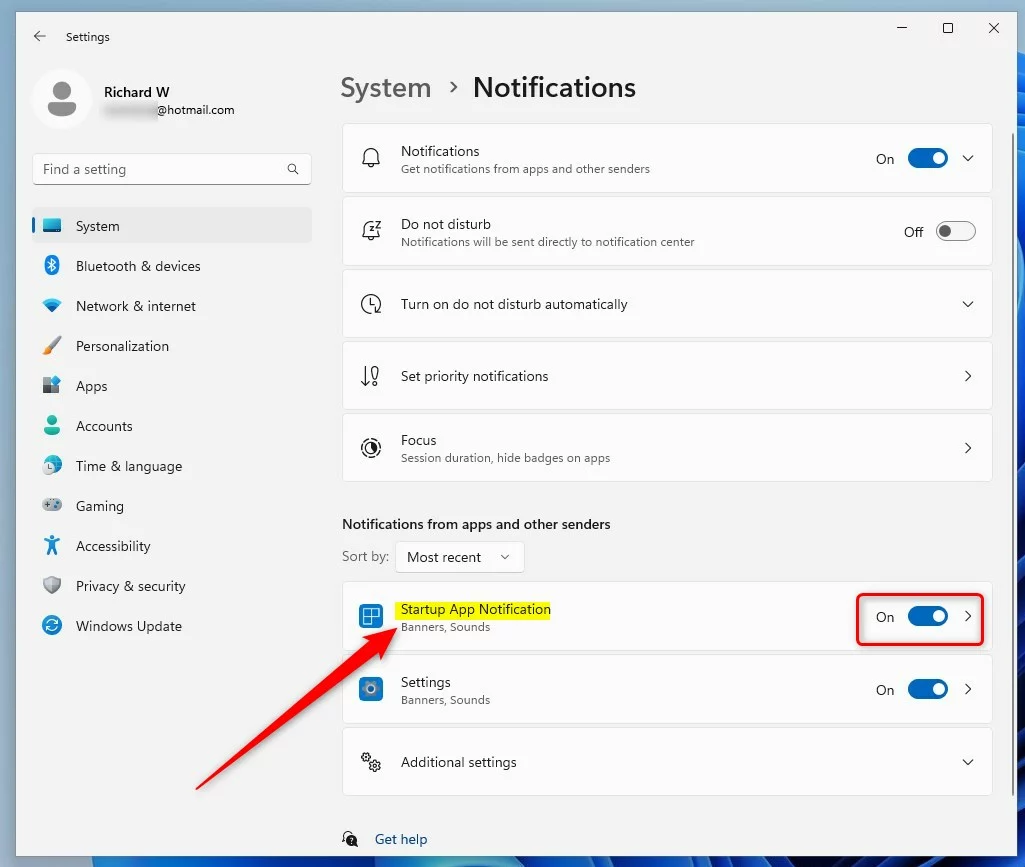
- Scroll down the Notifications page until Startup App Notification appears on screen. It sits below the list of apps.
- Set the switch to On to receive an alert whenever a new app configures itself to start automatically.
- Set the switch to Off to block these notifications entirely.
The switch label changes to On or Off right away. There is no Save button and no restart is needed.
If you can't find this option, install the latest Windows 11 updates and check again. The setting is not available on older builds. It works the same on Home and Pro editions.
You're all set!
With the switch on, Windows will notify you whenever a new app configures itself to start automatically. If you change your mind, return to the same page and flip the switch back to Off.
Summary
- Windows 11 can notify you when new apps add themselves to startup.
- This notification feature is off by default, but you can turn it on anytime.
- Use the Settings app to switch this notification on or off. The path is Settings System Notifications
Startup app notifications alert you whenever a new program adds itself to your startup list. The feature stays off by default, but you can turn it on through the Settings app to keep track of what runs on your computer. When an alert appears for an app you don't want, use Settings Apps Startup to switch that app off.
Was this guide helpful?

About the Author
Richard
Tech Writer, IT Professional
Richard is a writer at Geek Rewind who turns complex IT tasks into clear, step-by-step guides. He draws on years of hands-on experience in system administration and enterprise IT operations, focusing on Windows, Linux and WordPress: the problems people actually run into, and the fixes that work. His server and WordPress guides come from systems he runs himself. Richard builds and maintains the platform behind Geek Rewind, from its Ubuntu servers and Nginx configuration to its custom WordPress plugins. Many new tutorials start with readers' questions, and he's always glad to answer them in the comments.
No comments yet — be the first to share your thoughts!