How to Change Startup App Notification Priority in Windows 11

Startup app notification priority in Windows 11 controls how alerts from programs that launch when you turn on your PC appear on your screen. You can change these settings in less than 60 seconds. That lets you quiet a noisy app or make an important message easier to spot.
Windows 11 lets you choose whether an app shows banners, plays sounds, or stays quiet when it starts up. You adjust these rules in the main system settings, and they apply to the app you pick without affecting the others. The steps are the same on Windows 11 Home and Pro.
Open Settings System Notifications, scroll to Startup App Notification, turn on the toggle, and select Top, High, or Normal to set your priority level. Changes save automatically with no restart required.
What is Startup App Notification?
A startup app notification is an alert Windows 11 sends when a program is set to open automatically every time you turn on your PC. Notification priority decides where that alert sits in the Notification Center. Without it, an important message can get buried under a pile of routine ones.
Besides turning the notification on or off, you can choose how important it is. There are three levels:
- Normal: Shows below High priority notifications.
- High: Shows above Normal priority notifications.
- Top: Always shows at the very top in the Notification Center.
It does not decide whether an app is allowed to start with Windows. Here is how to change the priority of Startup App Notifications:
Steps to Change Startup App Notification Priority in 🪟 Windows 11
- 💡TipOpen the Settings app.
Press the Win+I, or right-click the Start button and choose Settings. The Settings window opens with a list of categories on the left.
In the Settings window, click System in the left menu. The System options appear on the right.
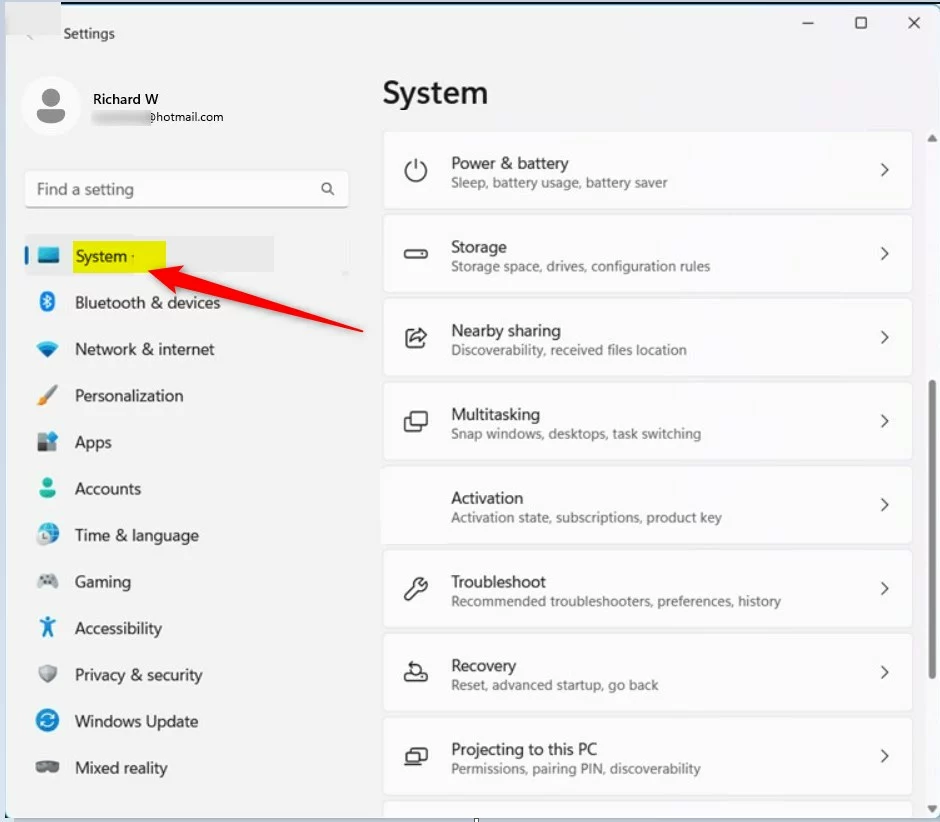
Click System in Settings On the right side, find and click Notifications. You should see the main notification switch at the top and a list of apps further down.
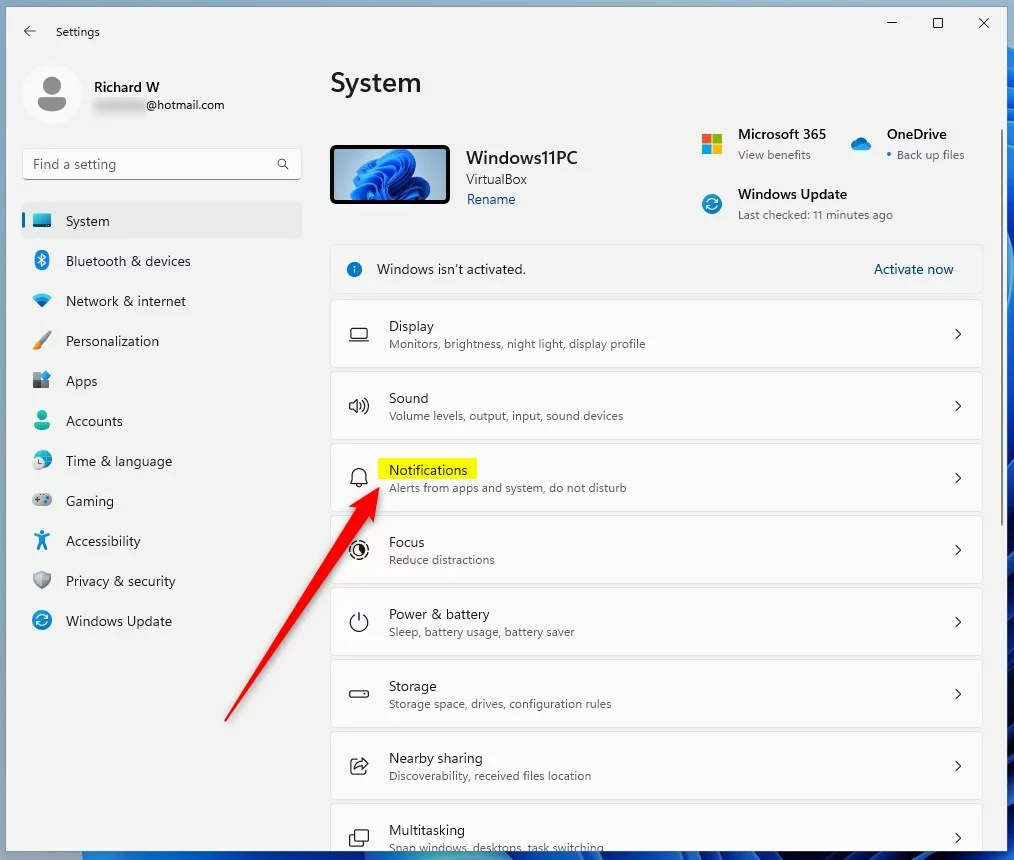
Click Notifications Scroll down to Notifications from apps and other senders and click Startup App Notification. Its settings expand or open, depending on your build.
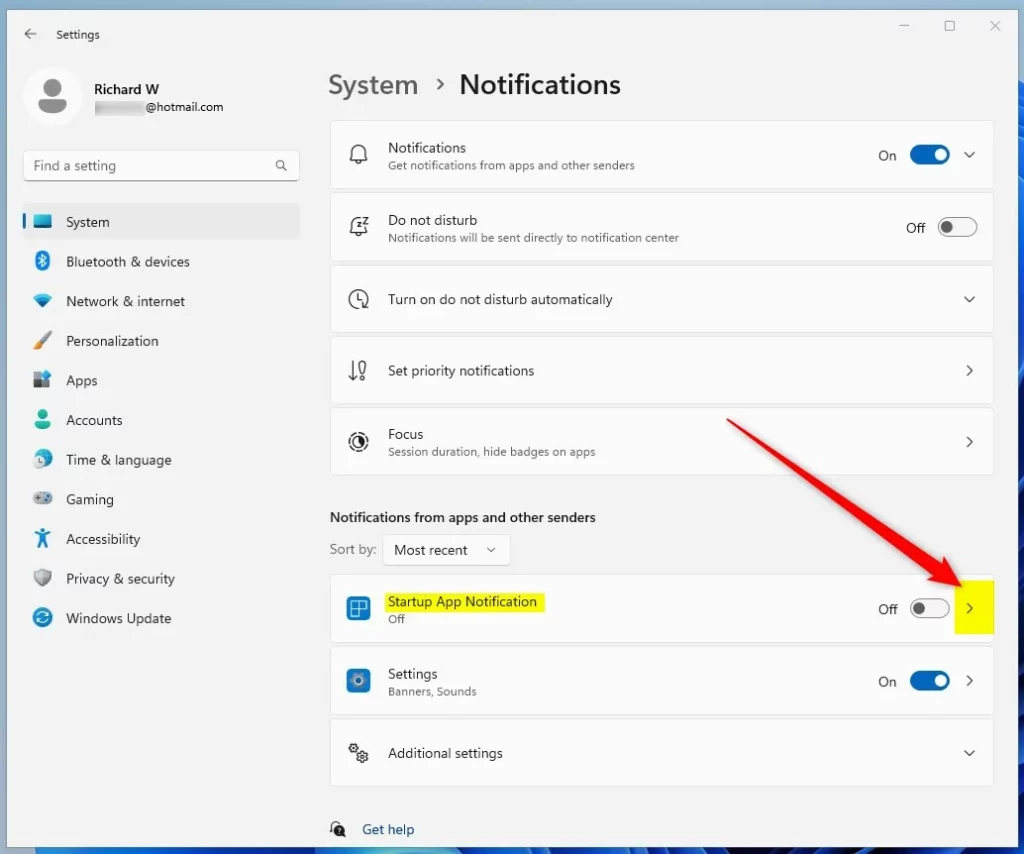
Open Startup App Notification options Turn on the notification by clicking the switch at the top so it reads On. If the switch is off, the priority options stay hidden or unavailable. If you can't find the entry, check that the main notification switch at the top of the Notifications page is on.
Choose the priority level you want:
- Top: Notifications appear at the very top.
- High: Notifications appear above normal priority.
- Normal: Notifications appear below high priority.
The option you select is marked as chosen on screen.
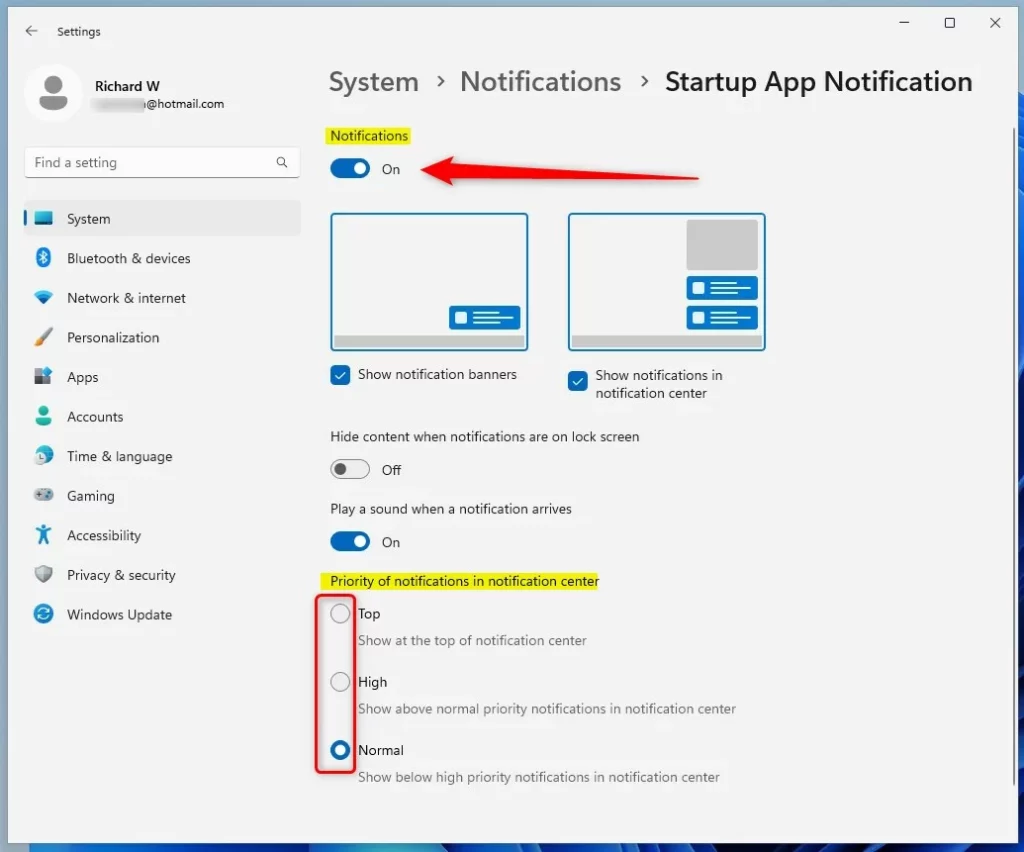
Select your desired notification priority When you are done, close the Settings window. Your changes are saved automatically, and you do not need to restart the PC. To undo the change, come back to the same page and pick a different level, or turn the switch off.
Want to learn more? Check out how to enable or disable Startup App Notification in Windows 11.
Summary
- You can control how Windows 11 shows notifications when apps start automatically.
- Set the notification priority to Top, High, or Normal to decide where they appear.
- The setting lives in Settings System Notifications, and it works the same on Home and Pro.
- Changes save automatically and take effect without a restart.
Managing your Windows 11 notification priority gives you control over how background program alerts appear on your screen. By setting your startup app notifications to Normal, High, or Top, you decide which messages get your attention first when your computer boots up.
Was this guide helpful?

About the Author
Richard
Tech Writer, IT Professional
Richard is a writer at Geek Rewind who turns complex IT tasks into clear, step-by-step guides. He draws on years of hands-on experience in system administration and enterprise IT operations, focusing on Windows, Linux and WordPress: the problems people actually run into, and the fixes that work. His server and WordPress guides come from systems he runs himself. Richard builds and maintains the platform behind Geek Rewind, from its Ubuntu servers and Nginx configuration to its custom WordPress plugins. Many new tutorials start with readers' questions, and he's always glad to answer them in the comments.

No comments yet — be the first to share your thoughts!