How to Silence or Play a Sound Notification for Each App in Windows 11

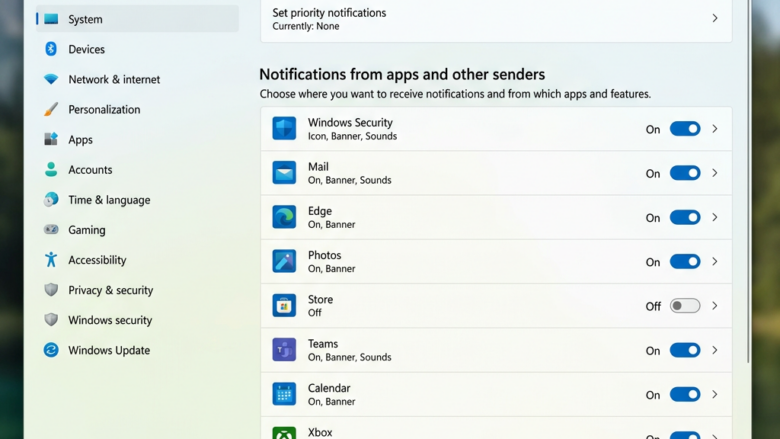
Windows 11 lets you set notification sounds for each app separately. You can mute a noisy program and still hear alerts from something important, like your email client. All of it is done in the Settings app, and the changes apply straight away. You don’t need to restart.
Open Settings with Win+I, go to System Notifications, select the app you want to change, then turn off the Play a sound when a notification arrives switch. The app’s alerts continue but produce no sound.
Step 1Open Your Windows Settings
First, open the Settings app. The keyboard shortcut is quickest, but the Start menu works just as well.
- Press
Windows key + Itogether. Settings opens right away, and you can skip the next two steps. - If you prefer the mouse, click the Start button. It’s the Windows logo on the taskbar. By default it sits in the centre of the taskbar. If you’ve moved the taskbar icons to the left, it’s in the bottom-left corner.
- Click the Settings gear icon in the Start menu. If you don’t see it, click All apps and choose Settings from the list. The Settings window should now be open, with a category list on the left.

Step 2Go to Notifications
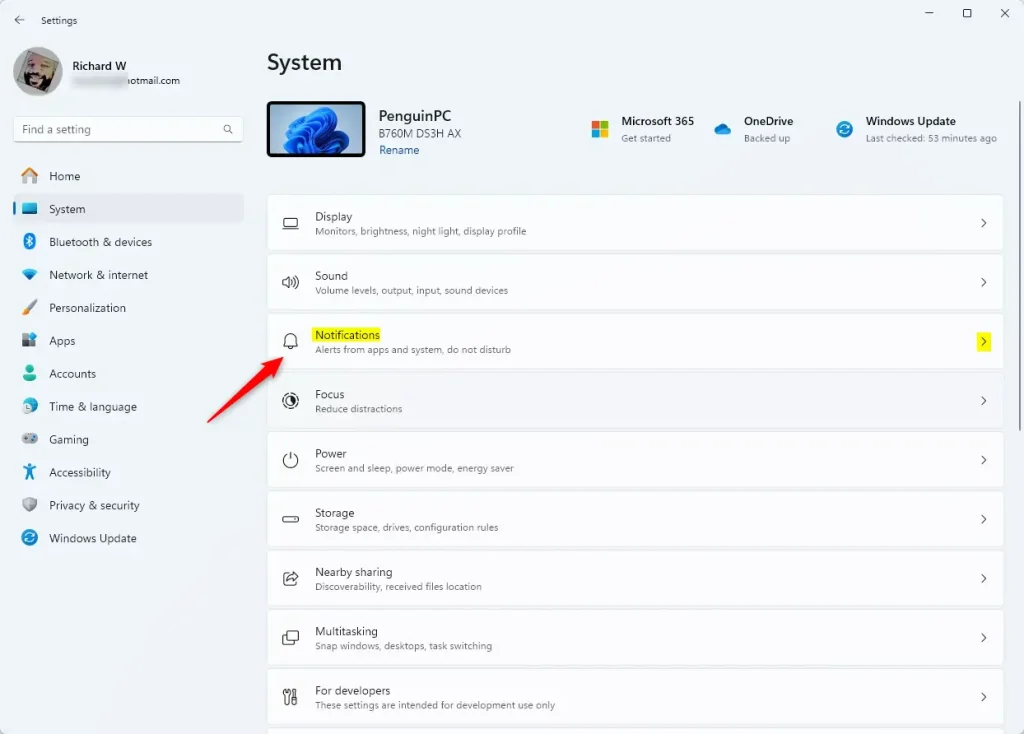
Next, go to the page that controls all notifications. The path is System Notifications.
- Click System in the list on the left side of the Settings window.
- Click Notifications in the main area on the right. You should see the main notification controls at the top, including the master Notifications switch and the Do not disturb option. Below them is the list of apps.
Step 3Find the App You Want to Change
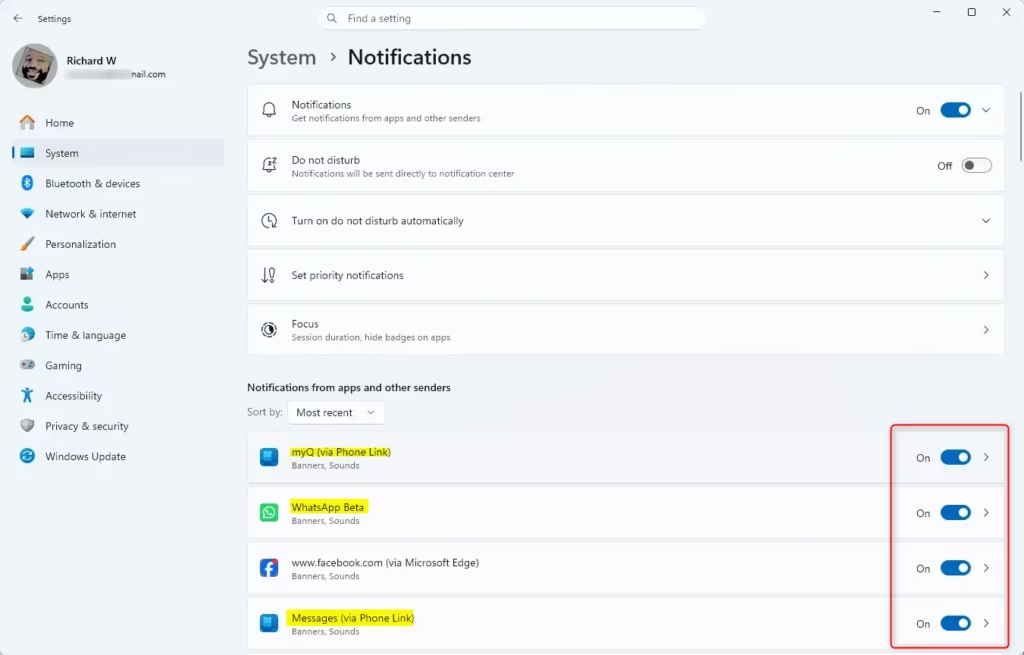
- Scroll down to Notifications from apps and other senders. The list shows apps that have recently sent alerts. Use the sort option beside the list if you’d rather see it by name than by most recent.
- Find the app you want, such as Mail, Calendar, or another program. If it isn’t visible, keep scrolling, because the list can be long.
- Click the app’s name. The page for that app opens. It shows settings for that app only, so changes here won’t affect your other programs.
If the app’s own Notifications switch at the top of its page is off, the other options, including the sound, are hidden. Turn that switch on to see them.
Step 4Turn Off the Notification Sound
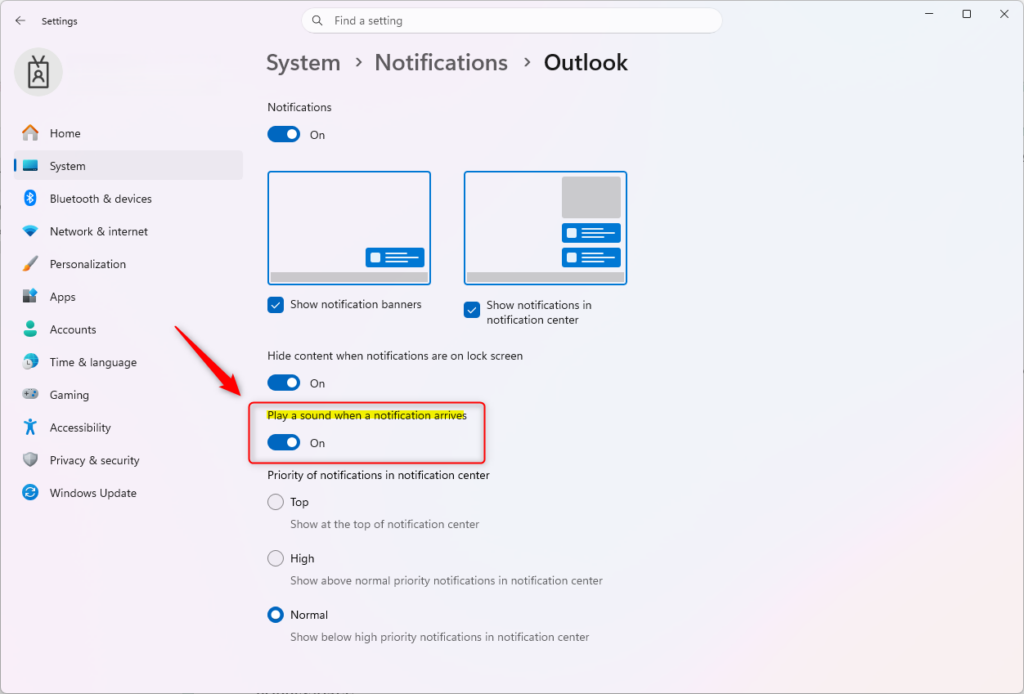
The last step is the sound switch itself. It sits on the same app page, a little way down.
- Look for the option Play a sound when a notification arrives. Some builds word it more briefly, as “Play a sound”. It’s one of the switches beneath the banner options.
- Click the switch to set it to Off. The app can still show a banner and add alerts to the notification centre, but it no longer makes a noise.
- To bring the sound back, return to this page and set the switch to On.
Some programs, such as chat and email clients, also have their own sound options inside the app. If an app still beeps after you’ve turned the Windows switch off, check that app’s own settings. The sound may be coming from there rather than from a Windows notification.
Reference:
Summary
Muting a noisy app takes only a few clicks: System Notifications, pick the app, and turn off its sound. Do this for the apps that interrupt you most and leave the ones you rely on switched on. That keeps the interruptions down without making you miss anything important.
Have a question about this guide?
Answered by AI from this guide. Good questions may be added to this page — please don't include personal details.
Did this guide fix your problem?

About the Author
Richard
Tech Writer, IT Professional
Richard is a writer at Geek Rewind who turns complex IT tasks into clear, step-by-step guides. He draws on years of hands-on experience in system administration and enterprise IT operations, focusing on Windows, Linux and WordPress: the problems people actually run into, and the fixes that work. His server and WordPress guides come from systems he runs himself. Richard builds and maintains the platform behind Geek Rewind, from its Ubuntu servers and Nginx configuration to its custom WordPress plugins. Many new tutorials start with readers' questions, and he's always glad to answer them in the comments.
No comments yet — be the first to share your thoughts!