How to Turn Microsoft Store Suggested Search Results on or off in Windows 11


Suggested search results in the Microsoft Store show promoted apps and games in the Windows 11 taskbar search box as you type. They turn the search panel into a quick way to find new software. If you would rather keep results limited to your own files, apps, and settings, you can turn the feature off at any time. You can also turn it back on later.
Open Settings , go to Privacy & security Search, find Show suggested search results , and toggle Microsoft Store suggestions to Off. The search box stops showing app suggestions immediately after you close Settings.
Option 1Turn Suggestions On or Off in Settings
The simplest way to turn Microsoft Store suggestions on or off is the Windows 11 Settings app . The switch controls whether the search box shows app ideas as you type. It works the same on Home and Pro, and you don’t need administrator rights for it.
- Open Settings by pressing Win+I. The Settings window opens with a list of categories on the left.
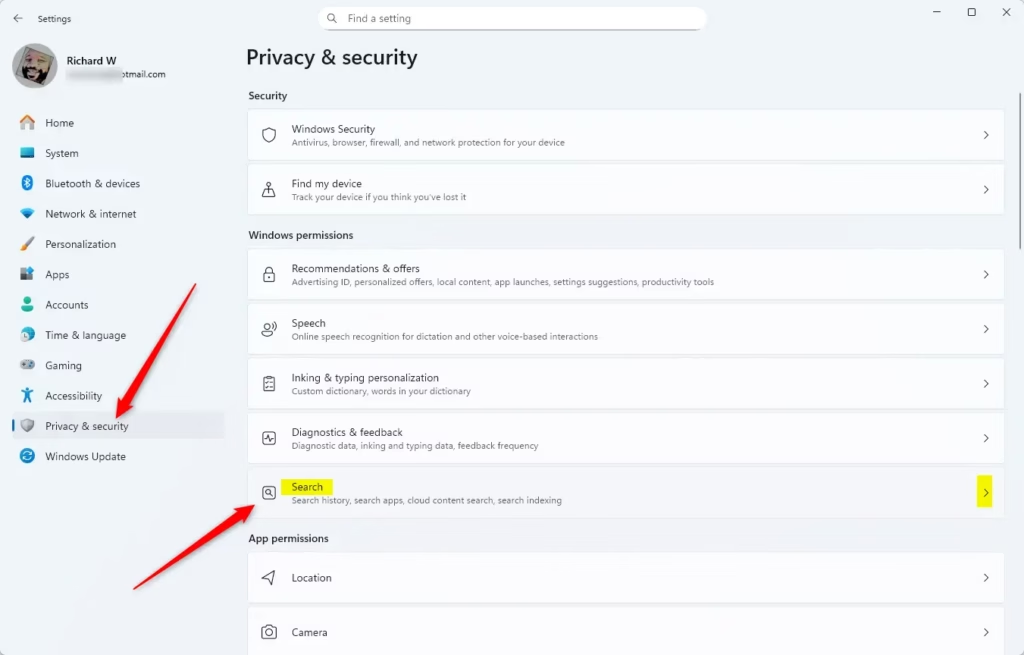
- On the left side, click Privacy & security. The privacy options appear on the right.
- On the right side, click Search. On some Windows 11 builds this page is labelled Search permissions. It is the same page.
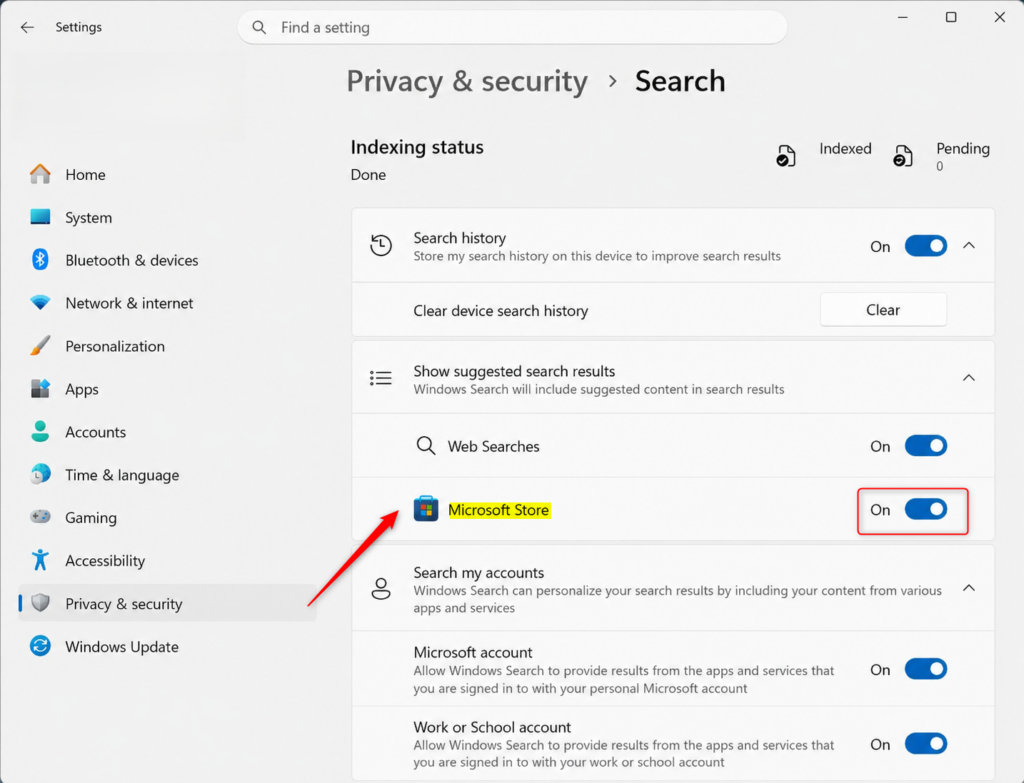
- Find the Show suggested search results section. Set the Microsoft Store suggestions option to On to see app suggestions, or Off to hide them.
- Close the Settings window. The change applies right away. Open the search box and type a few letters to check.
If you can’t find this option, your Windows 11 build may not show it on the Search page, because Microsoft has moved and renamed these settings between updates. In that case, use the Registry Editor method below. To undo a change, return to the same page and flip the switch back.
Option 2Turn Suggestions On or Off Using the Registry Editor
It does the same thing as the Settings app. It is useful if the setting is missing from Settings, or if you want to apply the change across several computers. You will need administrator permissions.
In Registry Editor, click File Export, choose a location, and save a copy before you change anything. You can double-click that file later to restore the old settings.
Microsoft Store suggested search results control whether the Microsoft Store offers app suggestions while you type in Windows Search. Leaving them on helps you discover new apps and content. Turning them off reduces clutter and keeps results focused on your personal files and general web searches.
What happens when done? Restart the computer so the change takes full effect. If a restart isn't convenient, signing out and back in may be enough, but a restart is the sure way.
Turn On Microsoft Store Suggested Search Results
Use these steps to turn suggestions back on.
- Press Windows key + R to open the Run box. Type
regeditand press Enter. Click Yes if User Account Control asks for permission. Registry Editor opens. - Go to the following key:
HKEY_CURRENT_USER\Software\Microsoft\Windows\CurrentVersion\SearchSettings. You can paste the path into the address bar at the top of Registry Editor. If part of the path is missing, right-click the parent key, choose New Key, and create it. - Right-click an empty area in the right-hand pane, select New, and then choose DWORD (32-bit) Value. A new value appears with its name ready to edit.
- Name the new value
IsStoreSuggestionsEnabled. If the value already exists, skip the creation and edit the existing one. - Double-click
IsStoreSuggestionsEnabled. In the dialog, set Value data to1and click OK. The new data now shows in the Data column. - Close Registry Editor and restart the computer.
Turn Off Microsoft Store Suggested Search Results
Use these steps to turn suggestions off.
- Press Windows key + R to open the Run box. Type
regeditand press Enter. Click Yes if User Account Control asks for permission. Registry Editor opens. - Go to the following key:
HKEY_CURRENT_USER\Software\Microsoft\Windows\CurrentVersion\SearchSettings. If part of the path is missing, right-click the parent key, choose New Key, and create it. - Right-click an empty area in the right-hand pane, select New, and then choose DWORD (32-bit) Value. A new value appears with its name ready to edit.
- Name the new value
IsStoreSuggestionsEnabled. If it already exists, edit that one instead. - Double-click
IsStoreSuggestionsEnabled. In the dialog, set Value data to0and click OK. - Close Registry Editor and restart the computer.
To undo either change, repeat the steps with the other set of value data, or restore the registry backup you exported earlier.
Reference:
Summary
You can manage Microsoft Store search suggestions from the Settings app or the Registry Editor. Settings is quicker and safer. The registry is the fallback when the option is missing or you need to repeat the change on several PCs. Either way, you decide whether the search box suggests apps.
Did this guide fix your problem?

About the Author
Richard
Tech Writer, IT Professional
Richard is a writer at Geek Rewind who turns complex IT tasks into clear, step-by-step guides. He draws on years of hands-on experience in system administration and enterprise IT operations, focusing on Windows, Linux and WordPress: the problems people actually run into, and the fixes that work. His server and WordPress guides come from systems he runs himself. Richard builds and maintains the platform behind Geek Rewind, from its Ubuntu servers and Nginx configuration to its custom WordPress plugins. Many new tutorials start with readers' questions, and he's always glad to answer them in the comments.
… liked this!