How to Turn Microsoft Copilot Connectors on or Off

Microsoft Copilot connectors link your AI assistant to over 30 external apps, including Google Drive, Gmail, and SharePoint. Once a connector is on, Copilot can search your files and emails directly from the chat window. It can find a specific document by name, check your calendar schedule, or pull up contact details without you opening a separate app.
You can turn individual connectors on or off at any time to control what Copilot can see and use. Each connector works on its own, so you can allow Gmail and leave Google Drive off. Connectors are off until you set them up, and Copilot only reaches an app after you sign in to that account and approve access.
Which connectors you see depends on your Copilot version, your region, and whether you sign in with a personal Microsoft account or a work or school account. Menu labels may differ slightly between the Copilot app and the Copilot website, and Microsoft rolls features out in stages. If a connector is missing, that is the first thing to check.
On Copilot.com, click the “Open” icon, then select “Use connectors” and toggle the switch next to each service. On the Windows Copilot app, click your profile icon, select “Connectors,” and toggle the switch for each service.
How to Turn Connectors On or Off
Turning a connector on or off controls which apps Copilot can reach. You can change these settings whenever you like to manage what Copilot pulls from your cloud storage or email.
To turn a connector on:
- Open Copilot and sign in with your Microsoft account.
- Open your profile or account menu and select Settings.
- Go to Settings Connectors You should see a list of available apps, each with its own switch or Connect button.💡If you can't find Connectors, look for Sources
Recent versions of Copilot renamed the Connectors page to
Sources. Open your profile or account menu, select Settings, and look for an option calledSources. It works the same way, with a switch or Connect button for each app. If you can't see it, use the search box in Settings and typeSources. If it still doesn't appear on a work or school account, your administrator may have blocked connectors, so ask your IT team. - Choose the app you want, such as Google Drive, Gmail, or SharePoint, and select Connect or turn its switch on.
- Sign in to that app’s account when the prompt appears. A permission screen will list what Copilot is asking to see.
- Read the permissions, then approve them. The connector should now show as connected or on.
To check that it works, ask Copilot something that needs the app, for example to find a file by name or to list what is on your calendar. If Copilot answers with details from that app, the connector is working.
To turn a connector off:
- Go back to Settings Connectors
- Find the connector you no longer want.
- Turn its switch off, or select Disconnect. The status should change to show it is no longer connected.
Turning a connector off stops Copilot from searching that app in new requests. It does not delete the files or emails in the app itself. To remove the permission completely, also review the connected apps or third-party access page in the account settings of that service, such as your Google account, and remove Copilot there. You can turn the connector back on later by repeating the steps above, though you may have to sign in again.
If the connector list is greyed out or a connector is missing, check these things:
- You may not be signed in. Connectors need a signed-in account.
- On a work or school account, your administrator can block connectors or limit which ones are available. Ask your IT team if this is the case.
- The feature may not have reached your region or Copilot version yet. Update the app and try again later.
No restart of Windows is needed. Changes apply as soon as you switch a connector on or off, though you may need to start a new chat for Copilot to use the new setting.
Setting up connectors on Copilot.com
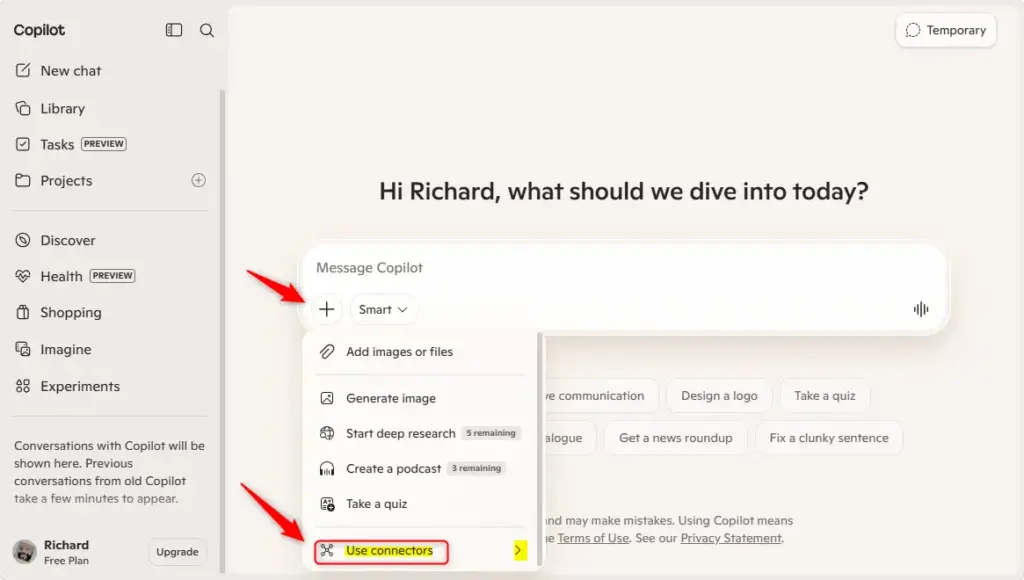
Managing copilot connectors on Copilot.com lets you link external services like email and cloud storage directly to your assistant. To set these up, go to the website, click the plus sign (+) icon, and select “Use connectors” from the menu to view and control your available service links.- Open the Connector Menu: On Copilot.com, find the “Open” icon, which often appears as a plus sign (+), and click it.
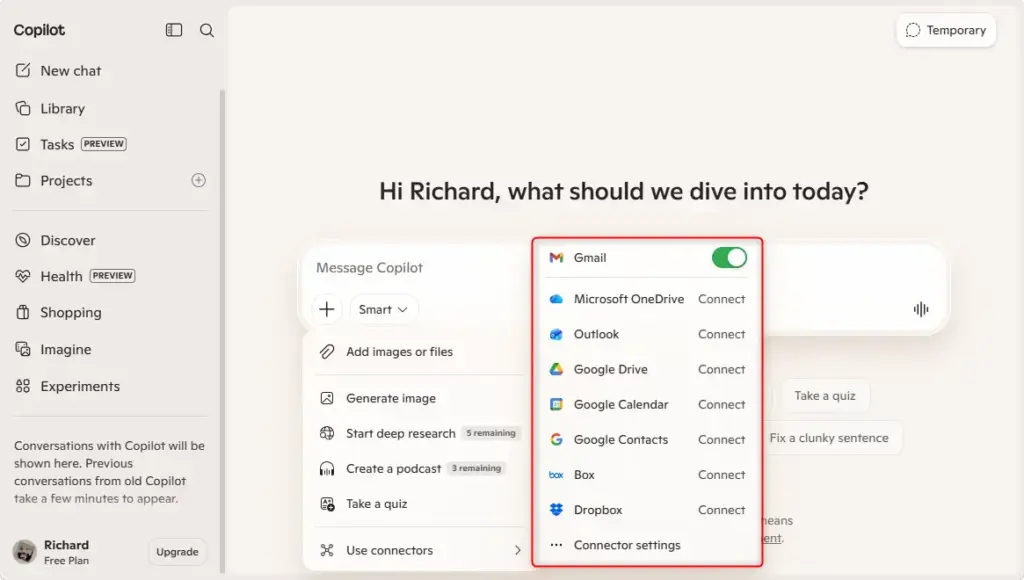
- Select “Use Connectors”: After clicking the “Open” icon, you will see an option for “Use connectors.” Click this to see the list of available connectors.
- Manage Your Connectors: Here, you will see all the services Copilot can connect to. For each service, you will see its status, like “Connected” or “Not Connected.” You can click the switch next to each connector to turn it on or off.
Turn off Connection On or Off using Windows Copilot app
- Open Copilot and Find Your Profile
First, make sure you are signed into Copilot. Look for your profile picture or icon, usually in a corner of the screen. Click or tap on it. - Go to Connectors After clicking your profile picture, you’ll see a list of options. Find and select “Connectors” from this list. This “Connectors” menu shows the services Copilot can connect to, offering at least 5 distinct integration categories.
- Choose the Service to turn On or Off
Copilot connectors support services like OneDrive, Outlook.com, Google Drive, and Gmail. Each listed service displays its connection status. For each service, you will see its status, like “Connected” or “Not Connected.” You can click the switch next to each connector to turn it on or off.
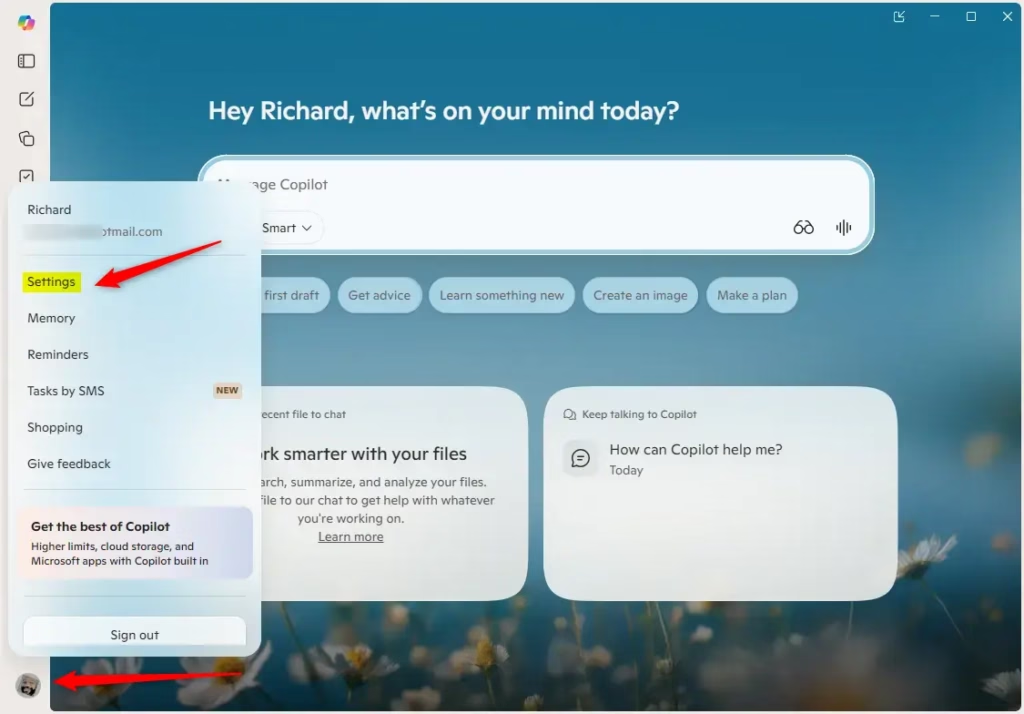
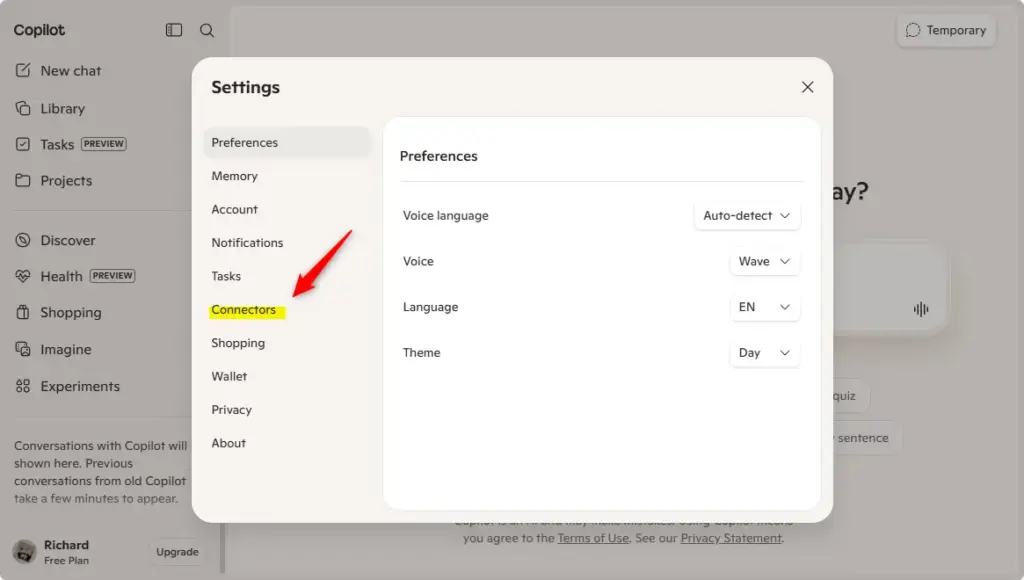
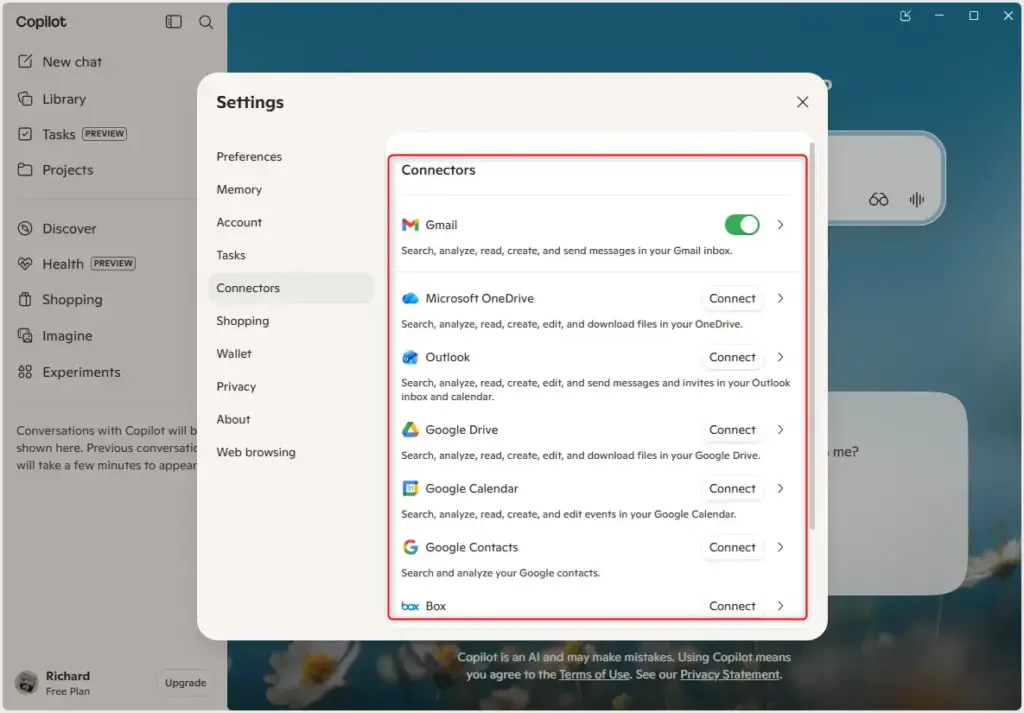
Controlling copilot connectors inside the Windows Copilot app lets you disconnect external services quickly when you no longer want them linked. To do this, open the app, click your profile picture in the corner, and select “Connectors” to manage your active service links.
https://support.microsoft.com/en-us/microsoft-copilot/connecting-microsoft-copilot-to-other-services
Summary
Using copilot connectors links Microsoft Copilot to external services like Google Drive, Gmail, OneDrive, and Outlook so you can find files and emails faster. You can turn these connections on or off using the plus icon on Copilot.com or through your personal profile settings in the Windows Copilot app.
Questions readers asked
Why is there no Connectors option in Copilot Settings?
Connectors has been renamed to Sources in recent versions of Copilot. Open your profile or account menu, select Settings, and look for Sources. It has the same switches and Connect buttons described in this guide. If you can't find it, search Settings for "Sources." On a work or school account, an administrator may have blocked connectors, so check with your IT team if it still doesn't appear.
Still have a question?
Answered by AI from this guide. Good questions may be added to this page — please don't include personal details.
Did this guide fix your problem?

About the Author
Richard
Tech Writer, IT Professional
Richard is a writer at Geek Rewind who turns complex IT tasks into clear, step-by-step guides. He draws on years of hands-on experience in system administration and enterprise IT operations, focusing on Windows, Linux and WordPress: the problems people actually run into, and the fixes that work. His server and WordPress guides come from systems he runs himself. Richard builds and maintains the platform behind Geek Rewind, from its Ubuntu servers and Nginx configuration to its custom WordPress plugins. Many new tutorials start with readers' questions, and he's always glad to answer them in the comments.
No comments yet — be the first to share your thoughts!