How to Move Your Dropbox Files to OneDrive

Moving your Dropbox files to Microsoft OneDrive puts all your photos and documents in one spot on your PC and stops you from running two cloud apps at once. OneDrive is the built-in cloud storage tool for Windows 10 and Windows 11. It gives you 5 GB of free space to start, so check how much data you have in Dropbox before you begin.
The simplest route is the manual one. You download your files from the Dropbox website and put them straight into your OneDrive folder. This keeps your data safe and easy to manage, and it needs no extra software. Dropbox usually delivers a downloaded folder as a .zip file, so extract it before you move the contents into OneDrive. This guide also covers the OneDrive website’s import tool, which does the copying for you.
Sign in to onedrive.com with your Microsoft account, click Settings , select Import cloud photos and files, choose Dropbox, and authorize access. OneDrive copies your files while leaving Dropbox originals intact. Files larger than 15 GB and names over 256 characters may not transfer.
Step 1Get Ready to Move Your Files
Either way, the move is a copy. OneDrive copies your files and leaves the originals untouched in Dropbox. If something goes wrong partway through, you still have everything in the original account.
Because of that, there is no rush to delete anything. Finish the transfer, check the results, and only then think about cleaning up Dropbox.
Know What Might Not Be Moved
Files larger than 15 GB and paths that go past the character limits stay behind. Check these items first so you don’t end up with failed transfers and missing files.
- Long File and Folder Names: File or folder names that are too long (more than 256 characters for files, 250 for folders) might not move. The full address to the file can also cause problems if it’s longer than 400 characters. Shortening the name, or moving the file higher up the folder tree in Dropbox, usually fixes this.
- Large Files: Files bigger than 15 GB usually don’t move. Move these by hand, or split or compress them first.
- Empty Files: Files with no content (0 bytes) won’t be moved. If you need one, such as a placeholder, recreate it in OneDrive.
- Restricted Files: If some files in Dropbox are marked as restricted, they won’t move unless you remove that restriction first.
- Dropbox Specifics: Things like Dropbox Paper documents, templates, and shortcuts are not moved to OneDrive. If you rely on any of these, export or recreate them yourself.
Step 2Start Moving Your Files
You can move your Dropbox files through two main routes: the mobile app or the website. Both achieve the same goal. The steps below use the website, since it works from any PC with a browser and needs nothing installed.
Using the OneDrive Website
The OneDrive website lets you handle large transfers without installing extra software on your computer. You sign in at onedrive.com with your Microsoft account and use the browser to run the migration. Because the copy runs between the two services online, it does not depend on your PC’s disk space or home connection speed in the same way a manual download does.
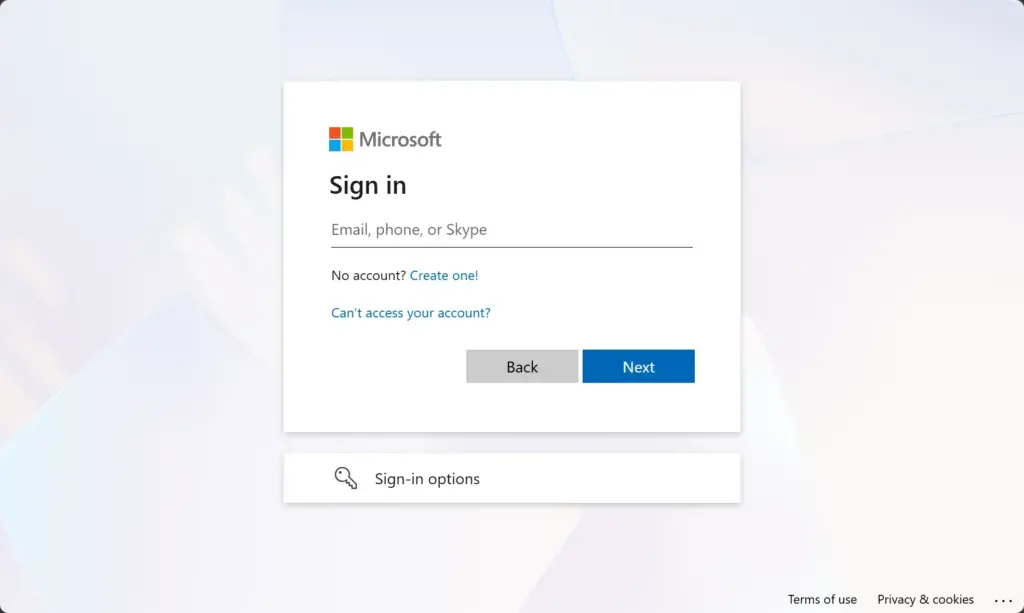
- Sign In to OneDrive: Open your web browser and go to onedrive.com. Sign in with your Microsoft account. You should see your OneDrive files page.
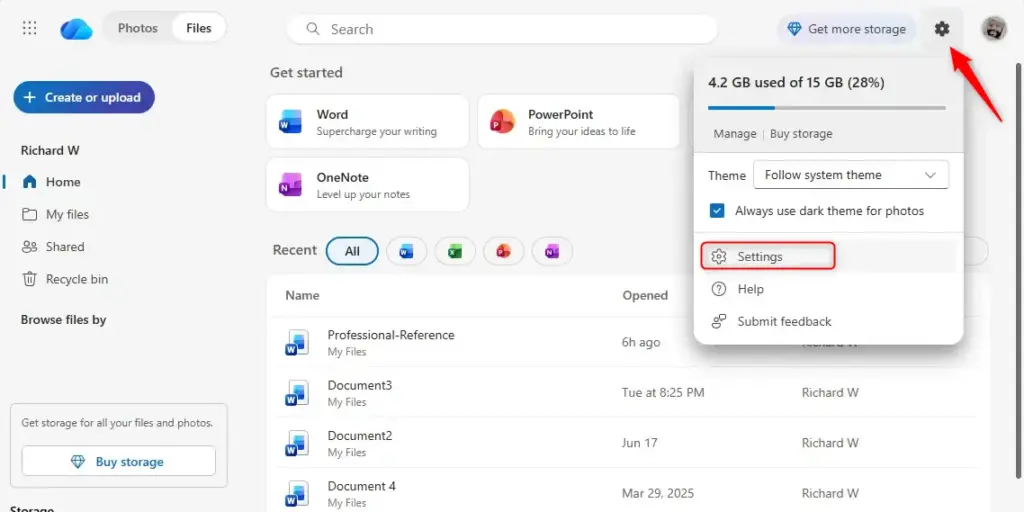
- Go to Settings : Look for the Settings icon, which usually looks like a gear and sits in the top-right corner of the page. Click it. A settings menu opens.
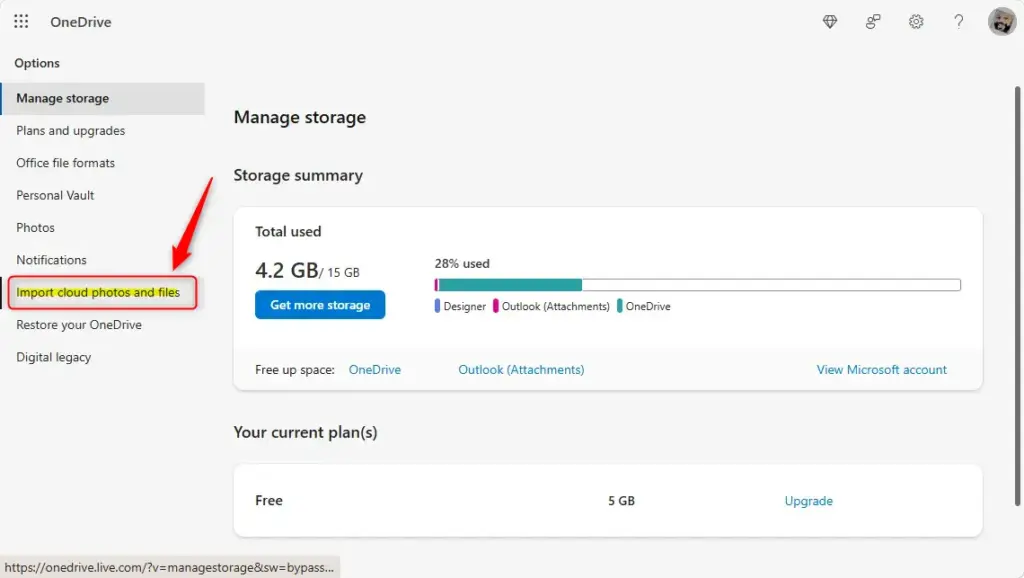
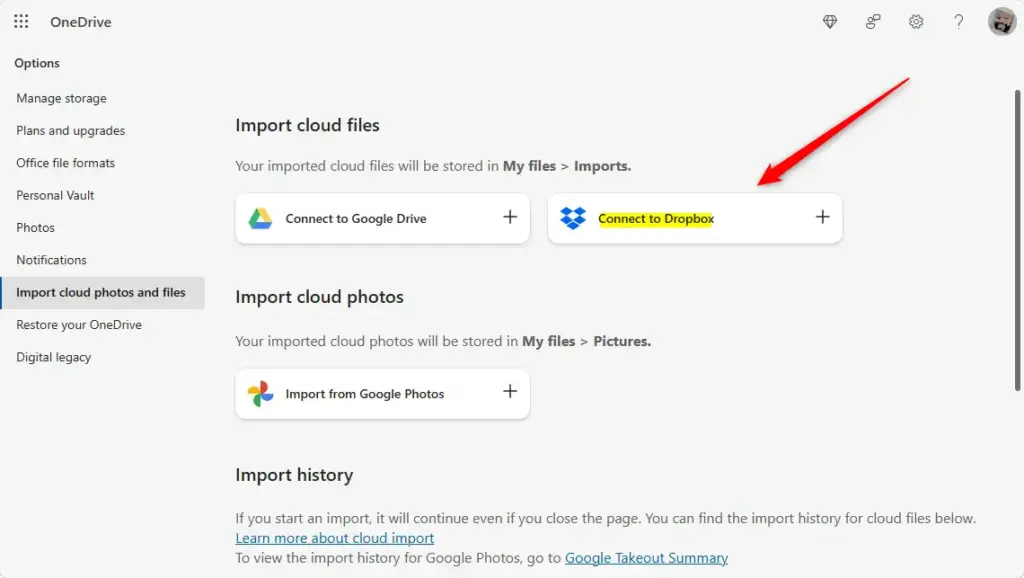
- Choose ‘Import cloud photos and files’: In the settings menu, find and click Import cloud photos and files. If you don’t see it, Microsoft may have moved or changed the option for your account or region. In that case, use the manual download method described earlier.
- Connect to Dropbox: You will see a list of cloud services you can move files from. Choose Dropbox.
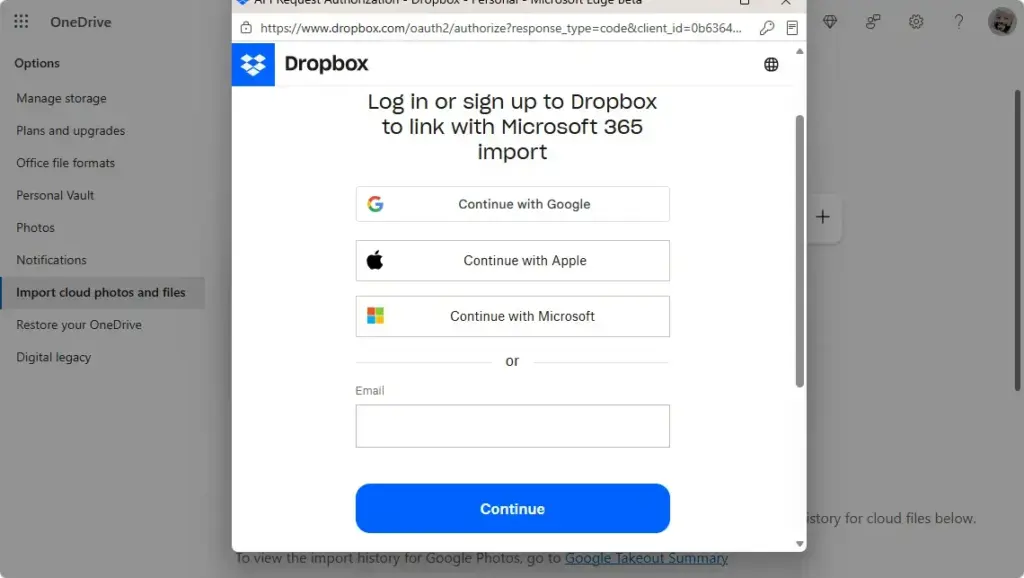
- Allow Access: You will be sent to the Dropbox website. Sign in there and give OneDrive permission to access your files. You can revoke this permission later in your Dropbox account settings.
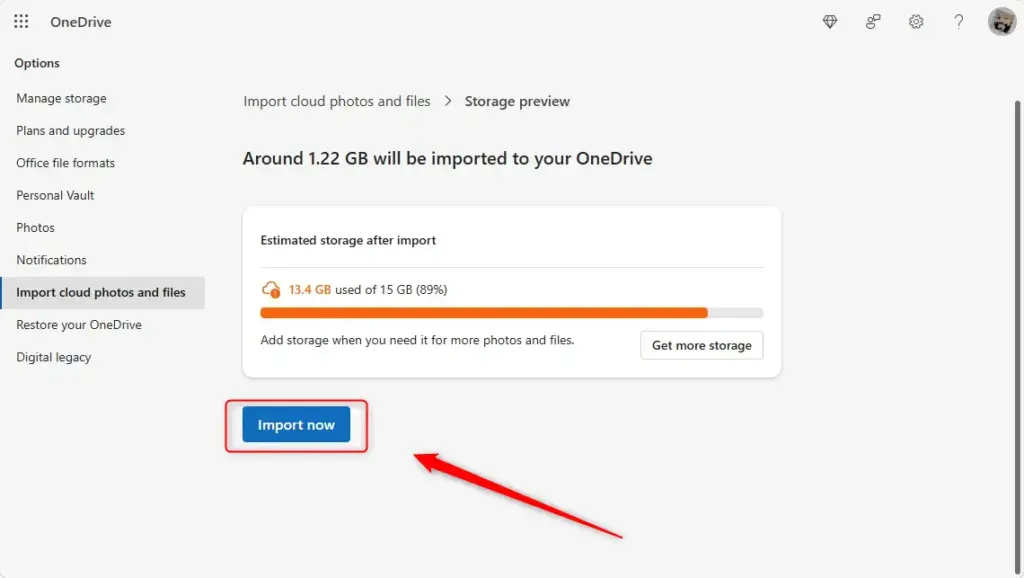
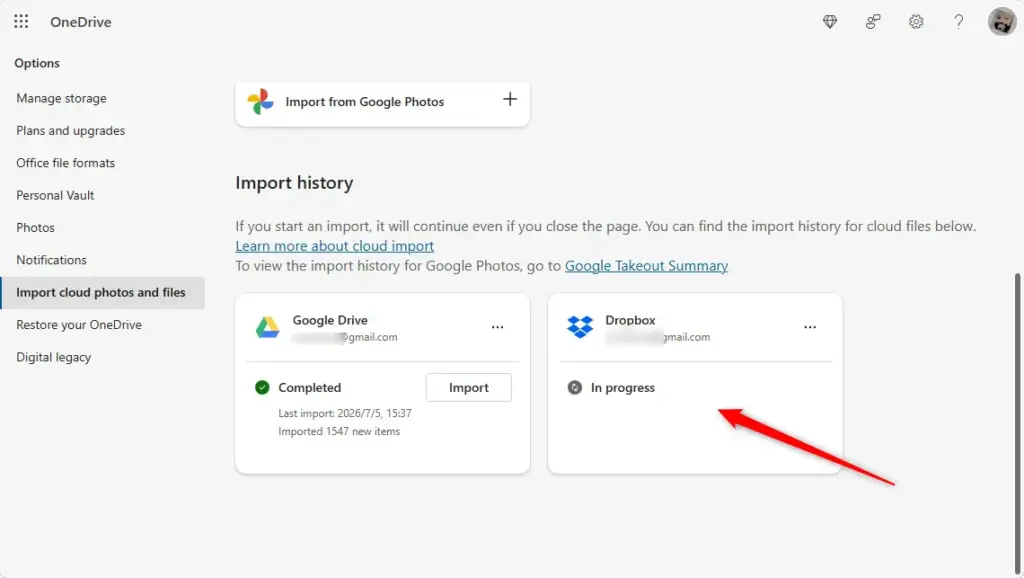
- Start the Move: After you give permission, follow the instructions on the screen to start copying your files from Dropbox to OneDrive. A progress indicator should appear once the copy begins.
Step 3Watch and Manage the Move
Large transfers can take a long time, and an interrupted or stalled copy is easier to catch early. Make sure your OneDrive has enough free space for the whole batch. If you are on the free 5 GB plan, a large Dropbox library will not fit.
How the Move Works
OneDrive creates duplicate copies of your data during the transfer. Original files stay put in Dropbox and remain untouched throughout the process. That means your Dropbox storage use does not change, and you can compare the two accounts side by side when the transfer finishes.
Step 4Running the Move Again
If some files were missed, or new ones were added to Dropbox after the first transfer, run the move process again. Before you do, check the list of limits earlier in this guide. A file that failed once because of its size or name will fail again until you fix that cause.
How it Works
When you repeat the move, the sync engine saves time by comparing timestamps and checking for changes since your last transfer. OneDrive only copies brand-new files and updated items. That avoids wasting storage space and bandwidth on duplicates.
- New Files: Any files that are in Dropbox but not in OneDrive will be copied.
- Changed Files: If a file has been changed in Dropbox since the last move, OneDrive will look at the dates it was last changed. If the Dropbox version is newer, it will replace the existing file in OneDrive.
- Unchanged Files: If the files are the same, or if the OneDrive version is newer, nothing will happen to those files. Edits you made in OneDrive after the first transfer are therefore safe.
Step 5Sharing Files and Cleaning Up
Once your files are in OneDrive, do two things before you consider the job done. Review the sharing permissions, and plan when to clean up the Dropbox account.
Open a few folders in OneDrive and compare them with Dropbox. Check file counts and open a handful of files, especially the largest ones and any with long names. Keep Dropbox as it is until you are sure nothing is missing.
File Sharing Settings
Sharing settings and links created in Dropbox do not carry over during the migration. You need to rebuild those sharing links inside OneDrive.
- Make a list of the folders and files you shared in Dropbox, and who had access.
- In OneDrive, select the file or folder and click Share.
- Choose who can access it and what they can do, then send the link or invitation again.
- Tell the people you share with that the old Dropbox links will stop being the right place to look once you remove the files from Dropbox.
Reference:
https://support.microsoft.com/en-US/onedrive/import-other-cloud-files-using-onedrive
Summary
Before you start, check that you have enough OneDrive storage space and review the file limitations above. Then begin the transfer through the OneDrive website or app. Afterwards, verify the files, rebuild your sharing links, and clean up Dropbox only once you are sure everything arrived.
Frequently asked questions
How to transfer folders from dropbox to OneDrive?
Download each folder from Dropbox on its website, then extract any .zip file, because Dropbox often downloads folders as .zip files. Next, drag the folder into your OneDrive folder in File Explorer. The originals stay in Dropbox, so you can check the copies before you delete anything.
When using import tool for OneDrive to import dropbox files, how do I know when the import is finished?
Watch the import status on the OneDrive website. The import is finished when the status shows it is complete and no files are still listed as in progress. Then open the new folder and compare the file count with your Dropbox folder to confirm everything arrived.
Can files be transferred from drop box to one drive?
Yes. Download your files from Dropbox, then copy them into your OneDrive folder on Windows or upload them on the OneDrive website. You can also use the OneDrive import tool, which copies the files for you. Your Dropbox originals stay where they are.
How to easily move photos store in dropbox to OneDrive?
Download your photos from the Dropbox website, then drag them into a folder in your OneDrive folder, such as Pictures. Dropbox often zips large photo folders, so extract them first. Your originals stay in Dropbox, so check the copies before you remove anything there.
When using import tool for OneDrive to import dropbox files, what folder will it be imported to?
The import tool creates a new folder at the top level of your OneDrive for the copied files. It does not merge them into the folders you already have. Open OneDrive on the web and look for the new folder once the import finishes.
Still have a question?
Answered by AI from this guide. Good questions may be added to this page — please don't include personal details.
Did this guide fix your problem?

About the Author
Richard
Tech Writer, IT Professional
Richard is a writer at Geek Rewind who turns complex IT tasks into clear, step-by-step guides. He draws on years of hands-on experience in system administration and enterprise IT operations, focusing on Windows, Linux and WordPress: the problems people actually run into, and the fixes that work. His server and WordPress guides come from systems he runs himself. Richard builds and maintains the platform behind Geek Rewind, from its Ubuntu servers and Nginx configuration to its custom WordPress plugins. Many new tutorials start with readers' questions, and he's always glad to answer them in the comments.
No comments yet — be the first to share your thoughts!