Uploading Files or Folders to Your OneDrive Personal Vault

Uploading files or folders to your OneDrive Personal Vault lets you protect sensitive items like tax forms, passport scans, and private photos in Windows 11 and Windows 10. The vault is a locked folder inside your cloud storage. Every time you open it, you must pass a second identity check, such as a fingerprint, a face scan, or a security code sent to your phone.
Moving files into the vault works differently from a normal upload. The point is that nobody can see your private items if they walk up to your computer while you are signed in. Free OneDrive accounts can store up to 3 files in the vault. Microsoft 365 subscribers can store as many files as they like, up to their total storage limit.
To upload to OneDrive Personal Vault, open the vault folder in OneDrive on the web or File Explorer , verify your identity when prompted, then click Upload and choose Files or Folders. Select items from your computer and confirm. Alternatively, drag files directly into the unlocked vault folder.
Uploading Files or Folders to Personal Vault
Putting files in your Personal Vault keeps your most important documents behind that second identity check. You can move files that are already in OneDrive, or add new items straight from your computer. Either way, the files count toward your total OneDrive storage, so you need enough free space.
If you are on a free account, remember the 3-file limit. A folder full of documents will hit that limit quickly. If you need more room, the options are a Microsoft 365 subscription or keeping only your most sensitive files in the vault. Decide which files really need the extra protection before you start.
Moving Existing Files and Folders
Moving files you already have in OneDrive is the simplest way to fill the vault. You open the vault, verify your identity, and then move the items in. Once they are inside, they are no longer in your normal OneDrive folders. They stay protected until you unlock the vault again.
Follow these steps to protect OneDrive files with Personal Vault by moving them in from your normal folders:
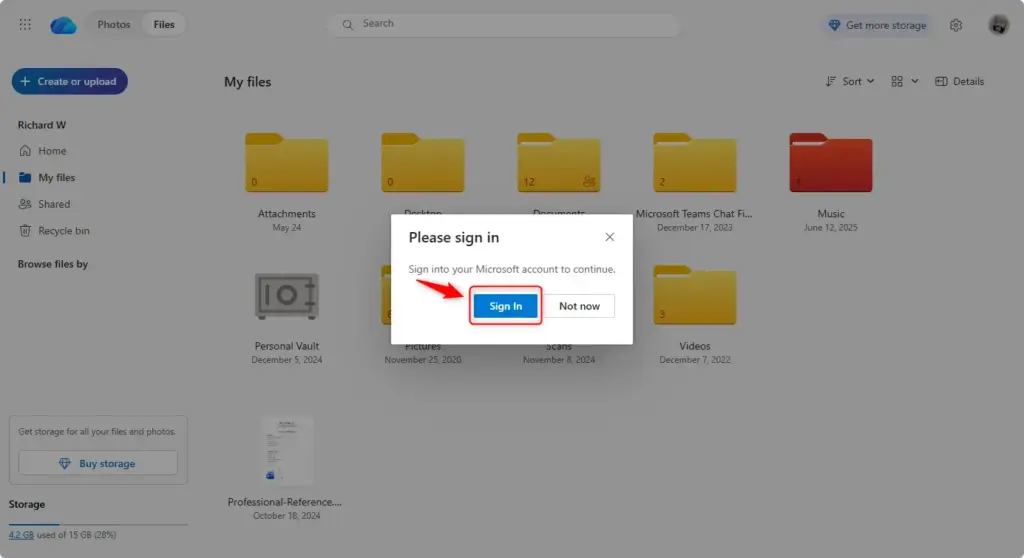
- Open OneDrive in your web browser or in File Explorer . Sign in with the Microsoft account that owns the files if you are asked to.
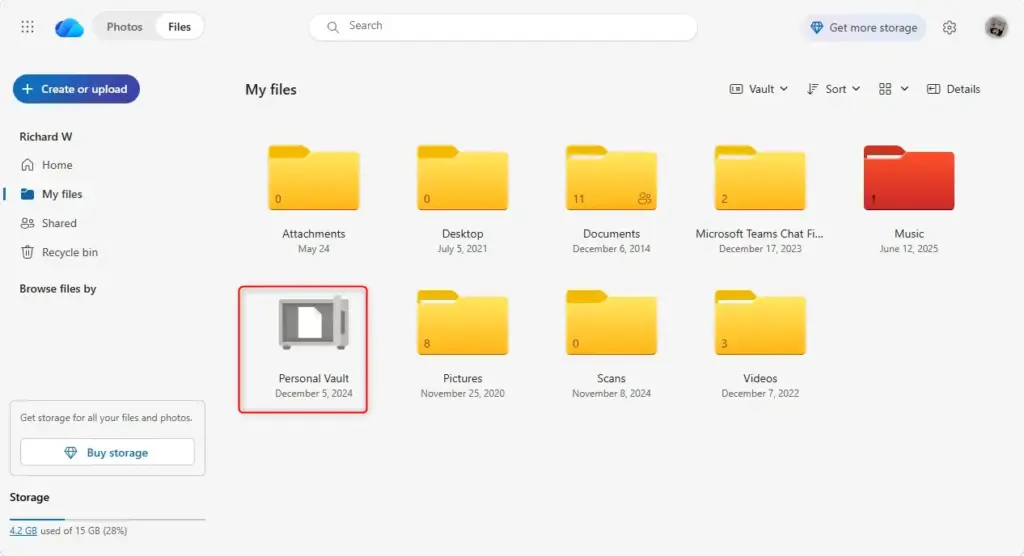
- Find the Personal Vault folder and open it. It sits alongside your other OneDrive folders.
- Verify your identity if asked. Use the method you chose when you set up the vault, such as a code sent by text or email. You should now see the vault open, either empty or with your existing files.
- Go back to the OneDrive folder that holds the files you want to protect. Keep the vault unlocked while you do this. If it locks in the meantime, you will need to verify again.
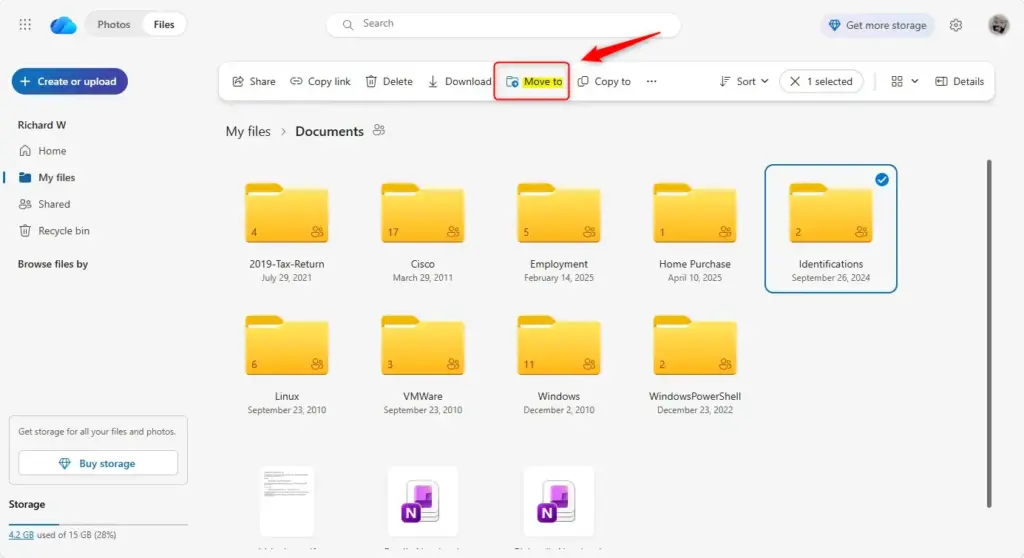
- Select the files or folders you want to move. On the web, click the checkbox next to each item. You can also click and drag to select several at once. The selected items are highlighted and a toolbar appears at the top.
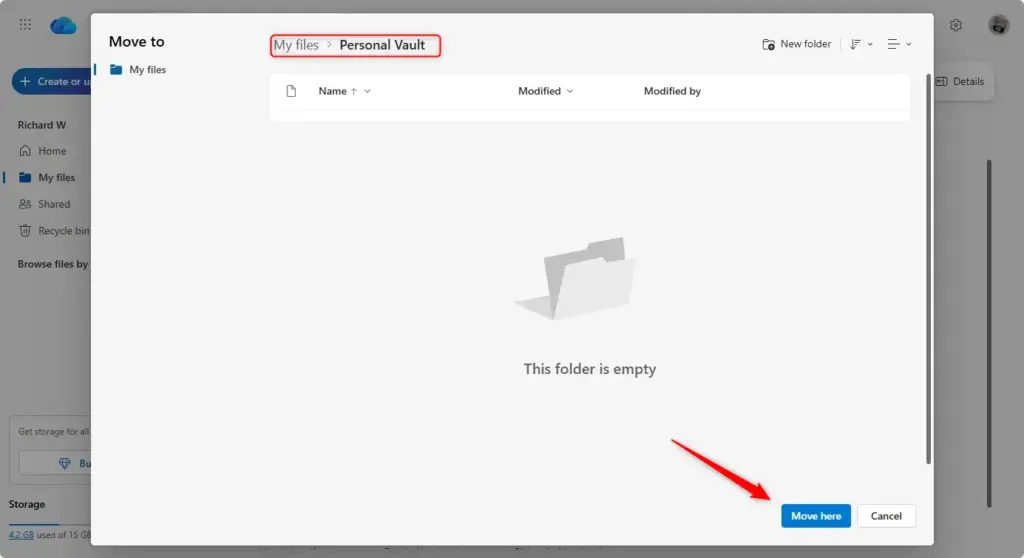
- Click Move to in the toolbar. A list of locations appears.
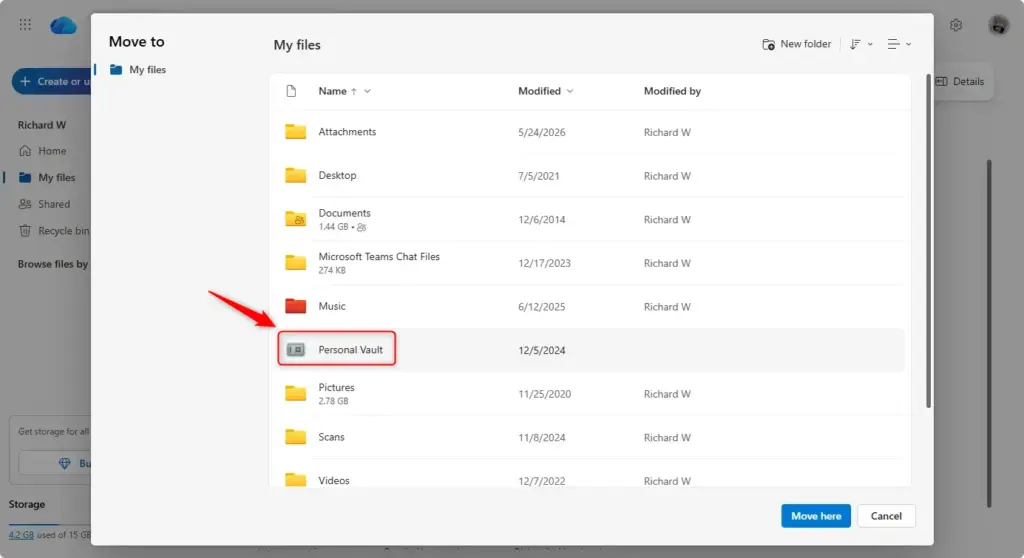
- Choose Personal Vault from the list. The items disappear from the original folder and appear inside the vault.
- Open the vault and check that your items are there. If a file is missing, look in the original folder before you try the move again.
- Lock the vault when you finish. Open the Personal Vault folder and click the Lock option. The vault closes, and you need to verify your identity before you can open it again.
As an alternative to Move to, drag the selected files or folders and drop them onto the Personal Vault folder. This works on the web and in File Explorer , as long as the vault is unlocked.
If Move to does not list the vault, or the move fails, the vault is probably locked. Open it, verify your identity, and try again. A free account that already holds 3 files will also refuse more.
Uploading New Files and Folders
You can also upload new files and folders straight into the vault. This means you never have to save them in a normal OneDrive folder first, so a sensitive file is never sitting where others can see it. You open the vault, complete the identity check, use the upload option, and pick the items from your computer.
These steps add new files or folders from your computer directly to the vault, start to finish:
- Open your Personal Vault folder in OneDrive on the web.
- Verify your identity if asked. You should now see the contents of the vault and its toolbar.
- Click Upload in the toolbar. You will usually see options for Files and Folders. In newer versions of the OneDrive web interface, the button may be labelled Add new instead, with the same file and folder choices.
- Choose Files to pick individual documents. Choose Folders to upload a whole folder and everything inside it.
- Select the items in the window your browser opens. This window shows your computer’s files, not your OneDrive.
- Confirm your selection. The upload starts, and the items appear in the vault when it finishes. Stay on the page until it completes.
- Lock the vault when the upload is done. Click the Lock option in the vault so nobody can open it without verifying.
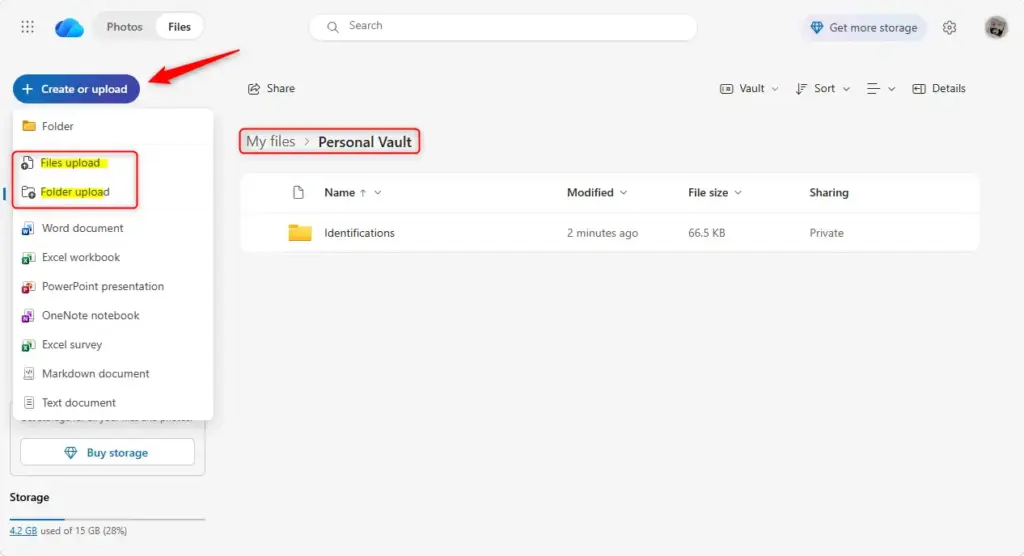
Both Google Chrome and Microsoft Edge let you upload a whole folder through the Folders option in the upload menu. Some browsers show a short prompt asking you to confirm that the site may view the folder’s files. That is normal, and you need to allow it for the upload to go ahead.
You can get the same result by dragging the folder from File Explorer and dropping it on the OneDrive page, with the vault open in the browser tab. Drop it on the vault’s file list, not on another folder, or it will land in the wrong place.
Unlocking and Locking Your Personal Vault
This is a safety net in case you forget to lock it. The default is usually 20 minutes. On a Windows PC you can change the period in the OneDrive settings. Once the vault has locked, you must verify your identity again to get back to your files.
If an upload or a move stops partway through with an error, check whether the vault locked while you were working. Unlock it and try again. For a large upload, check on it now and then so the vault does not time out unnoticed.
Unlocking for Access
You need to unlock the vault any time you want to view, edit, or add to the items in it. Select the vault folder and complete the verification prompt. Depending on how your account is set up, that means entering a security code sent to your phone or email, or approving a notification in your authenticator app.
- Select the Personal Vault folder in OneDrive.
- Pick your preferred way to verify when asked to prove your identity. The choices are usually text, email, or the Authenticator app.
- Enter the code or approve the sign-in by following the prompts. The vault opens and shows your files.
If you do not get the code, check that the phone number or email on your Microsoft account is current. Choose another verification method if the prompt offers one.
Check whether everything in it still needs the extra protection. This matters most on a free account, where the 3-file limit means a file you no longer need can block a new one. After you finish working, lock the vault by hand rather than waiting for the automatic lock.
Locking Your Personal Vault
Locking the vault manually protects your documents the moment you finish. Files in a locked vault are also kept out of your normal OneDrive search results , so nobody can spot them by searching.
- Go to your Personal Vault folder in OneDrive.
- Click the Lock option or button. The vault closes, and you need to verify your identity before you can open it again.
In File Explorer , you can usually right-click the Personal Vault folder and choose the lock option from the menu. The exact wording of the menu may vary by OneDrive version.
Unlocking the vault stays mandatory whenever you want to view or open anything stored in it.
Reference:
https://support.microsoft.com/en-US/onedrive/protect-your-onedrive-files-in-personal-vault
Summary
OneDrive Personal Vault adds an extra layer of protection for your most important files. Upload only what truly needs it, lock the vault when you finish, and your sensitive cloud data stays properly guarded.
Have a question about this guide?
Answered by AI from this guide. Good questions may be added to this page — please don't include personal details.
Did this guide fix your problem?

About the Author
Richard
Tech Writer, IT Professional
Richard is a writer at Geek Rewind who turns complex IT tasks into clear, step-by-step guides. He draws on years of hands-on experience in system administration and enterprise IT operations, focusing on Windows, Linux and WordPress: the problems people actually run into, and the fixes that work. His server and WordPress guides come from systems he runs himself. Richard builds and maintains the platform behind Geek Rewind, from its Ubuntu servers and Nginx configuration to its custom WordPress plugins. Many new tutorials start with readers' questions, and he's always glad to answer them in the comments.
No comments yet — be the first to share your thoughts!