Setting Up Two-Factor Authentication for Your OneDrive Personal Vault

Two-factor authentication (2FA) for your OneDrive Personal Vault adds a required code to the sign-in process. The code arrives by text message, alternate email, or an authenticator app. Even if someone learns your password, they still can’t open your private files without it.
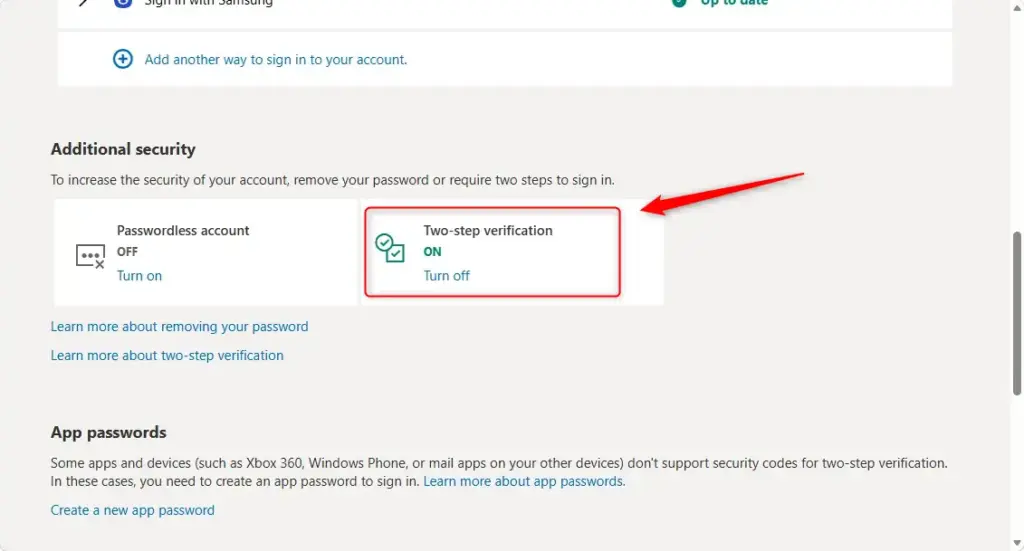
Microsoft includes the secure folder in OneDrive for Windows 11 and 10. You must turn on 2FA in your Microsoft account security settings to activate the extra layer of protection. The steps below walk through the web setup, which looks the same on any PC.
Before you start, have your phone nearby. You will receive or generate a code during setup. Also note that a free OneDrive account limits the Personal Vault to a small number of files. A Microsoft 365 subscription removes that limit. The 2FA setup is the same either way.
To set up two-factor authentication for OneDrive Personal Vault, sign in to OneDrive.com with your Microsoft account, open the Personal Vault folder, choose your 2FA method (text message, alternate email, or Microsoft Authenticator app), verify the code you receive, then create a four-digit PIN to secure the folder.
Step 1Sign In to Your OneDrive Account
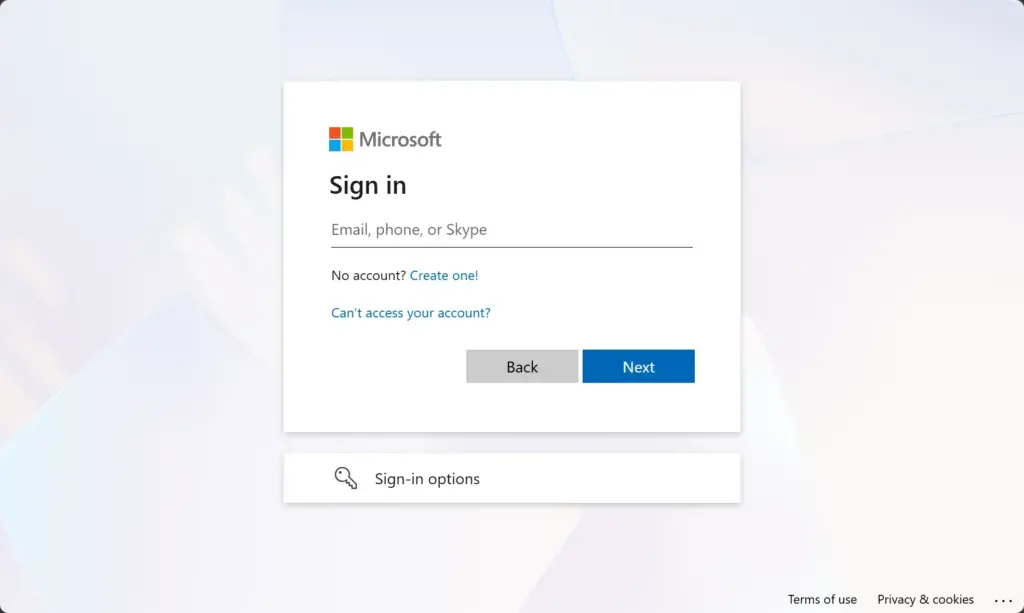
Start by signing in to the OneDrive website with the Microsoft account that owns your files. Use the same account you use for OneDrive on your PC.
- Open a browser and go to OneDrive.com.
- Enter your Microsoft account email address and password.
- Finish any verification Microsoft asks for. You should now see your OneDrive files.
The Personal Vault belongs to a single account.
Step 2Locate and Enable Personal Vault
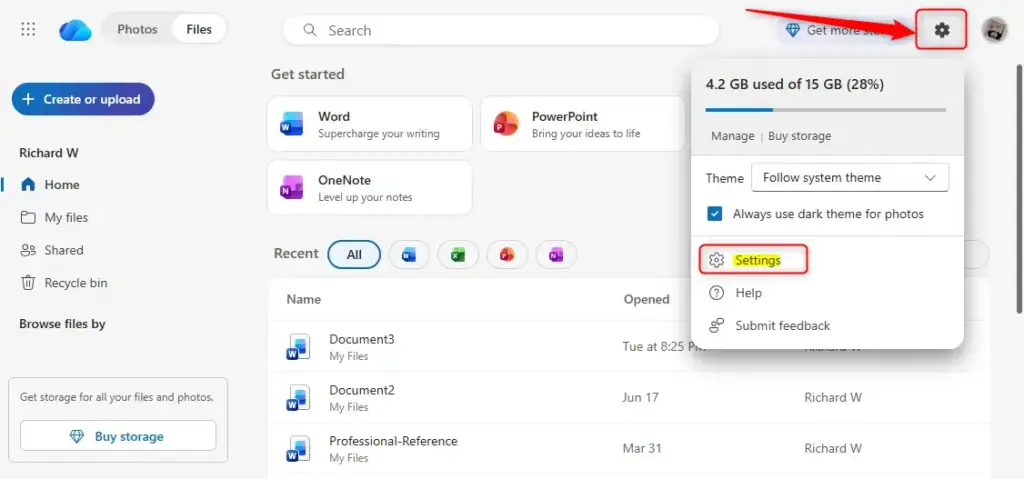
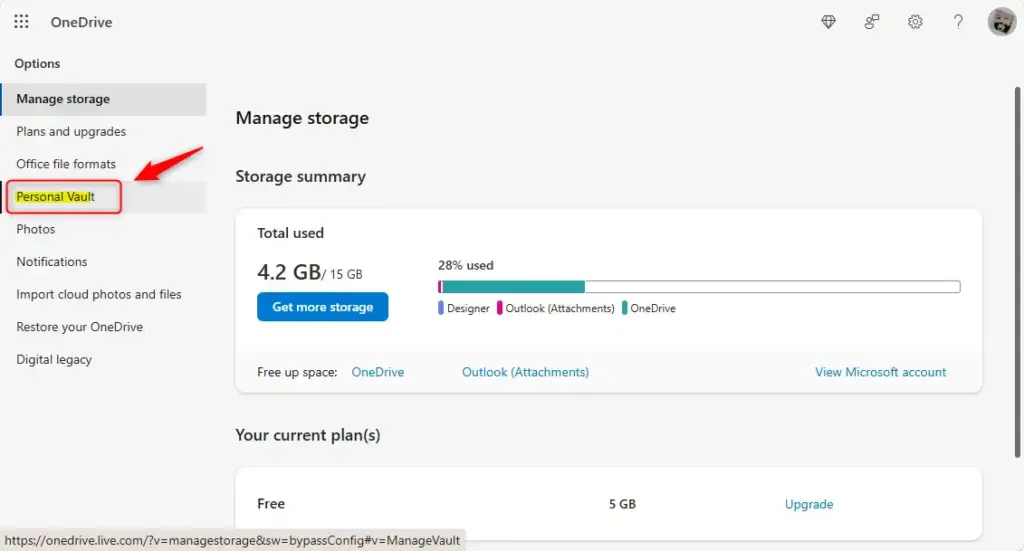
Once you are signed in, find the Personal Vault folder to begin setting up the feature.
- Look through your list of files and folders for Personal Vault. It sits with your other folders and has a lock icon.
- Select it to open it. If you have never used it, OneDrive starts a short setup instead of showing files.
If you can’t find the folder, refresh the page. Also make sure you are on a personal Microsoft account. Work and school accounts don’t use the Personal Vault in the same way.
Step 3Choose Your Two-Factor Authentication Method
Next you choose how you receive security codes when you open your secure folder. You can pick a text message, an alternate email address, or the Microsoft Authenticator app. The app is a mobile application that generates security codes. Any of these keeps your private files protected, but they differ in convenience and strength:
- Secondary Email AddressA code is sent to another email address you choose. Use an address that has its own strong password, and not one that is easy to guess.
- Phone Number (SMS)A code is sent by text message to your phone number. You need mobile signal to receive it.
- Microsoft Authenticator AppThis is often the most secure and easiest method. The app creates codes on your smartphone that change quickly. You don’t even need an internet connection.
The Microsoft Authenticator app is the fastest and most secure option. It generates time-based codes directly on your smartphone without requiring an internet connection. If the app is missing from your device, links to download it for iPhone or Android appear automatically.
- Choose your preferred method from the options on screen.
- If you chose the app, install it from the link shown, then open it on your phone.
- Follow the on-screen prompts to link the app to your Microsoft account. The app should now list your account.
- If you chose text or email, enter the phone number or address when asked. A code is then sent to it.
To undo or change the method later, go back to your Microsoft account security settings and update your verification options.
Step 4Verify Your Identity and Complete Setup
To finish the setup, confirm your identity with the security code you just received. After you verify who you are, you create a four-digit PIN. The PIN works together with your two-factor method to unlock your protected folder.
- Enter the code from your text message, email, or authenticator app into the box on screen. Codes expire quickly, so use the newest one.
- Create your four-digit PIN when asked, and enter it again to confirm.
- Complete any remaining prompts. The Personal Vault should now open and be ready for files.
OneDrive’s Personal Vault relies on this PIN in addition to your two-factor authentication method to unlock the secure folder. Completing this step fully secures your Personal Vault.
The vault locks itself again after a period of inactivity, so you will use the PIN and your second factor fairly often. Test it once by locking the vault and opening it again.
Reference:
https://support.microsoft.com/en-US/onedrive/protect-your-onedrive-files-in-personal-vault
Summary
Adding two-factor authentication to your OneDrive Personal Vault makes your documents much safer by requiring a second step to sign in. Once it is set up, move your most sensitive files into the vault, such as scans of IDs, tax records, and financial papers. Keep your recovery options, like the alternate email and phone number, up to date so you never get locked out of your own files.
Have a question about this guide?
Answered by AI from this guide. Good questions may be added to this page — please don't include personal details.
Did this guide fix your problem?

About the Author
Richard
Tech Writer, IT Professional
Richard is a writer at Geek Rewind who turns complex IT tasks into clear, step-by-step guides. He draws on years of hands-on experience in system administration and enterprise IT operations, focusing on Windows, Linux and WordPress: the problems people actually run into, and the fixes that work. His server and WordPress guides come from systems he runs himself. Richard builds and maintains the platform behind Geek Rewind, from its Ubuntu servers and Nginx configuration to its custom WordPress plugins. Many new tutorials start with readers' questions, and he's always glad to answer them in the comments.
No comments yet — be the first to share your thoughts!