How to Add a New Way to Verify Your Sign-In with Microsoft Account

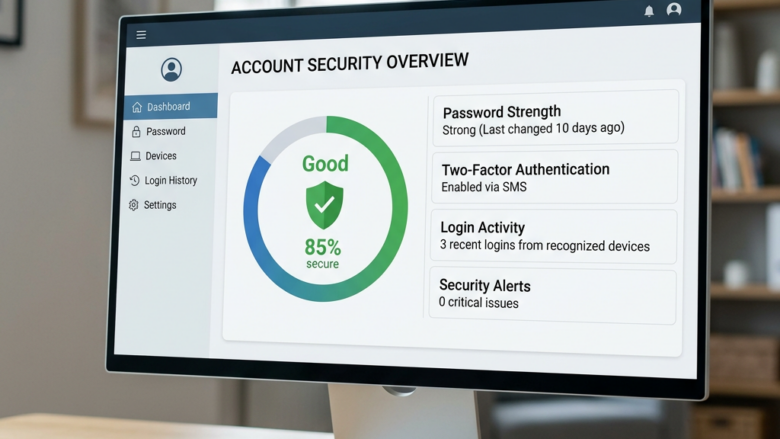
A new way to verify your sign-in with a Microsoft account lets you add an extra proof method, such as a smartphone app, security key, or alternate email, so you never get locked out. Two-step verification adds a strong layer of protection by requiring a second piece of proof when you sign in from a new device.
Microsoft links up to 10 different verification methods to a single account. You can set up any of these backup options from your Microsoft account security page. The whole job takes a few minutes, needs no restart, and works on both Windows 11 Home and Pro because it happens in your browser, not in Windows.
Go to account.microsoft.com/security and sign in. Click “Manage sign-in methods” and then select “Add a new way to sign in.” Follow the on-screen prompts to add an email, authenticator app, or passkey.
Why Add New Sign-In Methods?
Adding new sign-in methods increases Microsoft account security. These extra methods give you options if your primary method fails. For example, if you misplace your phone, a backup email address can still get you into your account.
I recommend adding at least two methods that do not depend on each other. A phone app and a backup email, for instance, mean that losing one device does not lock you out.
What Happens When You Add New Methods?
When you add a new sign-in method, Microsoft starts using it during logins. You may need it to receive a code or to approve a sign-in. This adds another layer of protection against unauthorized access.
Adding a method does not remove your existing ones. You can take any method off later from the same page, so nothing here is permanent.
Step 1Go to Your Microsoft Account Security Page
To add a Microsoft sign-in method, you start from the security page of your account. It is the main hub where you manage your password, active login sessions, and backup verification choices.
- Open your web browser.
- Type
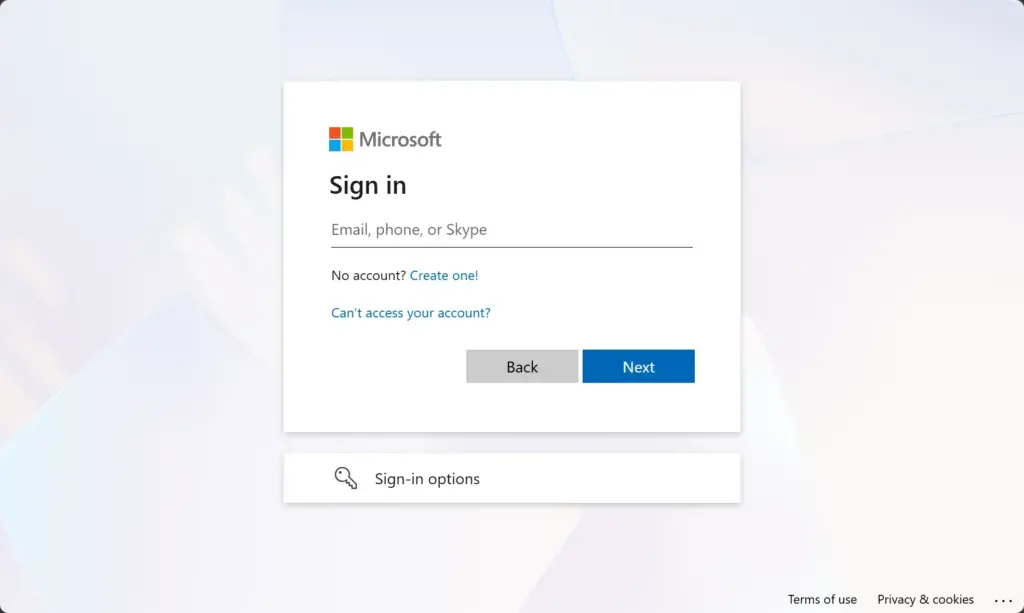
account.microsoft.com/securityinto the address bar and press Enter. You should see the Microsoft sign-in page, or the security page if you are already signed in. - Sign in with the Microsoft account you want to protect. This could be your Outlook.com email, Hotmail email, or the email linked to your Windows login.
- Enter your password. If you already have two-step verification set up, you might need to enter a code from your current method. When you are through, you should land on the security page for your account.
If you have more than one Microsoft account, check the name or email shown in the top-right corner. Make sure it is the account you mean to change. This guide is for personal Microsoft accounts. Work or school accounts are often managed by an organization, and your administrator may control which methods you can add.
Step 2Find "Manage Sign-In Methods"
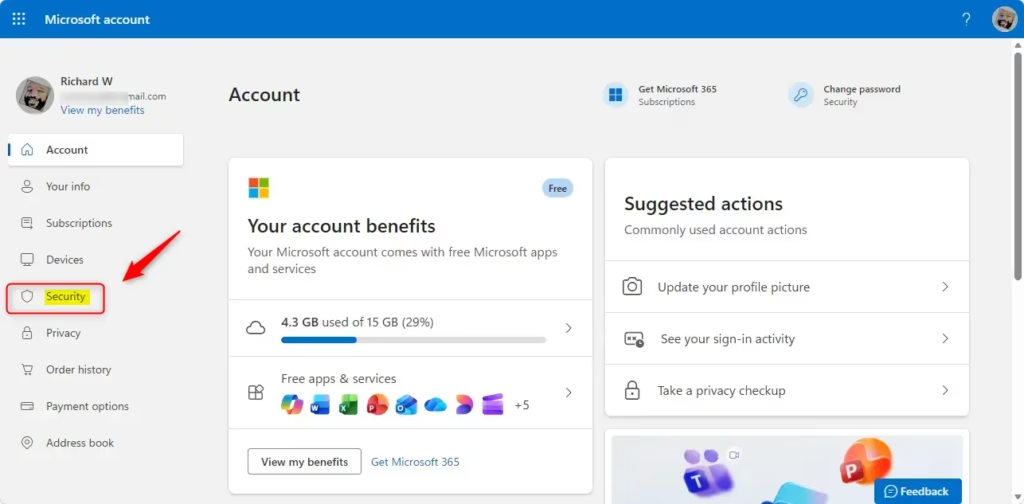
Next, find the link on the security dashboard that shows how you currently verify your identity. Microsoft changes the wording from time to time, so the label may differ slightly from what is written here.
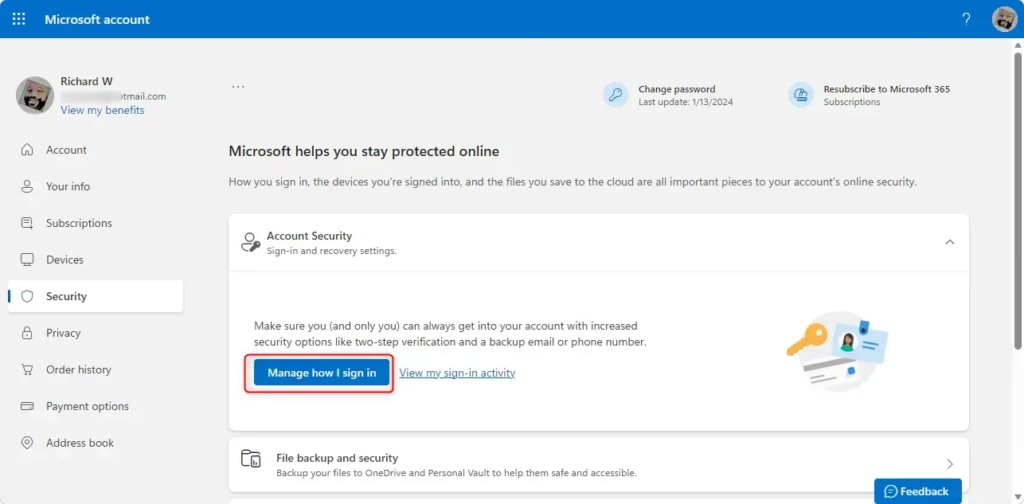
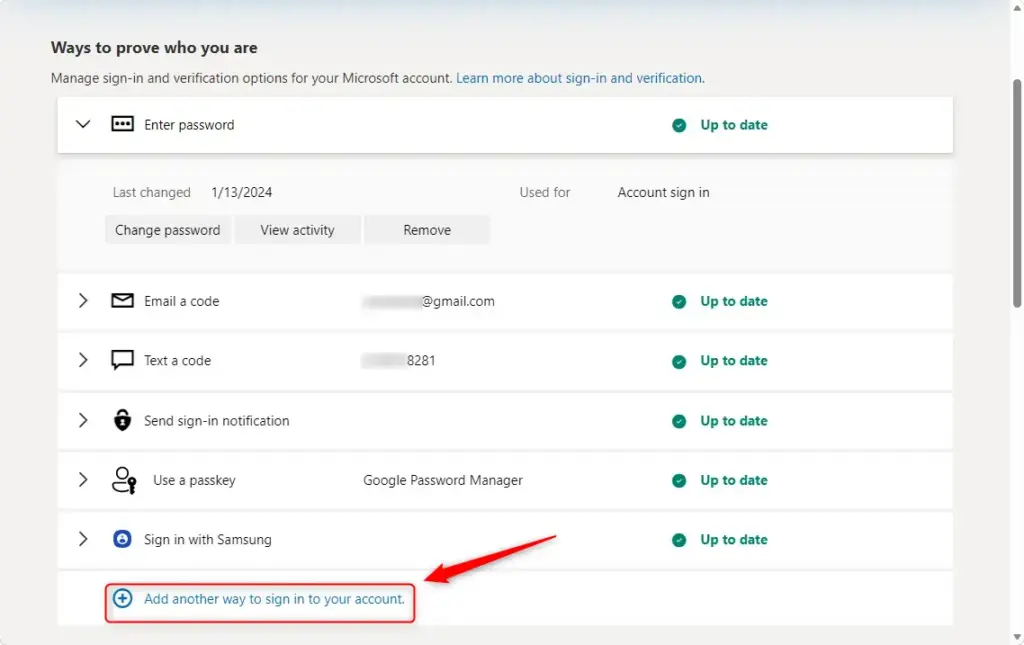
- On the main security page, find an option that says something like Manage how I sign in or Manage sign-in methods. It is usually easy to see. On some versions of the page, you may need to open Advanced security options first.
- Click that option. You will be taken to a page that shows all the ways you can currently prove your identity when signing in. This might include email addresses, phone numbers, or authenticator apps.
Microsoft may ask you to verify your identity again before it shows this page. This is normal. Enter the code it sends to one of your existing methods.
Step 3Add a New Way to Verify Your Sign-In
Now add the new method. The management page has a button that opens a list of the verification options available for your account.
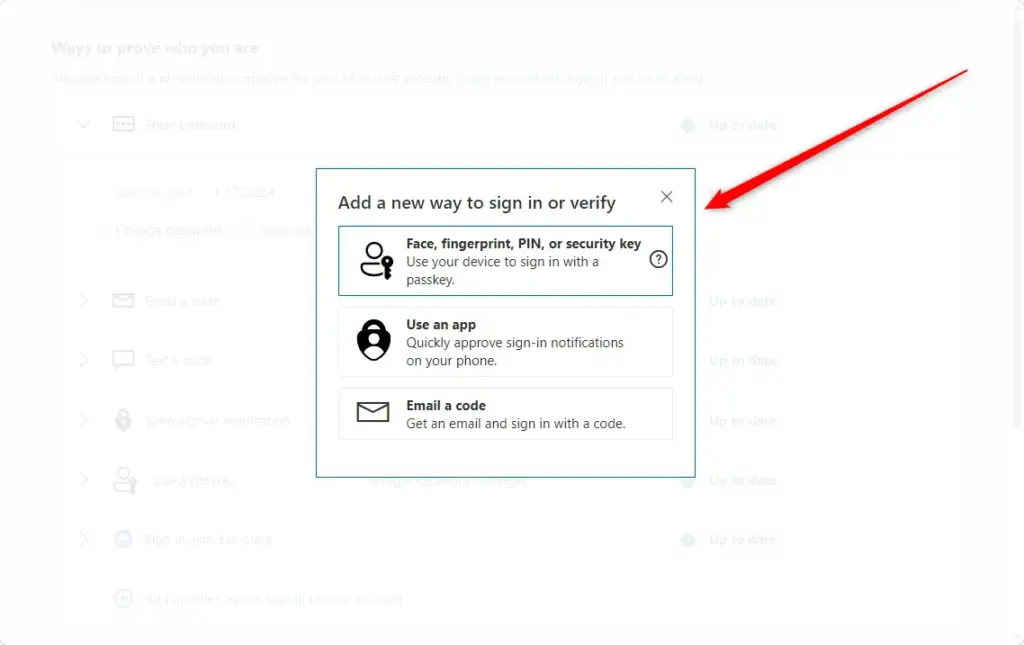
- On the manage sign-in methods page, find the button or link that says Add a new way to sign in or Add a new verification method. Click it. A list of options should appear.
- Read through the options. These usually include:
- An email address: This can be another email address you can access, like a Gmail account. It's smart to have at least one backup email in case your main one is not available.
- An authenticator app: This is a great option for better security and ease of use. Apps like the Microsoft Authenticator app can create codes that change over time. Some let you approve sign-ins with a tap on your phone, even without internet.
- A passkey: This is a newer, more secure way to sign in. Instead of a password, you use your fingerprint, face scan, or device PIN. Passkeys are made to stop phishing attacks, which makes them harder for hackers to steal.
- Choose the method you want to add. Follow the instructions on the screen.
The exact list can differ from one account to another. If you do not see an option you expected, such as a security key or a phone number, it may not be offered for your account yet, or it may sit under a different menu on your page.
Having several options is useful if one method fails or if you lose access to a device or account.
Step 4Finish the Verification Process
Finally, confirm the new method. Microsoft will not trust it until you prove you control it. What you do depends on the method you picked.
- If you added an email address, Microsoft will send a verification code to that email. Open that email, find the code, and type it into the Microsoft security page. If the message does not arrive, check your spam or junk folder.
- If you are setting up an authenticator app, you will usually scan a QR code with the app on your phone. This links the app to your Microsoft account. Then enter the code shown in the app to confirm the link.
- If you are setting up a passkey, use your device's security features, such as your fingerprint or face recognition, to create and confirm the passkey.
- After entering the code or finishing the app or passkey setup, click Next or Confirm. The new method should now appear in your list of sign-in methods.
To check that it worked, go back to the manage sign-in methods page and look for the new entry. To undo the change, use the remove option next to that entry on the same page. If you no longer have access to an old method, remove it so it does not become a weak spot.
Reference:
Summary
Adding extra ways to verify your Microsoft account sign-in boosts your account security. Set up at least two methods, check that each one appears on your page, and update the list whenever you change your phone or email address.
Did this guide fix your problem?

About the Author
Richard
Tech Writer, IT Professional
Richard is a writer at Geek Rewind who turns complex IT tasks into clear, step-by-step guides. He draws on years of hands-on experience in system administration and enterprise IT operations, focusing on Windows, Linux and WordPress: the problems people actually run into, and the fixes that work. His server and WordPress guides come from systems he runs himself. Richard builds and maintains the platform behind Geek Rewind, from its Ubuntu servers and Nginx configuration to its custom WordPress plugins. Many new tutorials start with readers' questions, and he's always glad to answer them in the comments.
No comments yet — be the first to share your thoughts!