How to Configure Enhanced Sign-in Security in Windows 11

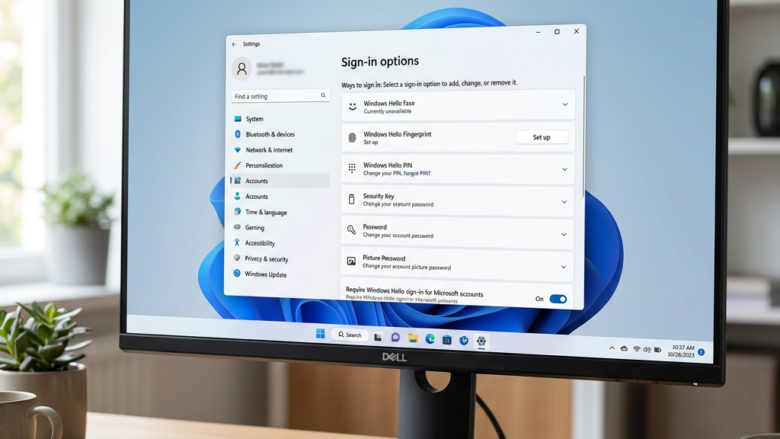
Enhanced Sign-in Security adds hardware-level protection to Windows Hello face scan and fingerprint logins. It locks down biometric data to block theft and fake sign-in attempts. This Windows 11 feature requires a PC with a supported biometric sensor and specific processor features to keep your login details safe from attacks.
In practice, the biometric data is handled in a protected part of the system that normal apps and malware cannot reach. A sensor that was not built for this protection cannot be trusted to sign you in once the feature is on. That is why the feature depends on both the sensor and the PC’s hardware.
Enable Enhanced Sign-in Security by going to Settings Accounts Sign-in options. Look for “Enhanced sign-in security” or “Sign in with an external camera or fingerprint reader” under Additional settings and toggle the switch.
How to Turn Enhanced Sign-in Security On or Off
Changing this configuration takes only a few moments inside the Windows Settings app. You do not need the Registry Editor or Group Policy. The steps are the same on Windows 11 Home and Pro. The main difference is between Windows 11 versions, because the switch behaves differently in 23H2 and 24H2.
Before you start, make sure Windows Hello fingerprint or face sign-in is already set up. If you have never set it up, the setting may not appear at all.
Step 1Go to Sign-in Options
Sign-in options in Windows 11 are located inside the Settings app under the Accounts menu. You need to open this screen first to change your Windows 11 enhanced sign-in settings.
- Click the Start button. It’s usually in the bottom-left corner of the taskbar .
- Click the Settings gear icon. The Settings window opens.
- In the left menu, click Accounts.
- Click Sign-in options. You should now see the ways you can sign in, such as face recognition, fingerprint recognition, PIN and password.
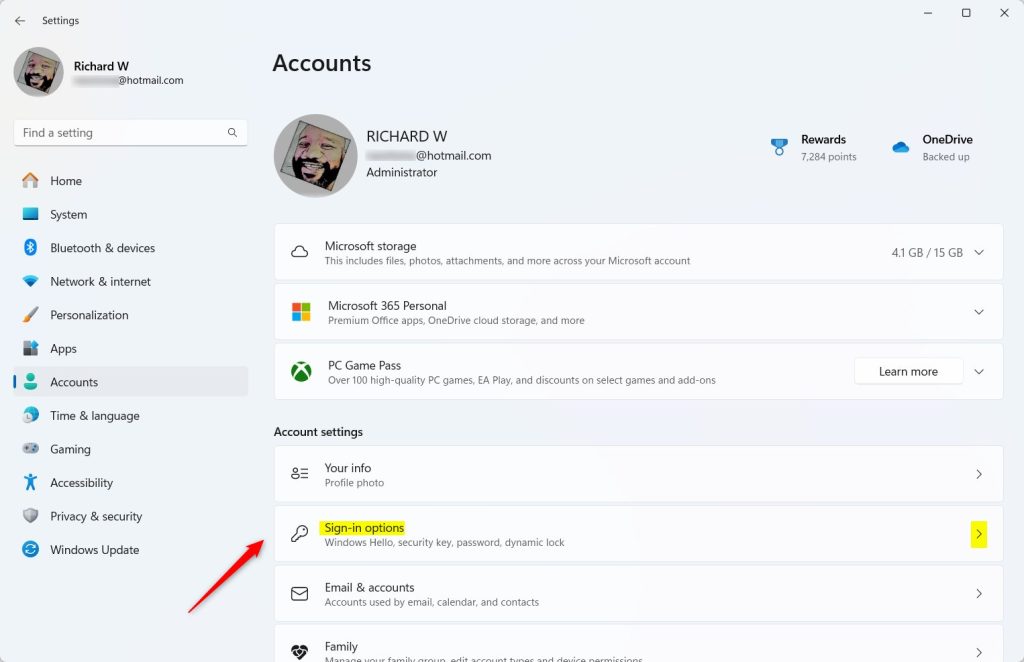
Quick Tip: Pressing Win+I on your keyboard opens Settings directly. Navigate to Accounts and choose Sign-in options from there. Typing “Sign-in options” into the Windows search bar provides another fast route.
Step 2Find Enhanced Sign-in Security Settings
Enhanced sign-in security is located on the Sign-in options page under the Additional settings section. Once you locate the setting, you can see whether your PC currently supports it. The label depends on your Windows 11 version, so follow the list that matches yours. If you are not sure which version you have, open Settings System About and look at the Version line.
For Windows 11, Version 24H2 and Newer:
- Scroll down on the Sign-in options page.
- Look for the section called Additional settings.
- Find Enhanced sign-in security. There will be a switch next to it.
For Windows 11, Version 23H2:
- Scroll to the Additional settings section.
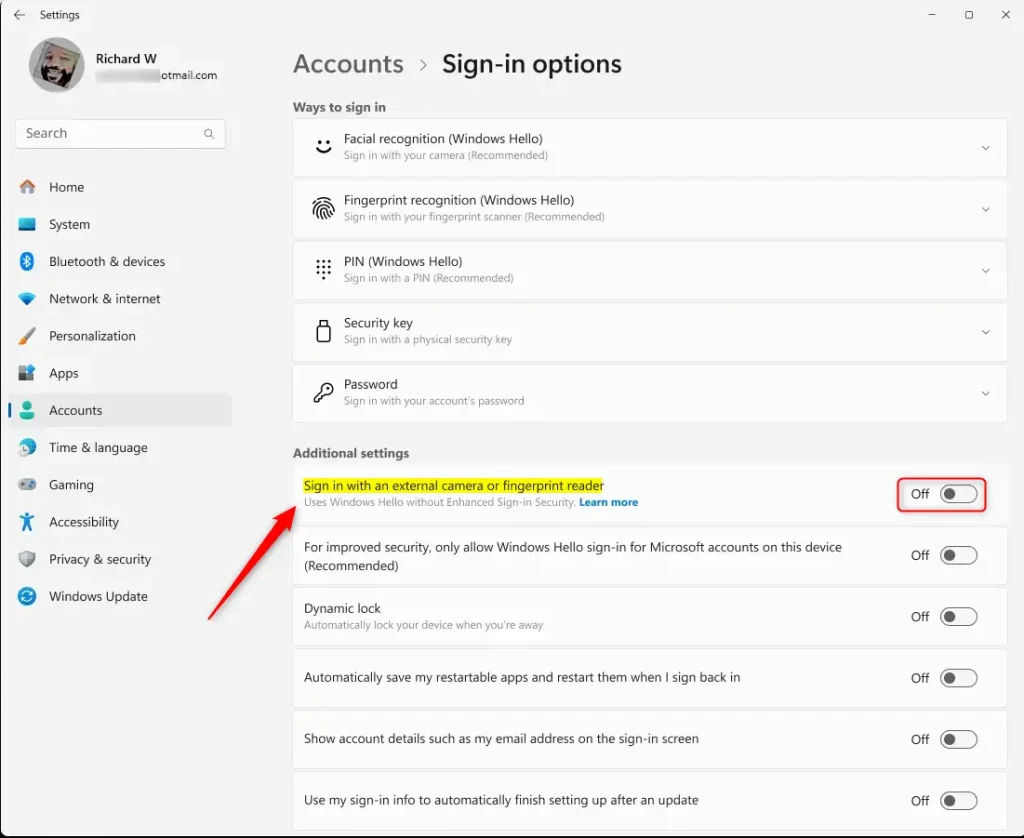
- Look for a setting called Sign in with an external camera or fingerprint reader. This controls Enhanced Sign-in Security.
The PC may lack the required processor features, or it may have no biometric sensor that supports the feature. Pending Windows updates can also cause missing options, so check Settings Windows Update for available patches. Install anything that is waiting, restart, and look at the Sign-in options page again.
Step 3Turn Enhanced Sign-in Security On or Off
Windows 11 enhanced sign-in security can be turned on or off using the toggle switch inside your Sign-in options. Turning this feature on forces your PC to use only specialized biometric hardware for your fingerprint reader or camera. That adds extra protection but might block some older hardware accessories.
To change it, click the switch once. The switch should move to its new position straight away. To undo the change, click the same switch again. Read the two lists below first, because the meaning of ON and OFF is not the same in every version.
Understanding the switch (Windows 11, v24H2+):
- Switch is OFF: Enhanced Sign-in Security is off. You can use more types of fingerprint readers or cameras. This gives you more choices.
- Switch is ON: Enhanced Sign-in Security is on. This is the most secure option for your fingerprint or face login. Only devices made for this security will work. Devices not made for this security won't work for logging in. You can still use these devices in apps like Microsoft Teams.
Understanding the switch (Windows 11, v23H2):
Microsoft inverted the toggle logic in older builds, which catches many people off guard. On 23H2 the switch is named after the external device option, not after the security feature.
- Switch is OFF: Enhanced Sign-in Security is actually ON. Your computer is using the stricter security. Some external devices might not work for logging in. You can still use them in apps.
- Switch is ON: Enhanced Sign-in Security is OFF. Your computer allows more types of fingerprint readers or cameras to be used for logging in. This is less secure but gives you more options.
If you plug in an external camera or fingerprint reader and it will not sign you in, this setting is the first thing to check. If Windows Hello stops recognizing your face or fingerprint after you change the switch, go back to the same Sign-in options page and set that sign-in method up again.
Reference:
Summary
Enhanced Sign-in Security reinforces Windows Hello logins within the Windows Settings app. Turning this protection on restricts device choices for tighter security, while turning it off broadens hardware support at the expense of overall safety. If your hardware supports it and you do not rely on older external sensors, leave it on. If you need an older accessory to sign in, turn it off, and you can switch it back at any time.
Was this guide helpful?

About the Author
Richard
Tech Writer, IT Professional
Richard is a writer at Geek Rewind who turns complex IT tasks into clear, step-by-step guides. He draws on years of hands-on experience in system administration and enterprise IT operations, focusing on Windows, Linux and WordPress: the problems people actually run into, and the fixes that work. His server and WordPress guides come from systems he runs himself. Richard builds and maintains the platform behind Geek Rewind, from its Ubuntu servers and Nginx configuration to its custom WordPress plugins. Many new tutorials start with readers' questions, and he's always glad to answer them in the comments.
No comments yet — be the first to share your thoughts!