How to Turn Bing Web Suggested Search Results on or off in Windows 11

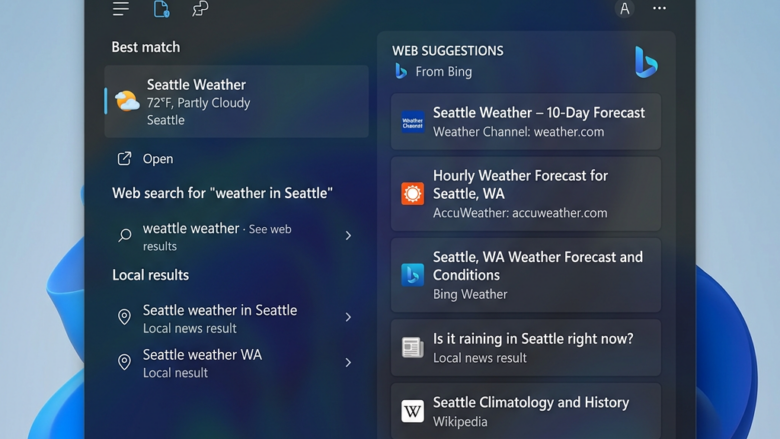
Bing Web Suggested Search Results in Windows 11 are online search tips that pop up in your taskbar search box as you type. Microsoft builds this feature directly into Windows 11 version 22H2 and newer to show you web pages and quick answers right next to your local files.
Open Settings , press Win+I, go to Privacy & security Search, and toggle the Web Searches switch on or off. The change takes effect immediately. If this option is missing, open Command Prompt as administrator and run REG ADD “🗝️HKCU\
Turning off these web suggestions gives you a clean search window that only looks at items on your own computer. You can switch this feature on or off at any time using the Privacy & security menu in your main Windows settings . If that menu does not offer the option on your build, the registry method later in this tutorial does the same job.
Option 1Using Settings
The Bing Web Suggested Search Results feature provides personalized search suggestions within Windows 11. You control it from the Settings app. Leave it on if you want web results mixed in with your local results. Turn it off if you want a more private search that stays on your PC. No restart is needed, and you can reverse the change at any time by repeating the steps.
- Open Settings. Press Win+I on your keyboard. The Settings window opens with a list of categories on the left.
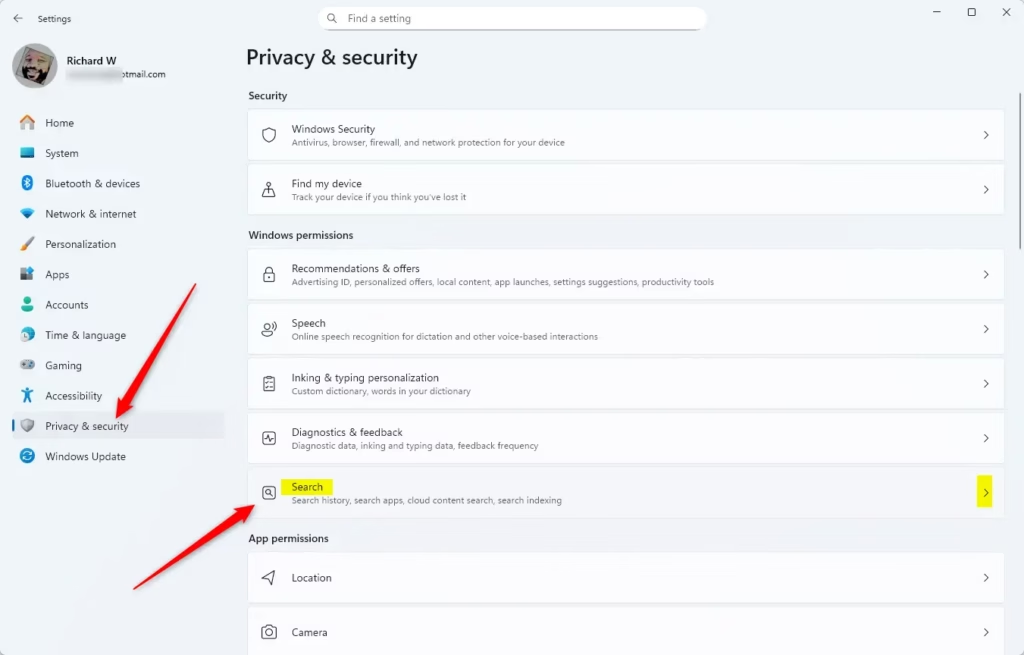
- On the left side, click Privacy & security. The privacy options appear on the right.
- On the right side, click Search. On some builds this page may be labelled slightly differently, such as Search permissions. It is still the page for search settings.
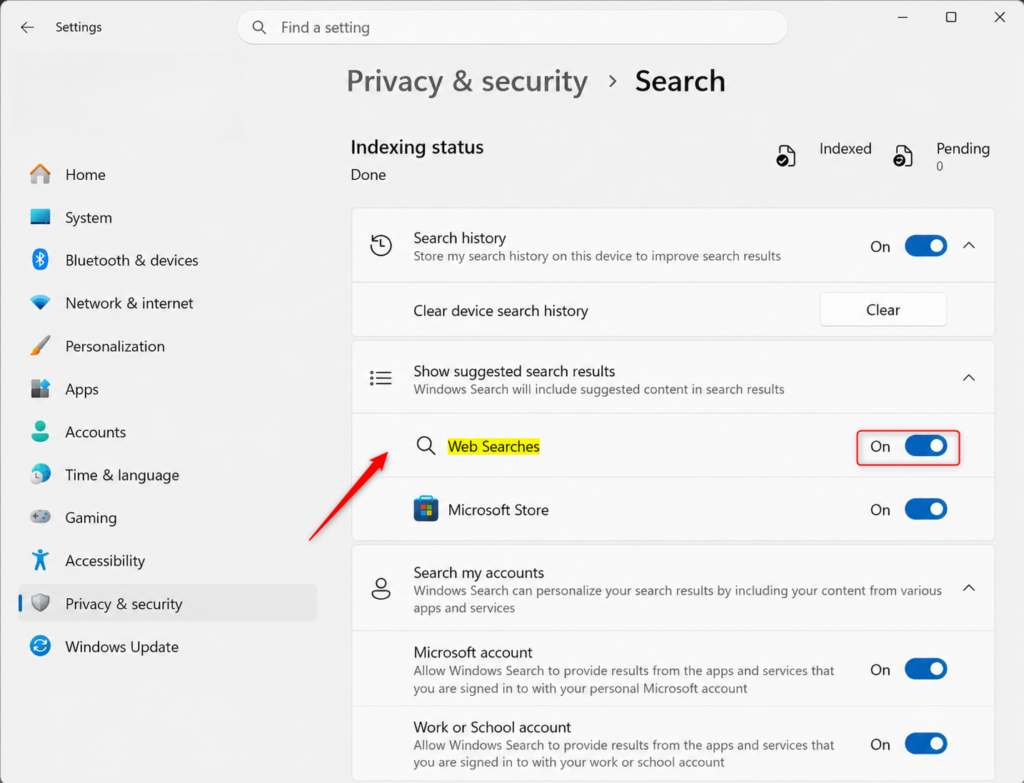
- Look for the section called Show suggested search results .
- Find the Web Searches option. Set the switch to On to get web suggestions, or Off to stop them. It is On by default. The switch changes position right away, and there is no Save button.
- Close the Settings window. Open the taskbar search box and type a few letters to check the result. With the switch Off, you should only see items from your own PC.
If you do not see the Web Searches option, your Windows 11 build may not show it in Settings. Use the Command Prompt method below instead. It works the same way on Home and Pro.
Option 2Using Command Prompt (Advanced)
This method uses the command prompt to change a setting in the registry. The original instructions call for administrator privileges, so run the prompt as administrator. The command writes to the current user’s registry hive (HKCU). That means it changes the setting for the account you are signed in with. If you open the prompt using a different administrator account, you will change that account’s setting instead.
- Open Command Prompt as administrator. Search for ‘cmd’ in the Start menu , right-click Command Prompt, and select Run as administrator. Click Yes if User Account Control asks for permission. A window with a prompt opens.
- To Add Bing Web Suggested Search Results : type the following command and press Enter. This is the default setting.
REG ADD “🗝️HKCU\
The prompt should reply with "The operation completed successfully."Software\ ” /V BingSearchEnabled /T REG_DWORD /D 1 /FMicrosoft\ Windows\ CurrentVersion\ Search - To Remove Bing Web Suggested Search Results: type the following command and press Enter.
REG ADD "HKCU\Software\Microsoft\Windows\CurrentVersion\Search" /V BingSearchEnabled /T REG_DWORD /D 0 /F
Again, look for the "The operation completed successfully." message. - Close the Command Prompt window. If the change does not show up in search straight away, sign out and back in, or restart your PC.
To undo either change, run the other command. The first sets the value to 1 (on) and the second sets it to 0 (off).
Reference:
Summary
You can turn Windows 11 search suggestions on or off in the Settings app to control whether you see web results when you search. If the Settings option is missing on your build, the registry command gives you the same control.
Did this guide fix your problem?

About the Author
Richard
Tech Writer, IT Professional
Richard is a writer at Geek Rewind who turns complex IT tasks into clear, step-by-step guides. He draws on years of hands-on experience in system administration and enterprise IT operations, focusing on Windows, Linux and WordPress: the problems people actually run into, and the fixes that work. His server and WordPress guides come from systems he runs himself. Richard builds and maintains the platform behind Geek Rewind, from its Ubuntu servers and Nginx configuration to its custom WordPress plugins. Many new tutorials start with readers' questions, and he's always glad to answer them in the comments.
… liked this!