How to Let Your Windows 11 PC Lock Itself When You Leave and Far Away

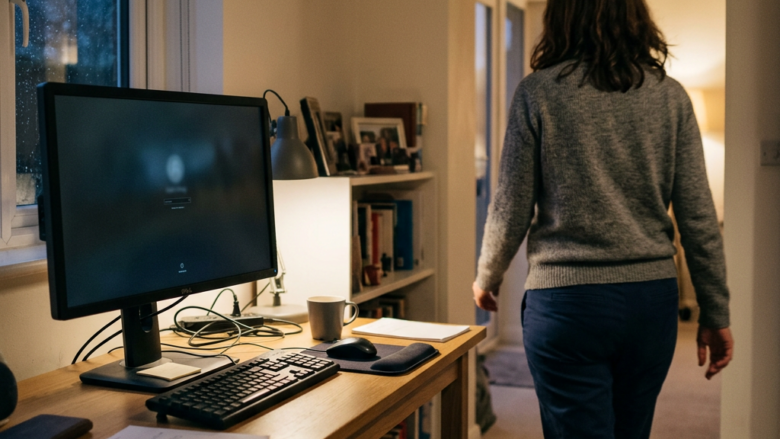
Dynamic lock in Windows 11 locks your PC when you walk away, by tracking a paired Bluetooth phone. It secures your screen roughly 1 minute after the Bluetooth signal drops out of range. Windows does not lock the instant the signal fades. It waits briefly to confirm the phone is really gone.
You need a smartphone with Bluetooth support, and the PC needs Bluetooth too. Link your phone in the Windows Bluetooth settings, then turn on automatic locking:
- Turn on Bluetooth on your phone and leave its pairing screen open.
- On the PC, open Settings Bluetooth & devices Devices, then click Add device and choose Bluetooth.
- Pick your phone from the list and confirm the pairing code on both devices. Your phone should now show as Paired or Connected.
- Open Settings Accounts Sign-in options and expand Dynamic lock.
- Tick Allow Windows to automatically lock your device when you’re away.
If the Dynamic lock option is missing or greyed out, the phone is usually not paired yet, or the PC has no Bluetooth radio. To undo it, clear the checkbox. Dynamic lock is available in both Home and Pro.
Open Settings System Power & battery Screen and sleep, then turn on Automatically turn off my screen when I leave. If this option doesn’t appear, your PC lacks the required presence sensor and you’ll need to use Dynamic lock with a paired Bluetooth phone instead.
Check if Your PC Has Presence Sensing
Some PCs can also detect you with a built-in presence sensor, with no phone needed. This is called presence sensing. It can blank the screen when you leave and wake it when you return. Before you try to set it up, check whether your computer supports it by opening the relevant settings menu. The steps below take about a minute.
How to Find Presence Sensing Settings:
- Click the Start button. The Start menu opens.
- Type “settings” and open the Settings app. The Settings window appears with a list of categories on the left.
- In Settings, click System on the left side.
- Under System, click Power & battery. The page shows battery details (on laptops) and your power options.
- Look for a section named Screen and sleep. On some Windows 11 builds the same section is labelled Screen, sleep, & hibernate timeouts. Expand it if it is collapsed.
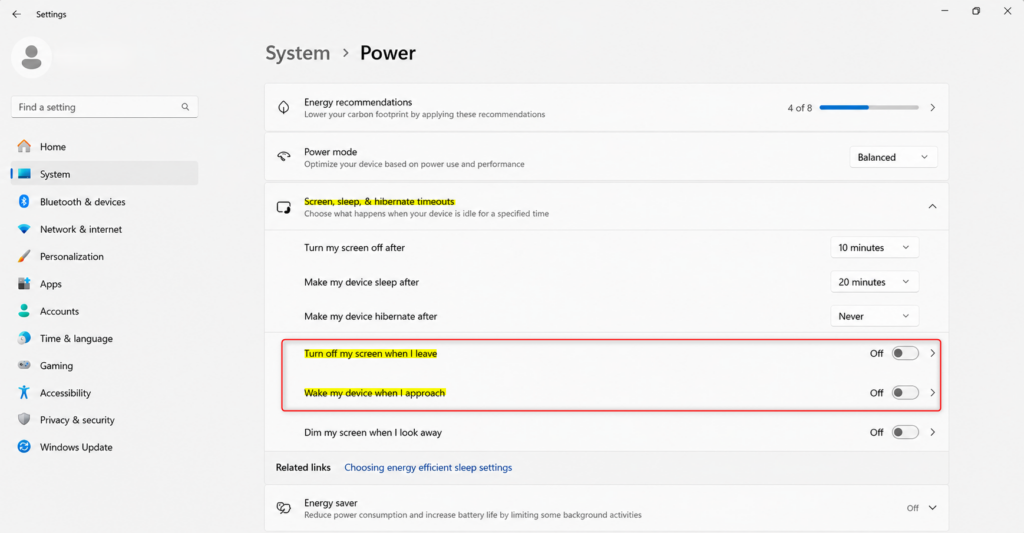
Windows 11 presence sensing settings live inside the main Settings app under your power options. You need to open your system settings, choose power controls, and look for display controls to see if your computer supports this feature. Not all hardware has the right sensors built in, so you might not see these options on every PC.
Set Your PC to Turn Off the Screen When You Leave
Blanking your display when you step away keeps your screen secure in shared workspaces. It also saves a little power. The screen only goes dark, so whether Windows then asks for your password depends on your sign-in settings. More on that below.
How to Turn On Screen-Off When You Leave:
- Go to Settings System Power & battery Screen and sleep (like in Step 1).
- Find the option “Automatically turn off my screen when I leave.” If it isn’t there, your PC doesn’t support presence sensing.
- Turn the switch On. The switch moves to the right and its label changes to On. The change applies at once, with no restart needed. To undo it, set the switch back to Off.
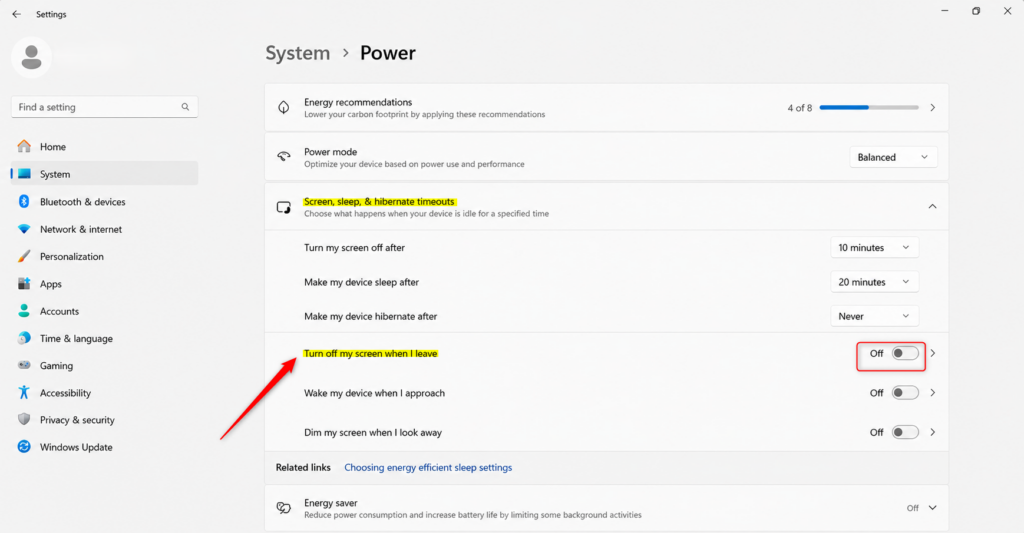
Windows 11 presence sensing lets your computer secure itself when you walk away. To turn this on, head into your power settings, find the screen controls, and switch on the option that blanks your display when you step out of range. This keeps your private work safe without making you press shortcut keys every time.
To make sure a password, PIN or Windows Hello check is needed when you return, open Settings Accounts Sign-in options. Under If you’ve been away, when should Windows require you to sign in again?, choose Every time. That setting may not appear on every device.
Decide How Far Away Means “Gone”
Set Your Preferred Walking-Away Distance
This setting decides how far from the PC you must be before Windows treats you as gone. It only shows up when presence sensing is available and switched on.
Adjusting the “Gone” Distance:
- In the Screen and sleep settings, find “Automatically turn off my screen when I leave.”
- Click the More options button next to it. Extra settings expand below the switch.
- You will see a setting called “Consider me gone when I’m this far away.”
- Choose a distance from the list. Options usually include “Near,” “Mid-range,” and “Far.” The change applies straight away. Start with Mid-range, then adjust if the screen blanks too soon or too late.
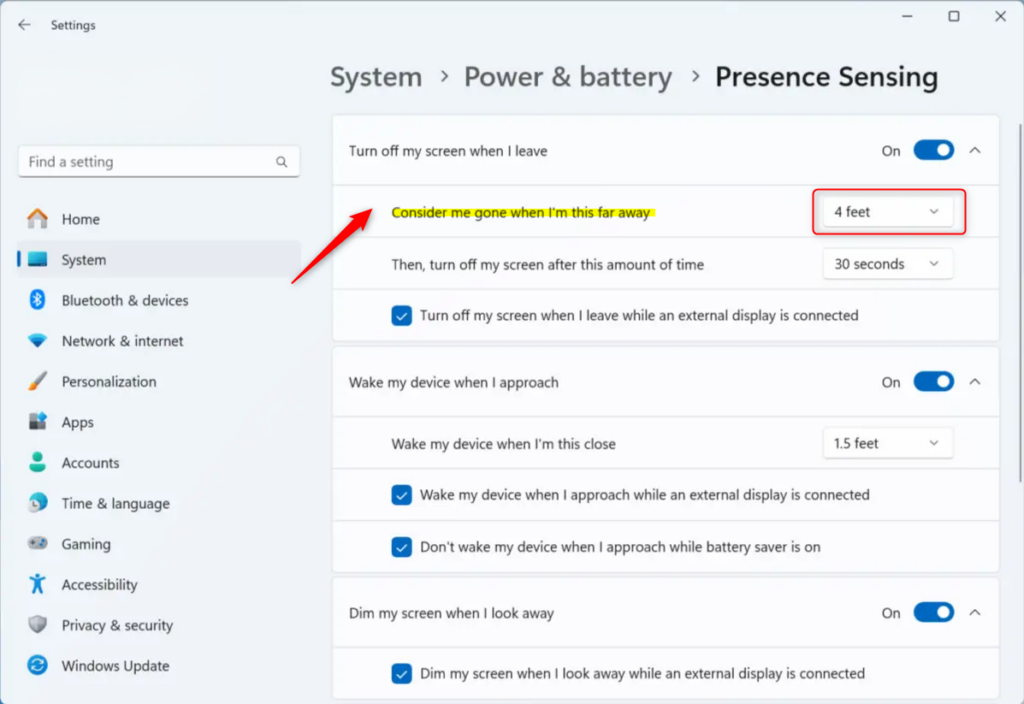
Windows 11 presence sensing distance lets you control how far away you need to walk before your screen locks. You can open the extra options in your power settings to change this distance from a short range to a farther reach. This stops your display from going dark too early if you just lean back in your chair.
A shorter distance suits a small desk where you want privacy as soon as you stand up. A longer distance suits a larger room or a shared desk where you move around a lot.
Set a Delay for Screen-Off
Windows 11 presence sensing delay gives you a short grace period before your screen actually shuts off after you walk away. You can change this timer in the extra options menu to make your display turn off instantly or wait a few seconds. This prevents the screen from going blank if you only step away for a quick second.
Within that same “More options” menu, under “Automatically turn off my screen when I leave,” locate “Then, turn off my screen after this amount of time.”
Select a preferred duration from the list. The new delay takes effect right away. Walk away from the PC once to test it, and come back to change the value if it feels too slow or too quick.
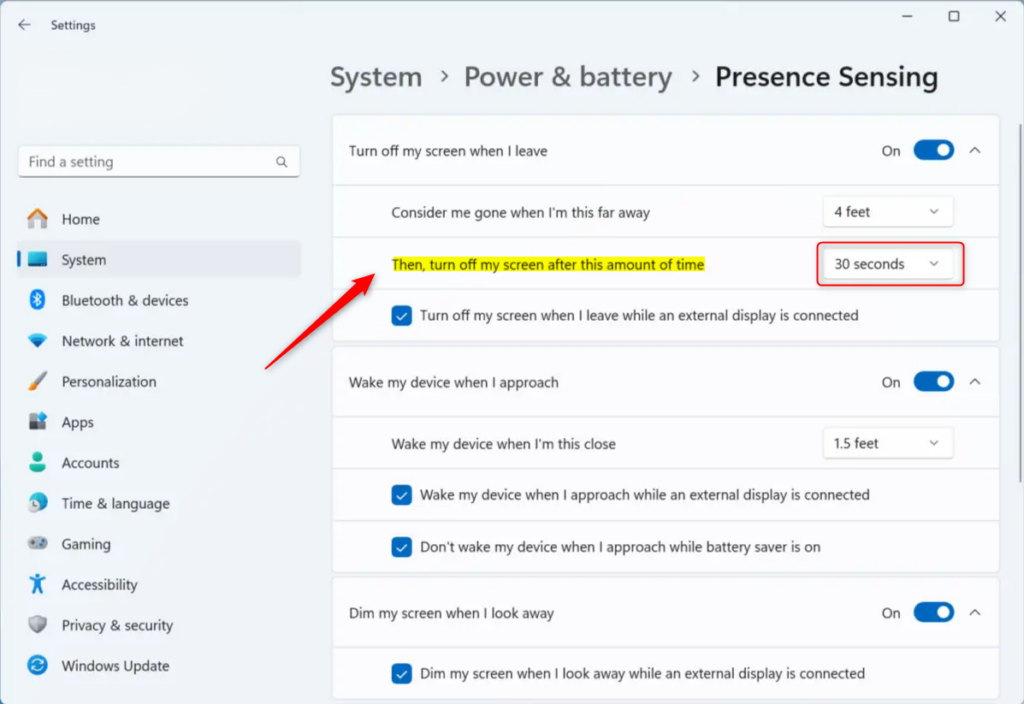
Use Case: Brief interruptions require a longer delay to prevent constant screen blanking. Choosing a shorter duration works best for immediate privacy upon departure.
Reference:
Summary
Presence sensing automates power management and security by blanking the display during absences, and configuring these options requires navigating to Settings System Power & battery Screen and sleep. If your PC has no presence sensor, pair your phone and use Dynamic lock under Settings Accounts Sign-in options instead. For a real lock in either case, make sure Windows asks you to sign in again when you return.
Have a question about this guide?
Answered by AI from this guide. Good questions may be added to this page — please don't include personal details.
Did this guide fix your problem?

About the Author
Richard
Tech Writer, IT Professional
Richard is a writer at Geek Rewind who turns complex IT tasks into clear, step-by-step guides. He draws on years of hands-on experience in system administration and enterprise IT operations, focusing on Windows, Linux and WordPress: the problems people actually run into, and the fixes that work. His server and WordPress guides come from systems he runs himself. Richard builds and maintains the platform behind Geek Rewind, from its Ubuntu servers and Nginx configuration to its custom WordPress plugins. Many new tutorials start with readers' questions, and he's always glad to answer them in the comments.
No comments yet — be the first to share your thoughts!