How to Enable Screen Savers in Windows 11 (Easy Guide)

Screen savers in Windows 11 play an animation or show photos on your display after a set number of idle minutes. They hide your screen from view when you step away, and with the right setting they keep your personal information private.
Modern flat-screen monitors do not need screen savers to prevent image burn-in the way old CRT monitors did, but Windows 11 still includes them. You can turn one on, pick a design, and choose how many idle minutes pass before it starts. No restart is needed for any of this. The settings work the same on Home and Pro.
Open Settings Personalization Lock screen, scroll to Related settings, and click Screen saver. In the Screen Saver Settings window, select a screen saver from the dropdown menu and click OK. The screen saver will start after your chosen idle time.
Accessing Screen Saver Settings
Screen saver settings are not in the main Settings pages. You reach them from Personalization Lock screen, which opens the older Screen Saver Settings window. That window is where you control the screen saver, the idle timer, and the sign-in requirement.
Open Windows Settings
- Press the Win+I on your keyboard.
- Check that the Settings app opens.
You can also click the Start button and then click the gear icon labeled Settings.
Go to Personalization
- In the menu on the left side of Settings, click Personalization.
You should now see the Personalization page, where you change your desktop background, colors, and themes.
Find Lock Screen Options
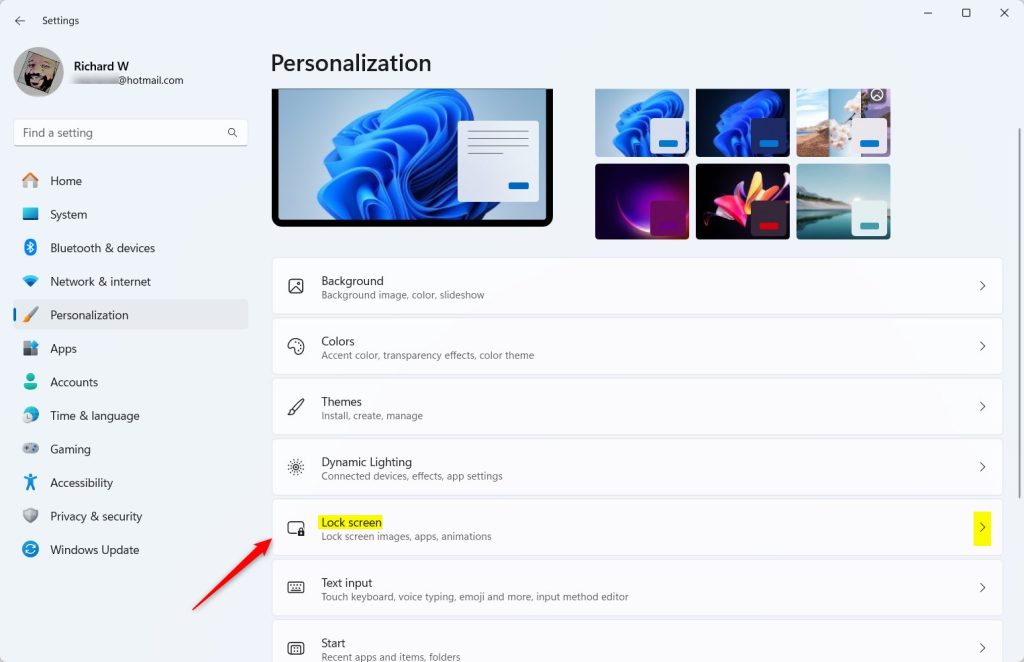
- On the right side of the Personalization page, scroll down until you see Lock screen, then click it.
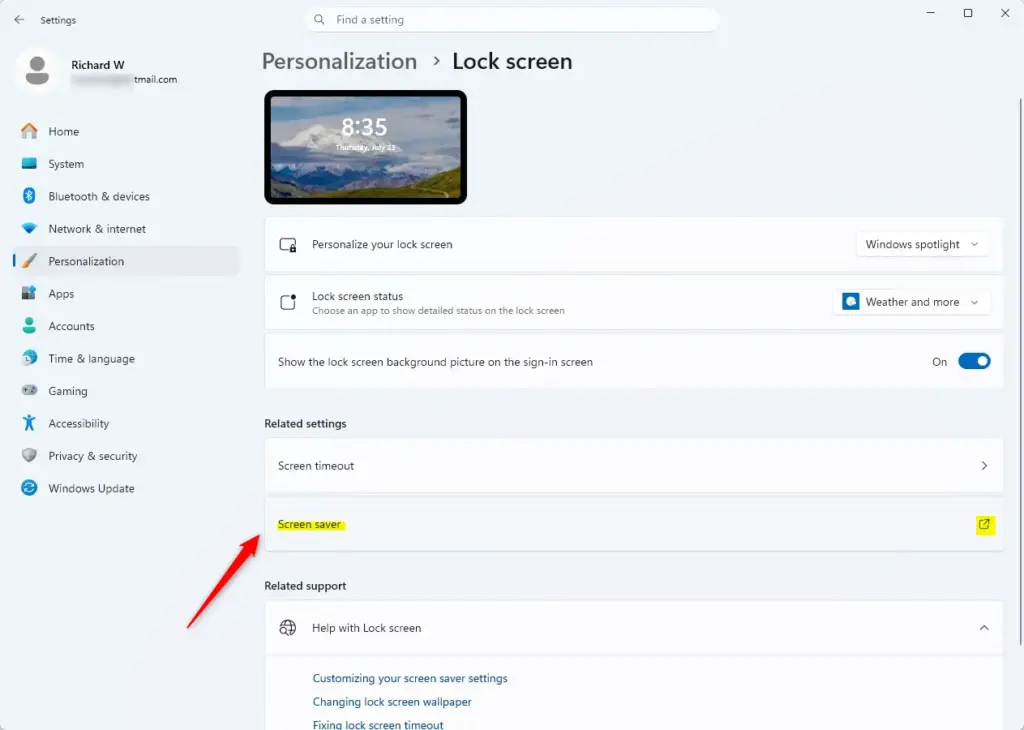
- On the Lock screen page, scroll to the bottom and look under Related settings.
- Click Screen saver.
The Screen Saver Settings window should open. The Lock screen page also controls what you see before you sign in or when the computer is not in use. If you can’t find the Screen saver link, use the Run box method below.
Locate Screen Saver Settings
If you would rather skip the menus, you can open the Screen Saver Settings window directly from the Run box.
- Press the Win+R to open the Run box.
- Type rundll32 shell32.dll,Control_RunDLL desk.cpl,,1 and press Enter.
- Check that the Screen Saver Settings window opens.
Quick Tip: To open this window quickly next time, press the Win+R to open the Run box, type rundll32 shell32.dll,Control_RunDLL desk.cpl,,1, and press Enter.
Choosing and Previewing Your Screen Saver
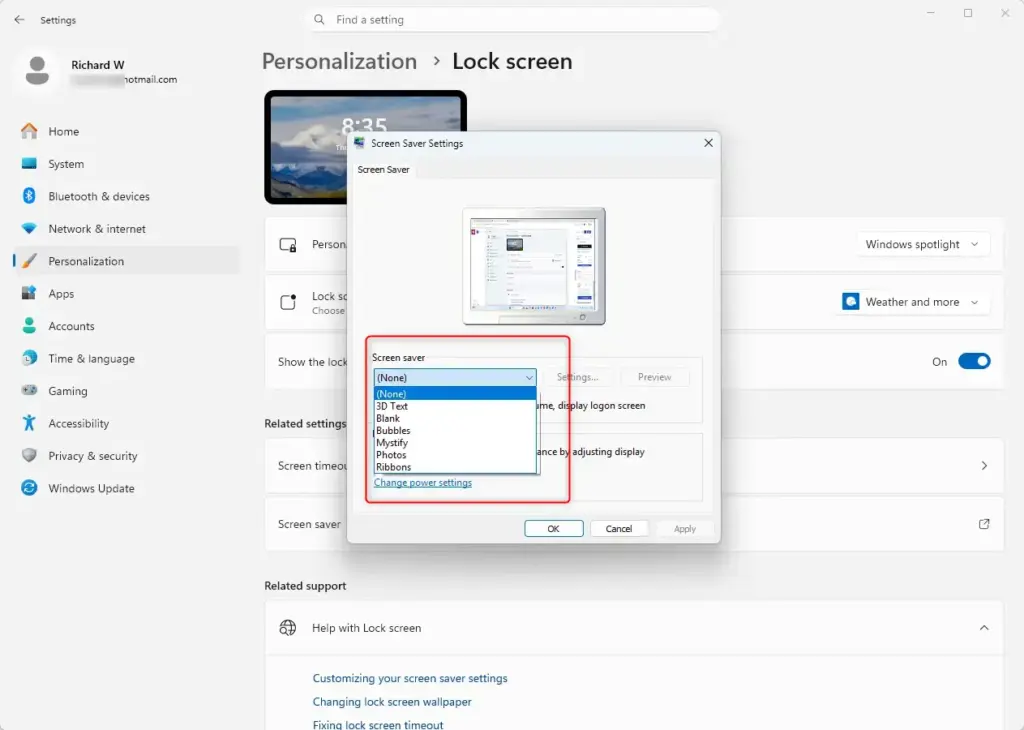
Windows 11 includes several built-in screen savers: 3D Text, Blank, Bubbles, Mystify, Photos, and Ribbons. Once the Screen Saver Settings window is open, you can pick any of them, such as Blank or Bubbles, to customize your display.
Select a Screen Saver
- In the Screen Saver Settings window, find the dropdown menu in the Screen saver section.
- Click the dropdown and select the screen saver you want.
The small preview monitor above the dropdown now shows your choice. Bubbles, Mystify, and Ribbons are the classic animations. Blank simply turns the screen black. Photos shows your own pictures.
To turn screen savers off completely, select (None) from the same dropdown and click OK. Windows will then never start a screen saver after idle time. This also undoes any changes you made earlier.
If the dropdown is greyed out or your choice won’t stick on a work or school PC, an administrator may be controlling the setting through policy. You’ll need to ask your IT department.
Preview Your Choice
Preview your choice before you save it.
- With a screen saver selected, click the Preview button in the Screen Saver Settings window.
- Watch the animation run full screen.
- Move your mouse or press any key to return to the settings window.
The Preview button does nothing if (None) is selected.
Customizing Screen Saver Settings
Many built-in screen savers have options you can change, such as the text or the speed of the animation.
Access Specific Settings
- Select a screen saver from the dropdown menu.
- Click the Settings… button next to the dropdown.
- Change the options in the window that opens, then click OK.
If the screen saver has no options, the Settings… button stays greyed out. Blank is an example. For 3D Text, the button lets you type your own text and change its font, size, color, and how it moves. For Photos, it lets you choose the picture folder.
Controlling What Happens When You Resume
An important setting is what happens when the computer wakes up from the screen saver. You can require a password, or your PIN, to get back to your desktop.
Enable or Disable Login Screen Requirement
Requiring a sign-in after the screen saver keeps your computer secure when you walk away. With this on, Windows asks for your PIN or password every time the screen saver stops.
- In the Screen Saver Settings window, find the checkbox labeled On resume, display logon screen.
- To turn the security feature on, make sure the box is checked.
- To turn it off, uncheck the box. Your computer will then go back to your desktop without asking for a password.
The checkbox is greyed out when (None) is selected as the screen saver. Choose a screen saver first.
Setting the Wait Time
Choose how long your PC sits idle before the screen saver starts.
Adjust the Idle Timer
The wait time controls how many idle minutes pass before the screen saver starts. Use it to make the screen saver start sooner or later.
- In the Screen Saver Settings window, find the Wait box.
- Type the number of minutes you want, or use the arrows to change it.
How to Choose Your Wait Time:
- Short Wait Time (e.g., 1-5 minutes)Good for immediate privacy if you get up often.
- Medium Wait Time (e.g., 10-15 minutes)A balance between convenience and security.
- Long Wait Time (e.g., 30+ minutes)If you rarely leave your computer unattended or don’t want the screen saver to interrupt often.
Important Note: The Wait box is greyed out when (None) is selected. With no screen saver chosen, there is nothing to start, so the wait time has no effect.
Also check your power settings. If your display is set to turn off sooner than the screen saver wait time, the screen goes dark first and you’ll never see the screen saver. You can check this in Settings System Power & battery, under the screen and sleep time-outs.
Applying Your Changes and Finishing Up
After making your selections, save them.
Save Your Settings
Saving applies your chosen screen saver, idle timer, and sign-in option.
- Click OK at the bottom of the Screen Saver Settings window.
The window closes and the settings take effect right away. You can also click Apply to save without closing the window, which is handy if you want to keep testing. Click Cancel to close without saving.
Your screen saver is now set up the way you want it. If you need to change anything later, follow these steps again.
Summary
If your screen saver fails to start, work through these checks:
- Check that your mouse and keyboard are not sending ghost inputs. A jittery mouse or a stuck key keeps the PC from counting as idle.
- Close any media apps running in the background. Video and music players can stop the screen saver from starting.
- Confirm that your display time-out in the power settings is not shorter than the screen saver wait time.
- Reopen the Screen Saver Settings window and check that a screen saver other than (None) is still selected.
Feature updates to Windows 11 rarely touch screen saver settings, but installing a new graphics driver might occasionally reset power management settings, so check them after a driver update.
To undo your changes, return to the Screen Saver Settings window, select (None) from the dropdown menu, and click OK.
Frequently asked questions
How do I change my screen saver?
Open Settings and go to Personalization Lock screen. Scroll down and click Screen saver under Related settings. In the Screen Saver Settings window, open the drop-down list and choose a design. Click Apply, then OK. The new screen saver starts after the idle time you set in that window.
How do I adjust screen sleep settings in 🪟 Windows 11?
Open Settings and go to System Power & battery Screen and sleep. Choose how many minutes pass before the screen turns off and before the PC sleeps, under the plugged-in options. On a laptop, you also see the same options for battery power. Changes save as soon as you pick a new time.
How to make 🪟 Windows 11 start menu translucent?
Windows 11 has no separate Start menu transparency switch. Open Settings and go to Personalization Colors, then turn on Transparency effects. This makes the Start menu and taskbar slightly see-through. If the setting is already on, the effect depends on your wallpaper and color mode.
Why isn't my Windows screensaver activating?
Most often, the screen saver is set to None, or its wait time is longer than your display or sleep timer. Your screen turns off first, so the screen saver never shows. Check Screen Saver Settings, then compare the timers in Power & battery. Video playback, full-screen apps, and Presentation mode can also block it.
Still have a question?
Answered by AI from this guide. Good questions may be added to this page — please don't include personal details.
Did this guide fix your problem?

About the Author
Richard
Tech Writer, IT Professional
Richard is a writer at Geek Rewind who turns complex IT tasks into clear, step-by-step guides. He draws on years of hands-on experience in system administration and enterprise IT operations, focusing on Windows, Linux and WordPress: the problems people actually run into, and the fixes that work. His server and WordPress guides come from systems he runs himself. Richard builds and maintains the platform behind Geek Rewind, from its Ubuntu servers and Nginx configuration to its custom WordPress plugins. Many new tutorials start with readers' questions, and he's always glad to answer them in the comments.
I want to add an old classic screen saver, not use one of the new windows 11 choices.
Windows 11 doesn’t include a way to add older screen savers from inside the Screen Saver Settings window, and this post doesn’t cover it. Screen savers are usually .scr files. If you have one from a source you trust, you can try right-clicking the file and choosing Install. That normally copies it into the system folder so it appears in the dropdown. Since a .scr file is essentially a program, only use files from trusted sources, and scan them first. I haven’t tested this on every version of Windows 11, so if the Install option is missing, check the screen saver’s own documentation.