How to Add or Remove Windows 11 Lock Screen Status

Lock screen status in Windows 11 shows quick updates from a single app, such as the weather or your next calendar appointment, right on your sign-in screen. You can choose one app to display this information or turn the feature off completely to keep your display clean.
The setting is in Settings under Personalization, then Lock screen. The change takes a few seconds, applies immediately and needs no restart. It works the same on Windows 11 Home and Pro.
Open Settings , click Personalization, then Lock screen. Under Lock screen status, click the dropdown and choose an app like Weather or Mail, or select None to turn it off. The change applies immediately.
What is the Lock Screen?
The Windows 11 lock screen is the screen you see after startup or after locking your PC. It shows the time and date, plus any quick app notifications, before you sign in. You can personalise it with updates from apps like weather, calendar or mail, so you can see important information at a glance.
Only one app can show detailed status at a time. Which apps appear in the list depends on your Windows 11 version and the apps installed on your PC.
You can also customize your lock screen background with a single picture, a slideshow or Windows Spotlight. Spotlight downloads new images automatically and rotates them for you. This background setting sits on the same Lock screen page but is separate from the status app. Changing one does not affect the other. Learn more here:
How to set a Slideshow Background
In recent Windows 11 updates, Microsoft added weather information to the lock screen. You can hover over the weather information to see more details. If you don't want it, switch it off by setting the lock screen status to None. The steps below show where that setting is.
Older builds don't have this feature.
How to Choose Which App Shows Information on Your Lock Screen
To change your Windows 11 lock screen status app, open Settings, select Personalization, and click Lock screen. From there you can choose a single app for detailed updates. This setting controls which program displays live information, such as weather or meeting times, before you log in.
Follow these steps in order:
- Open Settings: Click the Start menu and select Settings. Or press the Windows key + I on your keyboard. The Settings app opens with a list of categories on the left.
- Go to Personalization: In the Settings window, click Personalization on the left side. The right side now shows personalization options such as Background, Colors, Themes and Lock screen.
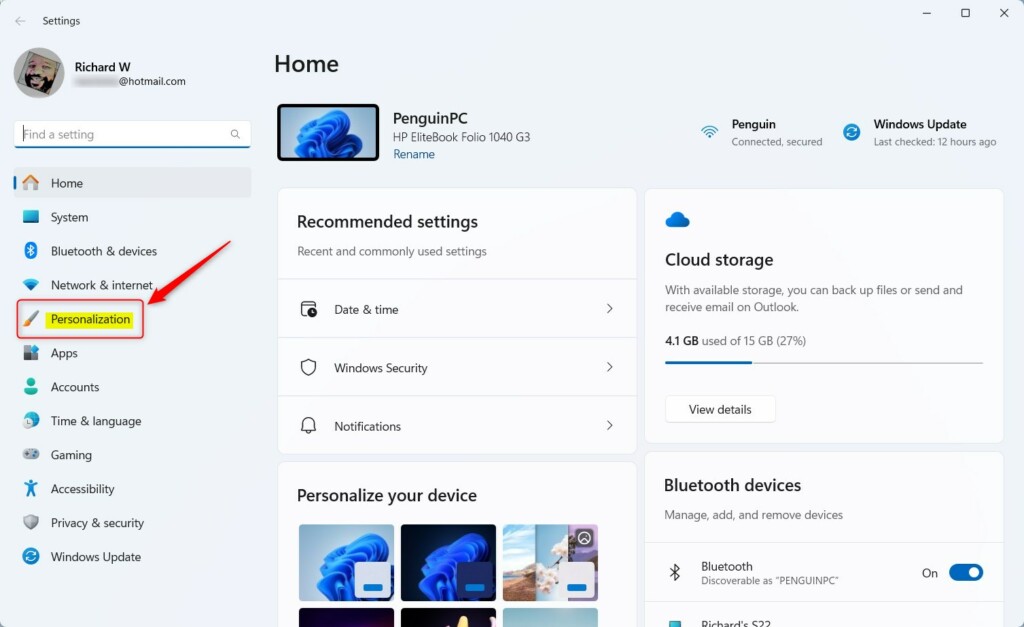
Windows 11 Settings menu with Personalization highlighted. - Open Lock Screen settings: On the right side, click the Lock screen option. The page that opens holds your background choice and the status setting.
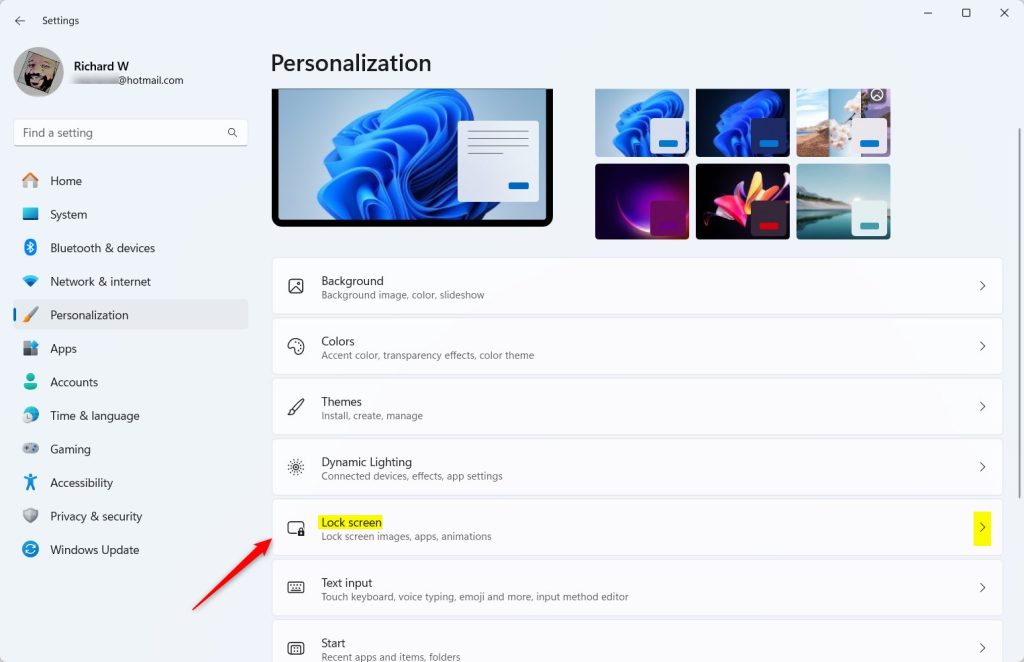
Windows 11 Personalization settings showing Lock screen options. - Pick your Lock Screen Status app: Find the Lock screen status setting and click the drop-down next to it. A list appears where you can pick an app to show detailed information on your lock screen. If the setting is missing, install the latest updates in Windows Update. On a work or school PC, an administrator may be controlling it.
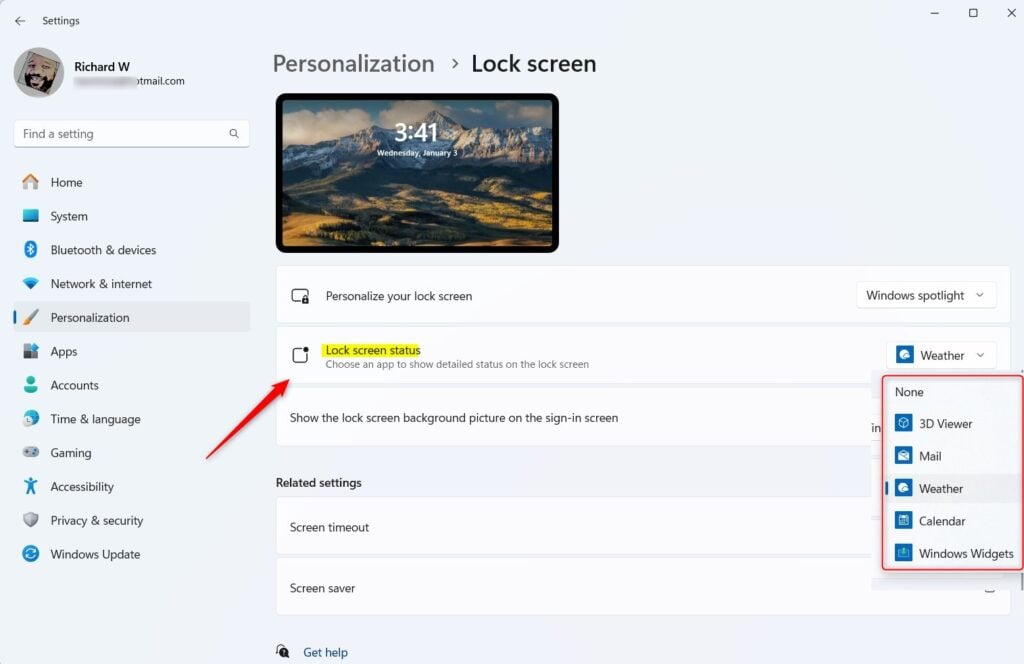
Lock screen status options - Choose one from the list:
- None – no detailed app information shown. Pick this to remove lock screen status.
- 3D Viewer
- Mail – see your email notifications
- Weather – get weather updates
- Windows Widgets
- Close the Settings app when you're done. Your choice saves automatically, so there is no Apply or Save button to click. To check the result, press the Windows key + L to lock your PC and look at the lock screen. To undo the change, return to the same drop-down and pick a different app or None.
That's it. Your lock screen now shows details from the app you chose, so you can get quick information without unlocking your computer.
If you pick Mail on a shared or public-facing PC, consider whether you are comfortable with that. None is the safer choice there.
Why Customize Your Lock Screen Status?
- You can see important information at a glance, for example weather or email updates.
- It helps you stay informed without having to sign in every time.
- You can pick the app that fits your needs best.
- It's easy to change anytime you want. Just go back to Settings Personalization Lock screen.
Enjoy your personalized Windows 11 lock screen!
Summary
Customizing your Windows 11 lock screen status is simple. Open Settings Personalization Lock screen, then use the Lock screen status drop-down to show an app like weather or mail before you log in. Choose None to turn it off again. No restart is needed either way.
Have a question about this guide?
Answered by AI from this guide. Good questions may be added to this page — please don't include personal details.
Did this guide fix your problem?

About the Author
Richard
Tech Writer, IT Professional
Richard is a writer at Geek Rewind who turns complex IT tasks into clear, step-by-step guides. He draws on years of hands-on experience in system administration and enterprise IT operations, focusing on Windows, Linux and WordPress: the problems people actually run into, and the fixes that work. His server and WordPress guides come from systems he runs himself. Richard builds and maintains the platform behind Geek Rewind, from its Ubuntu servers and Nginx configuration to its custom WordPress plugins. Many new tutorials start with readers' questions, and he's always glad to answer them in the comments.
No comments yet — be the first to share your thoughts!