How to Hide Notification Content on Windows 11 Lock Screen


Lock screen notifications can expose private messages to anyone walking past your PC. This guide shows how to hide the preview text on Windows 11, so the lock screen shows that an alert arrived but not what it says.
Open Settings, go to System Notifications, click the app you want to change under “Notifications from apps and other senders,” and turn on “Hide content when notifications are on lock screen.” The preview text disappears while your PC is locked, though the full message waits in Notification Center when you sign in.
Why This Matters
Windows 11 shows alerts in three main places: the lock screen, the Notification Center, and taskbar banners. Hiding notification content on the lock screen keeps private messages and personal alerts away from anyone who glances at your display while you are away from the computer.
You can hide the message text for your chat and email apps and leave less sensitive apps alone. Nothing is deleted: the full notification is still waiting in the Notification Center once you sign in.
What You’ll Need
There are two ways to get the same result. The Settings app is the quickest and works the same on Windows 11 Home and Pro. The Registry Editor gives you finer control and is also available on both editions, but a wrong edit there can cause problems, so use it only if Settings does not work for you.
Method 1Using Settings
This is the method to try first. You change each app’s permissions separately, so the text previews stay hidden while the PC is locked. No advanced tools are needed.
- Press Win+I to open Settings .
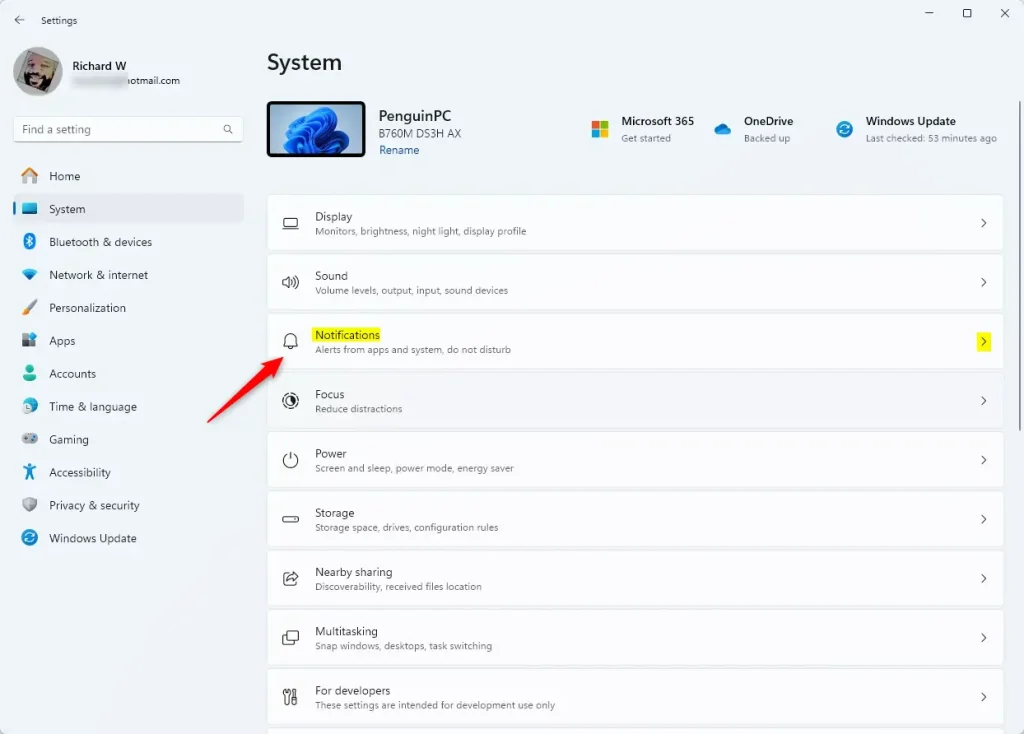
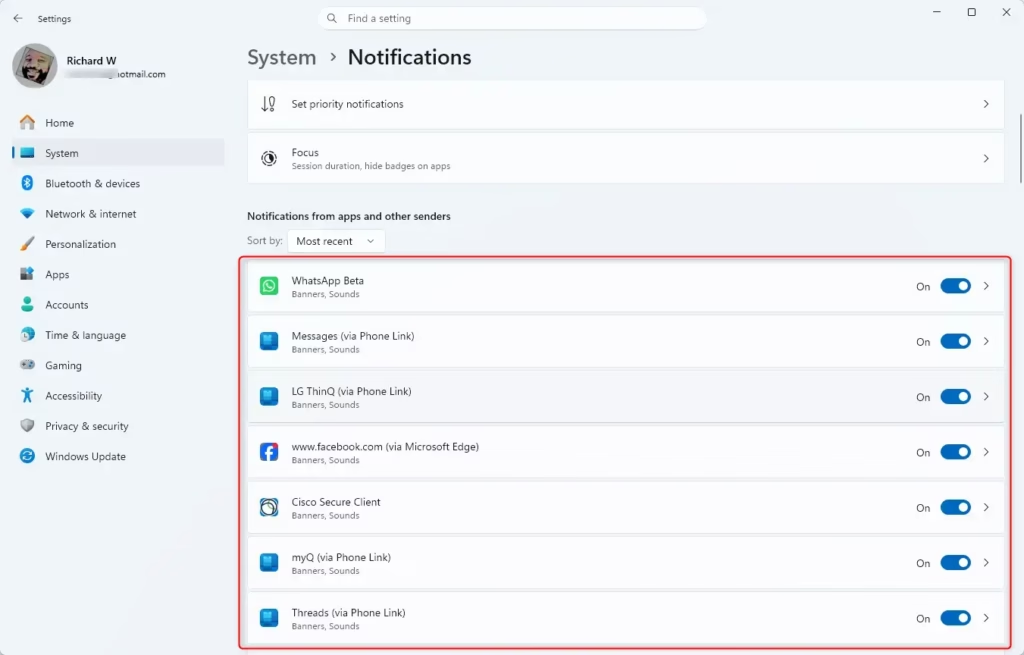
- Click System on the left side, then click Notifications on the right side. You should now see the master notification switch and a list of apps under “Notifications from apps and other senders.”
- Under “Notifications from apps and other senders,” click the app you want to change. If the app is not listed, it has probably not sent a notification yet. Windows only lists apps that have registered for notifications.
- Find the option “Hide content when notifications are on lock screen” and set it to On to hide the message text, or Off to show it. On is the default setting. Choose what works best for you. If you cannot see the option, check that the app’s notifications are turned on, because the lock screen options only appear for apps that are allowed to send alerts.
- Repeat steps 3 and 4 for any other apps you want to change.
- Close Settings when you are done. No restart is needed. To check the result, press Win+L to lock the PC and wait for a notification to arrive.
Method 2Using Registry Editor
This is a manual alternative for when the Settings app is not working for you. Before you start, consider backing up the registry. In Registry Editor, click File, then Export, and save a copy so you can restore it if something goes wrong.
- Type
regedit.exein the search bar and press Enter to open Registry Editor. If Windows asks whether you want to allow the app to make changes, click Yes. You need an administrator account. - In the left pane, navigate to this location:
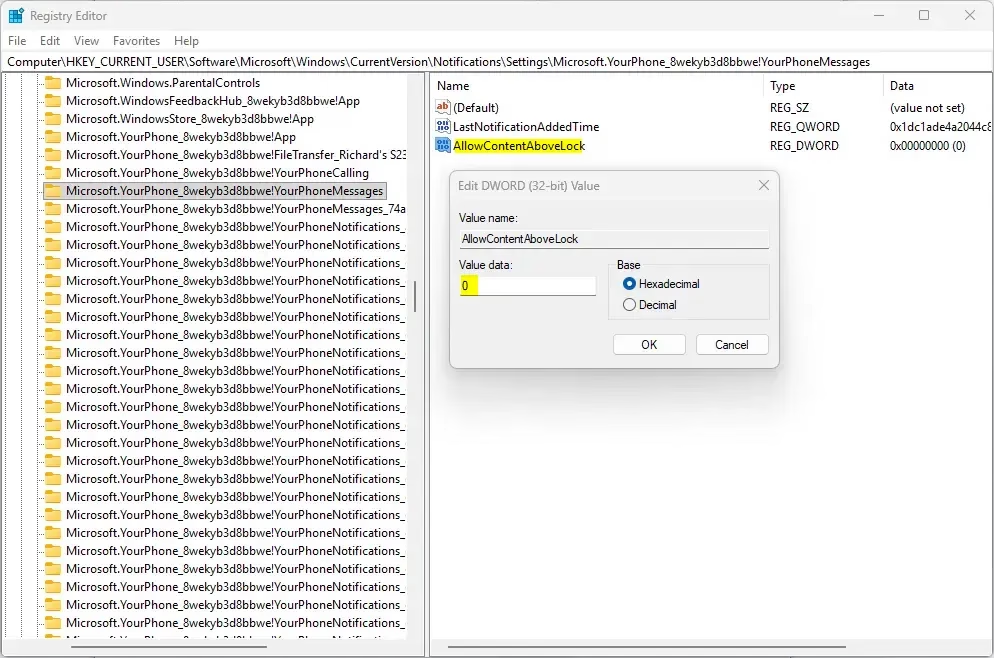
HKEY_CURRENT_USER\Software\Microsoft\Windows\CurrentVersion\Notifications\Settings - Under the "Settings" folder in the left pane, click the app you want to change (for example: "Microsoft.YourPhone_8wekyb3d8bbwe!YourPhoneMessages"). Its values should now appear in the right pane.
Turn On Hiding Notification Content (Default Setting)
To hide the content for this app, remove the value that allows it above the lock screen:
- In the right pane, look for the value called AllowContentAboveLock.
- Right-click AllowContentAboveLock and click Delete. If you do not see AllowContentAboveLock, your app is already set to hide content. Skip to the final step.
- Click Yes to confirm the deletion. The value should disappear from the right pane.
Turn Off Hiding Notification Content
You can undo this at any time and show full previews again. Setting the value back to 1 brings back the message text on your locked display:
- In the right pane, double-click the AllowContentAboveLock value to open it. If the value is missing because you deleted it earlier, right-click an empty area of the right pane, click New, choose DWORD (32-bit) Value, and name it AllowContentAboveLock. Then double-click it.
- Type 1 in the "Value data" field.
- Click OK.
- Close Registry Editor. If the change does not show up right away, sign out and back in, or restart the PC.
Summary
You can hide notification content on the lock screen with either the built-in Settings app or the Registry Editor. Both keep your private messages from prying eyes, and your core system notifications keep working normally.
What happens when done: Notifications either show or hide their content on the lock screen, depending on the preference you chose. The setting applies only to the app you changed. Lock the PC with Win+L to confirm it behaves the way you expect.
Two approaches: Use Settings for a quick change, or use the Registry Editor if you need to work with the system values directly. In both cases you can reverse the change later.
How to block pop-up notifications on 🪟 Windows 11?
Open Settings with Win+I, go to System Notifications. Scroll down to find the app you want to block, then turn off its notification toggle. You can also disable notifications for all apps at once by turning off "Notifications" at the top of the page.
How do I hide the notification icons on my 🪟 Windows 10 taskbar?
Right-click the taskbar and select Taskbar settings. Scroll to the Taskbar corner overflow section and turn on "Turn on overflow menu." System icons will now hide in a dropdown menu. You can also hide individual notification icons through Control Panel Notification Area Icons
Can I move notifications to my second monitor in 🪟 Windows 11?
Windows 11 doesn't have a built-in setting to move notifications to a second monitor. Notifications always appear on your primary display. Some third-party tools exist, but they're not officially supported by Microsoft.
How do I hide notifications on the lock screen?
Open Settings with Win+I and go to System Notifications Under "Notifications from apps and other senders," find the app you want to hide, then turn off "Show notifications on the lock screen" for that app.
Was this guide helpful?

About the Author
Richard
Tech Writer, IT Professional
Richard is a writer at Geek Rewind who turns complex IT tasks into clear, step-by-step guides. He draws on years of hands-on experience in system administration and enterprise IT operations, focusing on Windows, Linux and WordPress: the problems people actually run into, and the fixes that work. His server and WordPress guides come from systems he runs himself. Richard builds and maintains the platform behind Geek Rewind, from its Ubuntu servers and Nginx configuration to its custom WordPress plugins. Many new tutorials start with readers' questions, and he's always glad to answer them in the comments.


No comments yet — be the first to share your thoughts!