How to Disable Windows 11 Notifications

Disabling notifications in Windows 11 stops sudden pop-up messages and keeps your screen clear during work or gaming. Notifications are small alerts from apps and system tools that tell you about new emails, software updates, or chat messages.
You can turn off every alert at once using the Do Not Disturb mode, or block specific apps one by one so important messages still get through. Setting up a focus session also silences every alert for up to 24 hours to help you concentrate without distractions.
The steps below are written for Windows 11 22H2 and later, where Do not disturb and Focus replaced the old Focus assist. They work the same on Home and Pro, and none of them needs a restart. Menu labels can differ slightly on an older build.
Go to Settings System Notifications and toggle the switch to Off. This will immediately disable all pop-up alerts. For temporary quiet, use the Focus feature in the same menu to pause most notifications.
Why You Might Want to Turn Off Notifications
- Notifications can interrupt you while working or studying. A banner in the corner of the screen pulls your eyes off the task, and a sound makes it worse.
- Some notifications might not be important to you. Many apps ask to send alerts by default, and a lot of those are promotions or low-value reminders.
- They can display private information you don’t want others to see. Message previews and email subjects show up on screen. That is a problem when you share your screen on a call or someone sits near your desk.
- Turning off notifications can help you focus and keep your information private. You decide how far to go: silence everything, or only the noisy apps.
What Kind of Notifications Does 🪟 Windows 11 Show?
- Notifications on the lock screen. These show message previews to anyone who walks past a locked PC. You can switch them off in Settings System Notifications, either for all apps or per app.
- Reminders and calls on the lock screen. This is a separate lock screen option for reminders and incoming calls from apps such as Skype or Teams. Look for it on the same Notifications page. Its exact position varies a little between builds.
- Windows update messages and tips. Windows suggests setup steps and “get the most out of Windows” tips. Look for these under Additional settings at the bottom of the Notifications page, and clear the checkboxes you don’t want.
- Alerts from apps and other features. The Notifications from apps and other senders list on the same page has one switch per app. Click an app’s name to open its own options, such as banners, sounds and lock screen alerts. This is the best way to keep the alerts you need and drop the rest.
How to Turn Off All Notifications
You can disable Windows 11 notifications completely using the Settings app to stop constant pop-ups and alerts from interrupting your work. To turn off all notifications, open Settings by pressing the Win+I, go to System, click Notifications, and then switch the main toggle at the top to Off.
This is a blunt switch. While it is off, you will also miss calendar reminders, chat messages and similar alerts. If you only want quiet for a while, use Do not disturb or Focus instead (covered below).
- Open Settings : Click the Start menu (Windows icon) at the bottom left, then click Settings. Or press
Windows key + Ito open Settings directly. The Settings window opens with a list of categories on the left. - Go to System Notifications: In Settings, click System on the left side. Then click Notifications on the right. You should now see the Notifications page, with a toggle at the top, a Do not disturb toggle below it, and a list of apps further down.
- Turn Off Notifications: At the top, you will see a switch that says Notifications. Click it to turn it Off. The label changes to Off and the app list below it turns grey. No restart is needed.
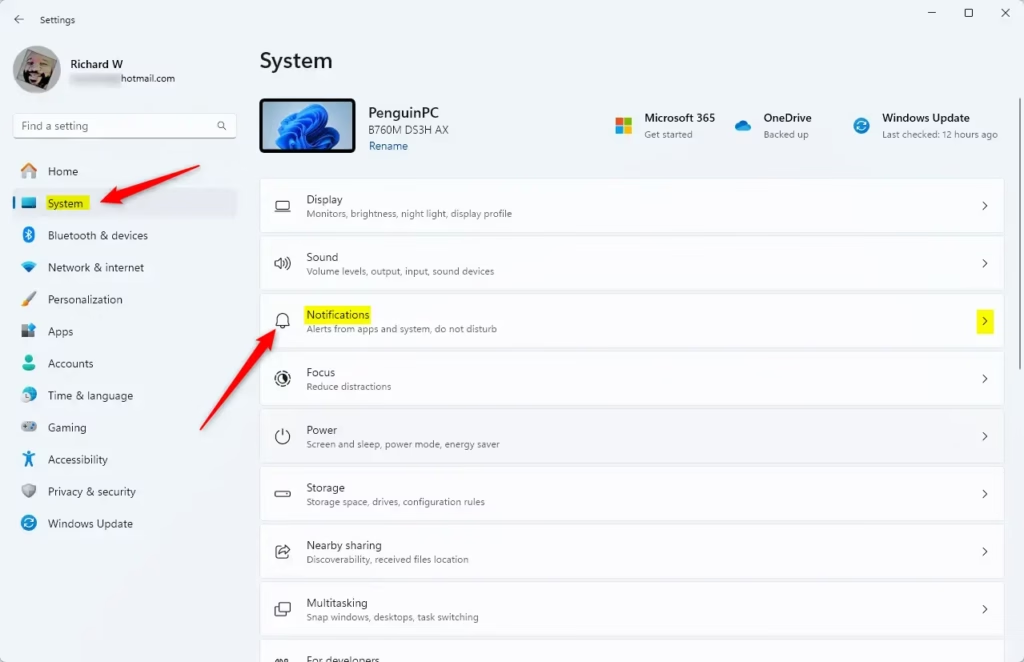
To undo this, return to System Notifications and switch the toggle back to On. Your per-app settings are kept, so you don’t have to set them up again.
Pop-up notifications will no longer appear on your screen. If you only want a quick pause, press the Windows key + N to open the notification center and click the bell icon to turn on Do not disturb. Click it again to turn it off.
Want to Stay Focused Without Turning Off Everything?
You can use the Focus feature in Windows 11 to temporarily silence alerts and stay productive without needing to disable Windows 11 notifications entirely. This built-in tool hides pop-ups and hides taskbar badges for a set time so you can work without constant interruptions from your apps.
A focus session also turns on Do not disturb while it runs, and it ends on its own when the timer runs out. Nothing is permanently changed.
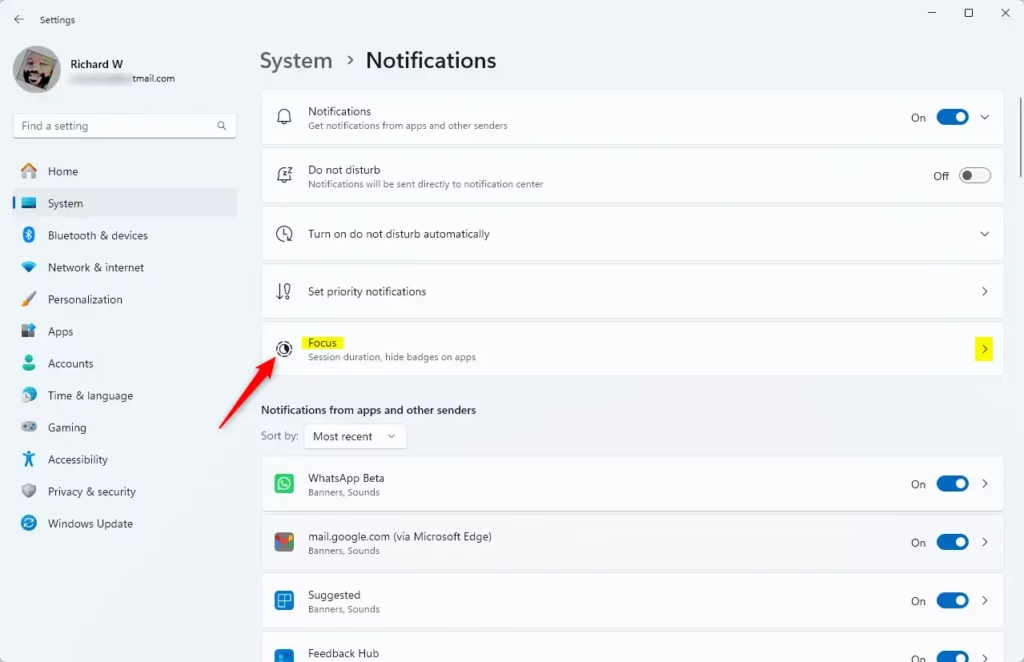
- Open Settings and go to System Notifications again. On current Windows 11 builds, Focus also has its own page at System Focus, which is where the session controls live.
- Find the Focus section and click it to open. You should see a timer with a duration you can adjust, plus a few options for hiding taskbar badges and flashing app icons.
- Click Start focus session to temporarily stop most notifications. A countdown starts, and alerts stay quiet until it finishes. To stop early, open the notification center with the Windows key + N or use the Clock app, and end the session there.
While the session runs, taskbar badges and flashing icons stay hidden. When it ends, the alerts you missed wait for you in the notification center.
This approach lets you work without distractions while still receiving important messages. You can also set certain apps to still alert you during Do not disturb. Look for the priority notifications option on the Notifications page.
Summary
- Notifications can be helpful but sometimes distracting.
- You can turn off all notifications easily in Windows Settings, using System Notifications and the toggle at the top.
- If you don't want to miss important alerts, try using the Focus feature, or switch off only the noisy apps from the app list.
- Focus sessions help you concentrate by pausing most notifications temporarily, and they end on their own.
- By managing your notifications, you can work or play on your PC without interruptions. Every change is reversible from the same Settings page.
Managing your alerts lets you choose whether to permanently disable Windows 11 notifications or just pause them temporarily with Focus. You can easily control what pops up on your screen through the Settings app so your computer stays quiet when you need to concentrate. If you later miss an alert you needed, go back to System Notifications and turn that app on again.
Have a question about this guide?
Answered by AI from this guide. Good questions may be added to this page — please don't include personal details.
Did this guide fix your problem?

About the Author
Richard
Tech Writer, IT Professional
Richard is a writer at Geek Rewind who turns complex IT tasks into clear, step-by-step guides. He draws on years of hands-on experience in system administration and enterprise IT operations, focusing on Windows, Linux and WordPress: the problems people actually run into, and the fixes that work. His server and WordPress guides come from systems he runs himself. Richard builds and maintains the platform behind Geek Rewind, from its Ubuntu servers and Nginx configuration to its custom WordPress plugins. Many new tutorials start with readers' questions, and he's always glad to answer them in the comments.
No comments yet — be the first to share your thoughts!