How to Enable or Disable Hide Flashing on Taskbar Apps with Focus Session in Windows 11

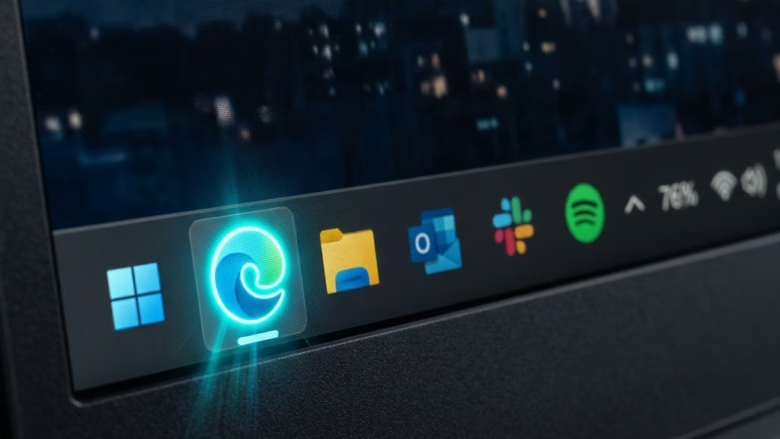
Hide flashing on taskbar apps with Focus Session in Windows 11 stops taskbar icons from blinking orange when an app wants your attention. Microsoft added the option so you can work or game without visual interruptions. The app still tries to get your attention, but the icon stays quiet.
Turning off these blinking alerts makes for a quieter workspace. Chat pings and email notifications no longer pull your eyes away from what you are doing. This article covers three ways to do it: the Settings app , the registry, and Group Policy.
Open Settings , go to System Focus, and check the box next to Hide flashing on taskbar apps. Taskbar icons stop blinking when apps try to get your attention. Uncheck the box to turn flashing back on.
How to Configure via Settings App
It works on Home and Pro, needs no administrator rights, and takes effect immediately. The Focus page is in current builds of Windows 11. If you don’t see it, run Windows Update and check again.
- Open the Settings app. Press Win+I or right-click the Start button and choose Settings.
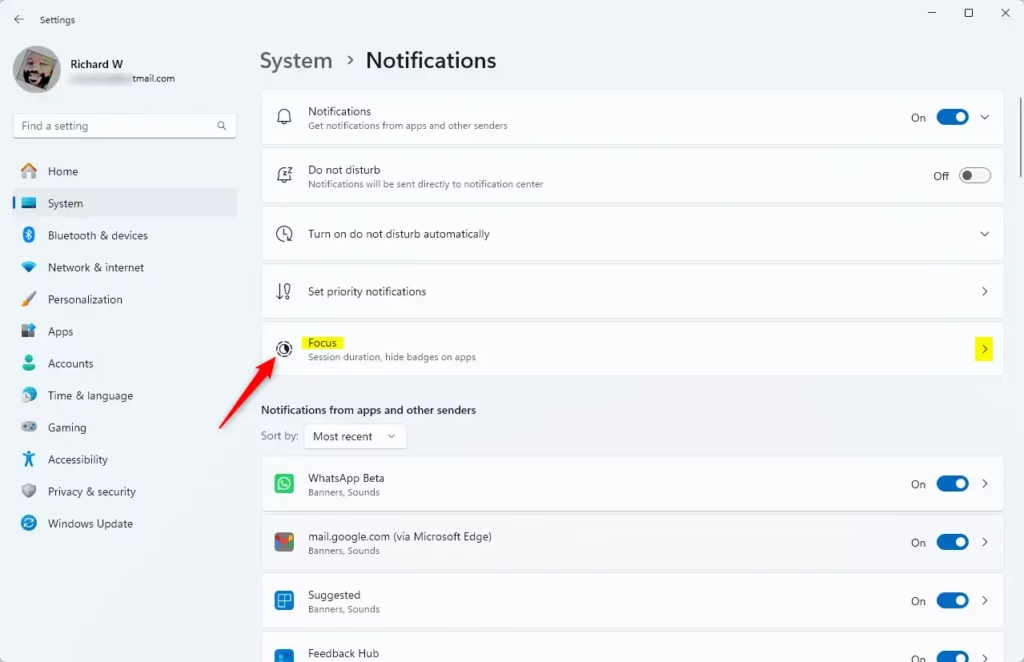
- Select System from the left menu, then click Focus on the right side. The Focus page opens with the session timer and the related options below it.
On this page, find the option labeled Hide flashing on taskbar apps. Checking the box turns the feature on, and taskbar icons stop flashing. Unchecking it turns the feature off, and icons blink normally again.
- Check the box next to Hide flashing on taskbar apps. Leave it checked for as long as you want the quiet behavior.
- To undo the change, return to the same page and clear the checkbox.
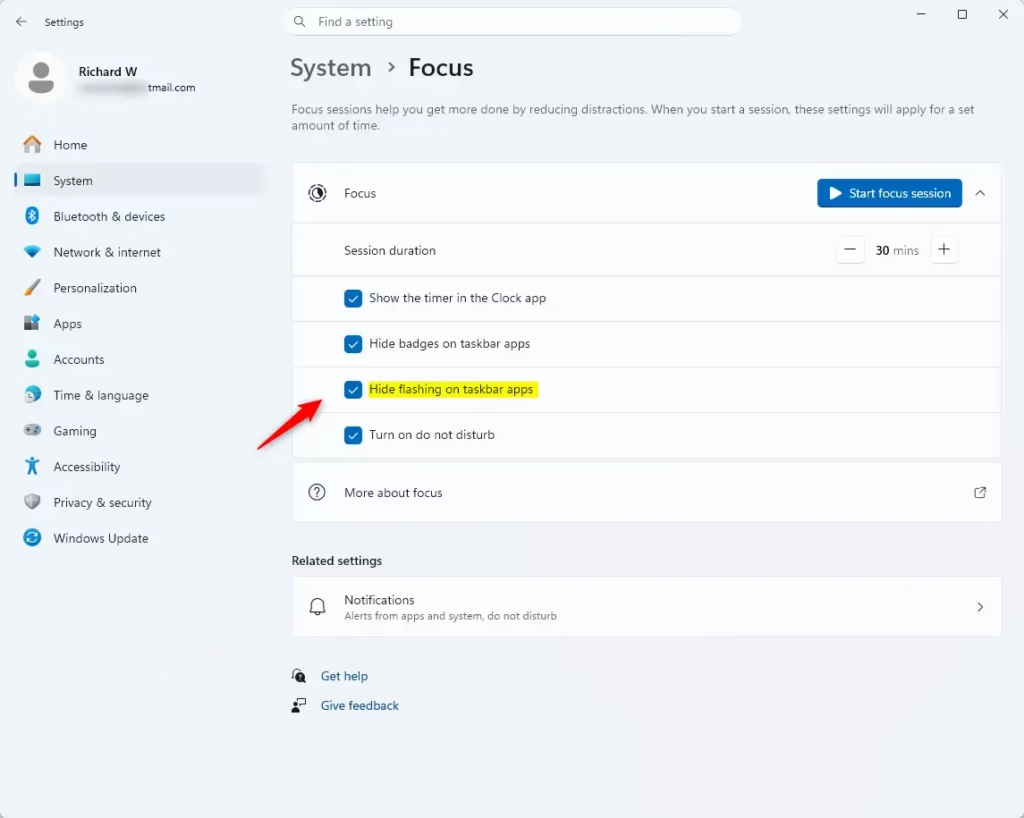
If the option is greyed out, check whether a Focus Session is running. The Hide flashing on taskbar apps control stays unavailable while a session is active. Ending the current session unlocks it so you can change it. This restriction prevents accidental changes that could break an active concentration period.
Once the session has ended, return to System and Focus and the checkbox should respond.
Registry Editor Implementation (Admin Required)
You can also stop taskbar flashing by editing the Windows registry. This works on both Home and Pro, but you need administrator rights. The ForegroundFlashCount value controls how many times an app flashes on the taskbar. Setting it to zero stops apps from blinking on your taskbar system-wide, not just during Focus Sessions.
Back up the registry or create a restore point before you start.
- Press Win + R, type regedit, and press Enter. Approve the User Account Control prompt if it appears. Registry Editor opens.
- Navigate to HKEY_CURRENT_USER\Control Panel\Desktop. You can expand the folders in the left pane or paste the path into the address bar at the top of the window.
- Look for ForegroundFlashCount in the right pane. This value controls whether apps flash. Double-click it to open the edit box.
- Set the Value data to 0 and click OK. A value of 0 stops the flashing.
- Sign out and back in, or restart the PC, so the change is picked up.
To undo it, open the same value and set it back to its previous number. Note the original number before you change it.
Group Policy Configuration (Admin Required)
If you manage a PC with several user accounts, you can use the Local Group Policy Editor instead. You need administrator rights, and the editor is only included in Pro, Enterprise and Education editions. Windows 11 Home does not have it, so Home users should use the Settings or registry method.
- Open the Local Group Policy Editor with administrator rights. Searching Start for "Edit group policy" is the quickest way.
- Go to User Configuration Administrative Templates Start Menu and Taskbar. Expand each folder in the left pane.
- Locate the policy named Hide flashing in the right pane and double-click it.
- Set it to Disabled and click OK. As described here, this stops taskbar apps from demanding visual attention.
Windows 11 policy controls govern how taskbar notifications blink. Setting this policy prevents blinking icons from breaking your concentration during Focus Session use. To reverse it, set the policy back to Not Configured. Policy changes can take a moment to apply. If the icons still blink, sign out and back in.
Related Settings
Additional methods for reducing visual clutter reside within the Focus Assist settings in Windows 11. Customizing notification rules lets specific alerts break through protected focus periods, so you still hear about the things that matter.
Summary
Hiding blinking icons on Windows 11 taskbar apps improves your concentration. The Settings app under Focus is the primary method, and it is the one to try first. For more control, modify the Windows Registry at HKEY_CURRENT_USER\Control Panel\Desktop. Group Policy is an option on Pro and higher editions. All of these approaches eliminate visual distractions from flashing app icons, and each can be reversed.
Was this guide helpful?

About the Author
Richard
Tech Writer, IT Professional
Richard is a writer at Geek Rewind who turns complex IT tasks into clear, step-by-step guides. He draws on years of hands-on experience in system administration and enterprise IT operations, focusing on Windows, Linux and WordPress: the problems people actually run into, and the fixes that work. His server and WordPress guides come from systems he runs himself. Richard builds and maintains the platform behind Geek Rewind, from its Ubuntu servers and Nginx configuration to its custom WordPress plugins. Many new tutorials start with readers' questions, and he's always glad to answer them in the comments.


No comments yet — be the first to share your thoughts!