How to Enable or Disable Hide Badges on Taskbar Apps with Focus Session in Windows 11

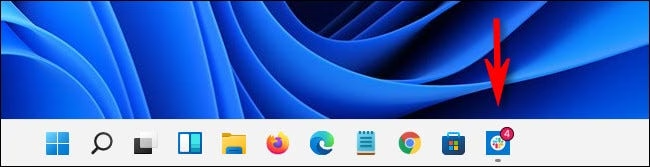
The Hide badges on taskbar apps option turns off the red notification dots and unread counts on your taskbar icons while a Focus session is running. Focus is a built-in timer feature in Windows 11 that helps you work in timed blocks. It was added in 2022 and is part of the Clock app.
Hiding badges cuts visual clutter, so a new count on an icon doesn’t pull your attention away from what you’re doing. You can turn the option on or off in Settings, and this tutorial also covers the registry and Terminal methods.
Open Settings , go to System Focus, and check the box next to Hide badges on taskbar apps. The setting saves immediately and hides notification dots and unread counts on taskbar icons while a Focus session runs.
Prerequisites
- You must be running Windows 11. The Focus page is missing on Windows 10.
- Update Windows through Windows Update first. On older Windows 11 builds the Focus page or its badge option may be missing or named differently.
- A standard user account is enough for the Settings method. The registry and Terminal methods below need administrator rights, so have an admin password ready.
How to Manage Taskbar Badges via Settings
The Settings app is the easiest method and the one to try first. The same setting works for Home and Pro editions.
- Open Settings. You can press the Win and I together.
- Click System in the left-hand list.
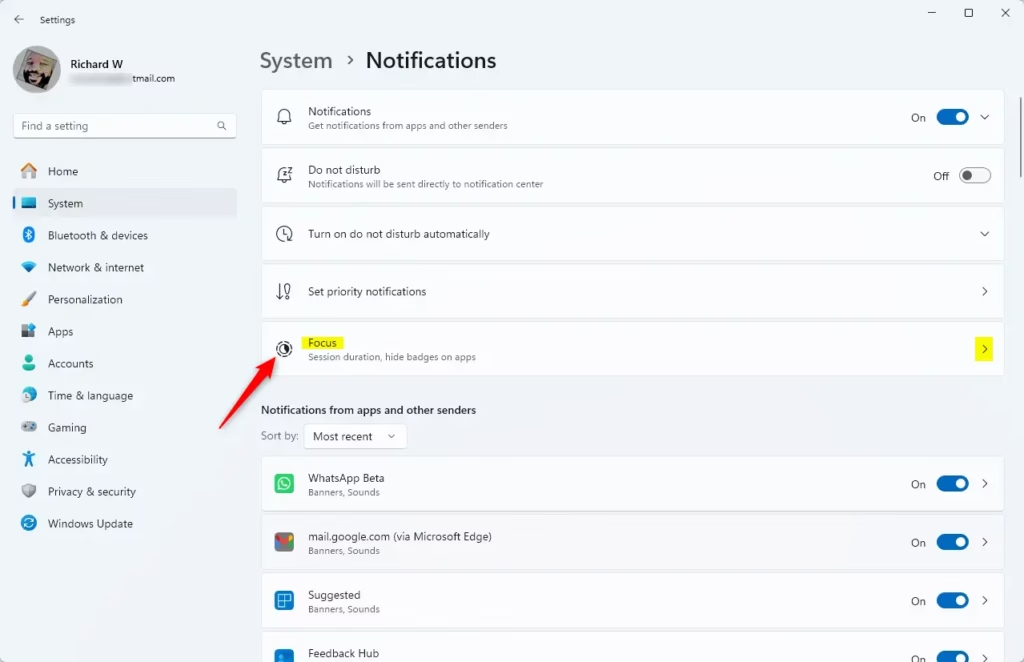
- Scroll down the right-hand pane and click Focus. You should now see the Focus session options, including a start button and a few checkboxes.
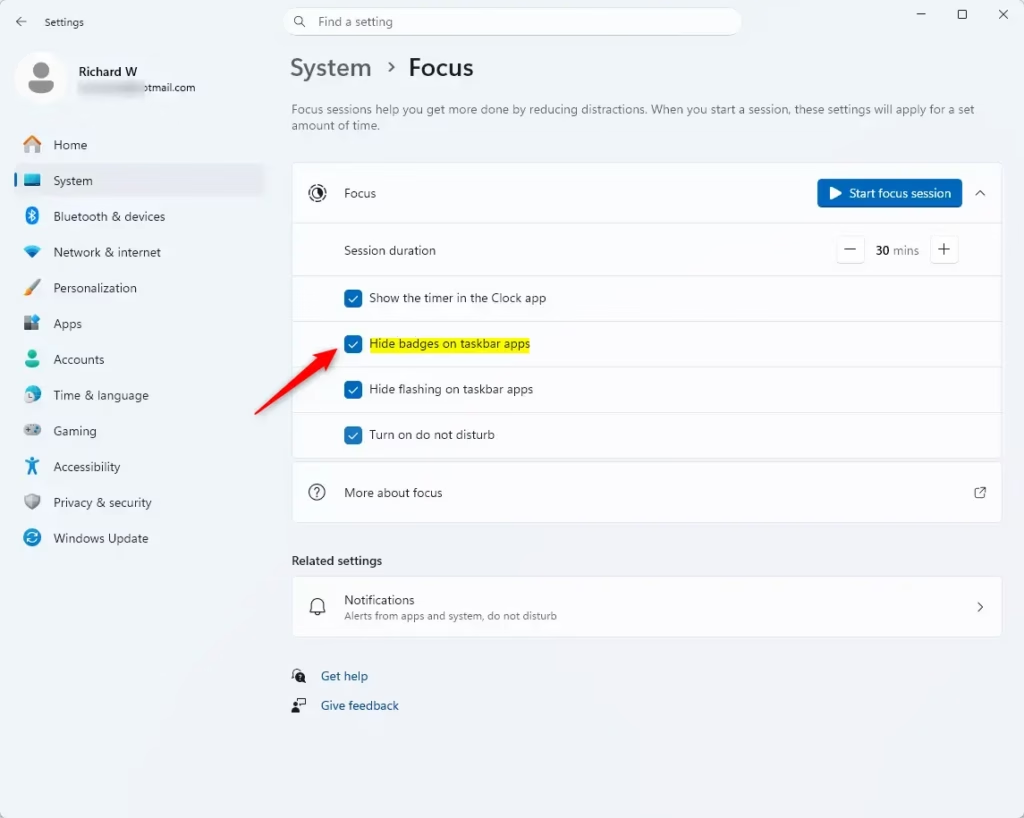
- Find the option labeled Hide badges on taskbar apps.
- Check the box to hide the badges, or uncheck it to show them again.
The setting is saved as soon as you click the box. Unchecking the box is also how you undo the change. If you don’t see the option, run Windows Update and reopen Settings.
Advanced Method: Registry Editor
Back up the key first, or create a restore point, because a wrong edit in Registry Editor can cause problems.
- Press the Win and R together to open the Run dialog.
- Type regedit and press Enter. Approve the User Account Control prompt. Administrator rights are required to make changes here, and Registry Editor should open.
- Navigate to this location:
HKEY_CURRENT_USER\Software\Microsoft\Windows\CurrentVersion\Explorer\Advanced - Look for a value named HideBadge and double-click it.
- Set Value data to 1 to enable hiding, or 0 to disable it, then click OK.
To undo the change, set the value back to 0. If the icons don’t update right away, sign out and back in, or restart Windows Explorer (see the troubleshooting section).
Advanced Method: PowerShell
The Terminal method is useful if you want to script the change or work remotely. It needs administrator privileges.
- Right-click the Start button and choose Terminal (Admin). Click Yes at the User Account Control prompt. A Terminal window opens with administrator rights.
- Copy and paste the following command to hide badges:
Set-ItemProperty -Path "HKCU:\Software\Microsoft\Windows\CurrentVersion\Explorer\Advanced" -Name "TaskbarBadges" -Value 0
- Press Enter to apply the change.
Check the taskbar afterwards. If you want the badges back, switch the option off in Settings under System Focus.
Troubleshooting
If badges stay visible after you've changed the setting, an active Focus session is usually locking it. End the session in the Clock app, or wait for the timer to finish, and check again. If they still show, restart Windows Explorer so the taskbar reloads the setting:
- Press Ctrl, Shift and Esc to open Task Manager.
- On the Processes tab, find Windows Explorer and right-click it.
- Click Restart. The taskbar will flicker or disappear for a moment and then come back with the new setting applied.
If that doesn't help, restart the computer.
Summary
Hiding taskbar badges during Focus sessions helps you stay on task. You can switch it on or off in Settings, or use the Registry Editor or Terminal when you need more control, such as on several machines. Either way, the result is a taskbar with fewer things competing for your attention.
Have a question about this guide?
Answered by AI from this guide. Good questions may be added to this page — please don't include personal details.
Did this guide fix your problem?

About the Author
Richard
Tech Writer, IT Professional
Richard is a writer at Geek Rewind who turns complex IT tasks into clear, step-by-step guides. He draws on years of hands-on experience in system administration and enterprise IT operations, focusing on Windows, Linux and WordPress: the problems people actually run into, and the fixes that work. His server and WordPress guides come from systems he runs himself. Richard builds and maintains the platform behind Geek Rewind, from its Ubuntu servers and Nginx configuration to its custom WordPress plugins. Many new tutorials start with readers' questions, and he's always glad to answer them in the comments.
No comments yet — be the first to share your thoughts!