Stop Bluetooth Power Management from Turning Off Your Devices in Windows 11

- 23 steps
- Needs administrator rights
- Includes a restart or sign-out
Windows 11 can turn off your Bluetooth adapter to save power, which makes your mouse, keyboard, or headphones drop out. You can stop this by changing one setting in Device Manager (a Windows tool that lists all the parts of your computer).
Open Device Manager, find your Bluetooth adapter under Bluetooth, and open its properties. On the Power Management tab, clear the box labelled Allow the computer to turn off this device to save power. The change takes about a minute and needs administrator rights. It works on both Windows 11 Home and Windows 11 Pro.
If you use a USB Bluetooth dongle, or your adapter has no Power Management tab, the sections below cover those cases too.
To stop Windows 11 from cutting power to your Bluetooth adapter, open Device Manager, double-click the adapter under Bluetooth, select the Power Management tab, and clear “Allow the computer to turn off this device to save power.” Select OK; administrator rights are required. This keeps your Bluetooth mouse, keyboard and headphones connected while Windows runs.
What Bluetooth power management does
Windows can switch off a device’s power when it thinks the device is idle. For Bluetooth, the device in question is the adapter, the radio chip inside your PC (or on a USB dongle) that talks to your headphones, mouse, keyboard and speakers. When Windows powers the adapter down, every connected device drops at once.
This setting is usually the cause when you see any of these:
- A Bluetooth mouse or keyboard stops responding after a few minutes of inactivity, then reconnects when you press a key.
- Headphones cut out during a quiet stretch of audio and come back on their own.
- Bluetooth devices show as Connected in Settings but do nothing until you toggle Bluetooth off and on.
- Bluetooth devices disconnect after the PC wakes from sleep.
Turning off power management keeps the adapter powered for as long as Windows is running. On a laptop this costs a little battery life. The adapter’s draw is small, but it is not zero, so you may notice it on an older machine.
Before you start
Know which kind of Bluetooth you have. Most laptops have the adapter built into the motherboard or the Wi-Fi card. Many desktops use a small USB dongle. The first method works for both. Dongle users should also read the USB Root Hub section further down.
Turn off power management for the Bluetooth adapter in Device Manager
Device Manager is the Windows tool that lists your hardware and the settings for each driver. Use it to stop Windows from powering the adapter down. This step requires administrator privileges.
- Right-click the Start button and select Device Manager. A window opens with a list of hardware categories.
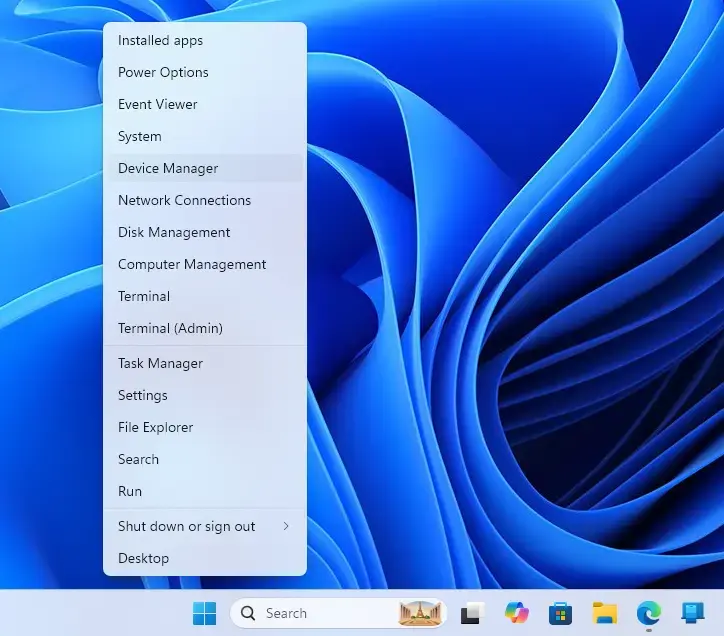
Device Manager - Select the arrow next to Bluetooth to expand the category. You see your adapter, plus entries for paired devices and services such as Bluetooth Device (RFCOMM Protocol TDI).
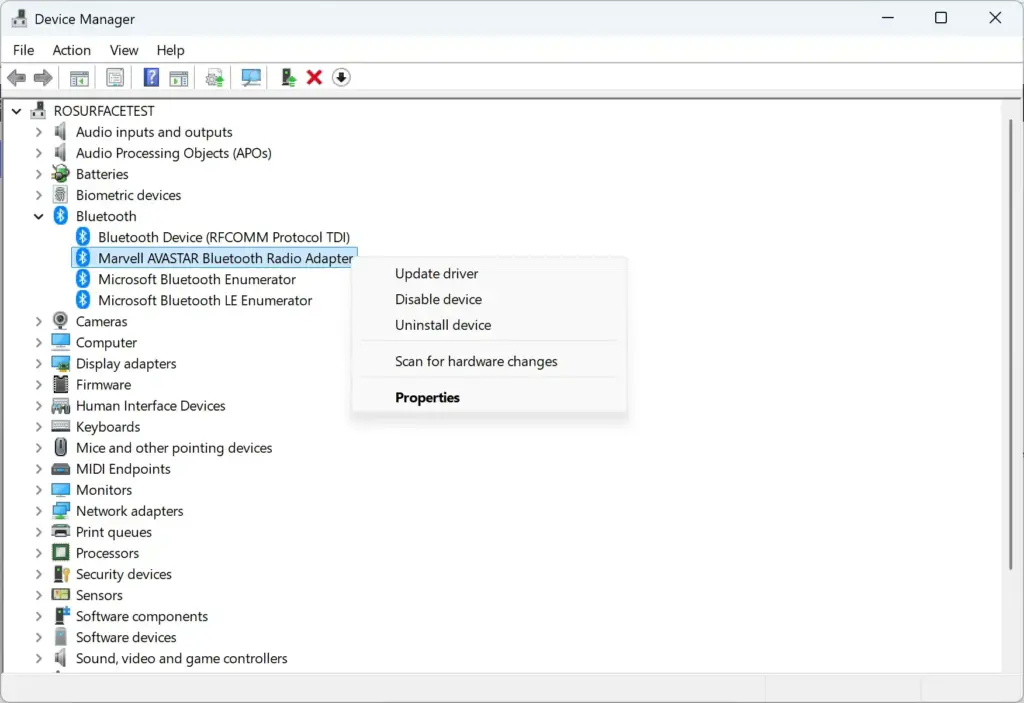
Device Manager - Find the adapter. The name depends on the manufacturer and usually contains the chip brand, for example Intel(R) Wireless Bluetooth(R), Realtek Bluetooth Adapter or MediaTek Bluetooth Adapter. Ignore entries that name a specific paired device or service.
- Double-click the adapter. Its Properties window opens.
- Select the Power Management tab. If the tab is missing, go to the next section.
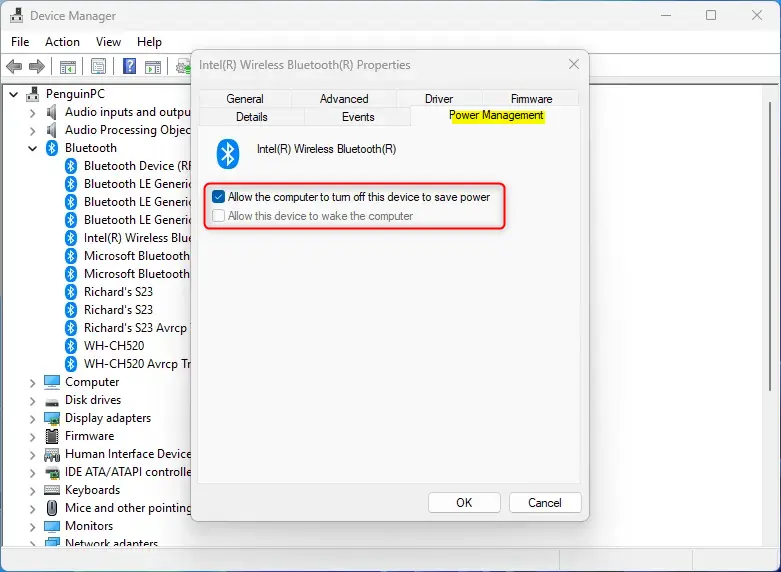
Disable power saving for Bluetooth adapter in Device Manager settings. - Clear the checkbox next to Allow the computer to turn off this device to save power.
- Leave Allow this device to wake the computer as it is. Keep it checked if you want a Bluetooth mouse or keyboard to wake the PC from sleep. On some drivers, clearing the first box greys this option out. That is normal.
- Select OK. If Windows shows a User Account Control prompt, select Yes or enter administrator credentials. The Properties window closes and the setting takes effect.
Windows does not normally ask for a restart. If your devices stay disconnected after the change, right-click the adapter in Device Manager, select Disable device, then right-click it again and select Enable device. If that does not reconnect them, restart the PC.
If the Power Management tab is missing
Not every Bluetooth driver adds a Power Management tab. The tab is missing when the driver does not expose the setting to Windows. This happens most often with a generic Microsoft driver, which Windows installs when it cannot find the manufacturer’s driver. You have two options.
Install the manufacturer’s driver
Open Settings Windows Update Advanced options Optional updates. Expand Driver updates if it appears, and install any Bluetooth entry you see. If nothing is listed, download the Bluetooth driver from your PC or adapter manufacturer’s support page. Use the model of your PC, not only the chip brand. After you install it, repeat the Device Manager steps above. The tab usually appears once the matching driver is in place.
Use the USB settings instead
If the driver offers no setting, the USB sections below can still stop the power-down. This works only if the adapter connects through USB. Many internal laptop adapters do, even though you cannot see a USB port. Many internal laptop adapters do, even though you cannot see a USB port.
Check the USB Root Hub if you use a Bluetooth dongle
Windows can cut power to a USB Bluetooth dongle at the USB level, even when the adapter’s own setting is correct. The USB Root Hub is the entry in Device Manager that controls power to the USB ports. This step requires administrator privileges.
- In Device Manager, expand Universal Serial Bus controllers.
- Double-click a USB Root Hub or USB Root Hub (USB 3.0) entry. The Properties window opens.
- Select the Power Management tab.
- Clear Allow the computer to turn off this device to save power, then select OK.
- Repeat for the other root hub entries. You may have several, and each controls a different group of ports. If you are not sure which one your dongle uses, change them all.
This also stops Windows powering down anything else on those ports, such as a USB drive or a wired mouse. For a desktop, that is rarely a problem. On a laptop it uses slightly more power.
Turn off USB selective suspend
USB selective suspend is a power setting that lets Windows put an idle USB device to sleep without affecting the others. It applies to USB Bluetooth adapters, and it is a common cause of dropouts that survive the Device Manager change. [Verification Required: confirm whether this step needs administrator privileges, then state it plainly, matching the other steps that say they do]
- Press Win+R, type
powercfg.cpland press Enter. The Power Options window opens in Control Panel. - Select Change plan settings next to the plan marked as selected.
- Select Change advanced power settings. A small Power Options dialog opens with a tree of settings.
- Expand USB settings, then expand USB selective suspend setting.
- Set On battery to Disabled. On a desktop this line may not appear.
- Set Plugged in to Disabled.
- Select Apply, then OK.
Check your sleep settings
Power management of the adapter is separate from the PC going to sleep. When the whole PC sleeps, Bluetooth disconnects regardless of the adapter setting. If your devices drop after a fixed period of inactivity, check this setting too.
- Open Settings System Power & battery.
- Select Screen, sleep & hibernate timeouts to expand it. The exact wording varies slightly between Windows 11 versions.
- Check the sleep values for On battery power and When plugged in. If they are short, raise them or select Never.
If you only want devices to survive a screen timeout, leave the sleep values as they are. A screen that turns off does not power down the adapter.
Test the change
Leave the PC idle for longer than the time it usually takes your devices to drop. Ten to fifteen minutes is enough in most cases. Then move the mouse or play audio. Your devices should respond straight away, without a reconnect delay and without you toggling Bluetooth.
To confirm the setting stuck, reopen Device Manager, open the adapter’s properties, and check that Allow the computer to turn off this device to save power is still cleared.
When devices still disconnect
Windows is not always the cause. Many Bluetooth headphones, speakers and mice have their own idle timer and switch off by themselves after a set time without audio or movement. If one device drops while others stay connected, the device is the likely cause. Check its manual or companion app for a sleep or auto power-off setting. Windows has no control over it.
Manufacturer utilities can also override your change. Some laptop makers ship power or battery tools that re-enable power saving for wireless hardware. If the checkbox keeps coming back, look in the maker’s app for a setting related to wireless or Bluetooth power saving.
How to undo the change
To turn power management back on for the adapter, open Device Manager, double-click the adapter, select the Power Management tab and select the box next to Allow the computer to turn off this device to save power. Then select OK. Do the same for any USB Root Hub entries you changed.
To restore USB selective suspend, return to Power Options Change plan settings Change advanced power settings USB settings, and set both entries back to Enabled.
If this didn’t work
A Windows feature update or a Bluetooth driver reinstall can restore the default, so recheck the Power Management tab after either. If your devices still drop with every setting above cleared, the next step is to fix the connection itself: remove the device under Settings Bluetooth & devices Devices and pair it again. If it fails to pair after that, treat it as a driver or hardware fault rather than a power setting.
Frequently asked questions
How to disable automatic Bluetooth connection in Windows?
Open Settings, select Bluetooth & devices, and turn off Bluetooth to stop all automatic connections. To stop one device from reconnecting, select that device under Devices and turn off any Connect automatically option shown. If the option is missing, remove the device, which stops it from reconnecting until you pair it again.
Is Bluetooth 4.0 or 5.0 better?
Bluetooth 5.0 is better for most people. It has longer range, roughly double the speed of 4.0, and uses less power in low-energy devices like mice and fitness trackers. Bluetooth 4.0 still works fine for basic headphones and keyboards, and 5.0 devices connect to 4.0 adapters.
How to fix the Bluetooth problem in 🪟 Windows 11?
Restart your PC first, since this clears most Bluetooth glitches. If that fails, open Settings, go to System, then Troubleshoot, and run the Bluetooth troubleshooter under Other troubleshooters. If it still fails, open Device Manager, right-click your Bluetooth adapter, and select Update driver.
How do I delete a Bluetooth device in 🪟 Windows 11?
Open Settings and select Bluetooth & devices. Find the device under Devices, select the three dots (More options) beside it, and choose Remove device. Select Yes to confirm. The device will disappear from the list and will not reconnect until you pair it again.
Still have a question?
Answered by AI from this guide. Good questions may be added to this page — please don't include personal details.
Did this guide fix your problem?

About the Author
Richard
Tech Writer, IT Professional
Richard is a writer at Geek Rewind who turns complex IT tasks into clear, step-by-step guides. He draws on years of hands-on experience in system administration and enterprise IT operations, focusing on Windows, Linux and WordPress: the problems people actually run into, and the fixes that work. His server and WordPress guides come from systems he runs himself. Richard builds and maintains the platform behind Geek Rewind, from its Ubuntu servers and Nginx configuration to its custom WordPress plugins. Many new tutorials start with readers' questions, and he's always glad to answer them in the comments.
No comments yet — be the first to share your thoughts!