How to Check Bluetooth Device Battery in Windows 11

Windows 11 can show the battery level of wireless headphones, mice, and keyboards in the Settings app. It takes a few clicks and no extra software for most devices. This guide covers where to look, what to do when the percentage is missing, and which device types usually report it.
Bluetooth is a short-range wireless standard that links nearby gear to your computer. Most modern audio devices and input peripherals send their current charge to Windows 11 build 22621 or newer, so you can read an actual percentage instead of guessing. Older Windows 11 builds and Windows 10 are less consistent about showing it. If you are not sure which build you have, open Settings System About and check the version details.
Press Win+I to open Settings , then click Bluetooth & devices on the left menu. Your connected Bluetooth devices appear on the right side, with battery percentages shown directly below device names for supported headphones, mice, and keyboards.
Latest Update
Outdated Bluetooth drivers are a common reason a battery indicator is missing when the device does report its charge. If the driver is old, Windows may not read the power status data the accessory sends. The troubleshooting section further down shows the exact driver steps. You can also check for newer driver versions in Settings Windows Update Advanced options Optional updates, where Windows sometimes lists driver updates separately from regular updates.
🪟 Windows 11 Bluetooth Battery Reporting
Windows 11 bluetooth device battery reporting lets you see the charge level for supported wireless mice, keyboards, and headphones directly inside the Settings app. This feature works automatically for most devices that support the Bluetooth Low Energy standard, while some brands also need their own manufacturer software.
Some Bluetooth devices come with their own software from the manufacturer that shows battery life and offers other controls. Examples are Logitech Options for mice and keyboards, or Jabra Sound+ for headphones. This software can report battery data even when Windows does not, which makes it a good fallback for devices that stay blank in Settings. For many common devices, though, Windows 11 shows the battery directly in Settings, so you do not always need extra software.
Checking Battery: Windows vs. Manufacturer Apps
Some Bluetooth devices come with their own apps or software that can display battery status. While these can be useful, Windows 11’s built-in Settings app offers a convenient way to check battery levels for many compatible devices without needing extra software.
How to Check Your Bluetooth Device’s Battery Level in 🪟 Windows 11
The short version: open Settings and select Bluetooth & devices from the left menu. The battery percentage appears right under the name of each connected speaker, headset, or mouse that supports the feature. Before you start, make sure Bluetooth is turned on and the device is powered on and connected. A device that is paired but switched off will not show a battery level.
- Press the Win+I on your keyboard to open the Settings app. The Settings window opens.
- Click
Bluetooth & devicesin the left-hand menu. The Bluetooth and device options appear on the right. - Look for your connected Bluetooth device in the list at the top of the page.
- If the device supports battery reporting, a battery percentage is listed next to it or under its name.
- Open Windows Settings : Press Windows key + I on your keyboard. The Settings window opens.
Or click the Start button (looks like the Windows logo), then choose Settings. If Settings is not pinned to the Start menu , type “Settings” into the search box and open it from the results.
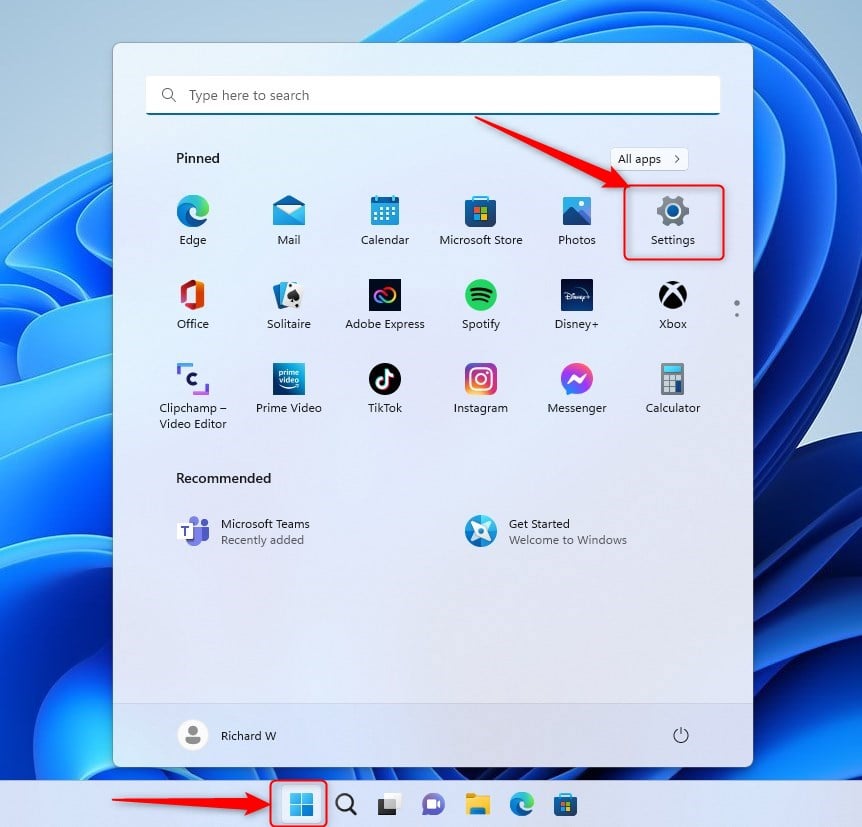 Click Start Settings or press Win+I
windows 11 new settings button - In the Settings window, click Bluetooth & devices on the left side. The page on the right now shows your Bluetooth status and connected devices.
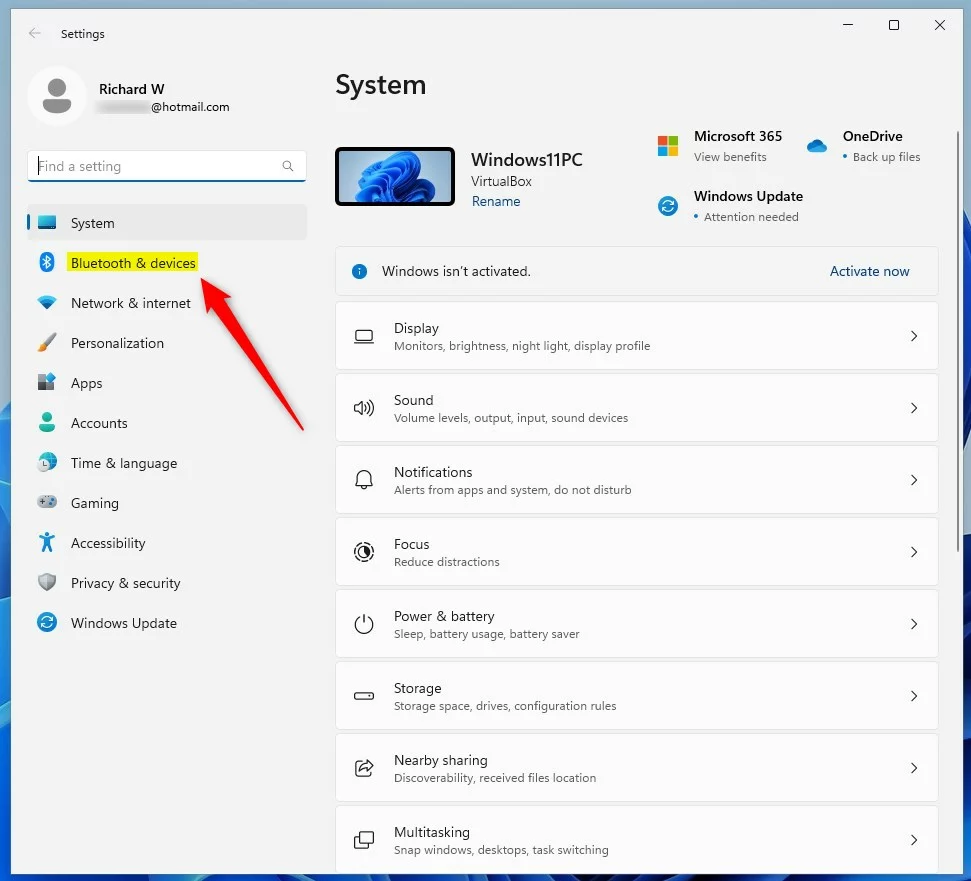
windows 11 bluetooth and device icon in settings app Find and click “Bluetooth & devices” in Settings - Look at the right side of the window. Your connected Bluetooth devices are listed there. If a device supports battery info, you will see the battery percentage right below the device name. If the Bluetooth switch at the top is off, turn it on first, then wait a few seconds for your devices to reconnect.
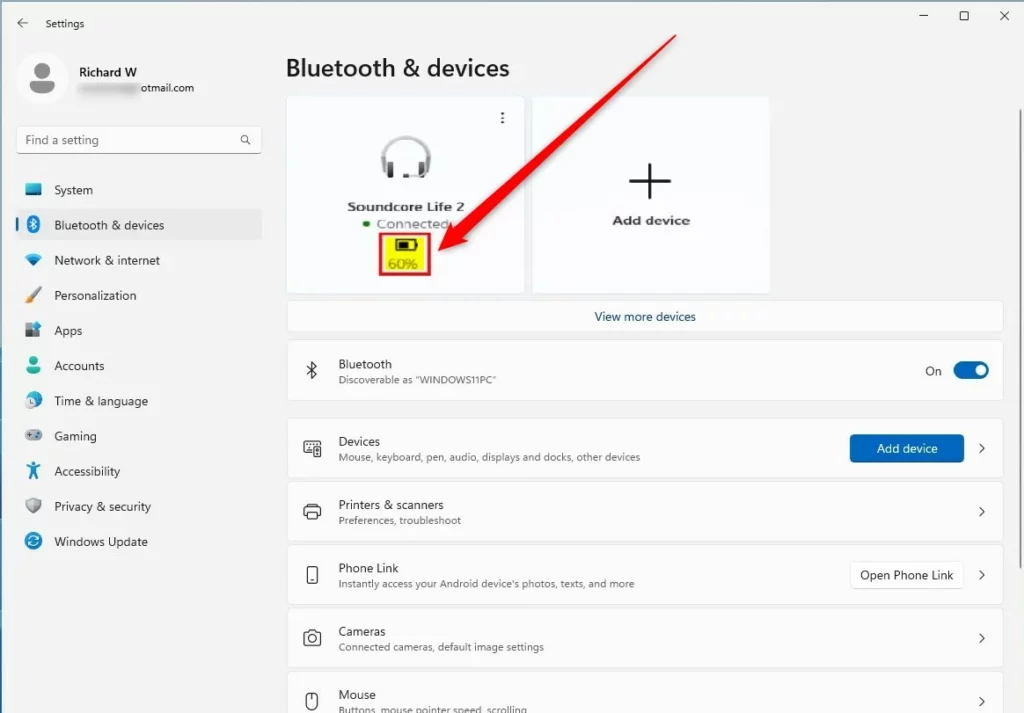
windows 11 bluetooth and devices battery level Battery levels shown under Bluetooth devices - If you do not see your device listed, scroll down and click View more devices to see all paired Bluetooth devices. The wording of this link can differ slightly between Windows 11 builds. A list of every paired device opens, including ones that are not currently connected.
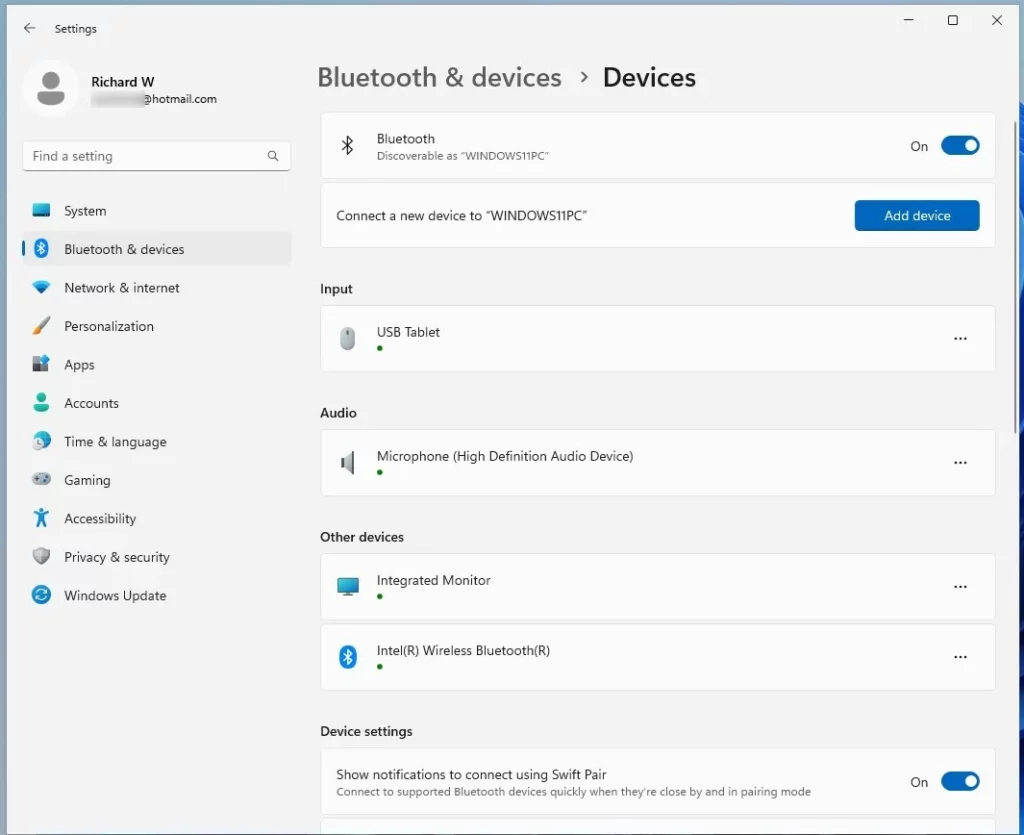
windows 11 bluetooth and devices settings pane Click “View more devices” to find all your Bluetooth gadgets - Find your device in the list and check whether a battery level is shown. If it is not, switch the device off and on once, wait for it to reconnect, and look again.
Many cheaper accessories and older models never report it. In that case, check the manufacturer’s app or the device’s own LED or voice prompts.
Troubleshooting: Bluetooth Battery Indicator Not Showing
If your Bluetooth device is connected but the battery level is not showing, work through these steps in order. They go from the quickest check to the most involved.
1. Check Device Compatibility: Make sure your device supports battery reporting. Refer to the manufacturer’s documentation or product page. If it does not list the feature, no setting in Windows will add it.
- Update Bluetooth Drivers: Go to
Device Manager(search for it in the Start menu ), expandBluetooth, right-click your Bluetooth adapter, and selectUpdate driver. Follow the prompts. If Windows says the best driver is already installed, check the manufacturer’s website for a newer one. Restart the PC afterwards if the update asks you to. - Restart Bluetooth Services: Search for
Servicesin the Start menu . FindBluetooth Support ServiceandBluetooth User Support Service, right-click each, and selectRestart. You need administrator rights for this. The restart is temporary and does not change your settings. Reopen the Bluetooth & devices page afterwards to see whether the battery level has appeared. - Remove and Re-pair Device: Go to
Settings > Bluetooth & devices, click your device, selectRemove device, then re-pair it by clickingAdd device. Put the device into pairing mode before you re-add it, as described in its manual. Re-pairing forces Windows to read the device’s capabilities again, which often brings back a missing battery level.
Latest Update
You might need to update your Bluetooth drivers if you’re having trouble seeing the battery level for a supported device. Outdated drivers can prevent Windows from receiving battery status information.
Device Manager.Device Compatibility and Battery Reporting
Not all Bluetooth devices transmit their battery level to Windows. Compatibility depends on the device’s hardware and firmware. Older devices or those not designed to report battery status will not show a percentage in Windows Settings .
In Summary
- Windows 11 can show the battery level of many Bluetooth devices in the Settings app.
- Access it by going to Settings Bluetooth & devices
- If you do not see your device listed, use the View more devices link to find it.
- If the battery level does not show, your device might not support sending battery info. Try updating drivers, restarting the Bluetooth services, or re-pairing the device.
Checking your Bluetooth device battery in Windows 11 takes only a few seconds in the main Settings menu. Most modern accessories display their charge percentage automatically. Older or unsupported hardware may need the manufacturer’s software or may not offer the feature at all.
For some devices, such as specific wireless mice or keyboards, you may find a battery indicator in the System Tray (the area near the clock on your taskbar ) if the manufacturer’s software is installed. You may need to click the small arrow to show hidden icons. This can be quicker than opening the Settings app.
File > Export. A wrong value here can stop Windows from starting.Advanced Troubleshooting: Registry Edits (Use with Caution)
Registry edits for Bluetooth battery issues in Windows 11 involve changing specific power management values in the Registry Editor. This is an advanced step, so try the troubleshooting above first. Always back up your registry before making changes to 🗝️HKEY_LOCAL_MACHINE\
Need more help with Windows 11? Check out the official Microsoft help page here: Windows 11 Support.
Checking Battery for Specific Device Types
Bluetooth Mice and Keyboards: Most modern wireless mice and keyboards that use Bluetooth show their battery level in Windows 11 Settings if they support it. Some devices also have a small LED that indicates low battery, usually by blinking or changing colour. Keep in mind that a mouse or keyboard that uses a USB receiver instead of Bluetooth will not appear in the Bluetooth list. For those, use the manufacturer’s software.
Bluetooth Headphones and Earbuds: Battery reporting is common for Bluetooth headphones and earbuds, and you can usually see the percentage in Settings. Some earbuds report only one bud or show a single combined figure, depending on the model. Some models also have voice prompts, or LED indicators on the charging case, that tell you the charge level.
For further help with Windows 11 features and troubleshooting, visit the Microsoft Support website. It has guides and troubleshooting steps for many Windows issues, including Bluetooth connectivity and device management.
Have a question about this guide?
Answered by AI from this guide. Good questions may be added to this page — please don't include personal details.
Did this guide fix your problem?

About the Author
Richard
Tech Writer, IT Professional
Richard is a writer at Geek Rewind who turns complex IT tasks into clear, step-by-step guides. He draws on years of hands-on experience in system administration and enterprise IT operations, focusing on Windows, Linux and WordPress: the problems people actually run into, and the fixes that work. His server and WordPress guides come from systems he runs himself. Richard builds and maintains the platform behind Geek Rewind, from its Ubuntu servers and Nginx configuration to its custom WordPress plugins. Many new tutorials start with readers' questions, and he's always glad to answer them in the comments.
No comments yet — be the first to share your thoughts!