How to Add the Battery Status Widget in Windows 11

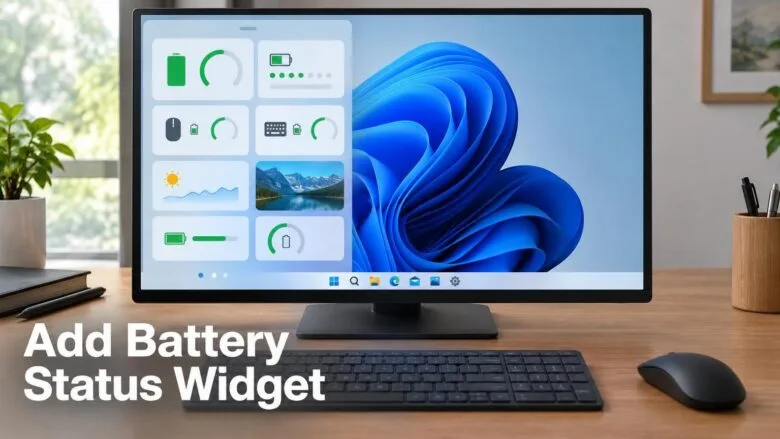
The Battery Status widget in Windows 11 shows battery levels for your PC and your peripheral devices (connected accessories such as wireless mice or keyboards) in one place. To add it, open the Widgets board, select Add widgets, and choose Battery Status.
Read this first: the widget only appears in Windows Insider preview builds. Check your build before you follow the steps below. Microsoft lists it for Insiders on newer builds in the Experimental channel, one of the Insider test groups that get new features first, so it may change before a public release. If your PC runs a standard Windows 11 build, the widget does not appear in the list yet.
Open the Widgets board, select Add widgets, and choose Battery Status to see battery levels for your PC and connected accessories such as wireless mice or keyboards in one place. The widget appears only on Windows Insider preview builds in the Experimental channel, not on standard Windows 11, and Microsoft has not yet confirmed which accessories it supports.
What the Battery Status widget does
Today you check battery levels in separate places: the taskbar icon for the PC, and each accessory’s own app or the Bluetooth settings for peripherals. The Battery Status widget brings those readings into the Widgets board, the panel that opens from the taskbar and holds small information cards.
Microsoft describes the widget as showing battery levels for your PC and peripherals in one place. It has not published details on which accessories it supports or how it refreshes the readings. Treat the behaviour as unconfirmed until the feature reaches a public release.
Before you start
The widget depends on your Windows build, not on a setting you can switch on. Check the build first, so you do not hunt through menus for an option your PC cannot show.
Check whether your PC is on an Insider build
An Insider build is an early version of Windows that Microsoft releases to testers before everyone else gets it. This check tells you which version you run.
- Press Win+R. The Run dialog opens.
- Type winver and press Enter. A window named About Windows opens.
- Read the Version and OS Build lines. Compare them with the builds named in Microsoft’s Windows Insider announcement for 7 October 2026.
Microsoft’s Windows Insider announcement lists the build number that includes the widget. [Verification Required: link to the announcement] If your build is older than the ones listed, or you are not enrolled in the Windows Insider Program, you will not see Battery Status in the widget list.
Join the Windows Insider Program
Leaving the program later may require a clean install of Windows. A clean install starts Windows fresh from the installer, so back up your files first. Do not enrol your only working PC. Use a spare machine, or back up your files first.
This step requires an administrator account.
- Open Settings . Press Win+I.
- Select Windows Update . The update page opens.
- Select Windows Insider Program. The enrolment page opens.
- Select Get started. Windows asks you to link an account. Sign in with the Microsoft account you want to use for Insider builds.
- Choose the channel that carries the build. Microsoft names the Experimental channel for this widget. If you do not see a channel with that name, the Insider page in your build is labelled differently, and the announcement linked above is the place to confirm which channel to pick.
- Accept the agreement and restart when Windows asks. After the restart, open Windows Update and select Check for updates to download the preview build.
Windows installs the preview build like any other update, and it restarts the PC one or more times. Wait until it finishes before you go to the next section.
How to add the Battery Status widget in 🪟 Windows 11
These steps add the Battery Status widget to the Widgets board on a PC that runs a supported Insider build. The path is Widgets board Add widgets Battery Status
- Confirm you run an Insider build that includes the widget. Open Settings Windows Update Windows Insider Program The page shows that your device is enrolled and which channel it uses.
- Open the Widgets board. Press Win+W, or select the Widgets icon on the taskbar . A panel slides in from the left with your current widgets.
- Select Add widgets. A picker opens that lists every widget available to your account and build.
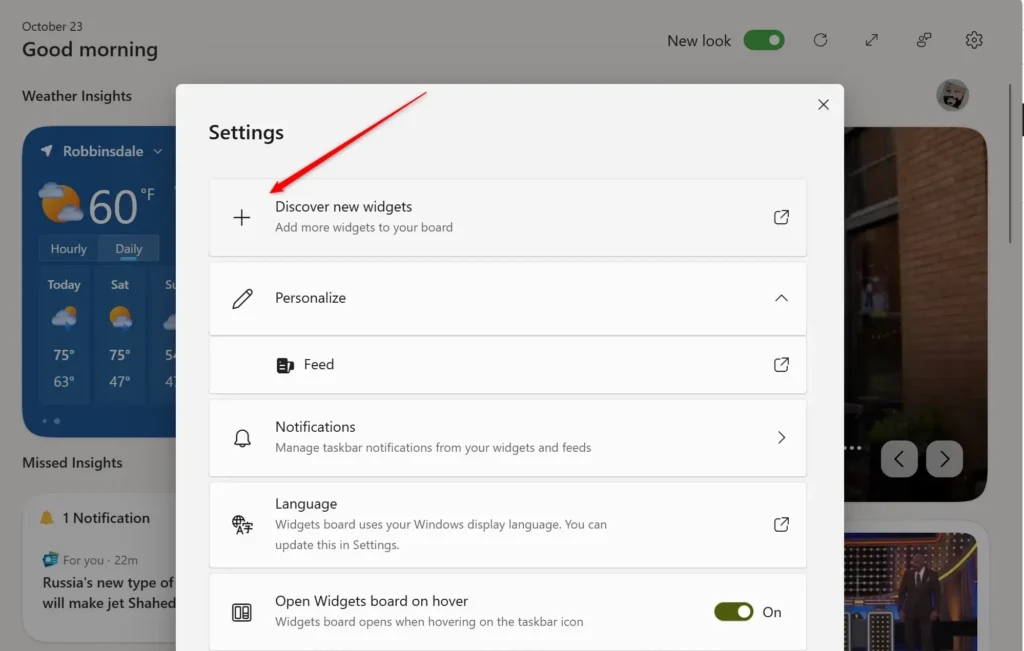
- Find Battery Status in the list. Scroll if you need to. The entry shows the widget name with a short description.
- Select Battery Status. Windows adds the widget to the Widgets board.
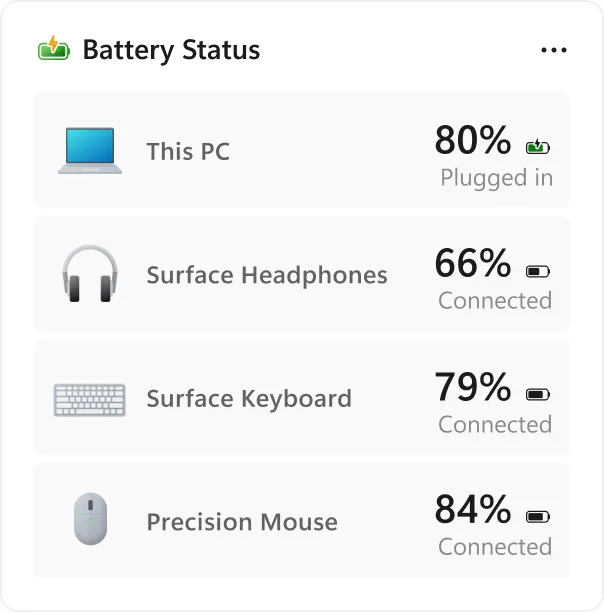
- Close the picker and look at the board. The Battery Status card now shows battery levels for your PC and any peripheral devices it detects.
If the card shows only your PC, the widget has not detected an accessory. Check that the accessory is turned on and connected to the PC. Open Settings Bluetooth & devices to see whether Windows lists it. Microsoft has not published which accessories the widget supports, so this guide cannot confirm that every device appears.
If Battery Status isn’t in the list
A missing widget is almost always a build or access problem. Work through these checks in order.
Your build does not include the widget. The widget is a preview feature. A standard Windows 11 build, even a fully updated one, does not list it. Run winver, a built-in tool that shows your Windows version and build number. Compare that build number with the one in the announcement.
Your PC is not on the right channel. Microsoft places this feature in the Experimental channel. A device enrolled in a different Insider channel may not receive it. Open Settings Windows Update Windows Insider Program and check the channel shown there.
The preview build has not finished installing . Open Settings Windows Update and select Check for updates . If an update is pending, install it and restart.
The Widgets board is turned off. If the Widgets icon is missing from the taskbar and Win+W does nothing, open Settings Personalization Taskbar. Turn on the Widgets toggle under the taskbar items, then try again.
Features arrive in stages. Insider features often reach some devices before others. If everything above checks out and the widget is still missing, wait for a later build and check the release notes. This site cannot confirm the rollout timing for individual devices.
Remove the Battery Status widget
You can remove the widget from the board whenever you like. [Verification Required: source gives no removal steps; add them before publishing] It does not change any battery or power setting on your PC.
- Open the Widgets board. Press Win+W.
- Select the More options button (three dots) in the corner of the Battery Status card. A short menu opens.
- Choose the option that removes or unpins the widget. The label can differ between preview builds. The card disappears from the board.
To bring it back, repeat the add steps: Widgets board Add widgets Battery Status
Open Settings Windows Update Windows Insider Program to see your options for stopping preview updates. Moving back to a standard build can require a clean install, so back up your files first.
Check your battery without the widget
If your PC is not on an Insider build, you can still see your PC's charge level and adjust how it drains. The percentage next to the battery icon is the quickest reading. Showing the battery percentage is a short change in Settings. Follow the guide at showing the battery percentage in Windows 11 for the exact steps.
When the level drops, turn on Battery Saver to reduce background activity and stretch the charge. See turning Battery Saver on or off in Windows 11 for the steps. Your power plan also affects how quickly the battery drains, and switching power plans in Windows 11 shows how to change it.
For accessories, keyboard battery saving mode in Windows 11, a setting that lowers power use on a supported keyboard, is covered in its own guide.
What to do next
Watch the announcement page for the 7 October 2026 builds and later ones. Microsoft can change or remove a preview feature before release, so the widget's name or location may differ in a public build. If your battery drains quickly after you move to a preview build, read why a laptop battery drains fast after a Windows 11 update. For wider tips on longer runtime, see 7 ways to maximize laptop battery life in Windows 11.
Frequently asked questions
How to add multiple monitors to your 🪟 Windows 11 PC site:Microsoft.com?
To add a second monitor on a Windows 11 PC, connect it with an HDMI or DisplayPort cable, then open Settings and select System, then Display. Select Detect if the new screen doesn't appear. Under Multiple displays, choose Extend these displays. Drag the screen icons to match your desk layout.
How to add multiple monitors to your 🪟 Windows 11 laptop?
Connect the external monitor to your laptop with an HDMI, DisplayPort, or USB-C cable, and turn the monitor on. Press Windows key + P, then select Extend. To change the layout, open Settings, go to System, then Display, and drag the screen icons into position.
How to add music to the music folder 🪟 Windows 11?
To add music to the Music folder in Windows 11, open File Explorer and select Music in the left pane. Copy or drag your audio files into the folder. Files saved there appear in the Music folder and in apps that read it.
Still have a question?
Answered by AI from this guide. Good questions may be added to this page — please don't include personal details.
Did this guide fix your problem?

About the Author
Richard
Tech Writer, IT Professional
Richard is a writer at Geek Rewind who turns complex IT tasks into clear, step-by-step guides. He draws on years of hands-on experience in system administration and enterprise IT operations, focusing on Windows, Linux and WordPress: the problems people actually run into, and the fixes that work. His server and WordPress guides come from systems he runs himself. Richard builds and maintains the platform behind Geek Rewind, from its Ubuntu servers and Nginx configuration to its custom WordPress plugins. Many new tutorials start with readers' questions, and he's always glad to answer them in the comments.
No comments yet — be the first to share your thoughts!