How to Turn On Keyboard Battery Saving Mode in Windows 11

- 33 steps
- Needs administrator rights
Windows 11 has no setting called “keyboard battery saving mode.” Instead, you save keyboard battery life by combining a few settings that already exist in Windows 11 and on your keyboard.
Here are the four things to check: the keyboard’s battery level, Energy saver for your laptop, the keyboard backlight (dim it or let it turn off on its own), and the power options built into the keyboard itself.
The quickest wins are lowering the backlight and turning the keyboard off when you are not using it. Windows cannot do either of these for a wireless keyboard on its own, so you need to change them on the keyboard or in its companion software. No step below needs administrator rights, except the optional USB power setting, which may ask for them. That step is marked where it appears.
Windows 11 has no keyboard battery saving mode, so you get the same result by turning on Energy saver in Settings System Power & battery, then lowering the keyboard backlight and switching the keyboard off when unused. Energy saver stretches the laptop’s battery, while a wireless keyboard’s own batteries are managed on the keyboard or in the maker’s app.
What “keyboard battery saving mode” means on 🪟 Windows 11
People use this phrase for three different things, and each has a different fix:
- Your laptop’s battery. You want the built-in keyboard to use less power. Windows 11 handles this through Energy saver and backlight settings.
- A wireless keyboard’s own batteries. You want the batteries in a Bluetooth or USB-receiver keyboard to last longer. Most of that control sits on the keyboard or in the maker’s app, not in Windows.
- A keyboard that reports its battery level. You want to see how much charge is left. Windows 11 can show this for many Bluetooth keyboards.
Work through the sections that match your situation. Check the battery level first, because it tells you whether the other changes are worth making.
Check your keyboard’s battery level
This step shows whether Windows can read the keyboard’s charge. A keyboard connected by Bluetooth often reports it. One connected through a USB receiver made by the keyboard’s maker often does not.
- Open Settings by pressing Win+I.

Windows 11 Start menu with Settings gear icon highlighted. - Select Bluetooth & devices in the left pane.

Windows Settings menu highlighting the Bluetooth and devices option for printers - Select Devices at the top of the page.
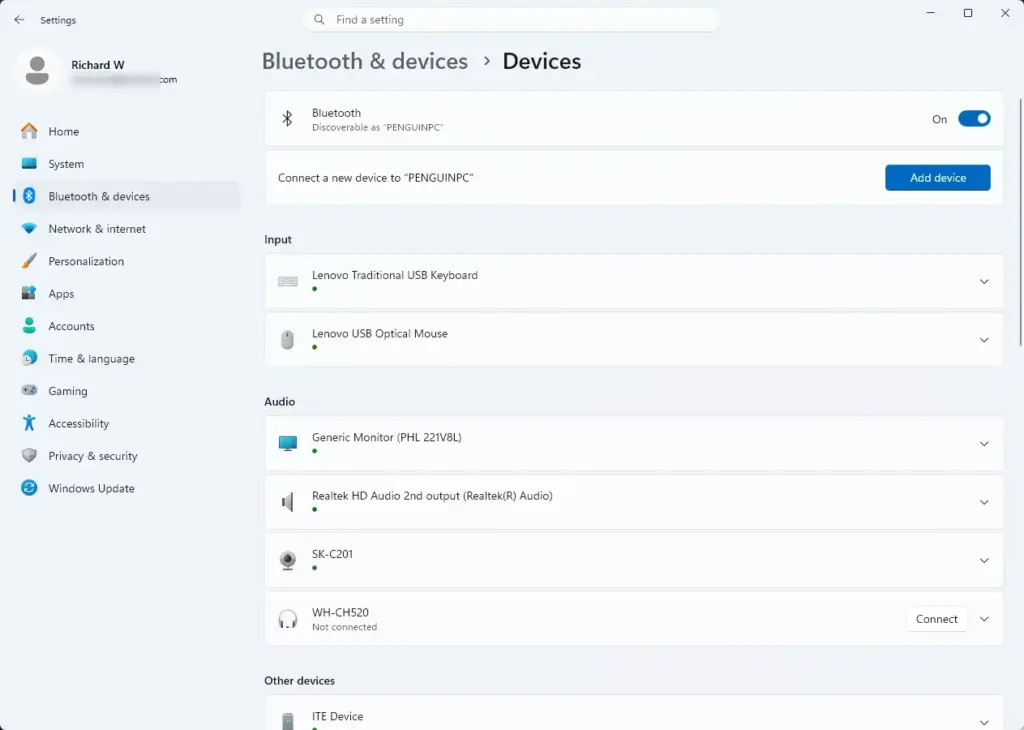
Settings › Bluetooth › Devices - Find your keyboard in the list of connected devices. A battery percentage appears next to or under the device name if the keyboard reports one.
If the keyboard is listed but shows no percentage, it does not report its charge to Windows. This is common with older keyboards and with keyboards that use a USB receiver. Look for a battery light on the keyboard itself. You can also open the manufacturer’s app. (see the vendor app section below).
If the keyboard does not appear at all, it is not paired. Select Add device at the top of the same page, choose Bluetooth, and follow the prompts after putting the keyboard in pairing mode. The pairing button or key combination differs by model, so check the keyboard’s documentation.
Turn on Energy saver for your laptop
Energy saver lowers background activity and screen brightness to stretch the laptop’s battery. It helps the built-in keyboard indirectly, because the whole system draws less power. It does not change the battery life of a separate wireless keyboard.
Which name your 🪟 Windows 11 version uses
Current Windows 11 builds call this feature Energy saver. The original Windows 11 release and some early updates call it Battery saver. The options work the same way. If you see Battery saver on your PC, read Energy saver as Battery saver in the steps below.
Turn it on from Settings
- Open Settings.
- Go to System Power & battery.
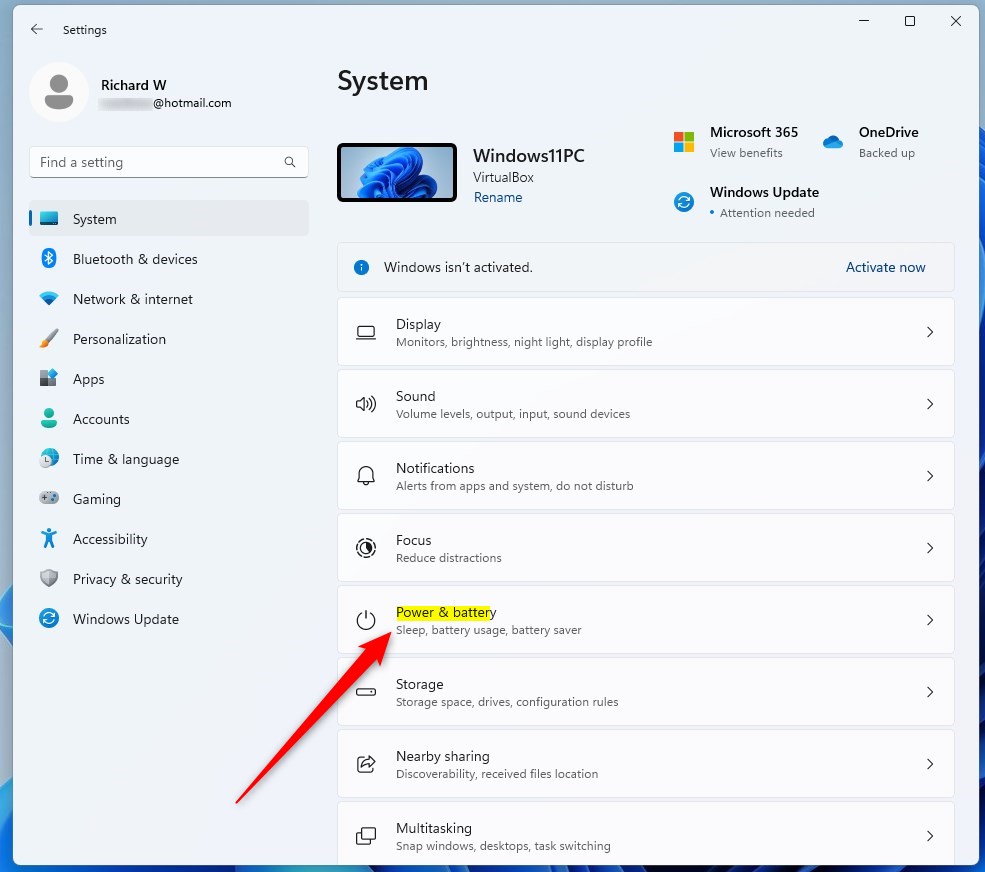
windows 11 power and battery tile - Find the Energy saver section and expand it if it is collapsed.
- Select Turn on now.
The battery icon in the taskbar now shows a leaf symbol, and the screen dims slightly if the brightness option is enabled.
The button reads Turn on now only while the laptop runs on battery. When the laptop is plugged in, the button can be greyed out or the feature may not appear, depending on your build. Unplug the charger and check the page again.
Make it turn on automatically
This setting saves you from remembering to turn it on. Windows switches Energy saver on when the charge falls to the level you choose.
- On the same page, find Turn energy saver on automatically at.
- Open the drop-down list and pick a battery percentage. The list also offers Never and Always.
The option Lower screen brightness when using energy saver sits below it. Leave it on if you want the biggest saving.
Turn it on from Quick Settings
- Select the network, speaker and battery icons at the right end of the taskbar to open Quick Settings.
- Select the Energy saver tile.
If the tile is missing, select the pencil icon in Quick Settings, then select Add, and choose Energy saver from the list. On a PC without a battery, such as a desktop, the tile may not be offered.
Dim or time out the keyboard backlight
Backlighting is usually the biggest power draw on a keyboard, so this is the most effective change. The method depends on the type of keyboard.
Laptop keyboard backlight
Most laptops control the backlight with a function key, not with a Windows setting.
- Look along the top row of keys for an icon that shows a keyboard with light rays. It is often on the Space bar, an arrow key, or a function key such as F4 or F5.
- Press that key. If it is a function-key combination, hold Fn and press the key.
- Repeat until the backlight reaches a lower level or turns off.
The keyboard now cycles between brightness levels, and one of those levels is off. The key and the number of levels vary by manufacturer. If pressing the key does nothing, check the manufacturer’s support page or the app that came with the laptop. Some laptops let you set a timeout there, so the light turns off after a few seconds of inactivity.
Use Dynamic Lighting for supported keyboards
Dynamic Lighting (a Windows 11 feature that controls RGB (red, green and blue) lighting on supported keyboards and other accessories) gives you brightness and effect controls in Settings. It only appears if your Windows 11 build includes it and your keyboard supports it.
- Open Settings.
- Go to Personalization Dynamic Lighting.
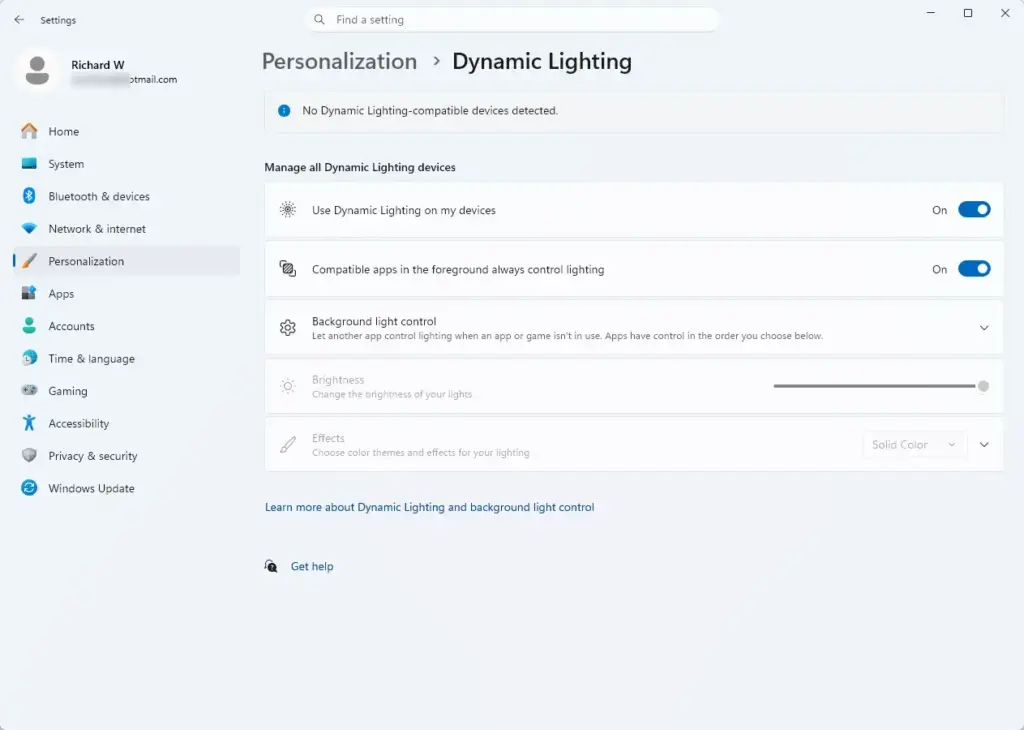
Settings › Personalization › Dynamic Lighting - Check that Use Dynamic Lighting on my devices is on.
- Select your keyboard from the device list, if it is shown.
- Lower the Brightness slider, or choose a plain, static effect.
The keyboard lighting now follows your new brightness. The page layout is confirmed only for Windows 11 builds that include Dynamic Lighting. If you do not see Dynamic Lighting under Personalization, your build or your keyboard does not support it. Install the latest Windows updates, then check again. If it is still missing, use the maker’s app instead.
Use the maker’s app for a wireless keyboard
Wireless keyboard makers often ship an app with their own power settings. Logitech, Microsoft, Razer and Corsair all have one. Open the app for your keyboard and look for these kinds of options:
- Backlight brightness
- Backlight timeout, which turns the light off after a period of inactivity
- Sleep or power-saving timeout
- A battery status display
Menu names differ between apps and models, so no single menu path covers every keyboard. If the app lists a backlight timeout, set it to a short time. That setting is usually the most useful one for wireless keyboards.
Use the keyboard’s own power controls
Windows can’t force a wireless keyboard into a lower-power state. Changing the keyboard’s own power habits can do that instead.
- Find the power switch on your keyboard. It is usually on the underside or the back edge.
- Slide it to Off when you finish for the day or pack the keyboard away.
- Slide it to On when you need it again.
The keyboard’s indicator light goes out when it is off. When you switch it back on, a Bluetooth keyboard reconnects after a few seconds. If it does not reconnect, press a key to wake it, then wait a moment.
Many keyboards also put themselves to sleep after a period of inactivity. The first keypress after that wakes them and can be dropped or delayed. This is normal and is how the keyboard saves power.
Reduce USB power use on a laptop (optional)
This step applies if your keyboard uses a USB receiver or cable. USB selective suspend lets Windows power down idle USB ports to save laptop battery. It does not affect the keyboard’s own batteries. This step may ask for administrator permission.
- Open the Start menu, type Edit power plan, and select the result.
- Select Change advanced power settings.
- Expand USB settings.
- Expand USB selective suspend setting.
- Set On battery to Enabled.
- Select OK.
If a USB keyboard or mouse starts to lag or drop out after you do this, set the option back to Disabled. Some receivers and drivers handle suspend badly.
If an option is missing or greyed out
- No battery percentage next to the keyboard. The keyboard does not report its charge to Windows. Use the maker’s app or the keyboard’s indicator light.
- Energy saver is greyed out. The laptop is plugged in, or the PC has no battery. Unplug the charger and refresh the page.
- No Energy saver section at all. You are probably on a desktop PC. Desktop PCs have no battery, so the Energy saver section may be missing.
- No Dynamic Lighting page. Your Windows 11 build or keyboard does not support it. Run Windows Update and check again.
- The Fn backlight key does nothing. Your laptop may need the manufacturer’s keyboard or hotkey driver. Check the manufacturer’s support page for your model.
None of these changes needs a restart. Settings take effect straight away.
How to undo these changes
- To turn off Energy saver, go to Settings System Power & battery and select Turn off now. Or select the Energy saver tile in Quick Settings again.
- To stop it turning on automatically, set Turn energy saver on automatically at to Never.
- To restore the backlight, press the same backlight key, or raise the Brightness slider under Personalization Dynamic Lighting.
- To restore USB behaviour, set USB selective suspend setting back to Disabled in the advanced power settings.
What to do next
If the keyboard still drains batteries fast after these changes, replace the batteries, or charge it fully if it is rechargeable. Then compare the new runtime against the old one. Keep an eye on the percentage under Settings Bluetooth & devices Devices for a few days to see whether the backlight change made a difference. A major Windows update can reset power and lighting settings, so recheck them after one.
Frequently asked questions
How to get off battery saving mode?
Open Settings, go to System, then Power & battery, and expand Energy saver. Set Turn energy saver on automatically to Never, or switch off Energy saver in the Quick Settings panel. Either change takes effect right away, and you can turn it back on the same way.
How long do AAA batteries last in a keyboard?
Most AAA batteries in a wireless keyboard last several months to about a year. Battery life depends on how often you type, whether the backlight stays on, and whether the keyboard turns off when idle. A keyboard with a backlight or a Bluetooth connection uses more power than a basic wired one.
What does the power saver do in 🪟 Windows 11?
Energy saver (a Windows setting that cuts background activity to stretch battery life) lowers screen brightness and limits some background apps and updates. It can turn on by itself when your battery drops to a set level. It does not change how the keyboard itself uses power.
Is it good to on battery saver while charging?
Energy saver mainly helps when your laptop runs on battery, so there is little reason to keep it on while charging. Plugged in, it slows background tasks and dims the screen without saving much power. Turn it off while charging if you want full speed.
Still have a question?
Answered by AI from this guide. Good questions may be added to this page — please don't include personal details.
Did this guide fix your problem?

About the Author
Richard
Tech Writer, IT Professional
Richard is a writer at Geek Rewind who turns complex IT tasks into clear, step-by-step guides. He draws on years of hands-on experience in system administration and enterprise IT operations, focusing on Windows, Linux and WordPress: the problems people actually run into, and the fixes that work. His server and WordPress guides come from systems he runs himself. Richard builds and maintains the platform behind Geek Rewind, from its Ubuntu servers and Nginx configuration to its custom WordPress plugins. Many new tutorials start with readers' questions, and he's always glad to answer them in the comments.
No comments yet — be the first to share your thoughts!