Skip to content
Windows 🟡 Intermediate

Windows 11 Power and Battery Settings Explained

Richard
Written by
Richard
3 min read
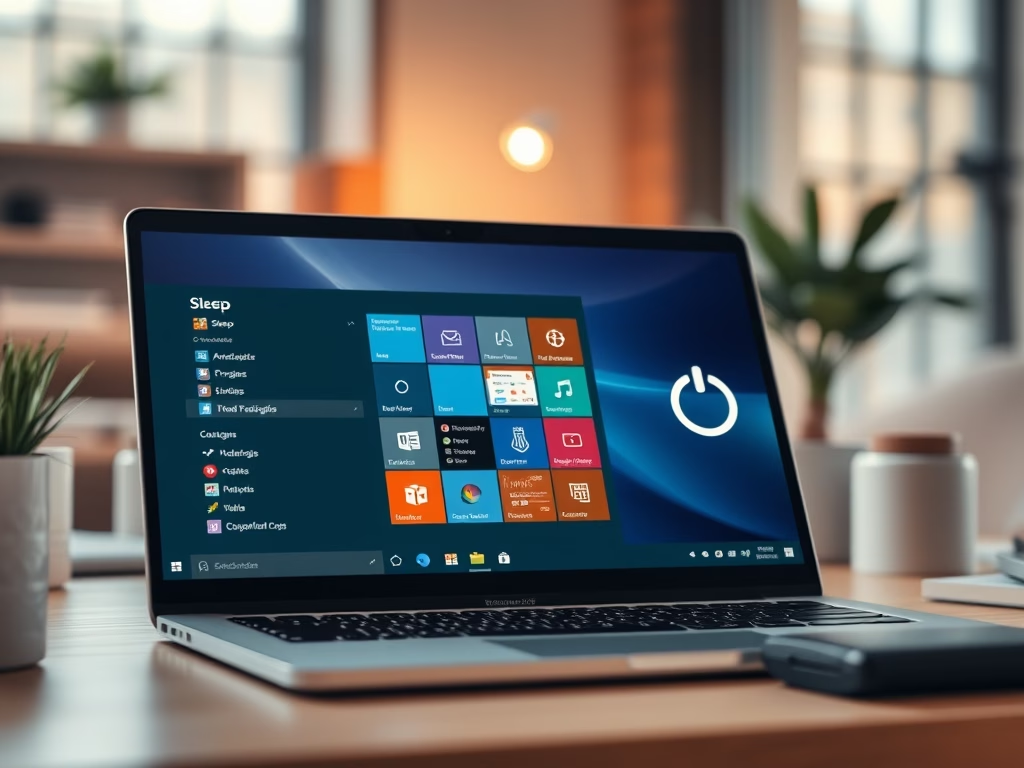
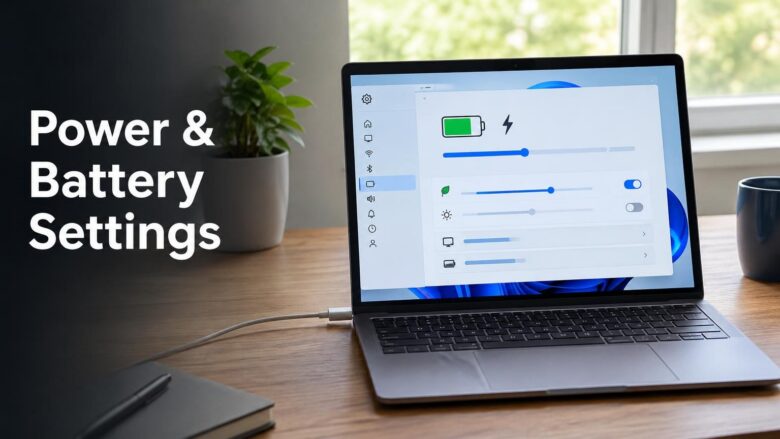
A Windows 11 laptop on a wooden desk showing power and battery settings with a charging cable beside it.

Power and battery settings in Windows 11 control how much electricity your PC uses, when it sleeps, and what the power button and lid do. They are spread across Settings System Power & battery, the older Control Panel power plan pages, the Start menu and the lid itself. Changing one setting often seems to do nothing because another setting overrides it. This guide groups the 58 articles by what you are trying to do. It starts with what sleep, hibernate and shutdown actually do, then moves through power modes, battery life, lid and button behaviour, battery charging and fixes for sleep and drain problems. If you are not sure where to begin, read the first article in the list below.

Advertisement
Start hereWindows 11 Hibernate vs Sleep vs Fast Startup ExplainedIt explains how Sleep, Hibernate and Fast Startup differ, which makes every other power setting in this group easier to understand.

Learn what sleep, hibernate and shutdown really do

Windows 11 has several ways to stop using power, and they behave differently when you turn the PC back on. Read these first so you know which option you want before you change a setting. Most sleep and shutdown problems come from mixing these up.
Windows 11 Hibernate vs Sleep vs Fast Startup explained
1 Windows 11 Hibernate vs Sleep vs Fast Startup Explained Power modes in Windows 11 like Sleep, Hibernate, and Fast Startup control how your PC saves open work and manages energy when… 11 min read ↻ Updated Oct 2026
What Windows Fast Startup actually does
2 What Windows Fast Startup Actually Does Fast Startup is a built-in Windows 10 and Windows 11 feature that helps your PC boot faster after a shutdown. When you… 11 min read ↻ Updated Nov 2026
What breaks when you disable Windows 11 Fast Startup
3 What Breaks When You Disable Windows 11 Fast Startup Fast Startup in Windows 11 saves system drivers and the kernel state to your drive during shutdown, so your PC turns on… 7 min read ↻ Updated Oct 2026
How to Enable or Disable Fast Startup in Windows 11
4 How to Enable Fast Startup in Windows 11 The post provides a guide for students and new users on activating or deactivating Fast Startup mode in Windows 11. The Fast Startup feature, usually enabled by default, combines shutdown and hibernate features allowing a faster boot process. It keeps the system kernel and state saved to the hibernation file which is loaded upon startup. The tutorial walks through the steps on how to toggle this feature on or off via the Control Panel under Hardware and Sound, then Power Options. 3 min read ↻ Updated Nov 2026
How to Enable or Disable Hibernate Mode in Windows 11
5 How to Enable or Disable Hibernate Mode in Windows 11 Hibernate mode in Windows 11 saves all your open apps and documents to your hard drive and then turns your computer completely… 7 min read ↻ Updated Oct 2026
How to Enable or Disable Hibernate in Windows 11
6 How to Enable or Disable Hibernate in Windows 11 Hibernate is a power-saving feature in Windows 11 that saves open files to the hard drive and fully powers off the computer. It's ideal for extended breaks without charging. You can enable or disable hibernate via command prompts or the Local Group Policy Editor, but disabling it frees up space and affects fast startup. 5 min read ↻ Updated Oct 2026
How to Put Your Windows 11 PC to Sleep
7 How to Put Your Windows 11 PC to Sleep The article provides detailed instructions on how to put a Windows 11 PC to sleep using various methods. These methods include pressing the power button, using the Start menu, the Win+X Power User menu, and keyboard shortcuts. It also discusses the different sleep and hibernation modes available in Windows and explains how sleep mode uses little power and allows a quick restart without losing work. 6 min read ↻ Updated Oct 2026
How to Enable Hybrid Sleep on Windows 11
8 How to Enable Hybrid Sleep on Windows 11 The article guides Windows 11 users on how to adjust hybrid Sleep, a low-power function that mixes hibernation and sleep, providing rapid resume from sleep while preserving data during power failures. This is enabled by default on desktops but is normally switched off on laptops, though the article provides steps for enabling it. 4 min read ↻ Updated Oct 2026
How to Shutdown Your Windows 11 PC
9 How to Shutdown Your Windows 11 PC The post provides various methods to shut down a Windows 11 PC including via the Start menu, using keyboard shortcuts, command line, or the PC power button. It advises choosing the method best suited to individual needs, cautioning against using the power button in cases where ongoing processes and files may need preservation. 6 min read ↻ Updated Nov 2026
How to Schedule Automatic Shutdown on Windows 11
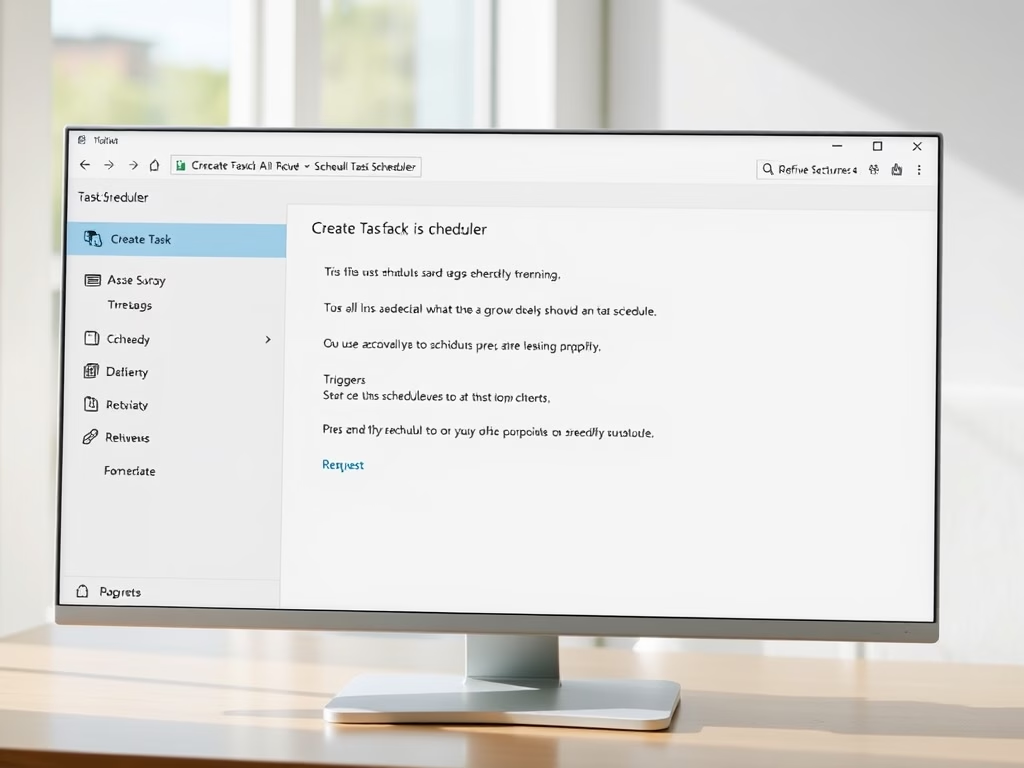
10 How to Schedule Automatic Shutdown on Windows 11 This text guides students and new users on scheduling a task to automatically shut down Windows 11 computers at a specific time. Even though computers need to stay on to receive updates from Microsoft, they consume a lot of energy this way. Steps are provided to help users navigate the "Task Scheduler" app, create and configure a new task that enables daily automatic computer shutdown, preserving energy without compromising system updates. 6 min read ↻ Updated Oct 2026
PowerShell
How to Enable or Disable Closing Warnings in Windows Terminal
11 How to Enable or Disable Forced Shutdown in Windows 11 The article explains how to turn on or off forced button/lid shutdown in Windows 11. This setting determines what happens when the power or sleep button on the computer is pressed. The force shutdown feature can potentially result in unsaved documents and data loss. The guide provides step-by-step instructions for enabling or disabling this feature via the Control Panel. 5 min read ↻ Updated Nov 2026

Choose a power mode or power plan

A power mode or power plan decides how hard your PC works and how much power it uses while doing it. Laptops usually benefit from a balanced or efficiency setting on battery, while desktops and plugged-in laptops can use a higher-performance plan. The Ultimate Performance plan is hidden by default and draws more power, so read its article before you turn it on.
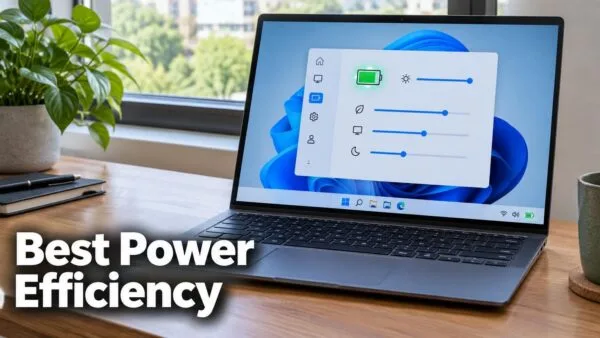
How to Change Power Modes in Windows 11
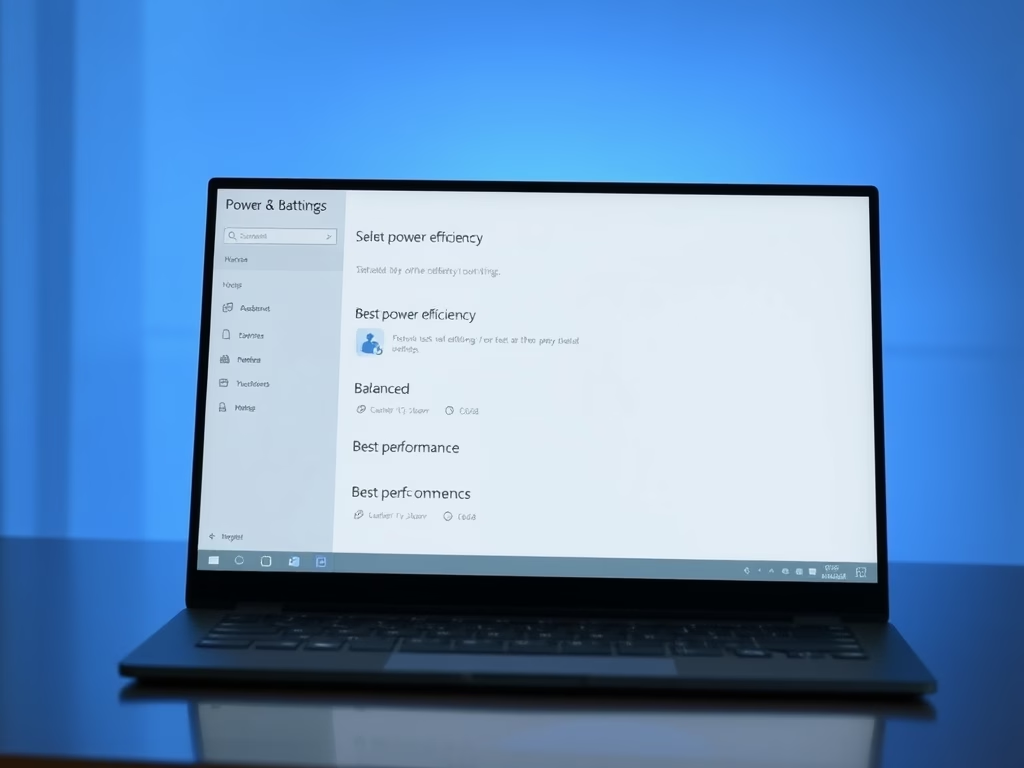
1 How to Change Power Modes in Windows 11 The post explains how to select power modes on Windows 11. By default, Windows 11 uses a balanced power mode for optimized performance and reduced power consumption. This can be changed to suit individual needs, ensuring the best battery life, performance, or balance. Users can select different power modes for AC and battery (DC) power, with the device automatically choosing the mode when switching power sources. The process is explained step-by-step, starting from accessing the System Settings pane. 4 min read ↻ Updated Oct 2026
A Windows 11 laptop on a desk showing power settings, illustrating how to set Power mode to Best power efficiency.
2 Set Power Mode to Best Power Efficiency in Windows 11 Best power efficiency is a Power mode in Windows 11 that uses less electricity by slowing down some PC performance. It helps… 8 min read
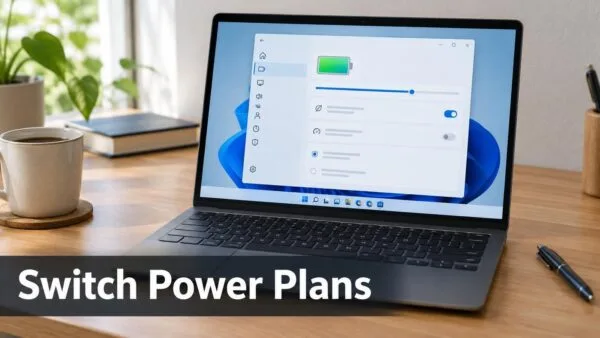
A Windows 11 laptop on a desk showing power settings, illustrating how to switch power plans to improve battery life.
3 Switch Power Plans in Windows 11 for Battery Life Windows 11 power mode is a setting that trades speed for battery life. Pick Best power efficiency in Settings > System >… 11 min read ↻ Updated Nov 2026
How to Change Power Plan in Windows 11
4 How to Change Power Plan in Windows 11 This post provides instructions for students and new users to change the power plan in Windows 11. Power plans or schemes are collections of system settings that manage power usage and conservation for devices. Plans include Balance, Power saving, High Performance, and Ultimate Performance. Adjusting these can optimize device performance, improve battery life, and reduce power consumption. 4 min read ↻ Updated Oct 2026
How to Check Active Power Plans in Windows 11
5 How to Check Active Power Plans in Windows 11 The post instructs students and new users on how to view their active power plan, also known as a power scheme, in Windows 11. Power plans, a collection of hardware and system settings, manage computer power use and conservation, improving battery life and reducing power consumption. The post also guides users through the steps of viewing their device's active power plan in the classic Control Panel of Windows 11. 4 min read ↻ Updated Nov 2026
How to Create Custom Power Plans in Windows 11
6 How to Create Custom Power Plans in Windows 11 The post outlines the process for creating custom power plans in Windows 11. Users can choose from default power plans such as Balance, Power saving, High Performance, and Ultimate Performance. Windows 11 also allows creation of tailored power schemes to manage computer's energy use. The steps to create a custom power plan via the Control Panel in Windows 11 are detailed. 4 min read ↻ Updated Oct 2026
Should you use Windows 11 Ultimate Performance power plan
7 Should You Use Windows 11 Ultimate Performance Power Plan The Ultimate Performance power plan in Windows 11 is a hidden setting that trades power savings for speed. Microsoft originally built it… 7 min read ↻ Updated Oct 2026
Should You Enable Ultimate Performance Mode In Windows 11?
8 Should You Enable Ultimate Performance Mode in Windows 11? Ultimate Performance mode in Windows 11 is a hidden power plan that removes most of the energy-saving limits so your hardware runs… 7 min read ↻ Updated Oct 2026
How to Enable or Disable Ultimate Performance Mode in Windows 11
9 How to Enable or Disable Ultimate Performance Mode in Windows 11 Ultimate Performance mode in Windows 11 is a hidden power plan that removes tiny system delays to get the highest speed out… 9 min read ↻ Updated Nov 2026

Make the laptop last longer on battery

These settings reduce how much power your screen, keyboard, Wi-Fi and background apps use when you are unplugged. Battery saver and Energy saver are the main switches, and most of the other articles adjust what they change. Work through the ones that match your device, since not every laptop has a keyboard backlight or USB charging option.

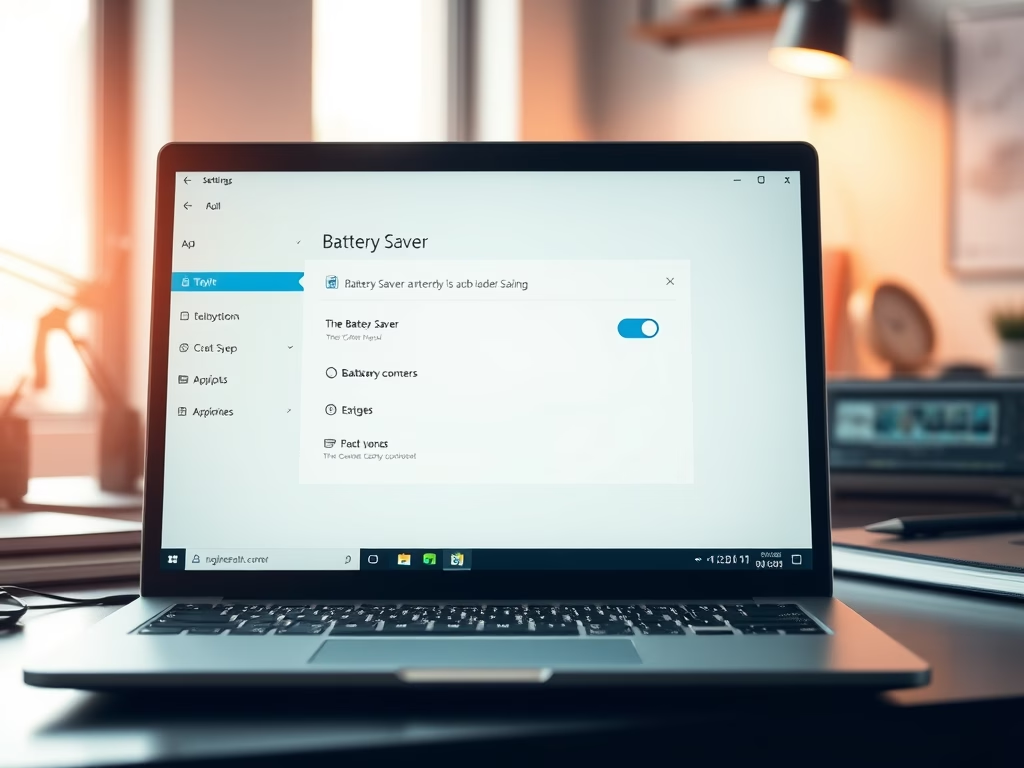
Windows 11 Battery Saver Guide: How to Maximize Laptop Battery Life
1 7 Ways to Maximize Laptop Battery Life in Windows 11 Battery Saver in Windows 11 is a built-in power-saving mode that stops background apps and lowers screen brightness to help your laptop… 11 min read ↻ Updated Oct 2026
How to Turn On or Off Battery Saver in Windows 11
2 How to Turn On or off Battery Saver in Windows 11 The battery saver settings in Windows 11 are under Settings > System > Power & battery, and you can switch the mode… 6 min read ↻ Updated Nov 2026
How to Enable or Disable Energy Saver in Windows 11
3 How to Enable or Disable Energy Saver in Windows 11 Energy Saver in Windows 11 conserves power and extends battery life, especially when unused. Users can activate it via Settings under System and Power & battery, or through Quick Settings. Advanced users may modify the Registry Editor to control Energy Saver by adjusting the EnergySaverState value. It's beneficial for both savings and the environment. 5 min read ↻ Updated Nov 2026
How to Save Battery Life Using Energy Saver in Windows
4 How to Save Battery Life Using Energy Saver in Windows Windows features an Energy Saver mode that reduces power usage on laptops, extending battery life. Users can easily activate or schedule it to turn on automatically at specified battery levels through the Settings menu or PowerShell. This ensures laptops remain functional longer between charges, enhancing user convenience. 4 min read ↻ Updated Nov 2026
Turn On or Off Lower Screen Brightness When Using Battery Saver in Windows 11
5 Turn On or off Lower Screen Brightness When Using Battery Saver in Windows 11 What is Battery Saver? Battery Saver helps laptops and tablets last longer by cutting back background activity and other resource use while… 4 min read ↻ Updated Nov 2026
How to Change Brightness When Battery Saver is On in Windows 11
6 How to Change Brightness When Battery Saver Is on in Windows 11 Windows 11 dims the screen when Battery Saver is active. You can change how much it dims, or stop it dimming at… 4 min read ↻ Updated Nov 2026
How to Show Battery Percentage in Windows 11
7 How to Show Battery Percentage in Windows 11 Windows 11 users can easily display battery percentage on the taskbar following an update. This feature allows instant visibility of battery life and status through color indicators: green for charging, yellow for battery saver, and red for critically low power. Users can toggle this setting in the System settings or via the Registry Editor. 4 min read ↻ Updated Oct 2026
How to Enable Voice Access on Windows 11 Sign-In
8 How to Apply Energy Recommendations in Windows 11 The article guides users on applying energy recommendations in Windows 11 to reduce their carbon footprint. These recommended settings, available in the Windows 11 build (22621.885), enhance energy efficiency of PCs, potentially reducing carbon emissions. This feature is, however, in Beta and only available to Microsoft Insider Preview program members currently. 4 min read ↻ Updated Oct 2026
How to Use Sticky Notes in Windows 11
9 How to Enable Efficiency Mode in Windows 11 This article provides steps to enable or disable the Efficiency Mode in Windows 11's redesigned Task Manager. This mode helps limit resource-hungry apps, improving system responsiveness and energy efficiency. Users can enable this feature through the Processes page or by right-clicking the process. If an option is greyed out, it's a core Windows process which throttling might affect system performance. 5 min read ↻ Updated Nov 2026
Settings > Network & internet > Airplane mode
10 Stop Your Wi-Fi Adapter from Saving Power In Windows 11 Wi-Fi drops or reconnects slowly in Windows 11 often happens because the Wi-Fi adapter turns down its own power while the PC… 10 min read ↻ Updated Nov 2026
Settings > Bluetooth > Keyboard
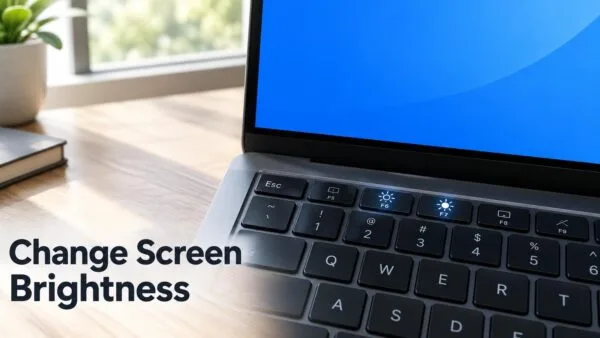
11 Change Screen Brightness with Keyboard Keys in Windows 11 Screen brightness on a Windows 11 laptop is changed with the sun-icon key on the top row of the keyboard, called the… 12 min read ↻ Updated Nov 2026
Settings > Bluetooth > Keyboard
12 How to Save Keyboard Battery Power in Windows 11 Windows 11 has no setting called "keyboard battery saving mode." Instead, you save keyboard battery life by combining a few settings that… 10 min read ↻ Updated Nov 2026
Settings > Gaming
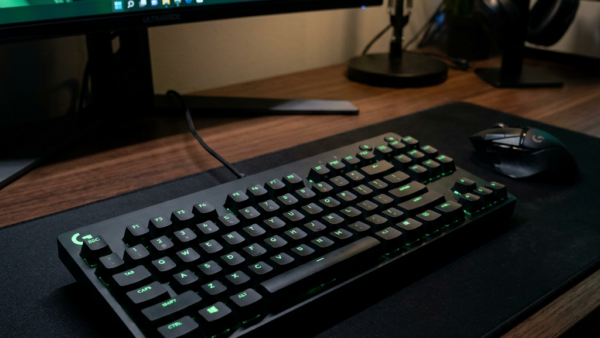
Backlit gaming keyboard and mouse on large mouse pad in front of computer monitor
13 How to Turn On or off Keyboard Backlight Dimming with Energy Saver in Windows 11 Keyboard backlight dimming in Windows 11 lowers your keyboard lights to 70% brightness whenever Energy Saver is running, which helps your laptop… 4 min read ↻ Updated Oct 2026
Person typing code on laptop keyboard at a desk with books and a cup nearby
14 How to Turn Keyboard Backlight Autobrightness on or off in Windows 11 Keyboard backlight autobrightness in Windows 11 lets your laptop adjust the keyboard lighting on its own. It uses the built-in ambient light… 7 min read ↻ Updated Nov 2026
How to Enable USB Battery Saver in Windows 11
15 How to Enable USB Battery Saver in Windows 11 The content provides a guide on enabling or disabling the USB battery saver feature in Windows 11 to extend battery life. The feature works by stopping USB devices when the screen goes off. Instructions to access the feature are provided through either a keyboard shortcut or the device's Settings panel. 6 min read ↻ Updated Nov 2026
How to Enable HDR Video on Windows 11 Battery
16 How to Enable HDR Video on Windows 11 Battery This post provides a guide on how to enable or disable high dynamic range (HDR) video on Windows 11 devices running on battery. HDR can reduce battery life, so it may be turned off by default when the device is running on battery. The post details the steps to change this setting via the System Settings pane in Windows 11. 4 min read ↻ Updated Oct 2026
How to Enable or Disable Content Adaptive Brightness in Windows 11
17 How to Enable or Disable Content Adaptive Brightness in Windows 11 The article guides users on enabling or disabling content adaptive brightness in Windows 11. This feature allows Windows to adjust screen brightness based on the content displayed, resulting in optimal brightness and contrast levels and longer battery life. However, users might prefer to disable it if they find it affects the quality of displayed content. The piece provides steps to easily turn the feature on or off via the system settings. 6 min read ↻ Updated Oct 2026

Control what the lid, power button and sleep timers do

These articles set what happens when you close the lid, press the power button, or leave the PC idle. They also cover the lock screen, the password prompt after sleep, and which buttons appear in the Start menu. Change the lid and button settings first, then the timers, so you do not end up with a screen that locks before it sleeps.
Advertisement
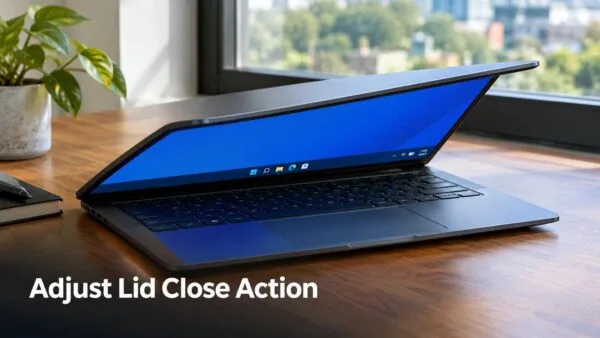
A Windows 11 laptop being closed on a desk by a window, illustrating how to adjust what happens when the lid closes.
1 Adjust What Happens When You Close the Laptop Lid in Windows 11 Windows 11 lets you choose what your laptop does when you close the lid. You can pick Do nothing, Sleep, Hibernate or… 11 min read ↻ Updated Nov 2026
Settings
Settings
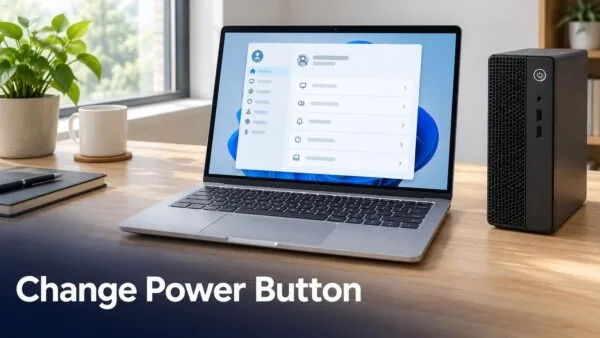
2 Change What the Power Button Does in Windows 11 You can change what pressing the physical power button does (shut down, sleep, hibernate, turn off the display, or nothing) in Settings,… 9 min read
How to Change What the Power Button Does in Windows 11
3 How to Change What the Power Button Does in Windows 11 This guide explains how to customize the power button behavior on Windows 11 to optimize functionality. Users can choose from options like Sleep, Hibernate, Shutdown, Display Off, or Do Nothing, enabling them to save time or energy based on their needs. Adjustments can be made easily via the Settings app. 5 min read ↻ Updated Nov 2026
How to Change Power Button Actions on Windows 11
4 How to Change Power Button Actions on Windows 11 The post provides instructions on how to modify the power button action settings in Windows 11. These customizable actions include doing nothing, sleep, hibernate, shutdown, or turning off the display. Changes can be made by opening Control Panel as an administrator, selecting the Hardware and Sound category, and choosing preferred power settings under the Power Options section. 6 min read ↻ Updated Nov 2026
How to Change When Your Windows 11 Computer Goes to Sleep
5 How to Change When Your Windows 11 Computer Goes to Sleep Changing the sleep settings in Windows 11 controls how long your PC sits idle before it goes to sleep. Sleep is a… 9 min read ↻ Updated Nov 2026
A Windows 11 desktop monitor showing a padlock icon on the taskbar, illustrating password timeout settings after sleep or lock.
6 Set the Password Timeout After Sleep or Lock In Windows 11 Windows 11 controls how long your PC waits before it locks or asks for your password again with two separate timers. The… 8 min read
A Windows 11 laptop showing its lock screen as the display begins to dim, illustrating a lock screen timeout problem.
7 Why Does My Lock Screen Time out Too Soon in Windows 11 Windows 11 turns the display off about one minute after you lock the PC. The normal screen timeout setting does not control… 10 min read ↻ Updated Nov 2026
How to Enable Voice Access on Windows 11 Sign-In
8 How to Enable or Disable Console Lock Display off Timeout in Windows 11 The post provides a guide on how to alter the Console Lock Display Off Timeout settings in Windows 11, which controls the delay before a locked screen automatically turns off due to inactivity. The default setting is one minute, and the instructions outline step-by-step how to change this preference. 5 min read ↻ Updated Nov 2026
How to Add or Remove the Sleep Button in Windows 11
9 How to Add or Remove the Sleep Button in Windows 11 This guide explains how to add or remove the Sleep button from the power menu in Windows 11. Users can easily manage this feature through the Control Panel, Windows Registry Editor, or Group Policy Editor, allowing for customization of power management to suit personal preferences while maintaining workflow continuity. 5 min read ↻ Updated Nov 2026
How to Add or Remove the Hibernate Button in Windows 11
10 How to Add or Remove the Hibernate Button in Windows 11 This guide outlines how to add or remove the hibernate button from the power options menu in Windows 11. Users can easily manage this via the Control Panel or, for advanced users, through the Windows Registry Editor and Local Group Policy Editor. Choose your preferred method to customize settings effectively. 5 min read ↻ Updated Oct 2026
How to Add or Remove the Shutdown button in Windows 11
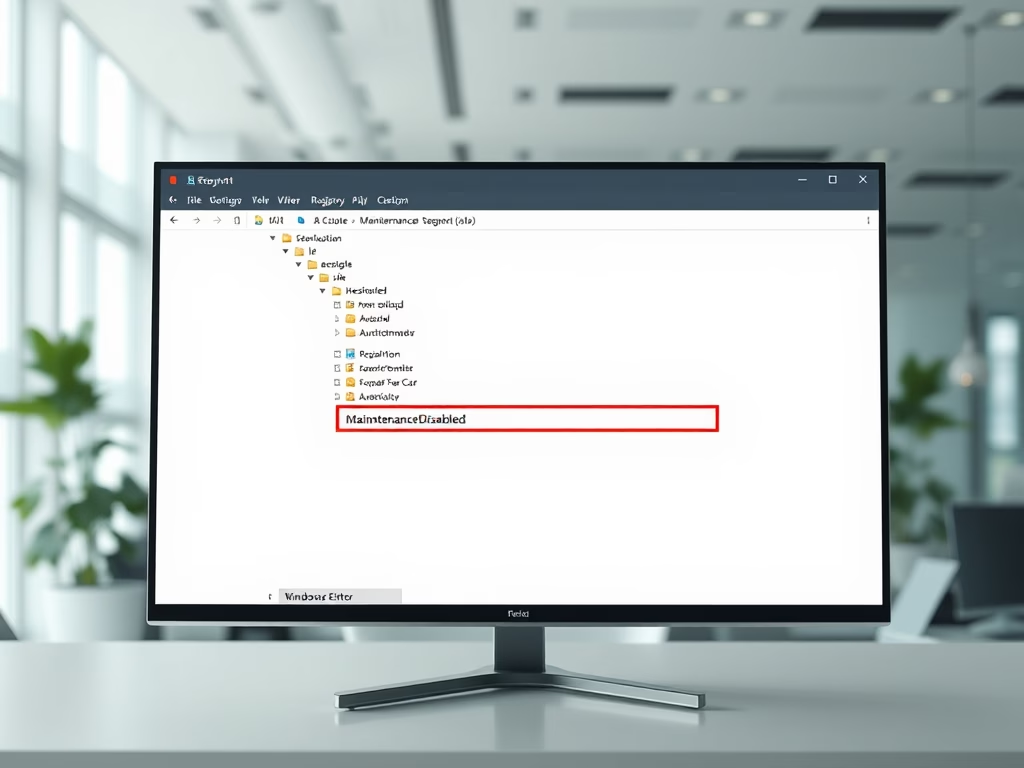
11 How to Add or Remove the Shutdown Button in Windows 11 This guide explains how to hide or unhide the shutdown button in the power options of the Windows 11 Start menu by modifying the Registry Editor. Hiding the button can prevent accidental shutdowns, while showing it allows for quick power-off access. Caution is advised due to potential registry editing risks. 4 min read ↻ Updated Oct 2026
How to Add or Remove the Restart Button in Windows 11
12 How to Add or Remove the Restart Button in Windows 11 This guide explains how to hide or show the Restart button in Windows 11's Start menu using the Registry Editor. Hiding the button can prevent accidental restarts and loss of unsaved work, particularly on shared devices. Users should exercise caution when editing the registry and consider backing it up beforehand. 3 min read ↻ Updated Nov 2026
How Do I Let a Device Wake My Computer in Windows 11?
13 How Do I Let a Device Wake My Computer in Windows 11? Windows 11 lets you choose which devices can wake your computer from sleep. A mouse click, a key press or incoming network… 5 min read ↻ Updated Nov 2026
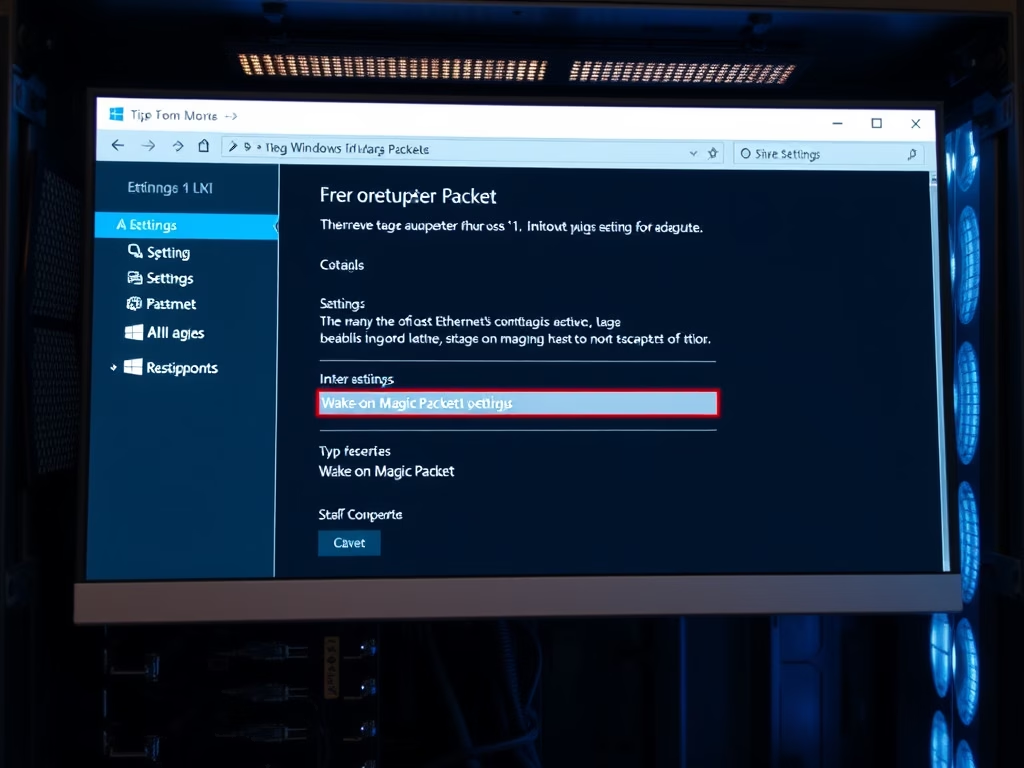
How to Enable or Disable Wake on LAN (WOL) in Windows 11
14 How to Enable or Disable Wake On LAN (WOL) in Windows 11 This post outlines the process to enable or disable Wake-on-LAN (WOL) in Windows 11. WOL is a protocol that remotely wakes computers from a sleep or low power state via a 'magic packet'. The guide covers the BIOS/UEFI setting, network adapter properties, Device Manager, and Fast Startup, plus command-line steps to enable or disable WOL. The WOL feature has been part of Windows since XP. 12 min read ↻ Updated Nov 2026

Protect battery health and manage charging

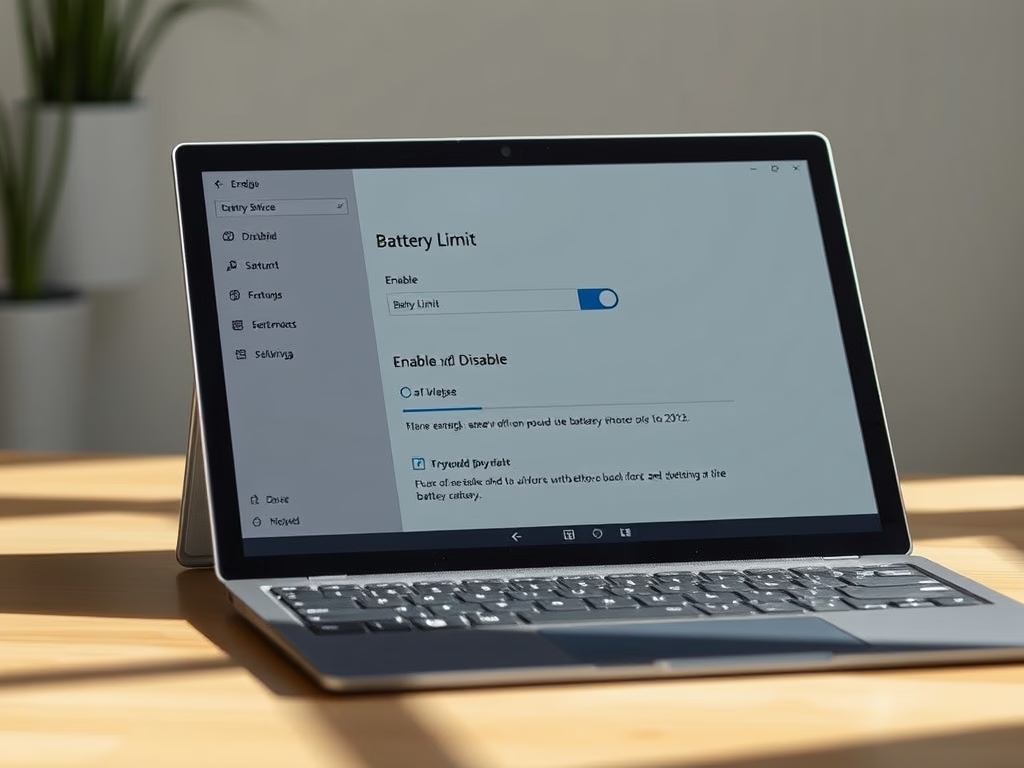
These guides cover charging limits and slow charging for laptops that support them. Surface devices have their own battery limit and Smart charging options. Use these settings if you keep your laptop plugged in most of the time and want the battery to last longer overall.
Fix sleep, wake and battery drain problems

Use these articles when a setting is correct but the PC still behaves badly. They cover wake and sleep failures, random wake-ups, and battery drain that started after an update. Check these after you have confirmed your power settings, not before.
Have a question about this guide?

Answered by AI from this guide. Good questions may be added to this page — please don't include personal details.

Tags: #Windows 11
Richard

About the Author

Richard

Tech Writer, IT Professional

Richard is a writer at Geek Rewind who turns complex IT tasks into clear, step-by-step guides. He draws on years of hands-on experience in system administration and enterprise IT operations, focusing on Windows, Linux and WordPress: the problems people actually run into, and the fixes that work. His server and WordPress guides come from systems he runs himself. Richard builds and maintains the platform behind Geek Rewind, from its Ubuntu servers and Nginx configuration to its custom WordPress plugins. Many new tutorials start with readers' questions, and he's always glad to answer them in the comments.

Advertisement

No comments yet — be the first to share your thoughts!

Leave a Comment

Your email address will not be published. Required fields are marked *