What Breaks When You Disable Windows 11 Fast Startup

- 14 steps
- Needs administrator rights
Fast Startup in Windows 11 saves system drivers and the kernel state to your drive during shutdown, so your PC turns on faster the next time you press the power button. It combines a normal shutdown with hibernation. Windows closes your apps and signed-out sessions, then writes the core system state to a hibernation file. On the next boot it reads that file back instead of loading everything from scratch.
Turning off Fast Startup forces Windows to do a complete cold boot after every shutdown. All apps and drivers close entirely and load fresh at the next start. Your PC takes a bit longer to power on. In return, a cold boot clears out stubborn glitches, helps updates install properly, and stops bugs from carrying over between sessions.
One thing to know up front: Fast Startup only affects Shut down. Restart has always done a full cold boot, even with Fast Startup on. That makes Restart a quick way to test whether Fast Startup is behind a problem before you change any setting.
Disabling Windows 11 Fast Startup does not break core features, but your PC takes 10 to 30 seconds longer to boot since it performs a full cold shutdown instead of resuming from a saved state. Some older USB devices or external monitors may take an extra 1 to 2 seconds to recognize at startup.
The Main Disadvantage: What Breaks When You Turn Off Fast Startup?
Turning off Fast Startup does not break any core features or damage your computer. The main disadvantage is that your boot times increase by a few seconds, because your PC performs a full cold shutdown every time instead of using a saved hibernation state. The setting is the same on Windows 11 Home and Pro, and you can turn it back on at any time.
The first change you will notice is startup time. Your computer will no longer boot in a few seconds. Expect it to take longer, sometimes an extra 10 to 30 seconds, depending on how fast your drive is. On a modern solid-state drive the difference is usually very small. On an older mechanical hard drive you will notice the extra wait.
The second change is that your computer loses the ability to quickly resume the system state it saved at shutdown. Every shutdown is now a fresh start, so Windows loads all drivers and system services from zero every time. That sounds like a downside, but it is a real benefit for stability. Background services that tend to freeze or break over time finally get a chance to reset completely.
The third change is minor and affects some hardware. On Windows 11 version 22H2, the wake-up routine for certain external devices can change slightly after you turn off Fast Startup. Some older USB devices, docking stations, or external monitors might take an extra 1 to 2 seconds to be recognized when the computer starts. The reason is that their drivers now initialize completely from scratch instead of waking from a saved snapshot. If a device is slow to appear, give it a few seconds before you assume something is wrong.
Why Most Users Should Actually Turn Fast Startup Off
- Fixes Update LoopsMany Windows updates need a full shutdown to apply properly. Because Fast Startup saves a hybrid state, some updates fail to install or get stuck in endless loops. With Fast Startup off, updates apply cleanly.
- Stops Not Properly Shutdown ErrorsOpen your system reliability history and look for frequent warnings that the computer was not shut down properly, even though you turned it off safely. Fast Startup is usually the cause, because the system gets confused by the hybrid shutdown file.
- Clears System Memory LeaksOver a few days of use, background apps and drivers can hold onto memory even after you close them. Fast Startup keeps the core of the system running from the saved state, so those leaks stick around. A true cold boot clears everything out and gives your PC a fresh start each day.
- Resolves Dual-Boot ProblemsIf you run more than one operating system, such as Windows and Linux, Fast Startup leaves your main drive partition locked. That stops your other operating system from accessing files properly and can cause disk errors.
How to Disable Fast Startup in 🪟 Windows 11 Step by Step
To disable Fast Startup, open the Control Panel, go to the power button settings, and uncheck the feature. You need administrator rights, because the setting is locked until you confirm a permission prompt. After that, your computer performs a full shutdown every time you turn it off.
- Click the Start button on your taskbar.
- Type Control Panel into the search box and press Enter. The Control Panel window opens.
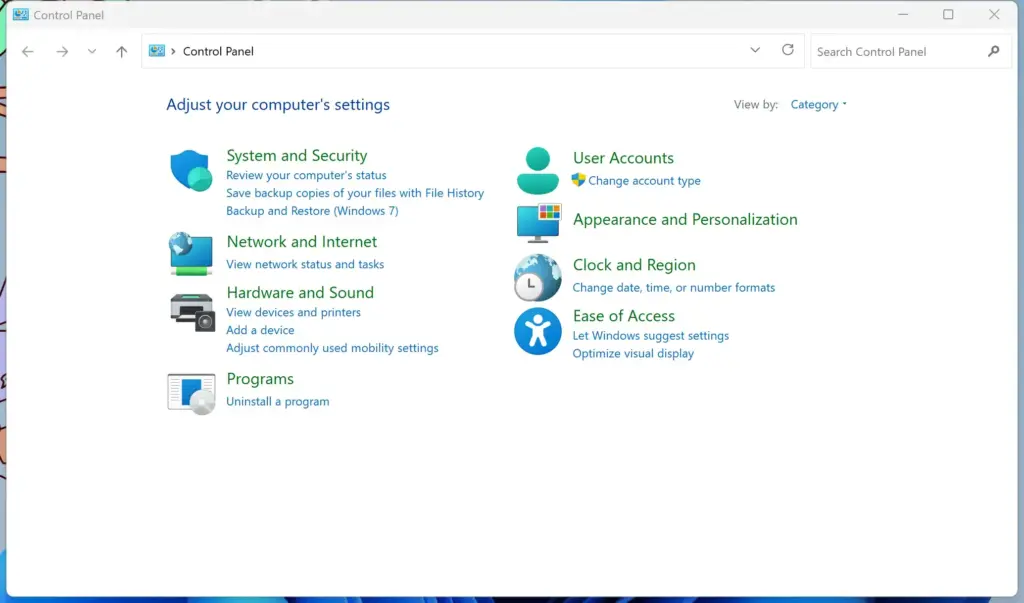
Control Panel - In the top right corner of the window, open the View by menu and change it from Category to Large icons or Small icons. The window now shows every Control Panel item in one list.
- Click the Power Options icon.
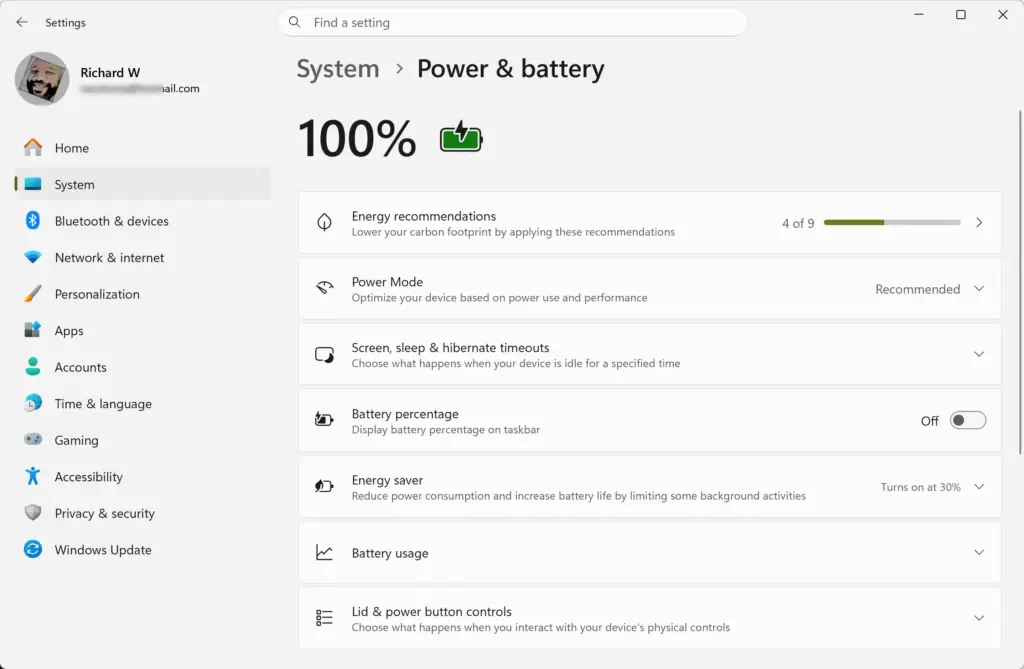
Settings › System › Power - On the left side of the window, click Choose what the power buttons do.
- Look at the bottom of the window. The shutdown settings are probably grayed out and unclickable. That is normal. Click Change settings that are currently unavailable at the top. This step requires administrator privileges, so Windows will ask you to confirm. Once you do, the shutdown settings become active.
- In the Shutdown settings section, find the box next to Turn on fast startup (recommended) and click it to uncheck it.
- Click the Save changes button at the bottom of the window.
You do not need to restart for the change to take effect. Once you save, your computer performs a full, clean shutdown every time you choose to turn it off. To undo the change, follow the same steps and tick the box again. If you do not see the checkbox at all, see the last troubleshooting section below.
Hidden Angles: Dual-Boot Conflicts and Battery Wear
If you share your computer between Windows 11 and a second operating system such as Linux, Fast Startup acts like a digital deadbolt. When Windows shuts down with Fast Startup on, it leaves the Windows drive in a hibernated state. When you boot into the second system, it tries to read the Windows drive and sees it as unsafe to mount, because Windows never fully closed it. This often leads to corrupted files or read-only errors. Turning off Fast Startup removes the conflict and lets both operating systems share drive space safely.
Laptop battery and power management can also suffer while Fast Startup is active. System drivers sometimes fail to unload their power management profiles correctly. The result is that your laptop draws small amounts of power while supposedly shut down, and you find the battery lower the next morning. A complete shutdown resets all power states, which helps keep the battery cooler and healthier over the long term.
Troubleshooting: What If the Fast Startup Option Is Missing?
The Fast Startup option is missing in Windows 11 when hibernation is disabled on your system. Fast Startup relies on the hibernation file to save your system state, so you have to turn hibernation back on from Command Prompt before the checkbox appears in your power settings.
To make the Fast Startup option appear again, turn hibernation back on. This step requires administrator privileges.
- Click the Start button.
- Type Command Prompt into the search bar.
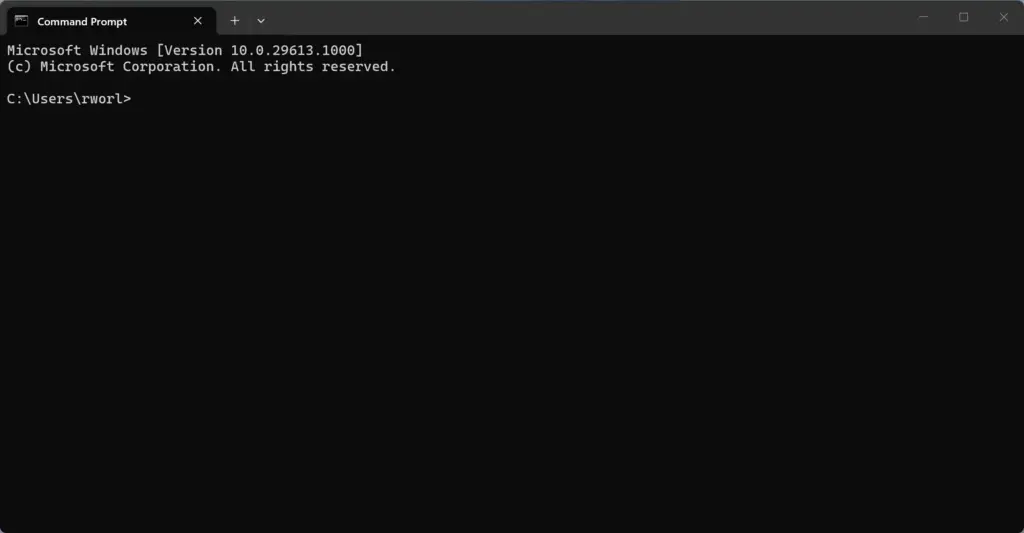
Command Prompt - Right-click Command Prompt in the search results and choose Run as administrator. Confirm the permission prompt if one appears. A black command window opens.
- Type this command into the window:
powercfg /hibernate on - Press Enter. If the command works, it returns to the prompt without an error message.
- Close the command window.
After you run the command, go back to the Control Panel, open Power Options, and follow the steps in the previous section. The Fast Startup option will now be visible, and you can uncheck it. If the option is still missing, make sure you ran Command Prompt as administrator. A command run without those rights will not change the hibernation setting.
Summary
Windows 11 Fast Startup helps your PC boot faster by saving a system snapshot when you shut down, but it frequently causes update loops and glitches. Turning it off forces a complete cold boot every time. You trade a few seconds of startup speed for better overall stability, and you can reverse the change whenever you like by ticking the same checkbox again.
Have a question about this guide?
Answered by AI from this guide. Good questions may be added to this page — please don't include personal details.
Did this guide fix your problem?

About the Author
Richard
Tech Writer, IT Professional
Richard is a writer at Geek Rewind who turns complex IT tasks into clear, step-by-step guides. He draws on years of hands-on experience in system administration and enterprise IT operations, focusing on Windows, Linux and WordPress: the problems people actually run into, and the fixes that work. His server and WordPress guides come from systems he runs himself. Richard builds and maintains the platform behind Geek Rewind, from its Ubuntu servers and Nginx configuration to its custom WordPress plugins. Many new tutorials start with readers' questions, and he's always glad to answer them in the comments.
No comments yet — be the first to share your thoughts!