What Windows Fast Startup Actually Does

- 12 steps
- Needs administrator rights
Fast Startup is a built-in Windows 10 and Windows 11 feature that helps your PC boot faster after a shutdown. When you shut down, Windows saves a snapshot of the system drivers and kernel to your drive. When you turn the computer back on, Windows loads that saved file straight into memory instead of starting everything from scratch.
Microsoft turns this shortcut on by default on most computers to cut the wait at the desktop. A normal shutdown closes everything and turns off the core system completely. Fast Startup skips parts of that routine to save time. Because of that, “Shut down” does not always mean a full shutdown, and that is the source of most Fast Startup problems.
Fast Startup is a Windows 10 and Windows 11 feature that speeds up boot after a shutdown. When you shut down, Windows saves the system kernel and loaded drivers to a hidden file named hiberfil.sys on your main drive, then restores that file at the next power-on instead of loading every driver from scratch. Restart skips this, and your open apps still close.
How Does Fast Startup Work Step-by-Step?
Fast Startup saves a snapshot of the system kernel and loaded drivers into a hibernation file before the computer turns off. When you shut down, Windows logs out all users, closes open apps, and writes the core system state to disk. When you press the power button again, Windows reads that file back into memory instead of starting every driver one by one.
When you tell Windows to shut down, these steps take place:
- Windows stops accepting new user input and closes all the applications you were using.
- The operating system logs your user account out.
- Instead of stopping the core operating system and device drivers, Windows puts them into a low-power hibernation state.
- The computer saves the system state, including loaded drivers and the Windows kernel, into a file named hiberfil.sys on your main drive. This is a hidden system file, so you will not see it in File Explorer unless you show protected operating system files.
- Windows sends a signal to your hardware to power down the machine.
When you press the power button the next time, the computer does what is called a quick resume:
- The hardware powers on and loads the basic startup instructions from your motherboard firmware (BIOS or UEFI).
- Instead of searching for and loading every system driver from storage, Windows reads the hiberfil.sys file directly into memory.
- Because the core system state is already saved, Windows skips the slow process of starting each driver from zero.
- Your lock screen or desktop appears much faster than it would after a traditional cold start.
The speed boost only applies to a standard shutdown. If you choose Restart from the Start menu, Windows ignores Fast Startup and performs a complete, traditional cold boot. This is why IT support staff so often say “restart it, don’t shut it down” when you are chasing a software glitch.
Fast Startup vs. Full Shutdown vs. Hibernation
Fast Startup is a hybrid between a full shutdown and hibernation. It closes your personal apps like a normal shutdown, but it saves system files like hibernation. A full shutdown clears everything from memory for a fresh start. Standard hibernation saves all your open documents and browser tabs so you can pick up right where you left off.
| Feature | Full Shutdown (Cold Boot) | Fast Startup | Hibernation |
|---|---|---|---|
| What happens to open apps? | Closed completely. | Closed completely. | Saved exactly as they are. |
| What happens to the kernel and drivers? | Unloaded completely. | Saved to a hibernation file. | Saved to a hibernation file. |
| Power consumption | Zero power (completely off). | Very low power (ready for wake signals). | Zero power (completely off). |
| Next boot speed | Slowest. | Fast. | Fastest (restores your exact work session). |
| User session saved? | No. | No. | Yes. |
Put another way, Fast Startup saves the system kernel like hibernation does, but it clears your personal apps and user session like a full shutdown does. You get most of the speed of hibernation without leaving open browser tabs and unsaved documents sitting in memory. Anything you had open is closed, so save your work before you shut down as usual.
When to Use Windows Fast Startup (and When to Turn It Off)
Leave Fast Startup on if you want the PC to boot noticeably faster, especially on a traditional hard drive. Turn it off if you run a dual-boot setup, or if pending Windows updates and repairs refuse to finish after normal shutdowns. The next sections explain who gains from it and who should switch it off.
When Is Fast Startup Beneficial?
Fast Startup helps most on older mechanical hard drives, which take a long time to boot. It also helps people who turn the computer on and off several times a day and want to get to work without waiting for the desktop. On a modern solid-state drive the gain is smaller, because the drive already loads drivers quickly.
- You use a traditional mechanical hard drive: If your computer has an older spinning drive instead of a solid-state drive, Fast Startup can make a big difference in boot times.
- You want quick access to your PC: If you power the computer on and off several times a day and hate waiting, Fast Startup gets you to the desktop quickly.
- You do not use encrypted secondary drives: If your setup is simple and straightforward, Fast Startup rarely causes any noticeable trouble.
When Is Fast Startup Problematic?
- Dual-boot and multi-boot systems: If your computer has more than one operating system installed, Fast Startup can lock your Windows partition. Other operating systems then cannot safely read or write to the shared drives, which can break your dual-boot menu and, in the worst case, damage data.
- Full system updates: Because Fast Startup prevents a true full shutdown, some major Windows updates and system repairs fail to apply correctly until you perform a manual restart.
- Hardware and driver changes: If you install new computer parts or update low-level system drivers, Fast Startup can sometimes load old driver states from the hiberfil.sys file. This can cause hardware conflicts or crashes.
- BIOS and UEFI access: On some motherboard configurations, Fast Startup makes the computer boot so fast that you cannot press the keyboard key to enter the BIOS or UEFI settings screen in time. A restart or a full shutdown usually gives you the normal window to press the key.
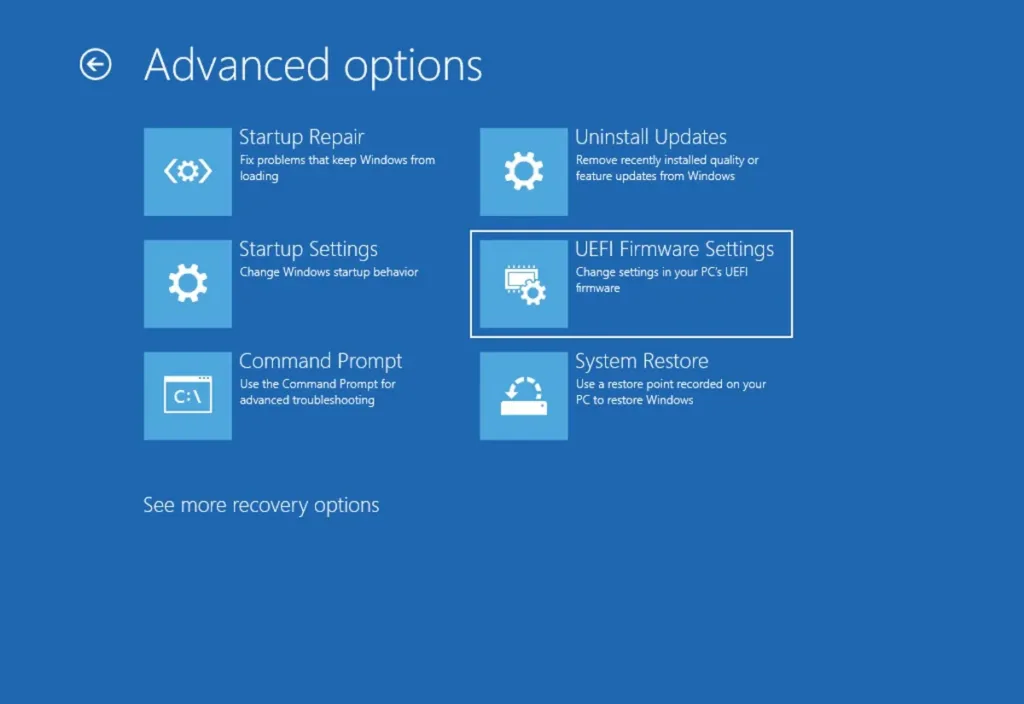
BIOS / UEFI - Full disk encryption: If you use third-party drive encryption software, Fast Startup can sometimes interfere with security protocols and prompt you for recovery keys unexpectedly.
The Hidden Impact of Fast Startup on System Maintenance
Fast Startup affects maintenance because a normal shutdown no longer gives the core system files a clean reset. The kernel and drivers stay in a saved state, so pending software updates and system repairs often do not finish until you force a complete restart.
With Fast Startup on, the kernel state is saved and reloaded instead of being rebuilt on every power-off. Over days or weeks of shutting down this way, background processes can build up stale data and small memory leaks inside that saved state. That can slowly make the computer sluggish or cause random software problems.
If you only ever use Shut down with Fast Startup on, your system may feel slow after a few weeks. To clear the saved kernel state without turning the feature off, click Restart instead of Shut down about once a week. You can also do a manual full shutdown with the methods covered later in this guide.
How to Enable or Disable Fast Startup in Windows
You need administrator rights to turn Fast Startup on or off, because the feature controls deep power management settings. Changing it is easy and reversible. Do it to fix stubborn update errors, clear up strange system behavior, or get your boot speed back whenever you need to.
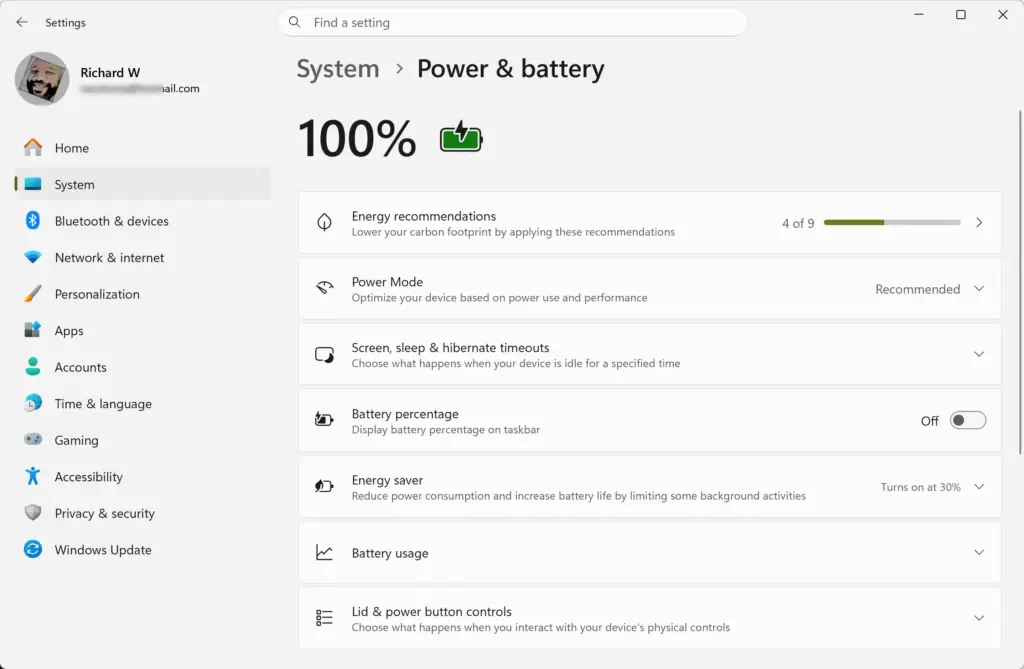
Method Using the Control Panel Power Options
The Control Panel power options are the most reliable way to change this setting, and you do not need any command tools. You open the power buttons page, unlock the protected settings, and change the checkbox for Fast Startup. This works the same way on Windows 10 and Windows 11, and on both Home and Pro editions.
- Open your Start menu, type Control Panel, and press Enter. The Control Panel window opens.
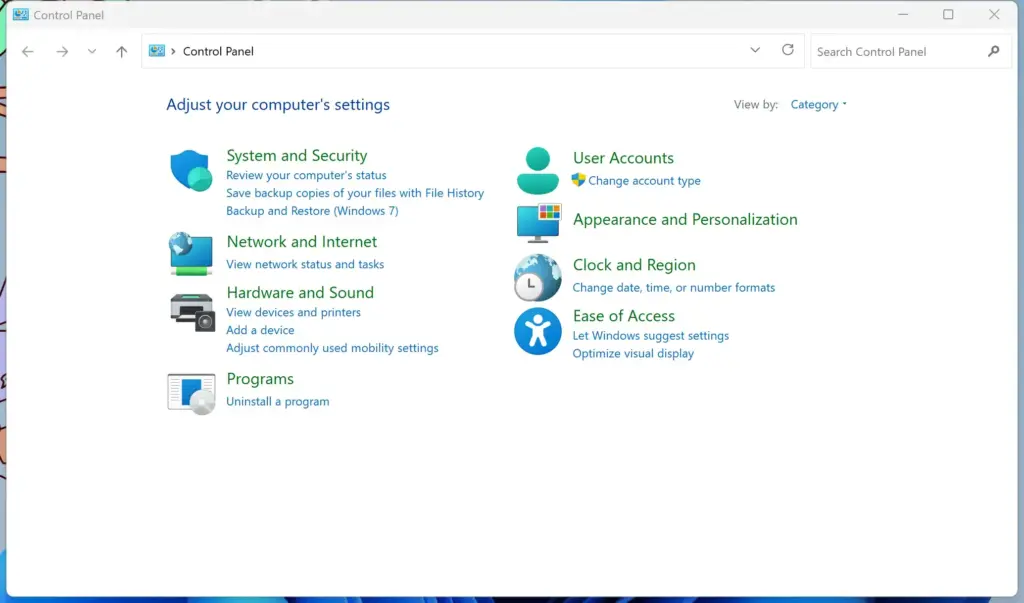
Control Panel - In the top right corner of the window, set the View by dropdown menu to Large icons or Small icons. The window now shows a list of icons instead of categories.
- Click the Power Options icon.
- In the left-hand column, click Choose what the power buttons do. The System Settings window opens.
- At the top of the window, click the blue and yellow shield link Change settings that are currently unavailable. Windows may ask you to confirm with a User Account Control prompt. After you do, the options under Shutdown settings are no longer greyed out.
- Scroll to the bottom section of the window, under Shutdown settings.
- To disable Fast Startup, uncheck Turn on fast startup (recommended). To enable it, check this box.
- Click the Save changes button at the bottom of the window.
The change takes effect at the next shutdown, and you do not need to restart first. To undo it, come back to this page and flip the checkbox the other way.
If the Fast Startup option is missing from the Shutdown settings list, hibernation is disabled on your computer. Fast Startup relies on the hibernation file, so Windows hides the option when hibernation is off. To make it appear, open Command Prompt as an administrator, type powercfg /hibernate on, and press Enter. Then close and reopen the Choose what the power buttons do window. On some managed work PCs, a policy set by your organization may also remove or lock the option. In that case, contact your IT department.
Method Using Windows PowerShell
PowerShell lets advanced users turn the feature on or off with a single command. You must run the terminal as administrator, then run the command that changes the hibernation state. Because Fast Startup depends on hibernation, these commands act on hibernation itself, so the Hibernate entry in your Power menu may appear or disappear as well.
- Right-click the Windows Start button and select Terminal (Admin) or PowerShell (Admin). This step requires administrator privileges. Windows 11 usually shows Terminal (Admin).
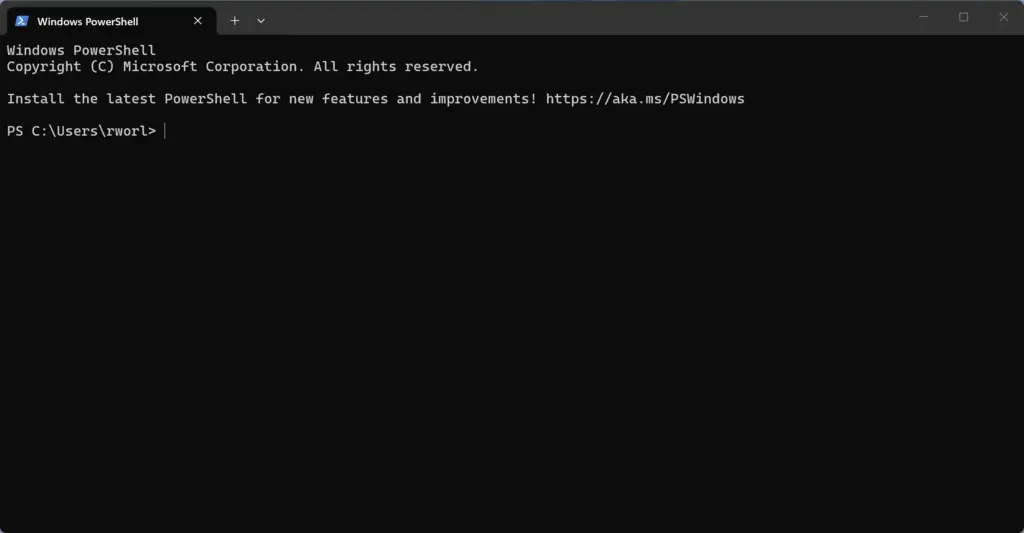
PowerShell - If a User Account Control prompt asks whether you want to allow this app to make changes to your device, click Yes. A terminal window opens with a prompt.
- To disable Fast Startup, type the following exact command and press Enter:PowerShell
Set-ItemProperty -Path "HKLM:\SYSTEM\CurrentControlSet\Control\Session Manager\Power" -Name HiberbootEnabled -Value 0 - To enable Fast Startup, type the following exact command and press Enter:PowerShell
Set-ItemProperty -Path "HKLM:\SYSTEM\CurrentControlSet\Control\Session Manager\Power" -Name HiberbootEnabled -Value 1
The command normally prints nothing when it works. You can confirm the result by opening the Control Panel page from the previous section and checking the Fast Startup box. To undo the change, run the other command.
How to Perform a Full Shutdown with Fast Startup Enabled
You can do a full shutdown now and then and still keep Fast Startup on for your daily routine. You do not need to change any settings each time you want a clean reset. The quickest way is to hold the Shift key while you click Shut down.
These are the two simple ways to force a full, traditional shutdown while Fast Startup stays enabled for normal use:
- The Shift-Click Method: Open the Start menu and click the Power icon. Press and hold the Shift key, then click Shut down. Windows bypasses Fast Startup and performs a complete cold shutdown for that one time. The next boot is a full cold start, so it takes a little longer.
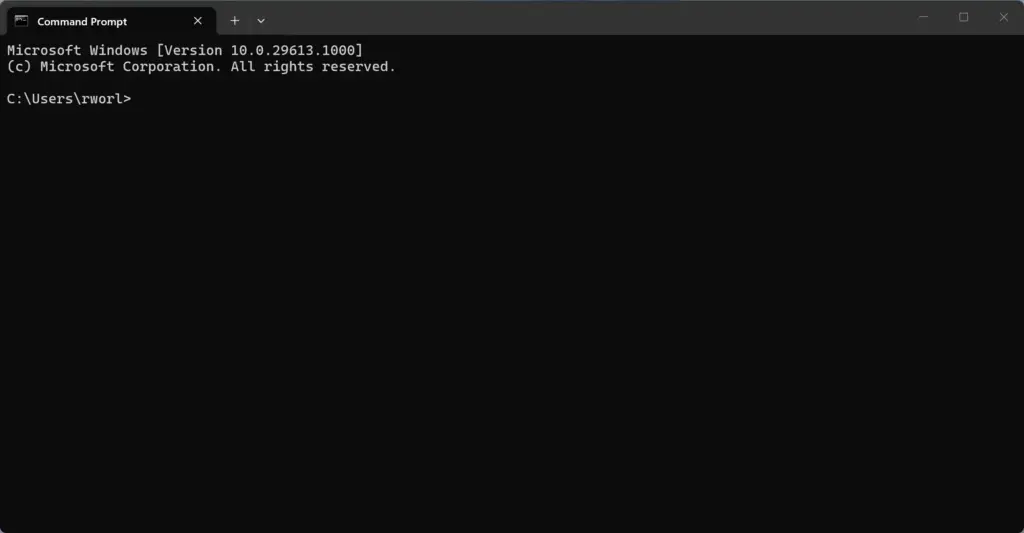
- The Command Prompt Method: Open Command Prompt or PowerShell, type the command shutdown /s /f /t 0, and press Enter. This shuts down immediately and forces open apps to close, so unsaved work is lost. Note that this command on its own can still use Fast Startup. For a guaranteed full shutdown, add the /full switch instead of /f, as in shutdown /s /full /t 0, or use the Shift-click method above.
Command Prompt
Summary
Windows Fast Startup is a built-in power management feature that speeds up boot time by saving core system files into a hibernation file during shutdown. It helps your PC start faster every day. It can also cause update failures and conflicts on dual-boot setups, and in those cases a full shutdown or a restart fixes the problem. If you run into those issues, switch the feature off in Power Options, or use Restart or Shift-click Shut down when you need a clean start.
Have a question about this guide?
Answered by AI from this guide. Good questions may be added to this page — please don't include personal details.
Did this guide fix your problem?

About the Author
Richard
Tech Writer, IT Professional
Richard is a writer at Geek Rewind who turns complex IT tasks into clear, step-by-step guides. He draws on years of hands-on experience in system administration and enterprise IT operations, focusing on Windows, Linux and WordPress: the problems people actually run into, and the fixes that work. His server and WordPress guides come from systems he runs himself. Richard builds and maintains the platform behind Geek Rewind, from its Ubuntu servers and Nginx configuration to its custom WordPress plugins. Many new tutorials start with readers' questions, and he's always glad to answer them in the comments.
No comments yet — be the first to share your thoughts!