Change What the Power Button Does in Windows 11

- 25 steps
- Needs administrator rights
You can change what pressing the physical power button does (shut down, sleep, hibernate, turn off the display, or nothing) in Settings, in under a minute. Go to Settings System Power & battery and open Lid, power & sleep button controls. If your build doesn’t show that section, use the Control Panel route further down. It works on every edition of Windows 11, Home included.
The setting applies to the physical power button on your case or laptop. It does not change the Shut down command in the Start menu. This article covers the Settings page, Control Panel, and the powercfg command-line method, then explains what to do when an option is missing or greyed out.
To change what the power button does in Windows 11, open Settings, go to System Power & battery, expand Lid, power & sleep button controls, and set Pressing the power button will make my PC to Do nothing, Sleep, Hibernate, Shut down, or Turn off the display. On a laptop, set On battery and Plugged in separately. The change applies immediately, and no administrator rights are needed.
What the power button can do
Windows offers up to five actions for the power button. Which ones you see depends on your PC and your settings.
- Do nothingpressing the button has no effect. This stops accidental shutdowns from a stray press.
- Sleepa low-power state that keeps your open work in memory. The PC wakes in a few seconds, but it still draws a little power.
- Hibernatesaves your open work to the drive and powers off completely. It uses no battery, and resuming takes longer than from Sleep.
- Shut downcloses Windows and turns the PC off.
- Turn off the displayswitches the screen off while the PC keeps running. This option appears in Settings only.
A laptop gets two settings for each action: On battery and Plugged in. A desktop has no battery, so it shows only one.
Change the power button action in Settings
- Press Win+I to open Settings.

Windows 11 Start menu search panel for opening OpenSSH Client settings - Select System in the left pane, then select Power & battery. The page lists screen and sleep timeouts, battery usage, and similar options.
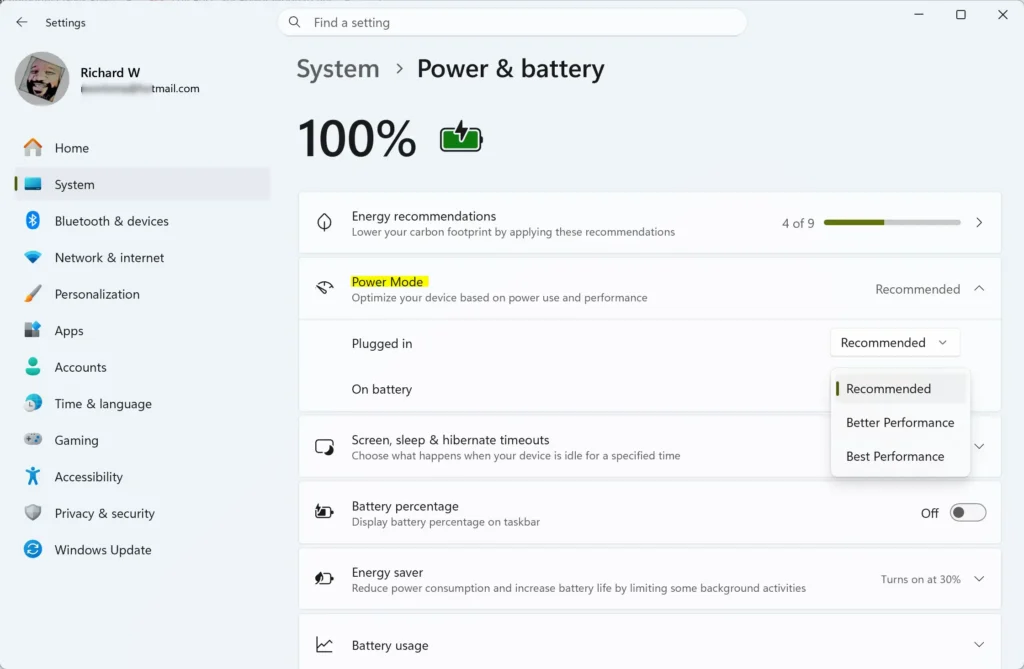
- Scroll down and select Lid, power & sleep button controls to expand it. You should now see a row named Pressing the power button will make my PC. On a laptop you also see Closing the lid will make my PC, which is a separate setting.
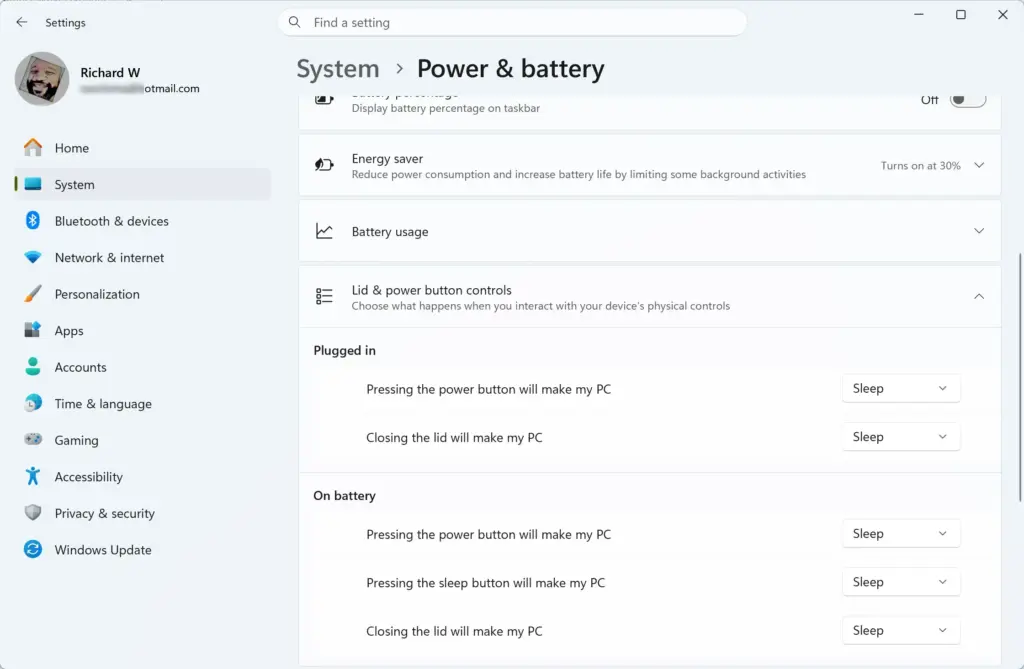
- Open the drop-down next to Pressing the power button will make my PC. On a laptop, set On battery and Plugged in separately.
- Choose the action you want: Do nothing, Sleep, Hibernate, Shut down, or Turn off the display. The change applies at once. There is no Save button and no restart.
- Test it. Press the power button once and check that the PC does what you chose. If you chose Do nothing, nothing should happen.
If Lid, power & sleep button controls is missing, or the page is called Power & sleep with a link named Additional power settings, your build is older. In that case, or if you prefer the classic dialog, use the next method.
Change the power button action in Control Panel
The classic Power Options page does the same job and also controls which items appear in the Start menu’s power menu. It is the best route if the Settings page lacks the option you need, such as Hibernate.
- Press Win+S, type Control Panel, and select it from the results.
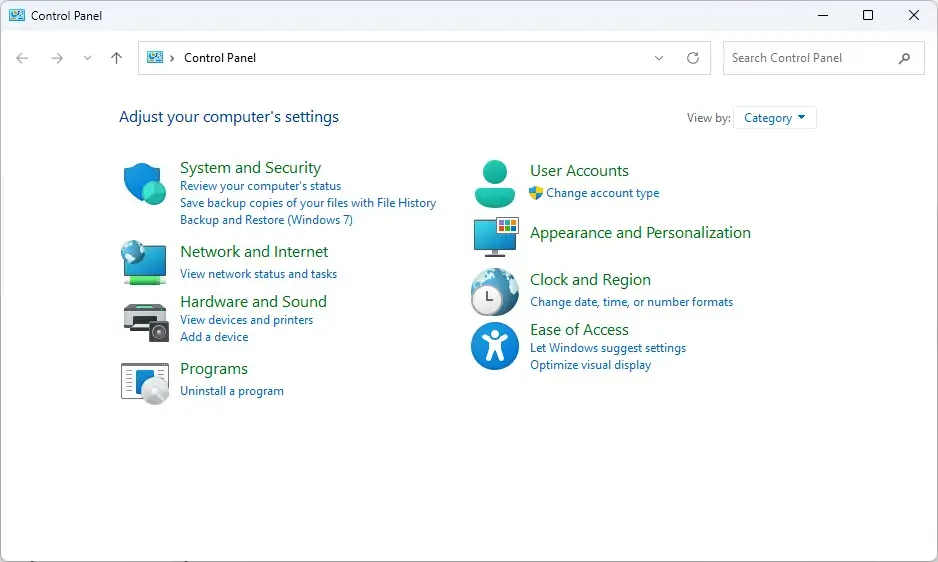
Windows 11 Control Panel dashboard showing power options. - Select Hardware and Sound. If your Control Panel is set to icon view, skip this step and open Power Options directly.
- Select Power Options.
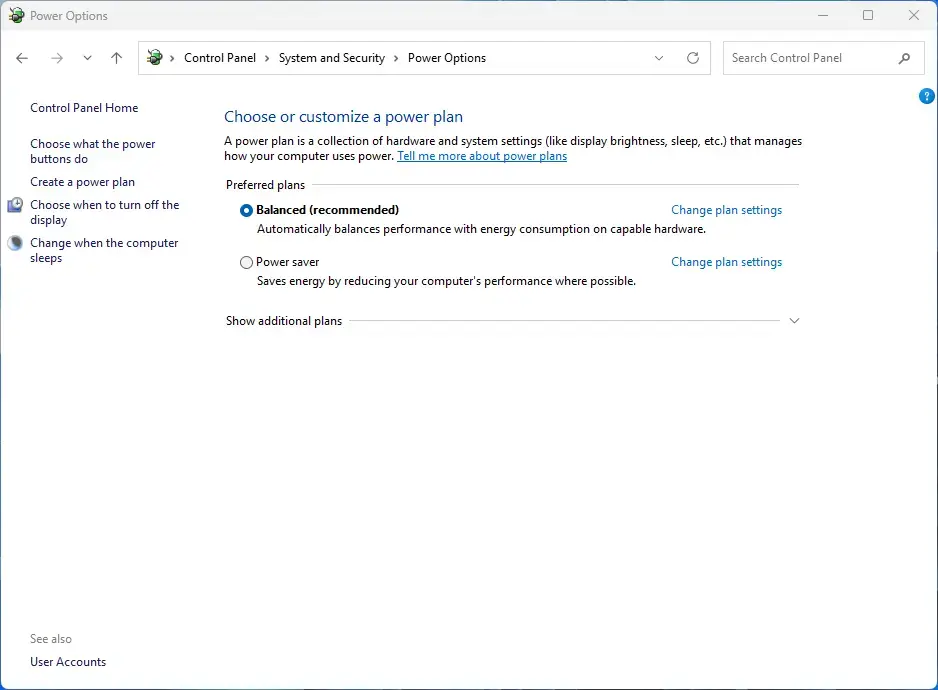
Control Panel › System and Security › Power Options - Select Choose what the power buttons do in the left pane. The System Settings page opens.
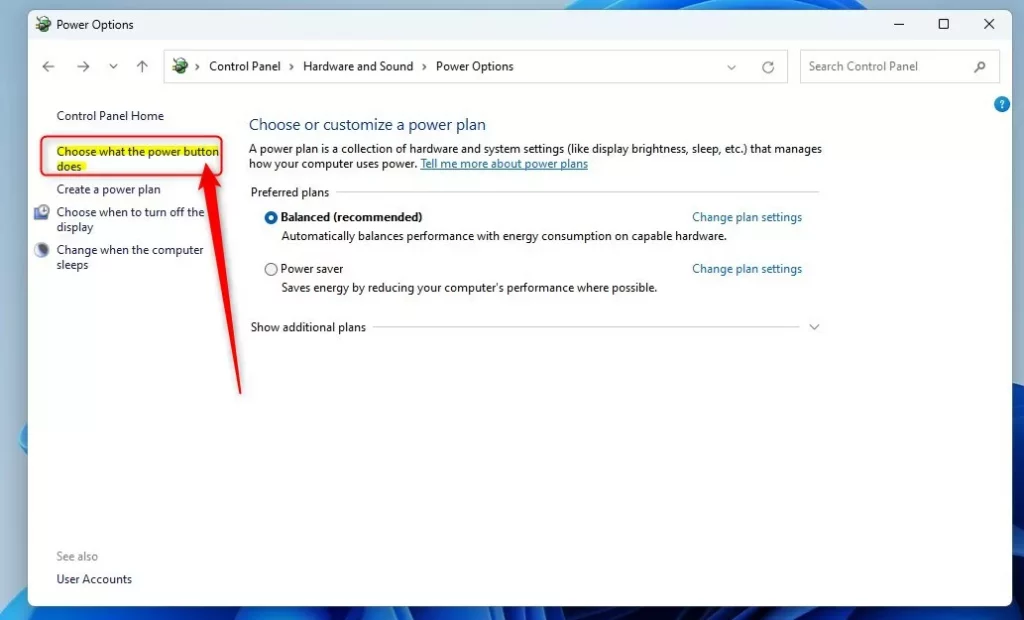
windows choose what the power button does link control panel - Find When I press the power button. On a laptop, set both On battery and Plugged in.
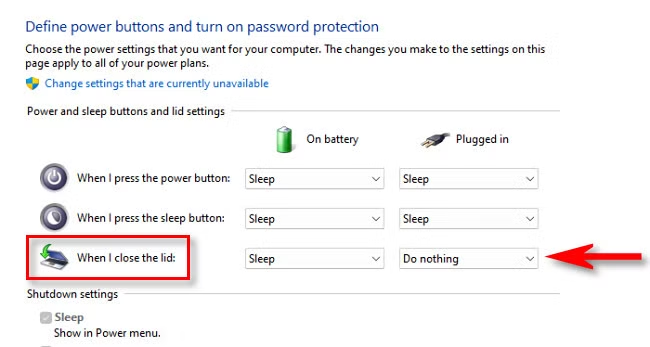
Control Panel showing 'When I close the lid' settings. - Open each drop-down and choose Do nothing, Sleep, Hibernate, or Shut down. Only the options your PC supports appear.
- Select Save changes. The page closes or stays open with the new choices in place. Nothing is applied until you select this button.
If you use more than one power plan (a saved group of power settings), press the button after switching plans and confirm it still behaves the way you set it.
Add Hibernate or Sleep to the power menu
The same System Settings page controls which items the Start menu’s power menu shows. This step needs administrator rights because the options are locked by default.
- On the System Settings page, select Change settings that are currently unavailable. This is the link with the shield icon. Approve the User Account Control prompt (the security box that asks you to confirm an action as an administrator). If you are not an administrator, Windows asks for an administrator’s password.
- Scroll to Shutdown settings. The checkboxes are no longer greyed out. You should see Turn on fast startup (recommended), Sleep, Hibernate, and Lock.
- Tick Hibernate and Sleep if you want them in the Start menu power menu, and so that the matching actions appear in the drop-downs above.
- Select Save changes.
Fast startup (a hybrid shutdown that saves part of Windows to disk so the next boot is quicker) shares this section. It does not affect the power button action. Leave it as it is unless you have a separate reason to change it.
Change the power button action with powercfg
Use powercfg (a built-in command-line tool for power settings) when you want to script the change or set it on several PCs. It also lets you check the current value. It edits the active power plan only.
Administrator rights: run these commands in an elevated window. Elevated means Terminal started with Run as administrator.
- Right-click the Start button and select Terminal (Admin). Approve the User Account Control prompt. The window title should include Administrator.
- Check the current setting with this command:Command Prompt
powercfg /query SCHEME_CURRENT SUB_BUTTONS PBUTTONACTIONThe output lists the possible setting values, each with a description. It also shows the current AC (plugged in) and DC (on battery) values. Use the list in your own output as the reference for the number to enter in the next step.
- Set the action for when the PC is plugged in. This example sets it to Shut down:Command Prompt
powercfg /setacvalueindex SCHEME_CURRENT SUB_BUTTONS PBUTTONACTION 3 - Set the action for when the PC runs on battery. A desktop can skip this step:Command Prompt
powercfg /setdcvalueindex SCHEME_CURRENT SUB_BUTTONS PBUTTONACTION 3 - Apply the change to the active plan:Command Prompt
powercfg /setactive SCHEME_CURRENTRun this even though the plan is already active. It makes Windows reload the values.
The number at the end of the command selects the action. The standard mapping is 0 for Do nothing, 1 for Sleep, 2 for Hibernate, and 3 for Shut down. Check the number against the list in your powercfg /query output before you rely on it.
No restart is needed. Press the power button to test it, then run the query command again to confirm the value changed.
If an option is missing or greyed out
Most problems come from one of the causes below. Check them in this order.
The drop-downs or Shutdown settings are greyed out
The drop-downs on the System Settings page are editable, but the Shutdown settings checkboxes are locked until you select Change settings that are currently unavailable. That link needs administrator approval. If you are signed in with a standard account and don’t have the password, ask the person who manages the PC.
On a work or school PC, an administrator can lock the power button action for every user on the device. If the setting is greyed out even after you approve the prompt, or it changes back after a restart or sign-in, your organization manages it. You can’t override that from your own account. Your IT team can tell you which policy controls the power button on this PC.
Hibernate does not appear in the list
Hibernate is off on some Windows 11 installs, and then it appears nowhere. Turn it on from an elevated Terminal, which needs administrator rights.
- Open Terminal (Admin) as described in the previous section.
- Run this command:Command Prompt
powercfg /hibernate onThe command returns to the prompt with no message if it works.
- Go back to Control Panel Hardware and Sound Power Options Choose what the power buttons do. Select Change settings that are currently unavailable and tick Hibernate. It should now be in the drop-downs and the Start menu.
If the command prints an error instead, your PC’s firmware or drivers may not support hibernation. The cause depends on the PC model, so check the PC maker’s support site or ask them directly.
The Settings page has no Lid, power & sleep button controls section
You are on an older Windows 11 build, or the page hides the section on your device. Use the Control Panel method. It has the same options and works on every edition.
The lid options are missing
Lid options appear on laptops only. A desktop never shows them, and neither does a desktop with no battery. That is expected.
The button doesn’t do what you set
Check these three things:
- Which settings are active. A laptop has separate On battery and Plugged in values. Test it with the charger plugged in or unplugged, whichever setting you want to check.
- Which plan is active. If you changed the setting under one power plan and then switched to another, the button follows the active plan.
- Software from the PC maker. Some laptops install their own power utility, and it can override Windows. Check its settings, or its documentation, if the button keeps reverting.
On some PCs, a firmware (BIOS or UEFI) option controls what the button does before Windows loads or after a full shutdown. That is outside Windows. Look in your PC’s firmware setup if the button behaves differently when the PC is off.
Undo the change
To go back to the default, repeat the steps you used and choose the original action. Most PCs ship with the power button set to Shut down or Sleep, and a laptop often defaults to Sleep. The default varies by model, so if you did not note the original setting, choose the action you want instead of looking for a factory value.
If you used powercfg, run the same three commands with the number for the action you want, then run powercfg /setactive SCHEME_CURRENT again.
If this didn’t work
If the button still ignores your setting, run powercfg /query SCHEME_CURRENT SUB_BUTTONS PBUTTONACTION and compare the AC and DC values with what you chose. A mismatch usually means a different power plan is active or a utility from the PC maker is overriding it. A reading that matches your choice but still behaves differently points to a firmware option or a managed-PC restriction.
After the button works, a related setting to check is how long the PC waits before the screen turns off and it goes to sleep on its own. You set that on the same Settings System Power & battery page, under Screen, sleep, & hibernate timeouts.
Have a question about this guide?
Answered by AI from this guide. Good questions may be added to this page — please don't include personal details.
Did this guide fix your problem?

About the Author
Richard
Tech Writer, IT Professional
Richard is a writer at Geek Rewind who turns complex IT tasks into clear, step-by-step guides. He draws on years of hands-on experience in system administration and enterprise IT operations, focusing on Windows, Linux and WordPress: the problems people actually run into, and the fixes that work. His server and WordPress guides come from systems he runs himself. Richard builds and maintains the platform behind Geek Rewind, from its Ubuntu servers and Nginx configuration to its custom WordPress plugins. Many new tutorials start with readers' questions, and he's always glad to answer them in the comments.
No comments yet — be the first to share your thoughts!